Disclaimer: Skylead is not affiliated, endorsed by, or connected with LinkedIn in any way.
Blog updated on October 13th, 2025.
If you send a LinkedIn connection request but never follow up with as much as a simple “Thank you for connecting,” you’ll likely be forgotten within minutes. Sometimes even seconds.
It’s not that your professional background or expertise matter less. The reality is that LinkedIn users are constantly flooded with content, notifications, and surface-level interactions. If you don’t have an intentional touchpoint, your new connection has little reason to remember you, let alone continue the conversation out of the blue.
That’s why sending a well-crafted and well-timed “Thank you for connecting” message makes a huge difference. From our experience, we’ve seen that it increases visibility, strengthens the first impression, and opens the door to meaningful conversations and potential future collaboration.
So, to break it all down, this blog will show you exactly how to turn one message into a full-blown alliance. In it, we cover:
- Why it’s important to send the thank you message
- 5 best practices to help you write just the right message
- 12 tested templates and why each one works for these 12 situations
- How to track you thank you message success.
Let’s go!
Why send a thank you message on LinkedIn
A thank you message is more than a polite gesture - it’s considered the first step in building a professional relationship that lasts. When you follow up after a connection request, you show that you’re intentional, approachable, and open to dialogue. Without that follow-up, the connection often stays passive and fades into the noise of LinkedIn.
As our Head of Sales, Andrea, notes, a simple “Thank you for connecting” paired with a personalized note dramatically increases your chances of starting a genuine conversation. We’ve seen it lead to collaborations, referrals, and even long-term business opportunities. The thank you here is the signal that turns a click into a human interaction.
This is why it’s important:
- Visibility: The LinkedIn algorithm favors activity. By messaging your lead, you reappear in their feed and inbox.
- Memorability: People usually remember the few who take time to acknowledge them, not the dozens who never follow up.
- Momentum: A thank you creates a natural opening for a future conversation. This is where you can follow up with sharing insights, setting up a call, or collaborating.
So you should view a thank you message on LinkedIn isn’t as a strategic move that positions you as thoughtful and engaged right from the start.
Best practices for writing a good thank you message on LinkedIn
A strong thank you message does more than acknowledge the connection. It sets the tone for your relationship and shows that you’re intentional. Here’s a quick checklist of our recommendations:
- Keep it short and clear - 2–3 lines are enough. Thank them, then add a relevant point.
- Don’t sell, start a conversation - Your first message should feel human, not transactional.
- Make it about them - Reference their work, interests, or a recent post instead of leading with your bio.
- Personalize with context - You should mention a shared event, mutual connection, or detail from their profile.
- End with a light question - Keep the door open and create room for a reply.
Now let’s go over each one in a little more detail. 👇
1. Keep it short and clear
Your message doesn’t need to be long; just a few lines are enough. Start by thanking them for accepting your invite, then add a short note that builds on what you wrote in your connection request. (And yes, sending a blank request is a wasted opportunity.) The goal is clarity and warmth, not length.
✅ Good:
“Thanks for connecting, Sarah! I enjoyed your recent post on sales automation - curious to hear how your team approaches it.”
❌ Bad:
“Hi Sarah, thank you so much for accepting my LinkedIn connection request. I wanted to reach out and tell you about my background, which spans over 10 years of sales and business development experience across multiple industries…”
2. Don’t try to sell
Remember: nothing kills trust faster than pitching in your first message. The thank you note is about opening the door, not closing a deal. From what we’ve seen so far, conversations that begin with genuine interest convert into business faster than those that start with a sales pitch. Use this particular moment to connect, not to sell.
✅ Good:
“Thanks for connecting, John. I noticed you’re leading the expansion into the EU market. I’d love to hear how that’s going for you.”
❌ Bad:
“Hi John, thanks for connecting! I work with companies like yours to increase revenue through our SaaS platform. I’d be happy to schedule a call this week to walk you through a demo.”
3. Make it about them
Resist the urge to launch into a full self-introduction. Instead, you should shift the spotlight. Ask a question about their work, acknowledge something from their profile, or mention a shared interest. People remember those who make them feel seen and heard, not those who only talk about themselves.
✅ Good:
“Appreciate the connection, Priya! Saw you’ve been working on AI-driven marketing. What’s been the most surprising challenge so far?”
❌ Bad:
“Hi Priya, I’m Alex, a business development manager at Y Tech. We’ve recently won multiple awards for innovation and are rapidly expanding into global markets…”
4. Focus on value
The goal is to show them that you can bring something useful to the table. That doesn’t mean sending a feature list or a sales pitch. It can be as simple as sharing a relevant resource, offering a quick insight, or framing how your connection could be mutually beneficial. Even small gestures of value make you stand out from LinkedIn’s busy crowd.
✅ Good:
“Thanks for connecting, Mark. I read your post about sales enablement and thought you’d enjoy this recent report from HubSpot - it covers some of the same trends you mentioned.”
❌ Bad:
“Hi Mark, thanks for connecting. I wanted to share all the services my company offers: CRM optimization, email marketing, lead generation, and more. Let me know which one interests you.”
5. Personalize with context
We all know this, but generic messages blend into the background, and they are just a plain waste of time. Referencing a shared connection, a recent post they wrote, or an industry trend they follow makes your note more memorable. We’ve seen that even one line of personalization can sometimes double your chances of getting a reply.
✅ Good:
“Thanks for connecting, Emma! I noticed we both attended SaaStree this year — did you catch the keynote on outbound strategy?”
❌ Bad:
“Hi, thanks for connecting.”
Extra writing tips
- Add a question to spark a conversation - When you end with a light, open-ended question, you up your chances of a reply. This will make your message go from one-way to two-way.
- Match the tone to the person’s profile - If someone writes casually in their posts, keep your message warm and conversational. If they’re more formal, you should keep it professional, but approachable as well.
- Avoid clichés that dilute your message - Phrases like “Looking forward to networking” or “Let’s connect and grow together” are super generic and could pull away connections. Instead, be specific.
- Use timing to your advantage - When you send your message right after they’ve accepted your invite, you stay in their memory longer. When weeks go by, a thank you may seem random and transactional.
12 Thank you for connecting on LinkedIn message templates
Now that we’ve covered what makes a strong thank you message on LinkedIn, let’s put it into practice right away, so it’s not just talk and no action. Below you’ll find 12 ready-to-use templates you can adapt to your own style.
Sure, today we have ChatGPT, and it can give you plenty of suggestions on how to thank someone for connecting on LinkedIn. But not every answer will feel personal or effective.
Don’t get us wrong, we’re not against AI - in fact, we encourage using ChatGPT for sales to speed up your outreach. But you can also copy these ready-to-go templates directly or use them as prompts to push ChatGPT in the right direction and tweak as you go.
At the same time, we want to share what actually works in practice. These templates come from our Head of Sales, Andrea, who uses them daily in her LinkedIn lead generation efforts. They’ve been tested, refined, and proven to generate replies and spark conversations that lead to business opportunities.
Use them to:
- Go beyond the generic “Thanks for connecting.”
- Personalize your first touchpoint.
- Make LinkedIn lead generation a part of your daily routine.
Let’s dive into the examples. 👇
1. After connecting with someone you don’t know personally
Template:
“Hey {{firstName}}, thanks for connecting! I noticed you’re focused on {{role/responsibility}} at {{company}} — curious, what’s been the biggest challenge for you with {{topic}} lately?”
Example:
“Hey Sonia, thanks for connecting! I saw you’re working on scaling customer success at Acme - curious, what’s been the biggest challenge for your team this year?”
Why it works:
- It shows you looked at their profile.
- The role/company/topic makes it more personal.
- The open-ended question leaves room for continuing the conversation.
2. After meeting at an event
Template:
“Hey {{firstName}}, great meeting you at {{eventName}}! I’d love to continue our chat on {{topic}}. Want to pick it up here or schedule a call on {{day&time}}?”
Example:
“Hey Johnny, great meeting you at Entrepreneurs Roundtable! I’d love to continue our chat on SEO tactics - your approach to ranking improvements was impressive. Want to pick it up here or schedule a call next Thursday at 2 pm?”
Why it works:
- Reminds them where you’ve met (memory refresher)
- Calls out something specific from your conversation, which indicates you’ve listened.
- Ends with a light invitation, not a hard sell.
3. After connecting with someone through a mutual connection
Template:
“Hi {{firstName}}, thanks for connecting! I noticed we both know {{mutualConnection}} from {{company}}. Always great to meet someone in the same circle — I’d love to hear more about your role at {{company}}.”
Example:
“Hi Jamie, thanks for connecting! I noticed we both know Matthew Stone from FlyProject. Always great to meet someone in the same circle. I’d love to hear more about your role at FlyProject.”
Why it works:
- Uses the mutual connection as a stepping stone.
- Names both the connection and the company.
- Shifts the focus back to them by asking about their role.
4. Providing value right away
Template:
“Hi {{firstName}}, great to be connected! I saw your post in {{groupName}} about {{topic}}. We faced something similar and created {{resource/insight}} that helped us with {{specific result}}. I’m curious. What’s been the biggest challenge for you with {{topic}}?”
Example:
“Hi Mark, great to be connected! I saw your post in Startup Specialists about scaling internal processes. We went through something similar last year, and I pulled together a framework that really helped us cut onboarding time in half. I’m curious. What’s been the toughest part of scaling for your team so far?”
Why it works:
- It leads with personalization (you’ve led with their post/group).
- Shares something useful.
- Ends with a question so it’s easier for them to reply.
5. After connecting with someone whose content you’ve read
Template:
“Hey {{firstName}}, thanks for connecting! Your post on {{topic}} really stood out — especially your point about {{specific detail}}. We’ve been rethinking {{related area of your work}} because of it. Have you tried anything new in {{topic}} recently?”
Example:
“Hey Michelle, thanks for connecting! Your post on employee branding really stuck with me - especially the part about how it shapes the candidate experience. We’ve been rethinking our own hiring process because of it. Has your team tried anything new in employer branding this year?”
Why it works:
- Gives them a compliment about their content.
- Creates common ground by relating their content to your real-world issues.
- Ends with a question (reply hook).
6. Congratulating them on success
Template:
“Hey {{firstName}}, thanks for connecting — and congrats on your {{achievement/promotion}} at {{company}}! That must be an exciting step. What’s the first big thing you’re planning to tackle in your new role?”
Example:
“Hey Maria, thanks for connecting and congrats on your promotion to Head of Growth at Jumbos! Excited to follow your journey. What’s the first big thing you’re planning to tackle in the new role?”
Why it works:
- Spotlights their achievement.
- Shows genuine curiosity.
- Creates a natural reply with the question in the end.
7. Showing genuine interest in a shared experience
Template:
“Hey {{firstName}}, thanks for connecting! I noticed we both {{shared experience}}. How was your experience with it?”
Example:
“Hey Marissa, thanks for connecting! I saw you worked at Johnsons & Parker too. I spent a couple of years there and really enjoyed it. How was your experience?”
Why it works:
- Creates an instant common ground between you two.
- Personalization makes it look like it was not mass-sent.
- Ends with a question that prompts sharing a personal story.
8. After connecting in a LinkedIn group
Template:
“Hey {{firstName}}, thanks for connecting! I saw your comment in the {{groupName}} group on {{topic}} and thought it was a really sharp point. I wonder what’s been your team’s biggest win in {{related area}} this year?”
Example:
“Hey Laura, thanks for connecting! I saw your comment in the SaaS Founders group on churn reduction and I thought it was a really sharp point. I wonder what’s been your team’s biggest win in retention this year?”
Why it works:
- It shows you’ve engaged with their content.
- Compliments their opinion on the matter.
- Ends with a question that people like to reply to - a sharing their win.
9. After connecting around shared interests
Template:
“Hi {{firstName}}, thanks for connecting! I noticed we both follow {{shared interest/newsletter/podcast}}. Have you tried any of the {{tips/tactics}} they shared recently?”
Example:
“Hi David, thanks for connecting! I noticed we’re both following the Outbound Sales newsletter. Have you tried any of the tactics they covered in the last issue?”
Why it works:
- Points to a shared interest.
- Feels natural and not forced, because it’s based on something external you both engage with.
- Creates a seamless reply opportunity.
10. After connecting with a potential customer (non-salesy)
Template:
“Hey {{firstName}}, thanks for connecting! I saw {{specific business update}} at {{company}} which is an exciting move! How’s that going so far?”
Example:
“Hey Chris, thanks for connecting! I saw your team is expanding into APAC which is an exciting move. How’s that rollout been going so far?”
Why it works:
- Shows that you’ve been up to date with their business moves.
- The tone is light and curious.
- The question in the end makes it easy for them to reply.
11. Thanking with a personalized image or GIF
Template:
“Hey {{firstName}}, thanks for connecting! Just wanted to say hi in a fun way 👋 (see attached). What’s the toughest part of {{process relevant to your solution}} for you these days?”
Example:
“Hey Emma, thanks for connecting! Just wanted to say hi in a fun way 👋 (see attached). What’s the toughest part of keeping response rates high in your outbound campaigns these days?”
Why it works:
- Stands out visually in a full inbox of text-only messages.
- The tone is casual, but still professional enough.
- Adds a small, easy question that invites a reply.

Stand out with Image & GIF personalization
A simple way to make your thank-you messages stand out is by adding a personalized image or GIF to it. With Skylead, you can do this natively, with no extra tools, at no extra cost. You get to:
- Boost reply rates to 63% (we’ve tested it).
- Make your message memorable.
- Fit seamlessly into your outreach flow.
Sometimes, a small visual touch is all it takes to turn a “thanks” into a full on conversation.
12. Sharing a useful resource casually
Template:
“Hi {{firstName}}, thanks for connecting! I came across {{resource}} and thought of you since you mentioned {{challenge/topic}}. Would you like me to send it over?”
Example:
“Hi Josh, thanks for connecting! I came across a report on outbound benchmarks and thought of you since you mentioned scaling SDR teams. Would you like me to send it over?”
Why it works:
- The focus is on them because we’ve linked the resource to their situation.
- It’s giving clear value without the pressure.
- Ends with a simple yes or no question.
How to track and measure your LinkedIn thank you message success
Writing the message is only the first step. If you want to turn connections into conversations and eventually paying customers, you need to track how those messages perform. Otherwise, you’re just guessing. You need analytics to track your success so you can make informed optimization decisions.
Key metrics to watch
- Acceptance rate - How many people accept your connection request. From our experience, a strong acceptance rate usually sits around 40–50%.
- Reply rate - How many respond to your thank you message. For personalized messages, aim for 15-10% replies.
- Engagement follow-through - Do they comment on your posts, accept a meeting invite, or keep chatting? This is the real measure of relationship-building that needs to be tracked.
How to interpret results
- If your acceptance rate is low, your connection request message needs more work.
- If your reply rate is low, your thank-you messages might sound too generic or lack a reply hook.
- If you get replies but no follow-through, your conversation isn’t adding enough value, so it’s time to rethink your follow-ups.
FAQ
How to send a thank you message on LinkedIn?
You should send it within 24–48 hours of the connection being accepted. Keep the message short: greet them by name, thank them, add one personalized detail, and end with a light question to encourage a reply.
How to reply to a thank you message on LinkedIn?
When replying to a thank-you message, make sure to acknowledge their thanks, keep the tone warm, and add something of value. You can briefly introduce yourself, reference their work, or ask a light question to keep the conversation going further.
How to write a thank you message on LinkedIn?
To write a good thank you message on LinkedIn, focus on clarity and personalization. Mention their name, thank them for connecting, include one relevant detail from their profile, and ask a simple question. Aim for two to four sentences max.
Ready to make meaningful connections on LinkedIn?
As we’ve learned so far, sending a thoughtful Thank you message on LinkedIn is more than good manners; it’s a strategic move that sets the stage for real conversations and stronger business relationships.
Here’s a quick recap of what we covered:
- Why you should send a thank you message
- 5 best practices for writing a thank you message on LinkedIn
- 12 ready-to-use thank you message templates you can try or take as inspiration
- How to track and measure your messages so you can optimize for success.
And if you’re ready to take this even further, Skylead can help track your outreach success and personalize your effort for better results. Our all-in-one outreach tool helps you build relationships at scale, without losing the personal touch.
So, what are you waiting for? Test Skylead 7 days for free starting today. And remember: our customer support team is here to guide you every step of the way so you can maximize results, grow your network, and turn connections into real opportunities!
Disclaimer: Skylead is not affiliated, endorsed by, or connected with LinkedIn in any way.
Looking for an Evaboot alternative? You’re in the right place!
If you're in sales, marketing, or recruiting, chances are you've used Evaboot (or still are) to clean and export LinkedIn Sales Navigator leads.
But maybe you're hitting limits - on verified emails, data volume, or LinkedIn itself. Or maybe you're just exploring tools with a better price-to-feature ratio. Whatever your reason, you're not alone.
In fact, thousands of teams search for tools like Evaboot every month, whether for LinkedIn prospecting or LinkedIn lead generation purposes, email verification, or building cleaner prospecting lists. And that's exactly what this guide is here to help you with.
In this article, you'll find:
- A quick overview of Evaboot’s strengths, cons, and pricing
- The top Evaboot alternatives compared side by side
- In-depth reviews of 8 tools that help you prospect and reach out to your leads
We also included user ratings, real user pros & cons, and pricing details, so you don’t have to do the digging, along with a note on whether each tool (including Evaboot) is compliant with LinkedIn’s Terms of Service, since not all are. And yes, we’ve made sure to include an alternative that’s 100% compliant, too.
Let’s start with the basics. 👇
What is Evaboot?
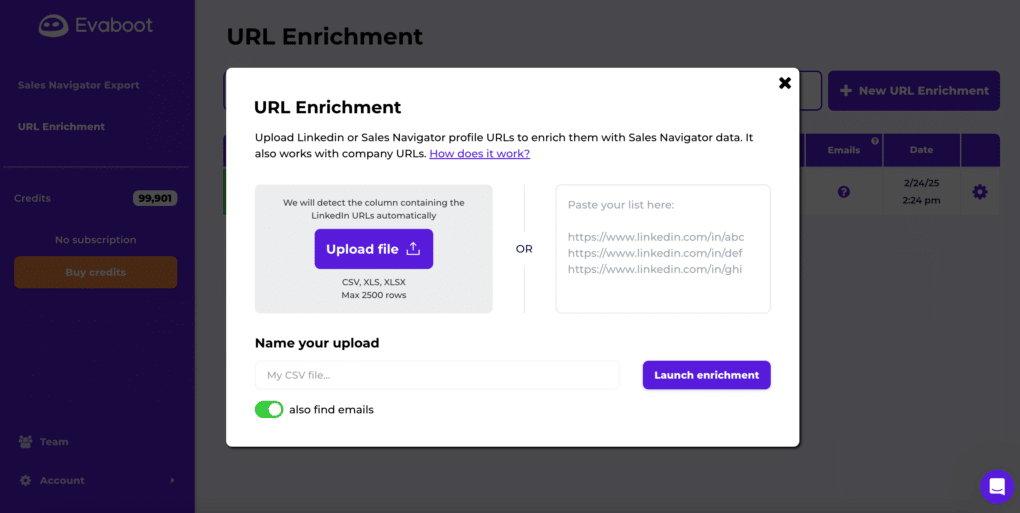
Evaboot is a LinkedIn data cleaning and export tool designed to help sales, marketing, and recruiting teams get more value from LinkedIn Sales Navigator.
It’s especially popular with users who want to:
- Scrape LinkedIn Sales Navigator leads’ information and export it to a CSV file
- Clean job titles and remove junk data
- Get verified business emails without extra tools
- Build cleaner, ready-to-use outreach lists
But as useful as it may seem, Evaboot is neither perfect nor the only game in town.
Evaboot cons
And that brings us to the limitations Evaboot users often face.
First and foremost, Evaboot comes in the form of a Sales Navigator Chrome extension.
Why is this a problem? Because, as LinkedIn says:
‘’In order to protect our members' privacy and keep LinkedIn a trusted platform for authentic interactions, we don't allow the use of third-party software or browser extensions that scrape, modify the appearance of, or automate activity on LinkedIn's website.’’
And, as you’ve learned, scraping data is exactly what Evaboot does.
That said, if you'd like to keep your account in good standing, we recommend you switch to a tool that's 100% compliant with LinkedIn's ToS (we’ll get to that in a second).
Now, while the above is the biggest Evaboot con in our eyes, their users are also commonly bogged down by the:
- Lack of outreach features - Evaboot focuses solely on data extraction and cleaning. There are no built-in outreach capabilities, so if you'd actually like to get in touch with your leads, you'll need to add another tool to your stack.
- Email verification volume caps - All plans come with a monthly limit on verified emails. Once you hit your quota, you’ll either need to wait for the next cycle or pay for add-ons.
- Lack of built-in enrichment - Evaboot doesn’t enrich contact data beyond what’s available in Sales Navigator. If you need firmographic details, tech stack info, or buying signals data, you’ll need another enrichment provider.
- Higher cost per verified lead - As your team grows or prospecting volume increases, the cost per verified lead can become less competitive compared to all-in-one tools.
- Dependence on Sales Navigator - Evaboot pulls data exclusively from Sales Navigator. So, if your prospecting workflow spans multiple channels or databases, it may not be enough to cover your needs.
Evaboot pricing
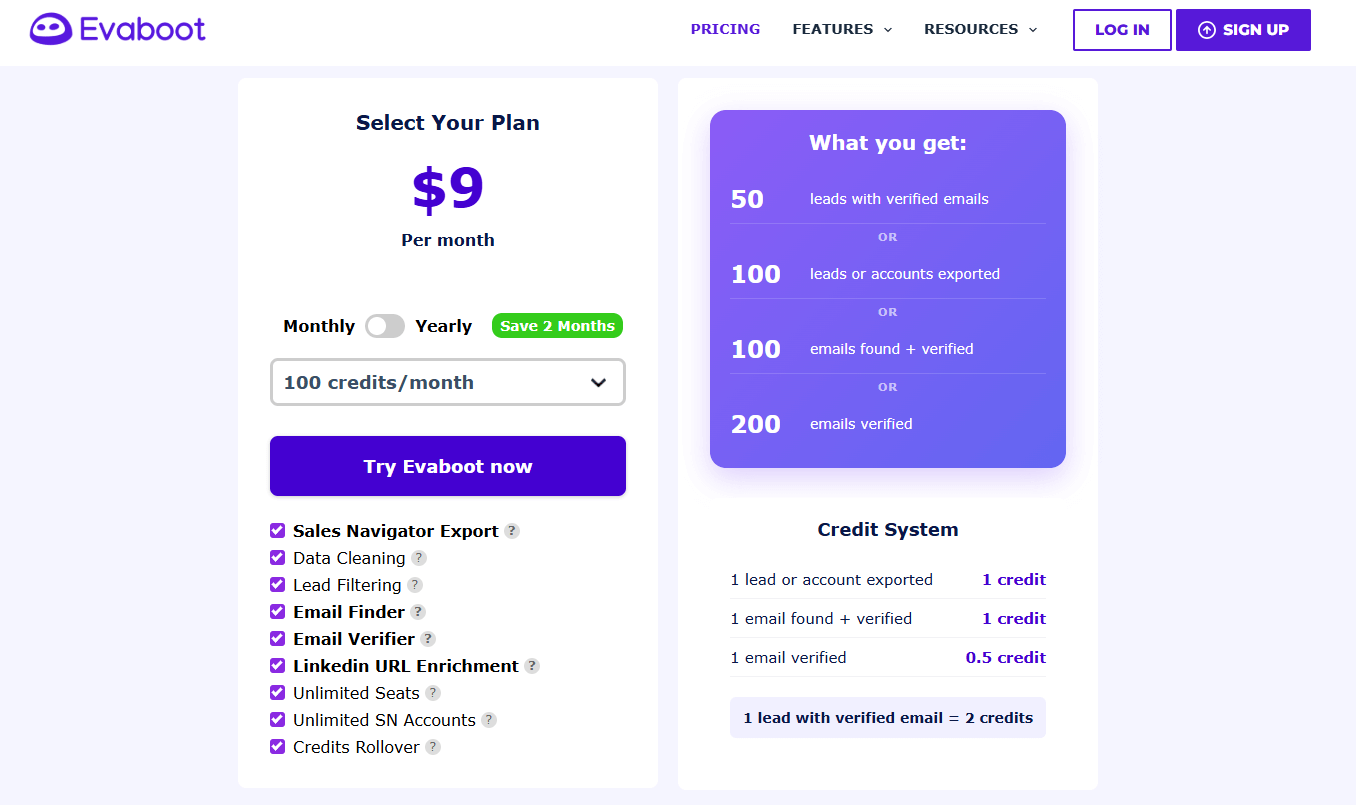
Evaboot runs on a credit-based system, where each action you take consumes credits. Here’s how it breaks down:
- 1 lead or account exported = 1 credit
- 1 email found + verified = 1 credit
- 1 email verified only = 0.5 credit
In other words, exporting a single lead with a verified email costs 2 credits (1 for the export + 1 for the email verification).
Their pricing starts at $9/month for 100 credits, and scales up depending on the number of credits you need. Larger plans can give you thousands of credits, but the structure means costs rise quickly if you’re exporting and verifying at higher volumes.
And since Evaboot doesn’t include the outreach feature, many teams also end up paying for additional tools on top of the credit spend, making the overall cost higher than it first appears.
Best 8 Evaboot alternatives
If you’ve reached the limits on what Evaboot can do, don’t worry, there are plenty of other tools on the market.
That said, here’s a quick comparison of the Evaboot alternatives you should know about:
| Tool | Pricing | User rating (G2, Capterra & ProductHunt average) |
| Skylead | Single plan at $100/month | ⭐4.8 |
| Wiza | Free plan available Paid plans start from $49/month | ⭐4.6 |
| Emelia | Starts from $37/month | ⭐4.8 |
| Bardeen | Free plan available Paid plans start from $99/month | ⭐4.7 |
| Skrapp | Free plan available Paid plans start from $49/month | ⭐4.6 |
| LeadLoft | Starts from $99/month | ⭐4.8 |
| PhantomBuster | Starts from €69/month | ⭐4.5 |
| GetProspect | Free plan available Paid plans start from $49/month | ⭐4.2 |
Now, let’s get into them in detail, shall we?
1. Skylead
User rating: ⭐4.8
Why, yes, that’s us!
Skylead is a complete sales engagement tool designed for SDRs, recruiters, and marketing teams who want to save 11+ hours a week and close 3x more meetings.
What makes us stand out right away? We’re the only tool on this list that’s 100% compliant with LinkedIn’s Terms of Service.
Now, let’s get into the features that make our tool the strongest Evaboot alternative.
Smart sequences
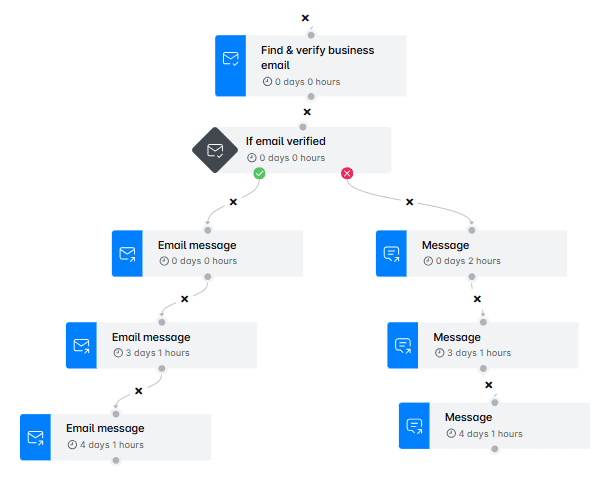
We were the first tool on the market to bring about Smart sequences - a type of outreach sequence that you build by combining if/else conditions with different outreach actions. As a result, you get coherent outreach flows that adapt to your prospect’s behavior to reach them in the fastest way possible.
Now, unlike tools that cap the number of steps you can add to your outreach campaign, we give you unlimited sequence steps.
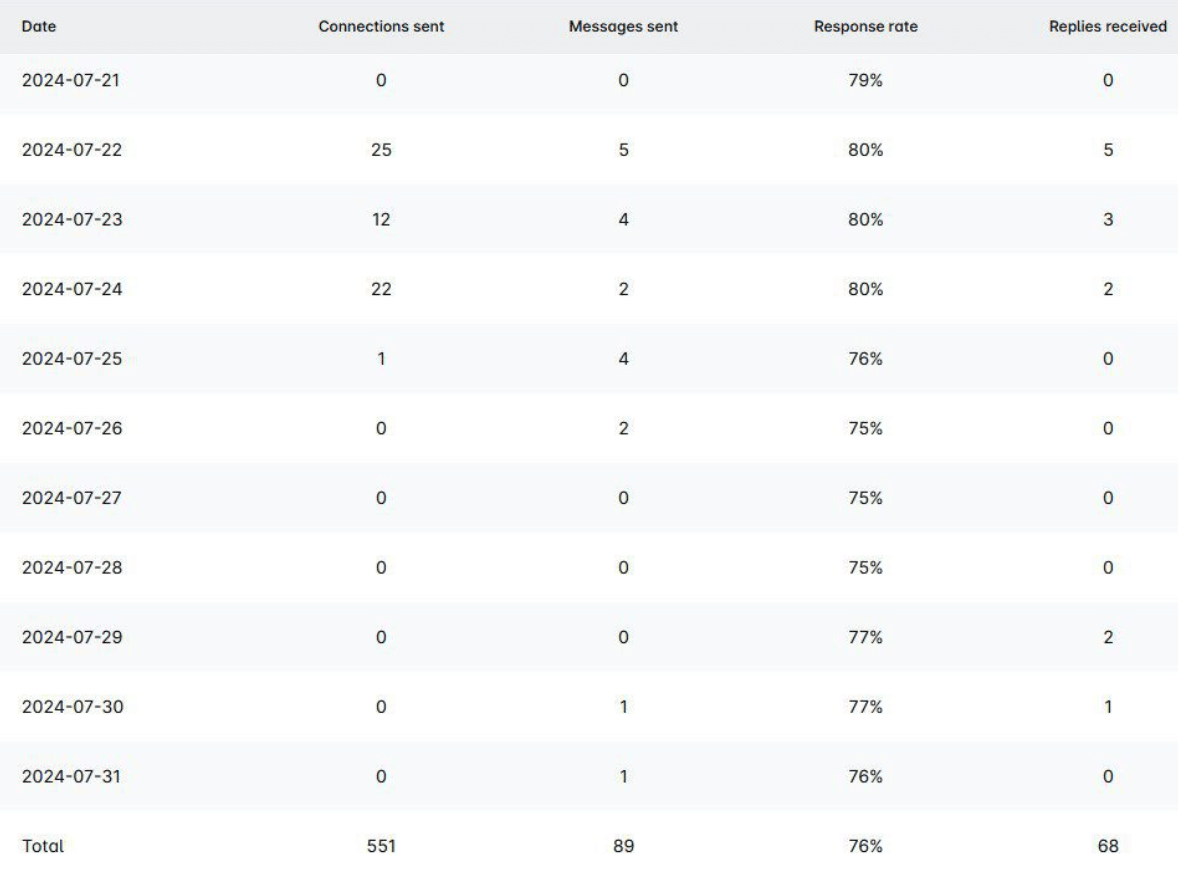
You can also track performance in detail in:
- Graph view to spot oscillations at a glance
- Table view to observe daily trends
- Step-by-step view to see the individual performance of each step in a sequence
Plus, you can A/B test your content at every stage to see what resonates most with your audience.
Unlimited email automation
Skylead allows you to connect unlimited email accounts to the tool. At no extra cost, at that! Not only can you connect as many mailboxes as you wish, but you can also use as many as you want within the same campaign. The tool will auto-rotate through them to help you send tens of thousands of emails a month, all while sticking to the healthy sending limits.
Infinite email warm-up
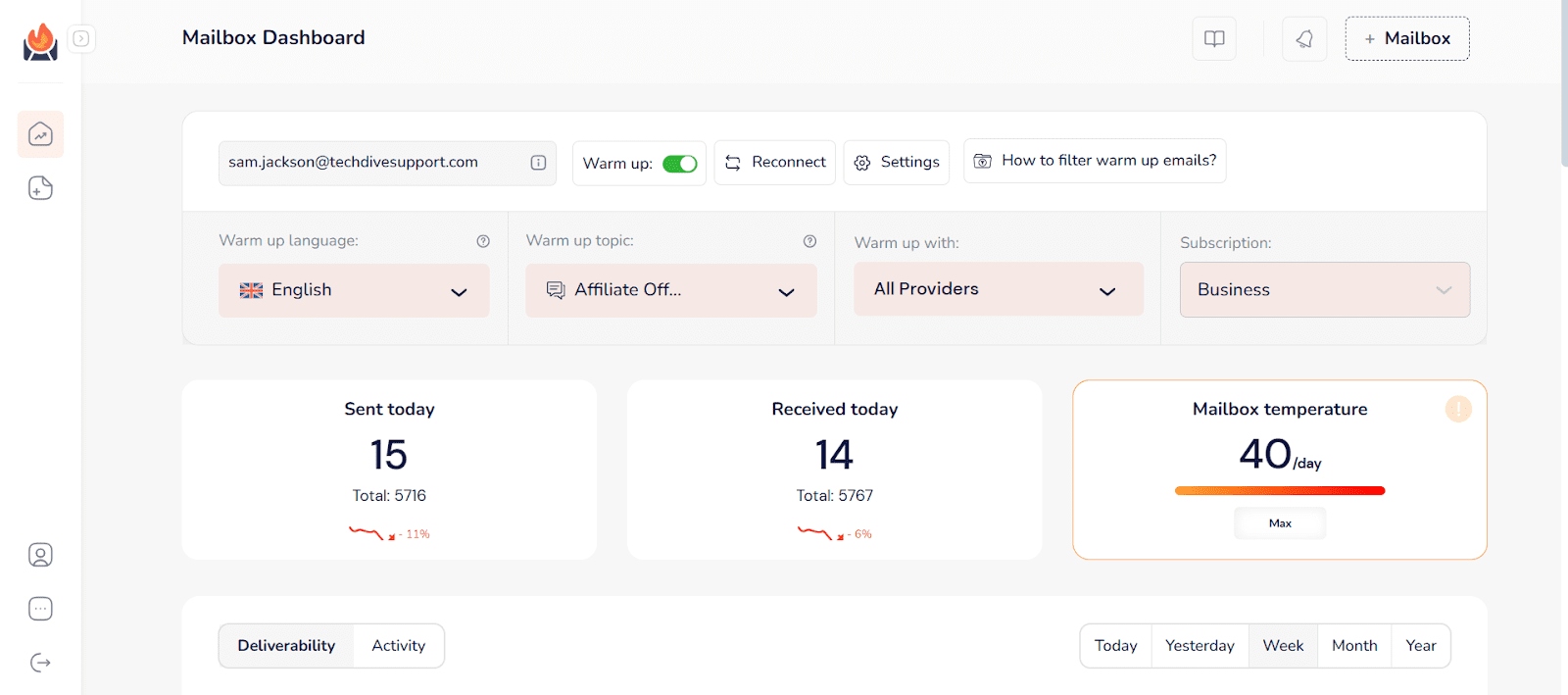
You connect unlimited inboxes, as you’ve learned, but you can also warm them up free of charge, courtesy of our partner, an email warm-up tool, InboxFlare. Thanks to the infinite email warm-up, you can rest assured your emails will stay clear of the spam folder and land in the primary inbox just about every time.
Email discovery & verification
Unlike Evaboot, which caps your verification volume, Skylead comes with an unlimited email discovery & verification feature. This means you can reach prospects even if their email isn’t publicly listed, while keeping bounce rates low and your sender reputation high.
Image and GIF personalization
With Skylead, you can instantly boost replies by adding personalized images and GIFs into your cold outreach. You can enrich your visuals with:
- Your lead's name
- Their and/or your photo
- Their and/or your logo
- Custom text
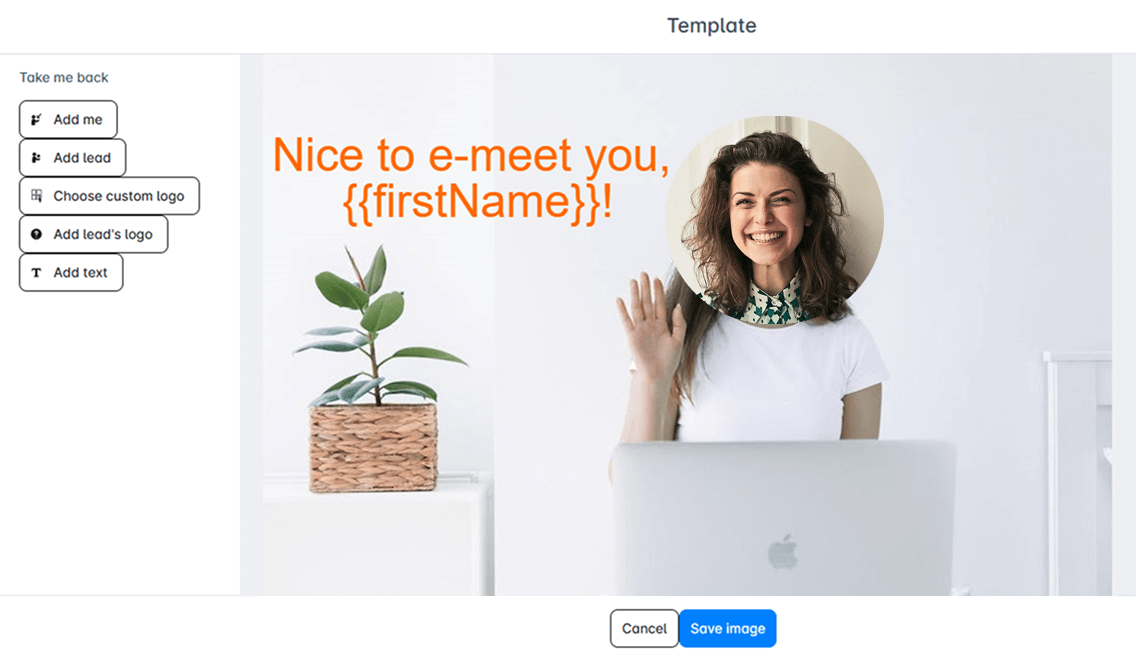
It’s a small touch that can improve your response rate by up to 76%! Best of all, it comes included at no extra cost, as well.
Pricing
Skylead comes at a single cost of $100 per seat a month, which gives you access to all features with no limits. You’ll also find tutorials, templates, and guides to get the most out of our tool right away.
And if you need help in real-time? Our support team is known for lightning-fast responses, as quick as 7 seconds on average!
If you prefer a longer commitment, we’ve also got an annual plan. Opt for it, and you’ll get 12 months for the price of 10. Not bad, huh?
We don’t expect you to commit right away, though. Feel free to try out our tool for 7 days free of charge & see for yourself why we are the #1 Evaboot alternative!
2. Wiza
User rating: ⭐4.6
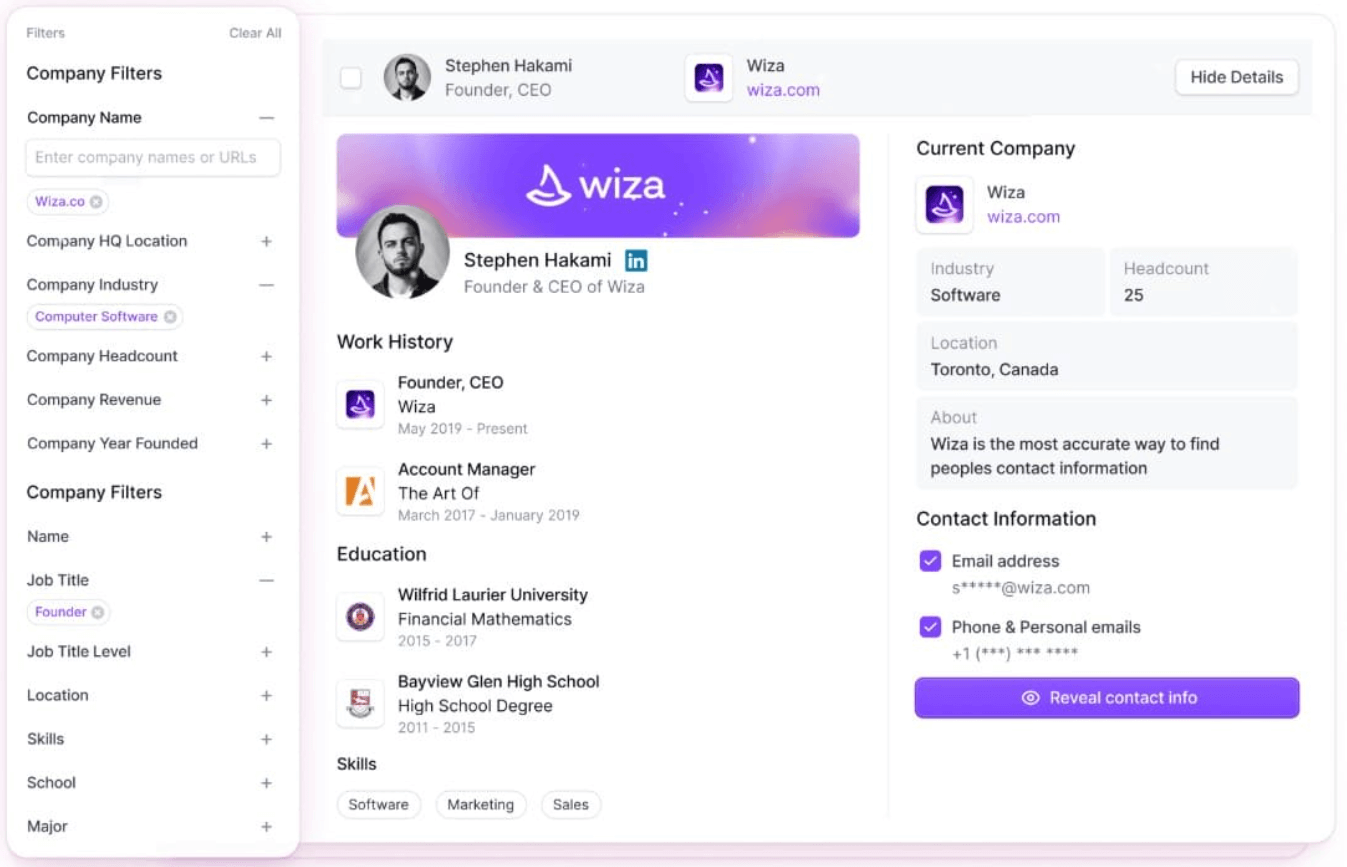
Wiza is built for teams focused on lead extraction, email & phone verification, and data enrichment. It doesn’t belong to the sales outreach tools category, but it does simplify turning LinkedIn search results into lead lists with accurate contact information.
Pros
- Easy-to-use interface
- Clean, real-time email & phone verification
- Integrates with CRMs like HubSpot, Salesforce, and Pipedrive
Cons
- Similar to Evaboot, it relies on scraping LinkedIn data (which comes with risks)
- Credits-based model. Even with “unlimited” plans, there may be limits on “exports” or how many contacts you can process in given workflows
- Focuses only on extraction and verification - no outreach or personalization features
Pricing
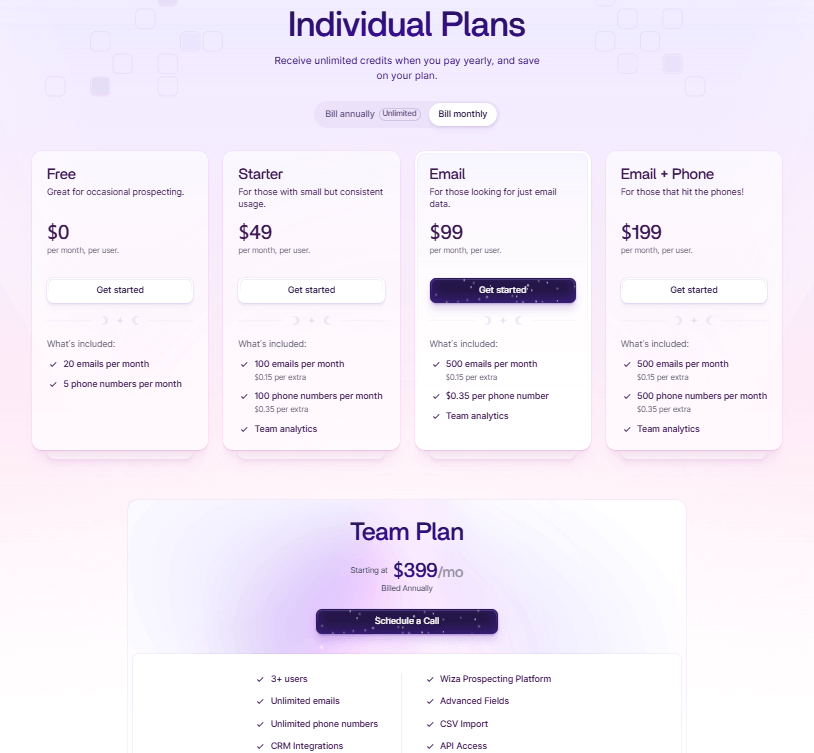
Wiza has a free plan that you can use to find and verify 20 emails a month + 5 phone numbers.
When it comes to paid plans, though, it comes with 3 Individual plans, including:
| Starter | $49/mo per user *100 emails + 100 phone numbers |
| $99/mo per user *500 emails | |
| Email + Phone | $199/mo per user *500 emails + 500 phone numbers |
…and a Team plan for 3+ users with unlimited emails and phone numbers credits, which starts at $399/month and is billed annually.
3. Emelia
User rating: ⭐4.8
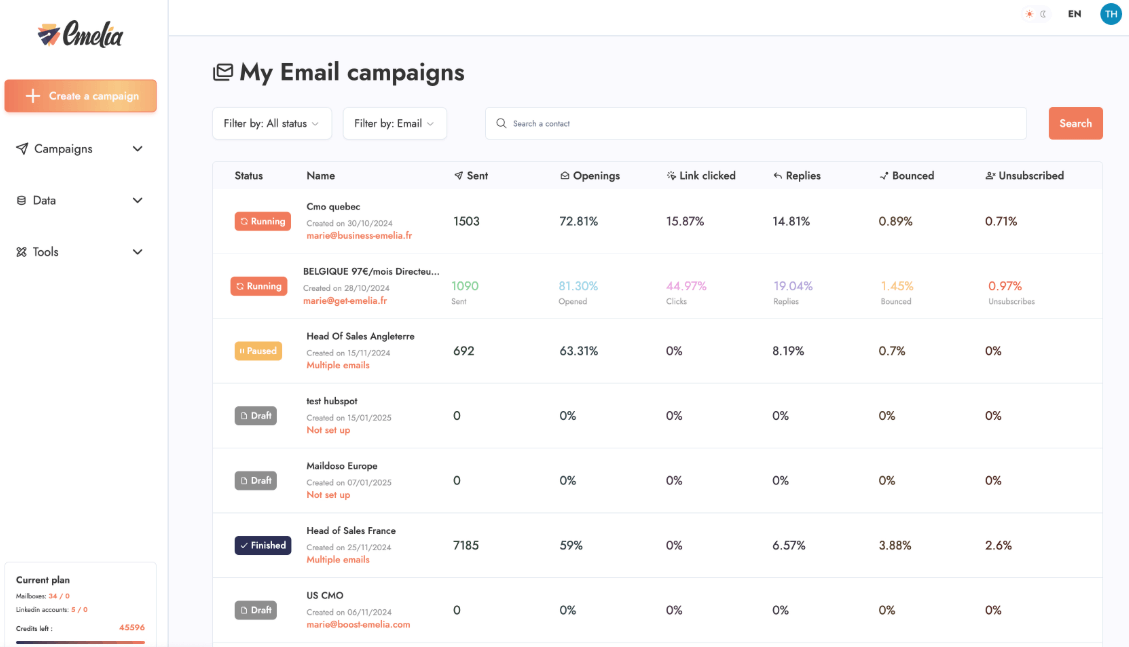
Emelia brands itself as an all-in-one B2B prospecting tool. However, compared to Evaboot, it goes beyond simple scraping and data cleaning by adding multichannel outreach capabilities into the mix. Nevertheless, since it automates LinkedIn activities, including:
- LinkedIn profile visits
- Sending connection requests
- Post likes
… it falls into the same non-compliance risk with LinkedIn’s ToS.
Pros
- Combines prospecting and outreach in one platform
- Built-in email finder & phone number discovery
- Email outreach with mailbox rotation
- Email warm-up included
- Magic Writer, a.k.a. a Chat GPT for sales-copywriting-like agent that writes messages for you
Cons
- Automates LinkedIn activities, thus in direct violation of LinkedIn ToS
- Email outreach is unlimited only on the highest tier
- Credits still apply to some features (e.g., phone finder, enrichment)
Pricing
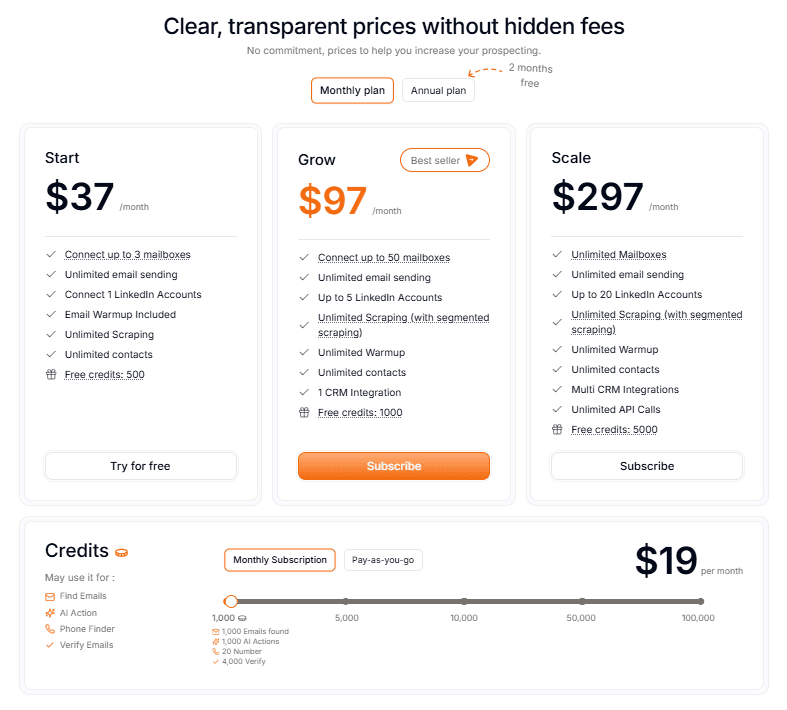
Emelia features 3 core plans which differ in the number of connected mailboxes, LinkedIn accounts, CRM integrations, and included monthly credits.
| Start | $37/mo per user *Up to 3 mailboxes, 1 LinkedIn account, 500 free credits/month |
| Grow | $97/mo per user *Up to 50 mailboxes, 5 LinkedIn accounts, 1 CRM integration, 1,000 free credits/month |
| Scale | $297/mo per user *Unlimited mailboxes, 20 LinkedIn accounts, multi-CRM integrations + API access, 5,000 free credits/month |
All plans come with email warm-up, unlimited email sending, scraping, and contacts, though.
If you need additional credits, you can buy them at $19/month for 1,000 credits (used for actions like email finding, phone number discovery, and verification).
There’s also a free trial to test the tool out before committing.

4. Bardeen
User rating: ⭐4.7
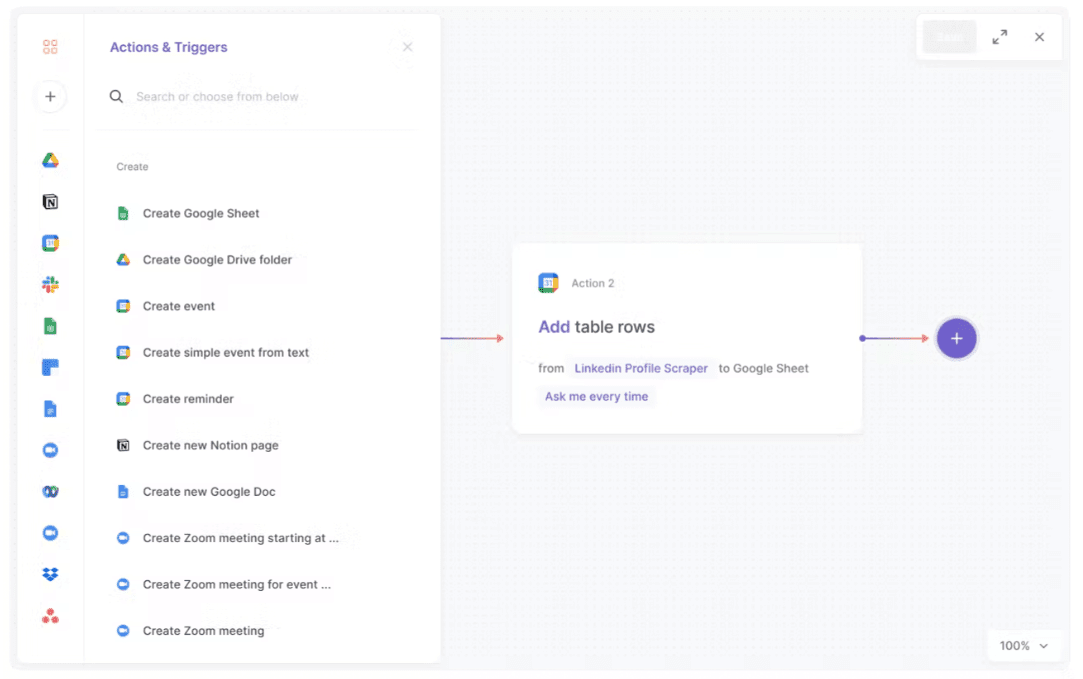
Bardeen is a browser-based workflow automation tool that allows you to extract data from across the web and push it into your CRM or spreadsheets. You can think of it as a productivity and automation copilot.
With it, you can build your own custom workflows. Or, use prebuilt Playbooks to speed up contact scraping and enrichment, or route leads into Notion, Airtable, Google Sheets, and HubSpot, among other tools.
Pros
- Automates repetitive prospecting tasks
- Offers prebuilt Playbooks for lead generation, enrichment, and data management
- Works directly in your browser
- Supports pushing data from custom workflows to your CRM
Cons
- Not a full-scale outreach platform (no native messaging features)
- May require technical setup or customization for more advanced automations
- Certain LinkedIn workflows may violate LinkedIn’s ToS depending on how they’re used
Pricing
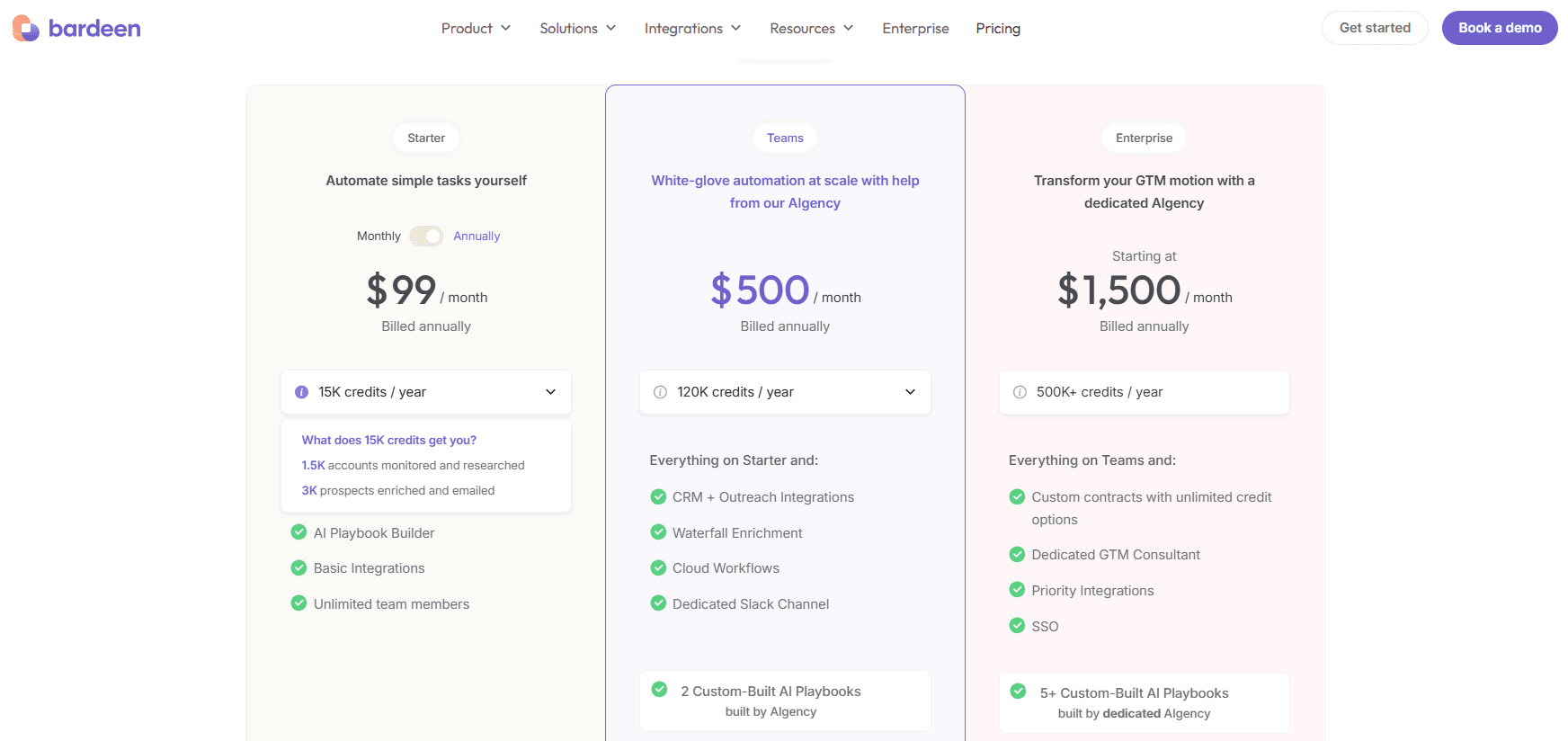
Bardeen has 3 annual plans that differ in the number of credits, available integrations, and level of support.
| Starter | from 99/month for 15K credits a year |
| Teams | from $500/month for 120K credits a year |
| Enterprise | from $1,500/month for 500K+ credits a year |
There’s also a free plan with 100 credits that you can use to build and test your automations.
And just in case you were wondering what Bardeen credits are used for, it’s for account monitoring, lead enrichment, and triggering actions across your connected apps.
5. Skrapp
User rating: ⭐4.6
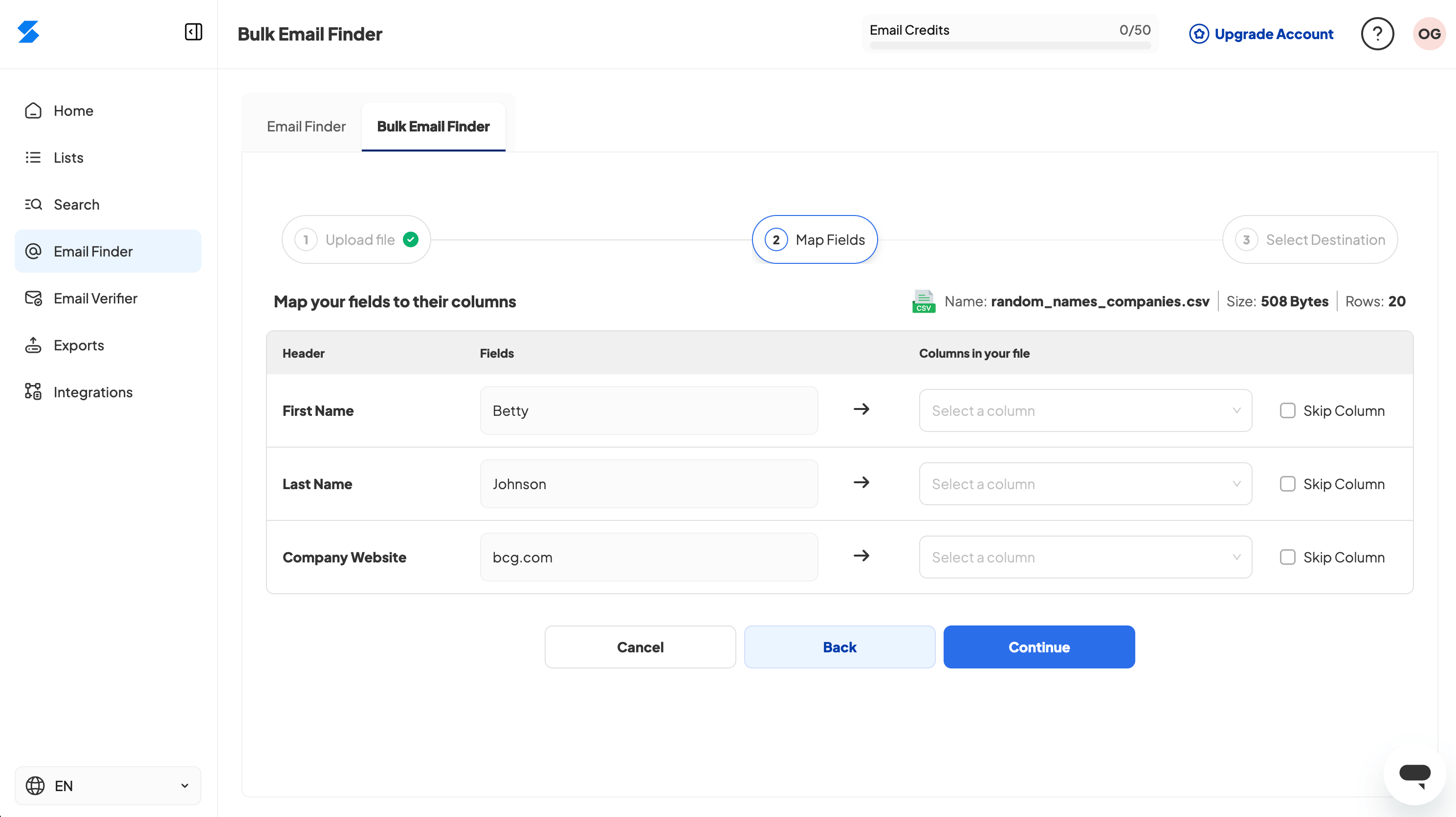
Skrapp is a B2B lead search and enrichment platform that helps its users build verified prospect lists. It offers multiple ways to find emails - from uploading a list of names and domains to using its own database of over 200M professionals and 20M companies. It also includes email verification and basic company enrichment features.
Pros
- Multiple ways to find emails: by name, domain, or using Skrapp’s B2B contact database
- Built-in email verification with 97%+ accuracy
- Company enrichment with role, industry, and revenue insights
- API and CRM integrations
Cons
- Chrome extension for scraping data from LinkedIn directly violates their ToS
- Lacks outreach capabilities
- Credits-based pricing model can get costly at scale
Pricing
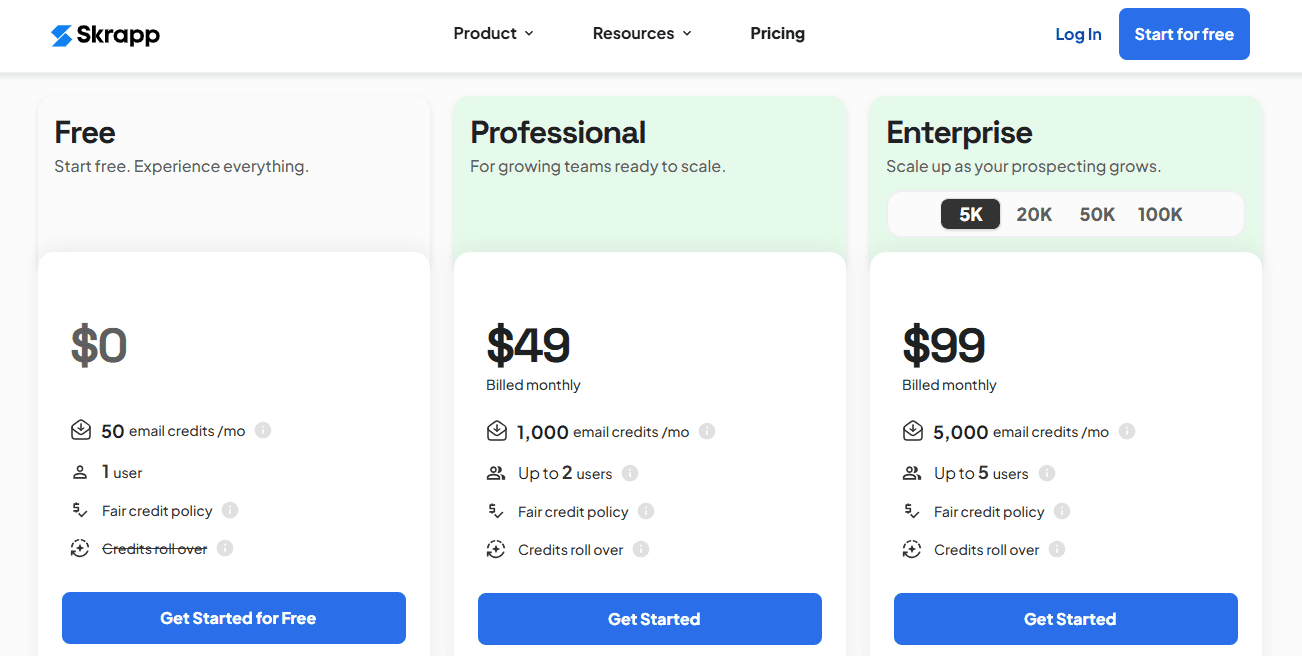
Skrapp offers a free plan, along with 2 paid ones.
The main difference between them is in how many email credits** you get, how many users you can add, and whether your unused credits roll over.
| Free | $0/month *50 email credits**, 1 user, no rollover |
| Professional | $49/month *1,000 email credits, up to 2 users, with rollover |
| Enterprise | from $99/month *5,000+ email credits, up to 5 users, with rollover |
If you need more volume, you can scale the Enterprise plan even further, to 20K, 50K, or 100K+ credits/month. Though bear in mind that the price can increase up to $699 a month in that case.
**Email credits are used every time you find, verify, or enrich a contact.
6. LeadLoft
User rating: ⭐4.8
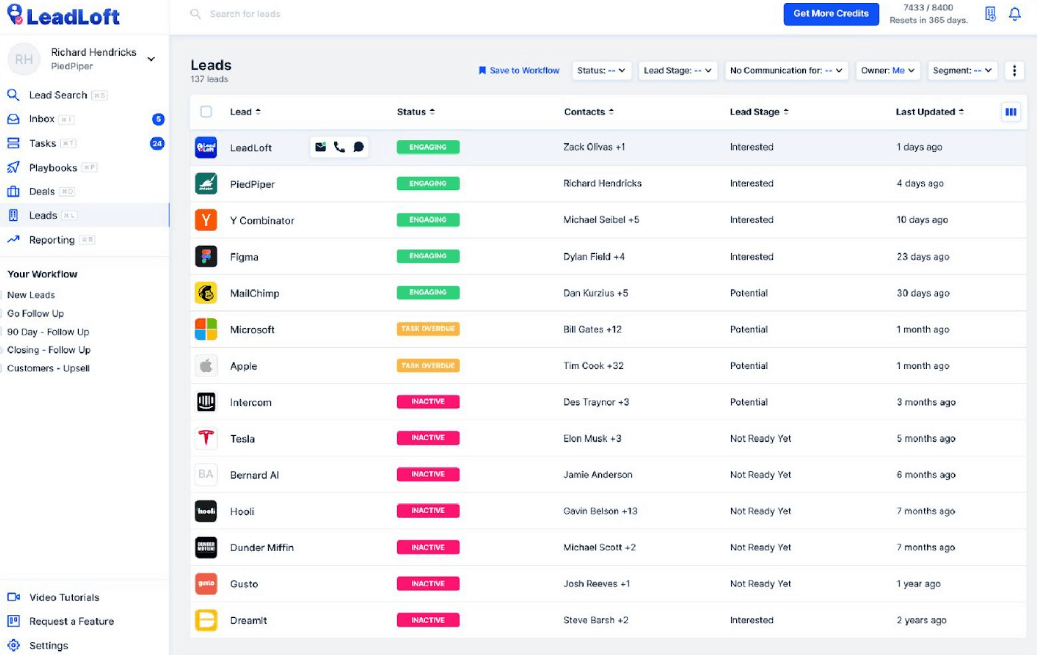
LeadLoft is a modern sales engagement platform built to help B2B teams automate lead generation and outreach in one place.
While it’s not as customizable as some larger platforms, it’s built for speed and simplicity, meaning it’s a good fit for smaller teams with no technical know-how who want results fast.
Pros
- Combines prospecting and multichannel outreach under one roof
- Verified contact data and phone numbers
- Built-in email warm-up, enrichment, deduplication, and bounce protection
- AI tools for writing emails, building playbooks, and qualifying leads
- Native CRM with activity tracking and deal management
Cons
- Shares certain features with LinkedIn automation tools, which may violate LinkedIn’s ToS
- Limited reporting and analytics for large sales teams
- Higher user seat costs for scaling teams
- No flexible credits-based plan for light users
Pricing
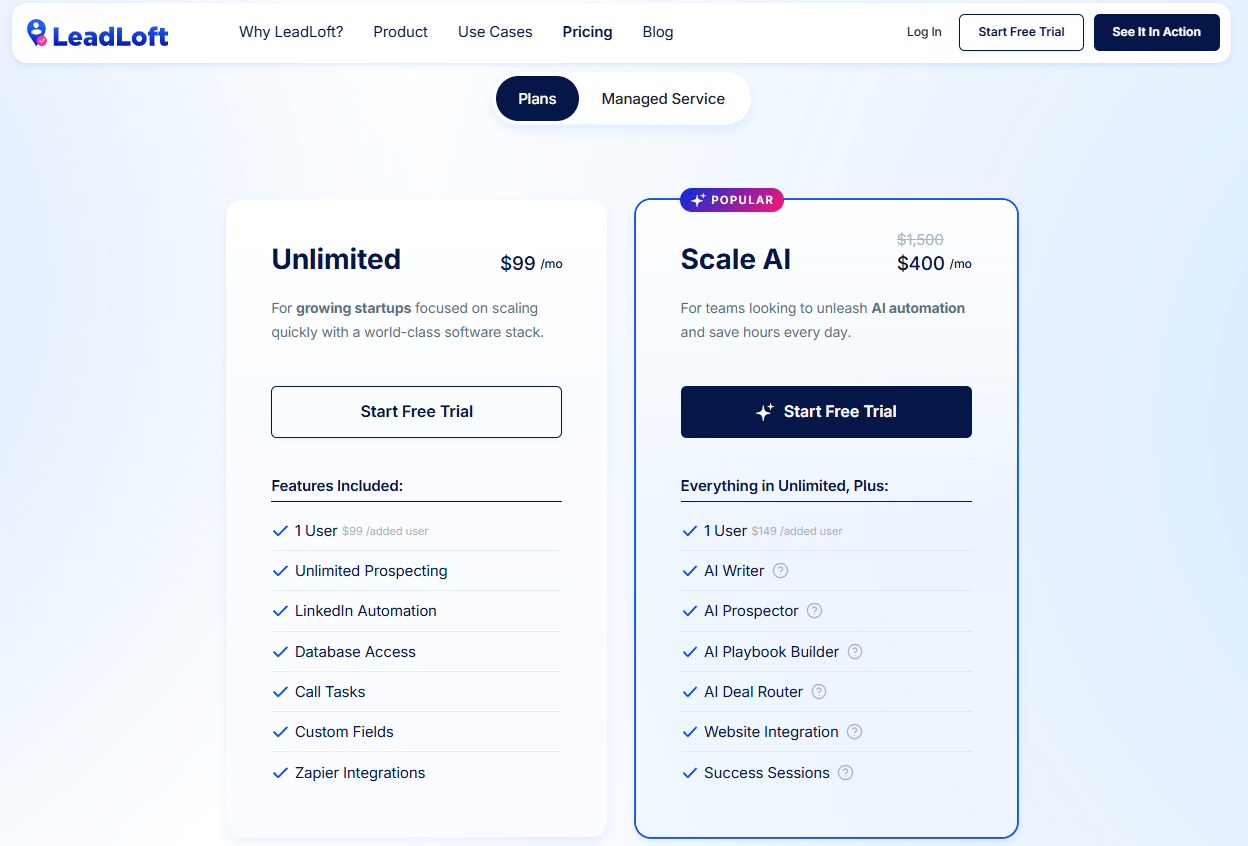
LeadLoft has 2 monthly plan options with a free trial for both:
| Unlimited | $99/month for 1 user |
| Scale AI | $400/month for 1 user *includes access to AI features - AI Writer, AI Prospector, AI Playbook Builder, AI Deal Router |
They also provide a fully Managed Service, though you need to contact their team to get the exact pricing details.
7. PhantomBuster
User rating: ⭐4.5
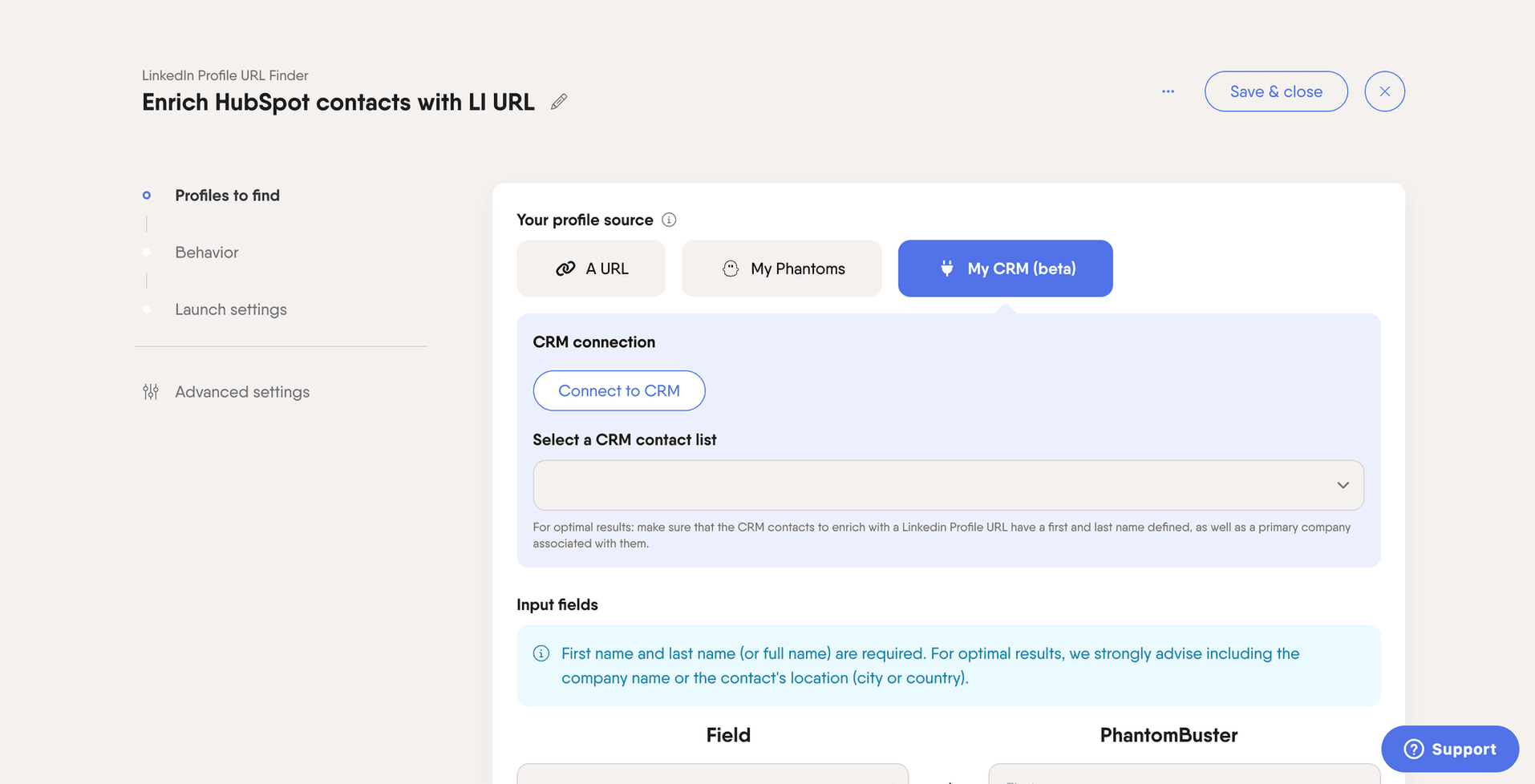
PhantomBuster can be a time-saver for teams who want to automate repetitive data tasks without coding.
Namely, it’s a data automation platform that helps teams extract, enrich, and act on prospect data from 15+ online platforms. It’s known for its prebuilt automations (called “Phantoms”) and enrichment workflows that run in the background to deliver fresh leads every day.
Pros
- Automates repetitive data collection and workflows across multiple platforms
- Supports hundreds of prebuilt “Phantoms” (automation templates)
- Can extract contact data and push it directly into CRMs or spreadsheets
- API access for custom integrations
- Flexible cloud-based setup (no need to run automations locally)
Cons
- Many automations directly violate LinkedIn’s ToS
- Steep learning curve if you’re not tech-savvy
- Can be time-consuming to set up and troubleshoot
Pricing
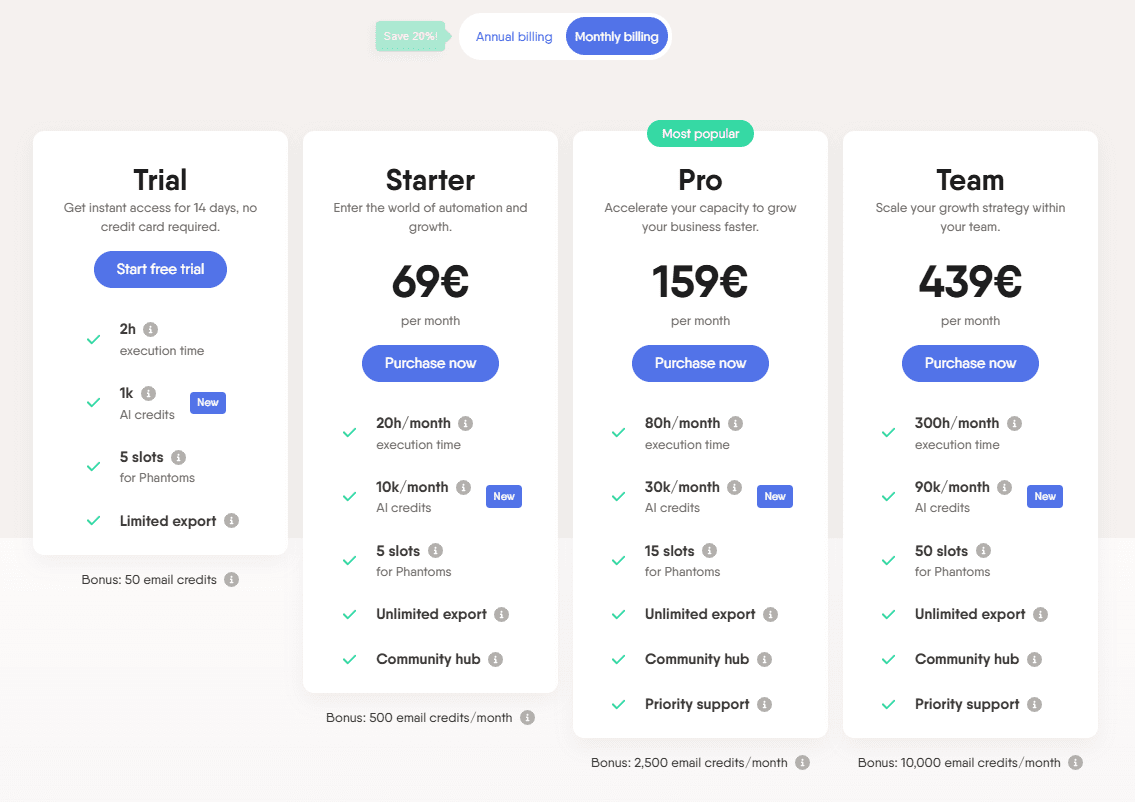
PhantomBuster offers a 14-day free trial with 2h of execution time, 1K AI credits, 5 Phantom slots, and 50 email credits.
Meanwhile, paid plans start at €69/month, with 3 main pricing tiers:
| Starter | €69/month *With 20h execution time, 10K AI credits, 5 Phantom slots & 500 email credits |
| Pro | €159/month *With 80h execution time, 30K AI credits, 15 Phantom slots & 2,500 email credits |
| Team | €439/month *With 300h execution time, 90K AI credits, 50 Phantom slots & 10,000 email credits |
8. GetProspect
User rating: ⭐4.2
GetProspect is an email finder and lead generation platform with a focus on B2B data. It allows you to search for contacts by role, company, or industry, then export verified emails with basic enrichment.
Pros
- Access to a B2B contact database with 200M contacts, 230M corporate emails, 26M international companies, and 130M phone numbers
- Easy email search by company or domain
- Email verification included
- Bulk email checker with duplicate removal
- CRM integrations available (e.g., HubSpot, Pipedrive)
Cons
- Using their Chrome extension to find someone’s email on LinkedIn violates the platform's ToS
- The accuracy of data may vary depending on industry and region, despite the 95% accuracy claim
- Limited enrichment
Pricing
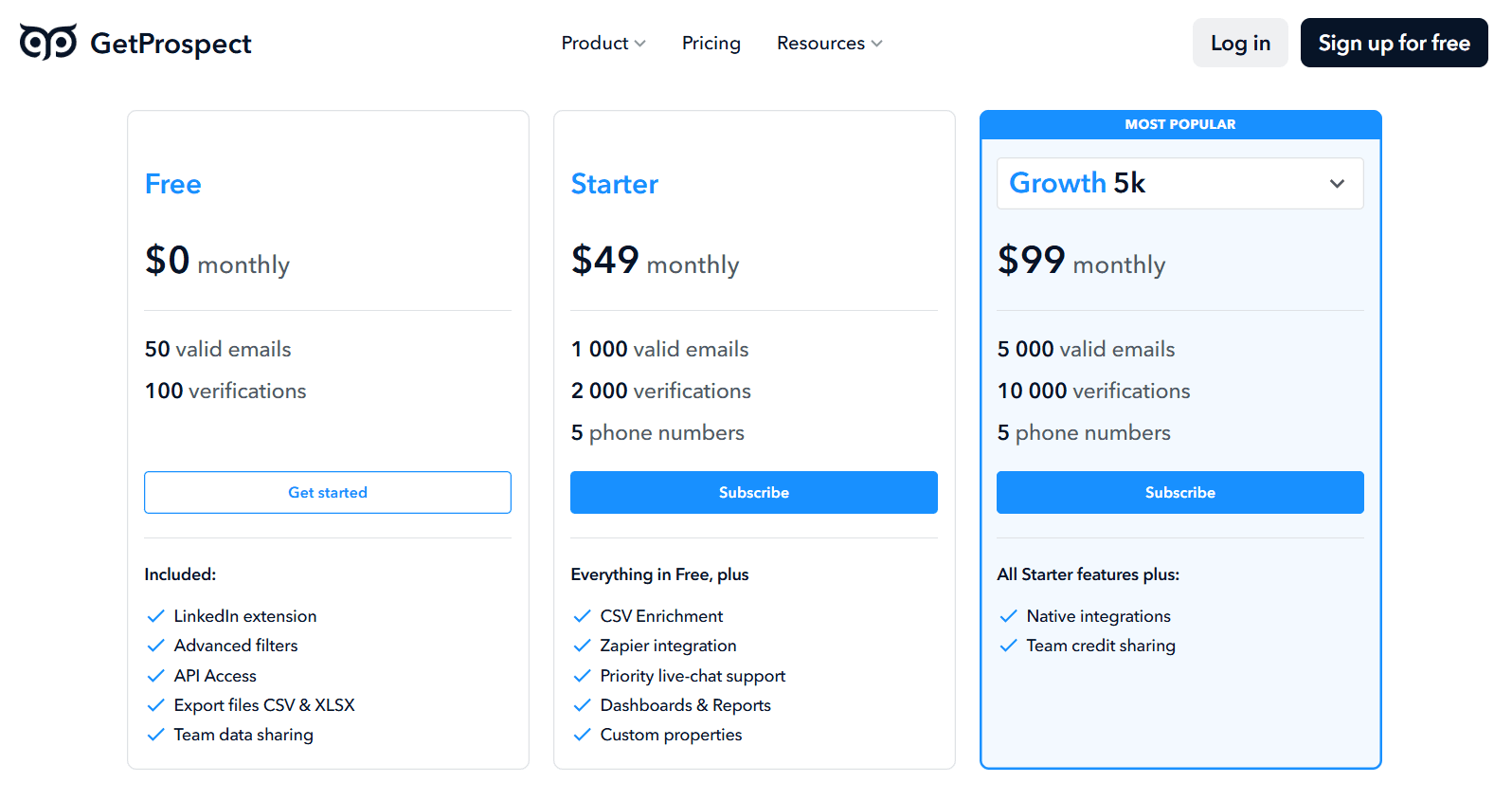
Much like the majority of other Evaboot alternative solutions, GetProspect uses a credit-based model. Their plans include:
| Free | $0/month *Includes 50 valid emails, 100 verifications |
| Starter | $49/month *Includes 1,000 valid emails, 2,000 verifications, 5 phone numbers |
| Growth | From $99/month *Includes 5,000 valid emails, 10,000 verifications, 5 phone numbers |
You can also purchase additional email and phone credits if need be, with prices varying based on the number of credits purchased.
How to cancel Evaboot?
If you’ve chosen your ideal Evaboot alternative, it’s time to cancel your subscription.
The good news is that it’s fairly easy to do so. Just:
- Go to your Evaboot account page using this link: https://app.evaboot.com/?page=account.
- Scroll down to the Billing section.
- Click Cancel subscription.
A pop-up will appear explaining that you’ll lose your credits in a month in case you proceed.
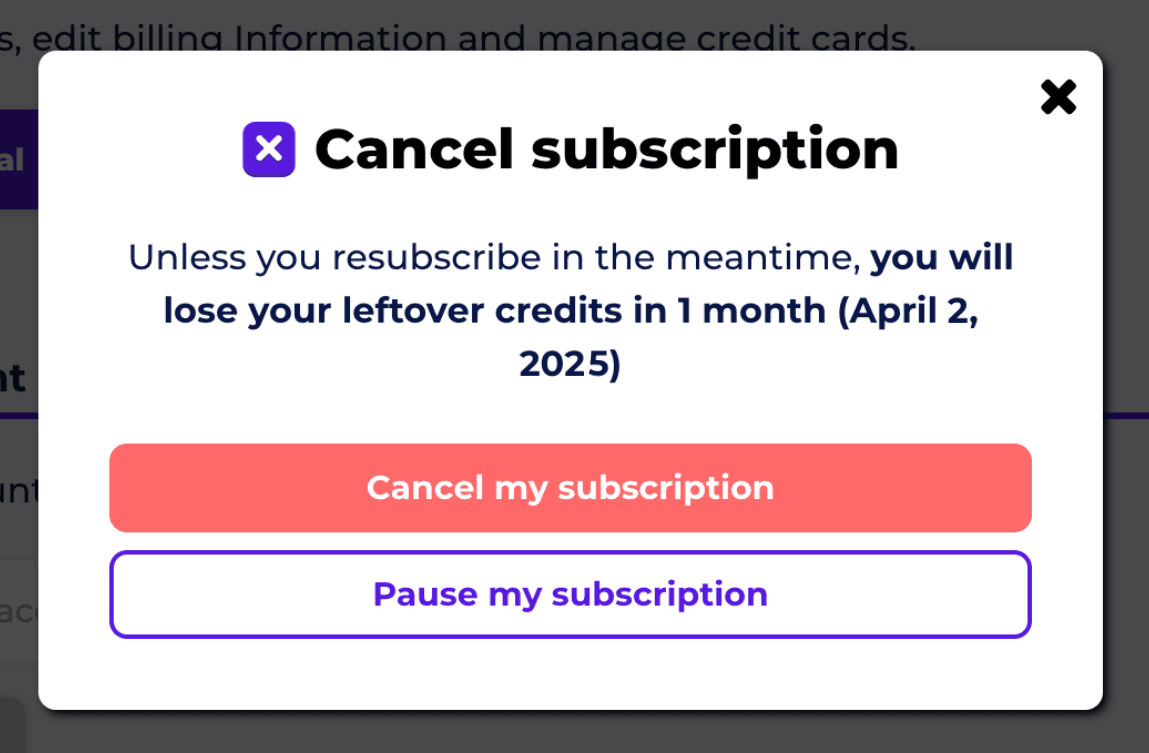
If you’re ok with that, confirm your choice by clicking ‘’cancel my subscription.’’ You’ll also get a confirmation email once it goes through.
If you’d rather not cancel yet, you can pause your subscription for 1, 2, or 3 months instead. This should give you enough time to check whether any of the Evaboot alternatives are working for you.
In that case:
- Your credits will roll over month-to-month for the entire duration of the pause.
- You’ll still be able to use your existing credits.
- Your subscription will automatically resume on the scheduled date, unless you extend the pause or cancel.
Frequently asked questions (FAQs)
How do I choose the right Evaboot alternative?
It depends on your goals. If you’re just looking to extract data, some tools focus solely on that. Others offer a more complete workflow that includes email outreach, lead management, and CRM integrations. Think about how the tool fits into your stack, your team size, and your growth needs.
Are all Evaboot alternatives compliant with LinkedIn’s Terms of Service?
No. Some tools rely on methods that may conflict with LinkedIn’s Terms of Service. That said, before committing to a tool, double-check that the features you intend to use are compliant with the platform's ToS to keep your account restriction-free.
Can I integrate an Evaboot alternative with my CRM?
It depends on your CRM and the alternative in question. In most cases, the answer is yes, as most tools on this list support native integrations with popular CRMs like HubSpot, Salesforce, or Pipedrive. Even if a tool doesn’t offer direct integration, you can often connect it through Zapier.
What happens to my Evaboot credits if I cancel my subscription?
When you cancel your Evaboot subscription, you have one month to use your remaining credits. After that, they expire. If you pause your plan instead, your credits will roll over during the pause period.
Found your ideal Evaboot alternative?
Evaboot is a solid tool, but it’s not for everyone. Whether it’s the lack of outreach, the LinkedIn compliance risk, or the extra cost from stacking tools, it’s understandable if you’re looking for something more flexible.
The good news? We’ve given you 8 Evaboot alternatives, each with its own strengths.
Now it’s up to you to pick the one that fits your workflow, team size, and growth goals.
And hey, if you’re still unsure, why not take Skylead for a spin? After all, it’s the only Evaboot alternative that’s 100% compliant with LinkedIn ToS.
Sign up now & take advantage of our 7-day free trial!
Disclaimer: Skylead is not affiliated, endorsed by, or connected with LinkedIn in any way.
You’ve found the perfect prospect on LinkedIn. Right title, right company, right fit. Everything lines up. Except one thing: You have no idea how to reach them. Sure, you could try a connection request. Maybe even an InMail. But the truth is, most business decision makers’ inboxes are flooded. And if you want to stand out, you need more than one way in. And for that, you need their email. That begs the question: how do you find someone’s email on LinkedIn?
Well, there’s no single button you can click. LinkedIn doesn’t exactly hand over contact info on a silver platter, especially if you're not connected.
But that doesn’t mean you’re stuck.
Today, we’ll show you 10 proven ways to find someone’s email on LinkedIn. We’ve included a mix of free tricks, and smart search tactics.
Does LinkedIn show someone's email?
Yes. But only sometimes, and only if the user allows it.
By default, LinkedIn hides email addresses from public view. If you're already connected with someone, you might see their email under the ‘’Contact Info’’ section of their profile. Notice how we said might? That’s because it depends on their privacy settings.
On the other hand, for 2nd or 3rd-degree connections (a.k.a. people you’re not connected with), LinkedIn does not display any email information at all.
So, unless you are connected with the prospect and they have explicitly made their email visible, you're out of luck. Within the platform, that is.
Why bother with finding someone’s email on LinkedIn?
Simple: Email gives you another touchpoint.
LinkedIn prospecting might be the best way to find leads, but email is where most conversations actually happen. And for good reason. Email lets you reach people directly, outside the LinkedIn connection limit, LinkedIn inMail cap, or message throttling.
More importantly, email still works, especially in B2B. In fact:
- According to Constant Contact, email open rates across industries average 32.55%, with click-through rates at 2.03%.
- Statista also reports that email delivers an average ROI of $36 for every dollar spent, and up to $45 for some industries.
And people aren’t just opening emails; they’re engaging with them. 61% of recipients spend at least 8 seconds reading an email, which is more than most people spend on a social post.
Also, when you combine email with LinkedIn touchpoints (e.g., profile visits, messages, or connection requests), your chances of a reply go up significantly. It’s all about multichannel visibility. In other words, being present where your lead is, whether that’s their inbox or their feed.
So, if you're serious about cold outreach, finding your lead’s email is step one.
And now that we’ve covered the “why,” let’s get into the “how.”
How to find someone’s email on LinkedIn [10 ways]
Below are 10 proven ways to find someone’s email through LinkedIn, directly and indirectly. Some are simple, free, and manual, whereas others involve tools. But the important thing is: all of them work!
Method 1: Check their LinkedIn profile
How to find someone’s email on LinkedIn? Well, let’s start from the obvious place - their LinkedIn profile!
Namely, there are 3 sections where people sometimes leave their email address:
1. Contact Info section
If you're already connected with the person, click the ‘’Contact Info’’ button on their profile (just under their name and LinkedIn headline).
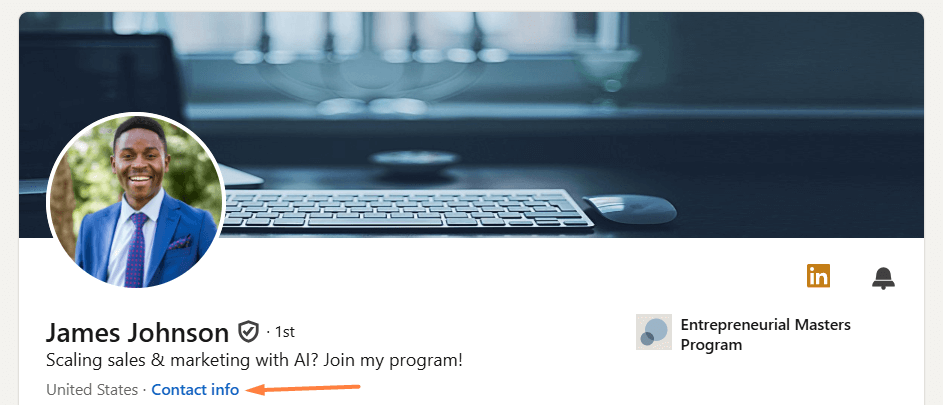
If they’ve chosen to share it, their email will be listed there.
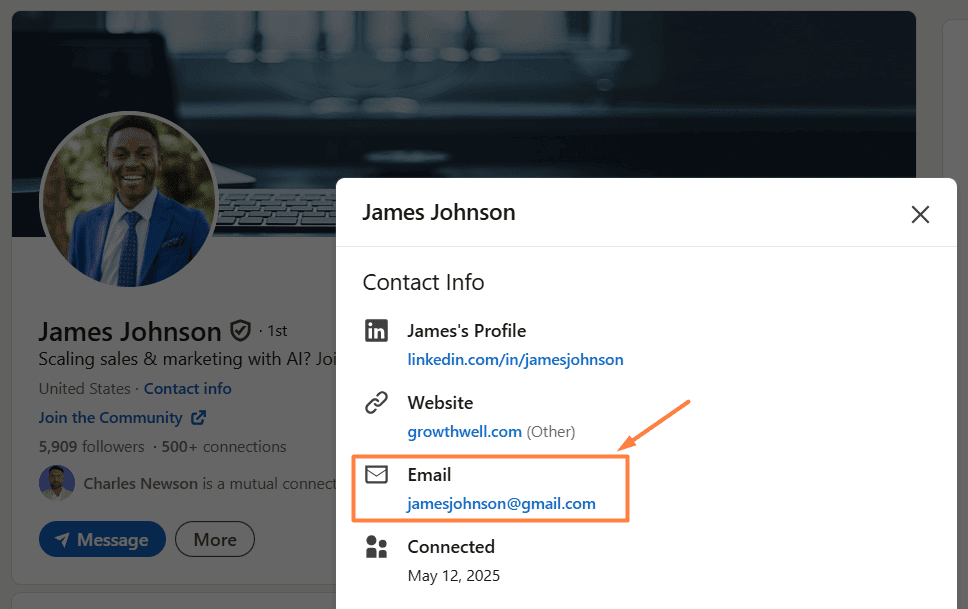
That said, don’t get your hopes too high. Not everyone makes their email visible, and even when they do, it’s often the one they used to create their LinkedIn account. So, it might not be their business email. Still, it’s worth a look.
2. LinkedIn cover photo
Some professionals, freelancers, marketers, influencers, and founders, in particular, typically opt for creating a custom LinkedIn cover image that includes an email address so as to make it simple to contact them directly. So, if your leads’ cover image looks branded, don’t forget to give it a quick glance. Their email address might just be hiding there.

3. LinkedIn summary (About section)
If the Contact Info section and the cover image don’t give you much luck, scroll down to their LinkedIn summary section and read through it, especially the last few lines. Some users drop their email there as a subtle call to action, like:
“Feel free to reach out at name@company.com.”

No email there? No worries! This section can still prove useful once you’ve found their email using one of the other methods below. How? Well, it can give you valuable insights into your lead, such as their pain points, which you can reference later in your email for more personalized outreach.
Method 2: Use email finder tools & Chrome extensions
If the email isn’t visible on their profile, you could also use an email finder tool, either a web-based platform or a Chrome extension.
Web-based email finder tools
These tools help you find someone’s business email address using typically just 2 data points:
- Full name
- Company domain
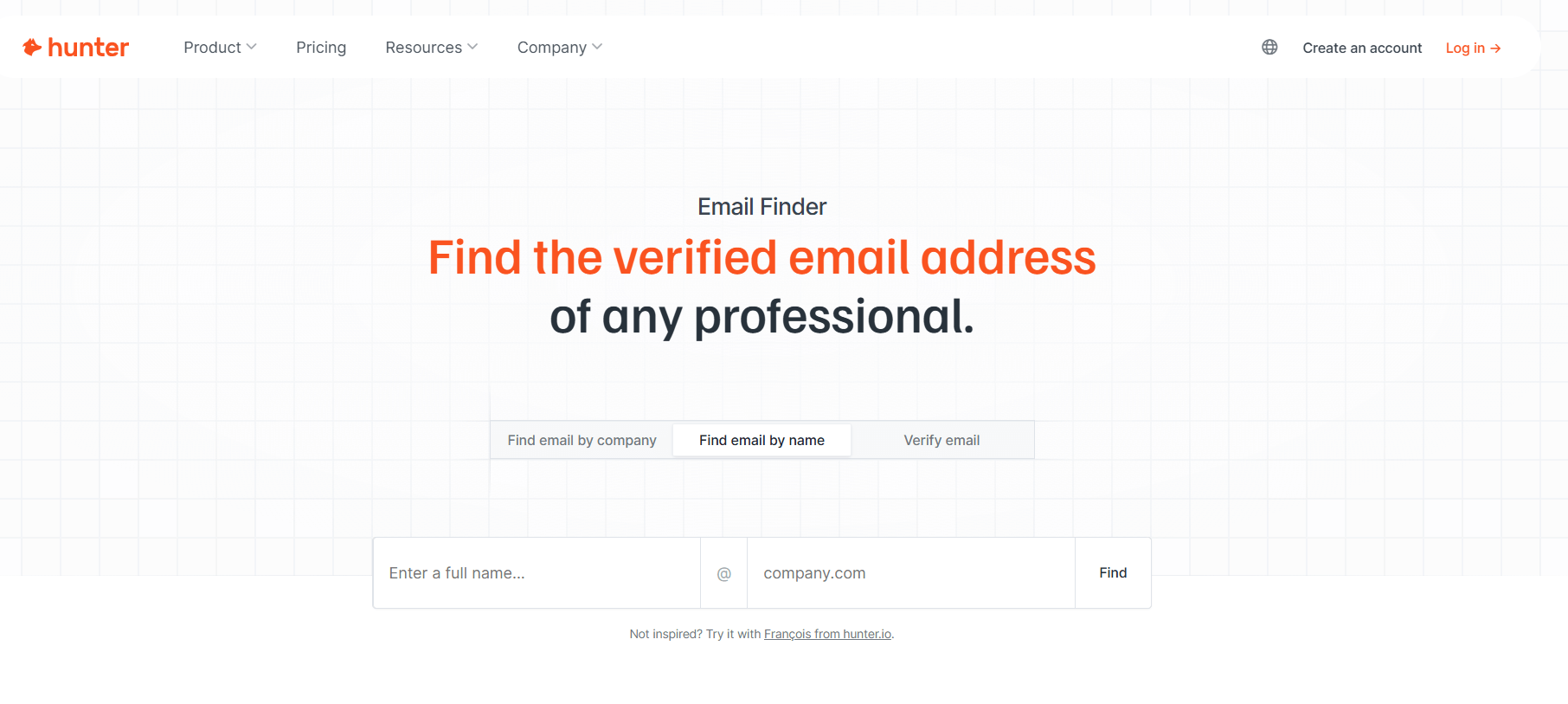
Speaking of specific tools, your best bet is going with:
- Hunter - Free plan with 25 monthly finder credits (additional paid plans with more credits are available).
- Anymail Finder - Starts at $14/mo for 50 credits.
- Uplead - Starts at $99/mo for 170 credits.
These platforms cross-reference databases and known domain patterns to give you a likely email match, sometimes even a verified one. What’s more, you don’t have to install anything or interact with LinkedIn in ways that breach its terms.
Method 3: Export your 1st degree connections’ emails
If you've been steadily growing your LinkedIn network, your 1st-degree connections might be a hidden goldmine of contact information, including emails.
LinkedIn allows you to export your connections' data, which may include their email addresses (if they chose to make them visible).
To do it, firstly, click on the ‘’Me’’ icon in the top-right corner of LinkedIn. Then, navigate to Settings & Privacy.
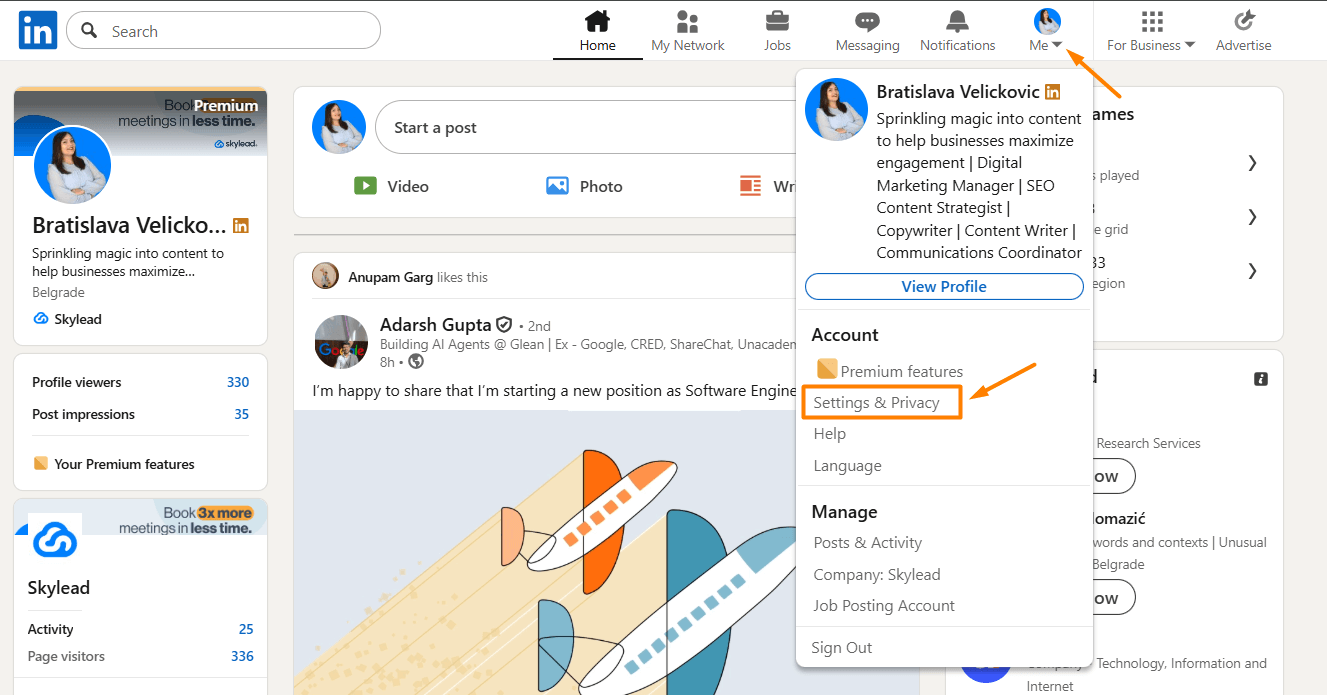
Next, go to the Data privacy tab, where you want to select ‘’Get a copy of your data.’’
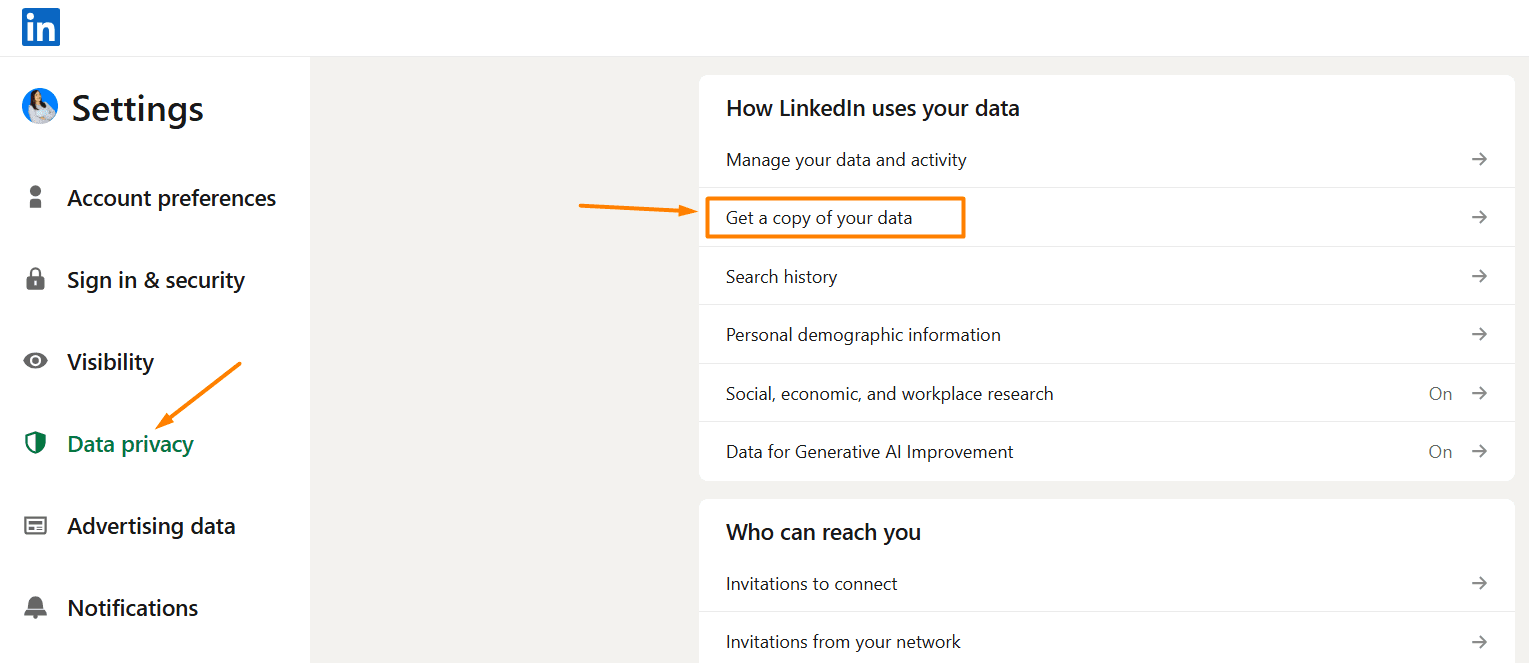
Choose:
‘’Download larger data archive, including connections, verifications, contacts, account history, and information we infer about you based on your profile and activity.’’
…and, finally, click ‘’Request archive.’’
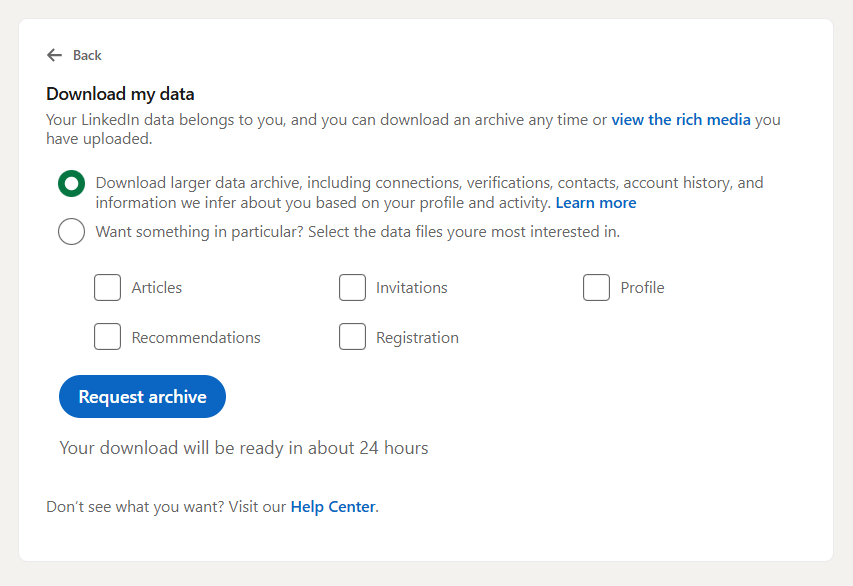
LinkedIn will email you a downloadable CSV file within the next 24 hours. Open it up, and, among other information, you’ll also find that of your connections, including their names, job titles, and, in some cases, email addresses.
📝 Note: This only works for your 1st-degree connections, and even then, only if they’ve allowed LinkedIn to share their email, and it’s likely these are not personal accounts. So, while this isn’t a scalable way to build a new prospecting list, it’s a good way to re-engage existing contacts. Or, take your follow-up game to email, in case they haven’t replied to your LinkedIn follow up message.
Method 4: Combine LinkedIn with Google search
Let’s say none of the previous methods worked. Or maybe you just want to cross-check a contact’s details. Either way, Google can help.
This method is simple: Use what you already know about the lead—such as their name and company—and plug it into a targeted Google search to try to surface their email address from public sources.
Here’s how it works:
1. Use the “site:” search operator
Go to Google and type something like:
- site:amazon.com James Johnson email address
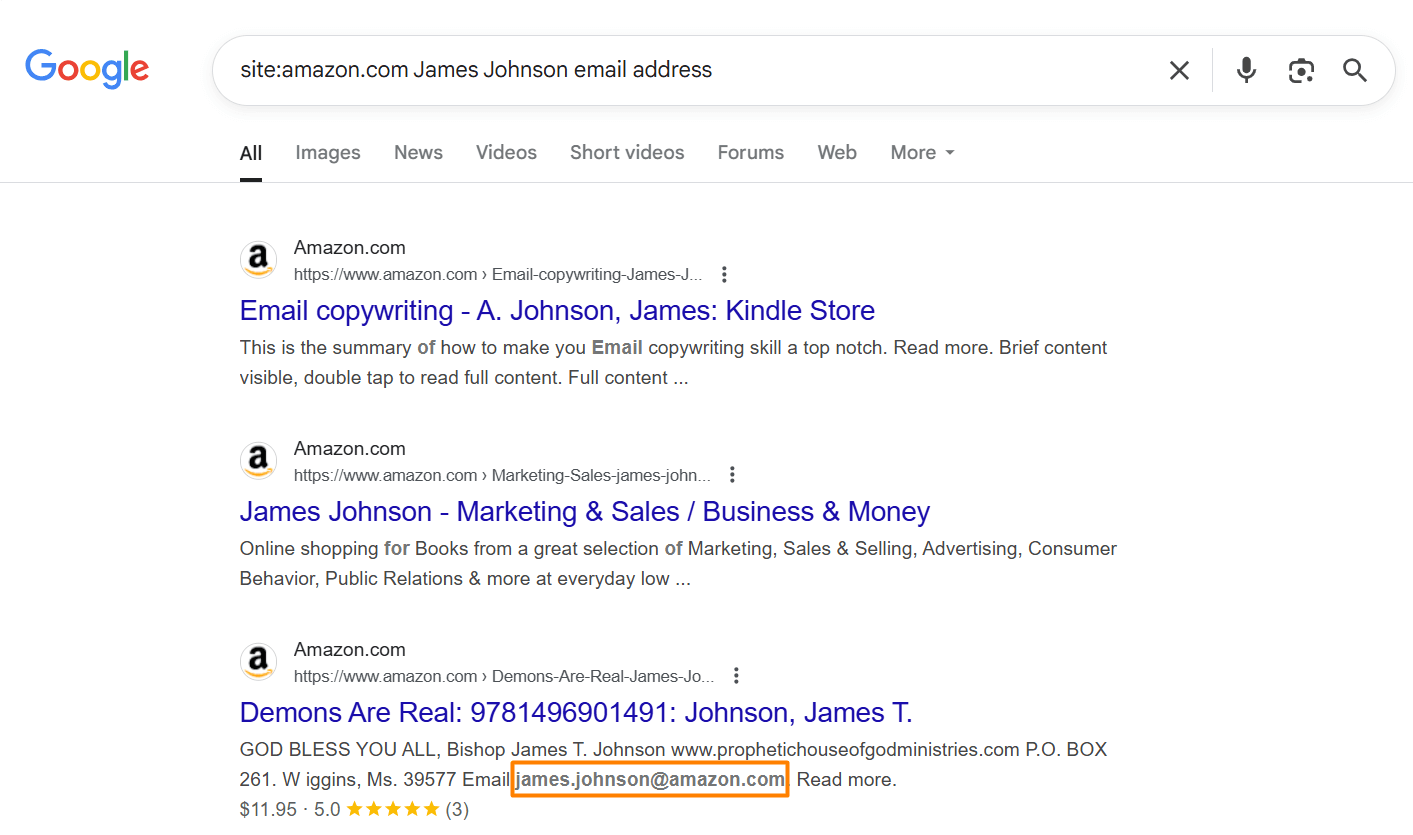
Or try variations like:
- ‘’James Johnson’’ contact site:site:amazon.com
- ‘’James Johnson’’ @amazon.com
This tells Google to search only within the company’s website for any pages where your prospect’s name appears near an email.
2. Try different email formats
If you already know the company domain (e.g., @amazon.com), you can also search for likely email formats like:
- ‘’james.johnson@amazon.com’’
- ‘’j.johnson@amazon.com’’
- ‘’john@amazon.com’’
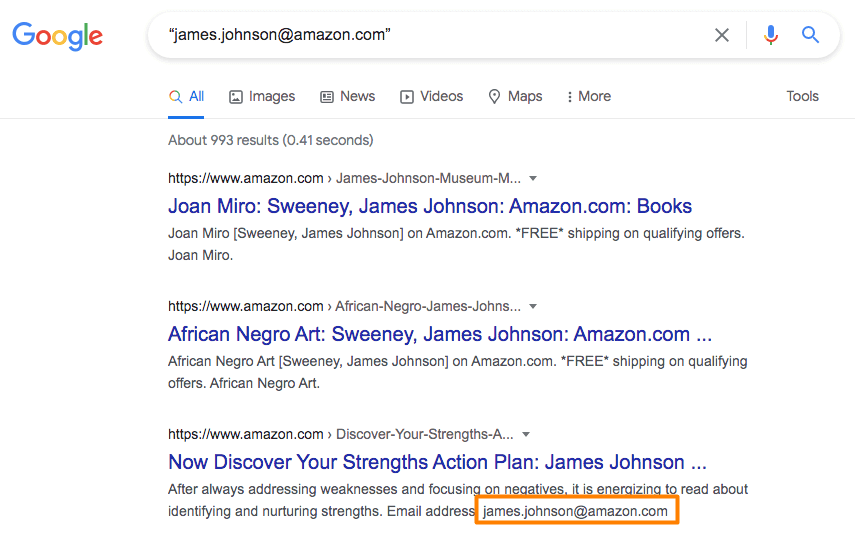
This works surprisingly well for people in public-facing roles, think sales, marketing, media, or executives who’ve spoken at conferences, published blog posts, or been listed in press releases, as their email addresses are likely to be listed online.
3. Don’t forget other platforms
You can also apply the same search strategy using the site operator to other websites, like:
- site:crunchbase.com
- site:github.com
- site:medium.com
- etc.
Basically, anywhere your lead might be mentioned or have a profile.
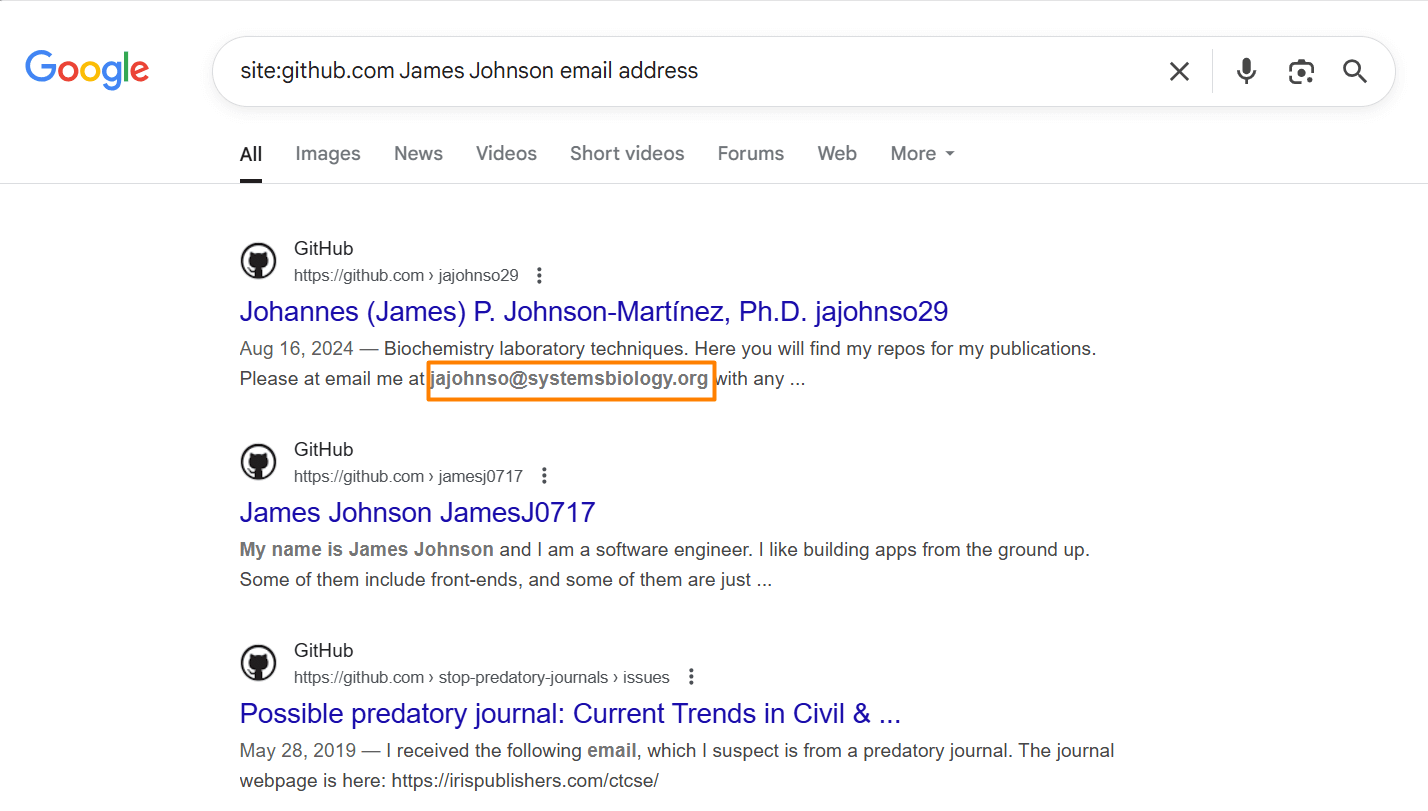
Before reaching out, though, make sure the email you find actually belongs to your prospect, not someone with a similar name. A quick cross-check on LinkedIn or the company website should do the trick.
Method 5: Guess the email pattern
Remember how we said you could guess someone’s email using LinkedIn and Google in the previous method? Well, this takes it one step further.
If you've already found your prospect’s name and company domain, and nothing public turns up, you can try to predict their email using common formats.
Most companies follow a handful of standard patterns when creating email addresses. A few of the most common ones include:
- first.last@company.com
- firstinitiallastname@company.com
- firstname@company.com
- firstlast@company.com
So, if your lead is James Johnson and works at Amazon, their email might be:
- james.johnson@amazon.com
- jjohnson@amazon.com
- james@amazon.com
Now, we’re not saying guess and hit send blindly. That’s risky and spammy.
Instead, run your guessed email through an email verifier first, such as Hunter, NeverBounce, or ZeroBounce. That way, you protect your domain reputation and avoid filling the internet with undelivered emails.
Or, if you’d rather take the manual route (which we recommend you do only if you’ve got a handful of emails to verify), you can insert all email variations in the recipient's field of your email and see which one will be recognized by your provider. If there is one with a profile picture, it is most likely to be the right one.
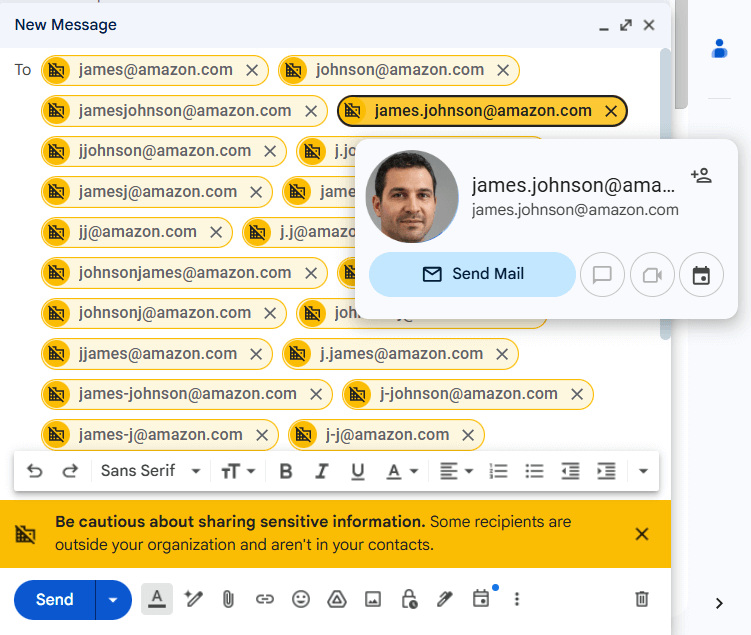
Now, ‘’guessing’’ emails manually, just like verifying them, takes a lot of time and effort. So, if you’d rather speed it up, you can…
Method 6: Use email permutators
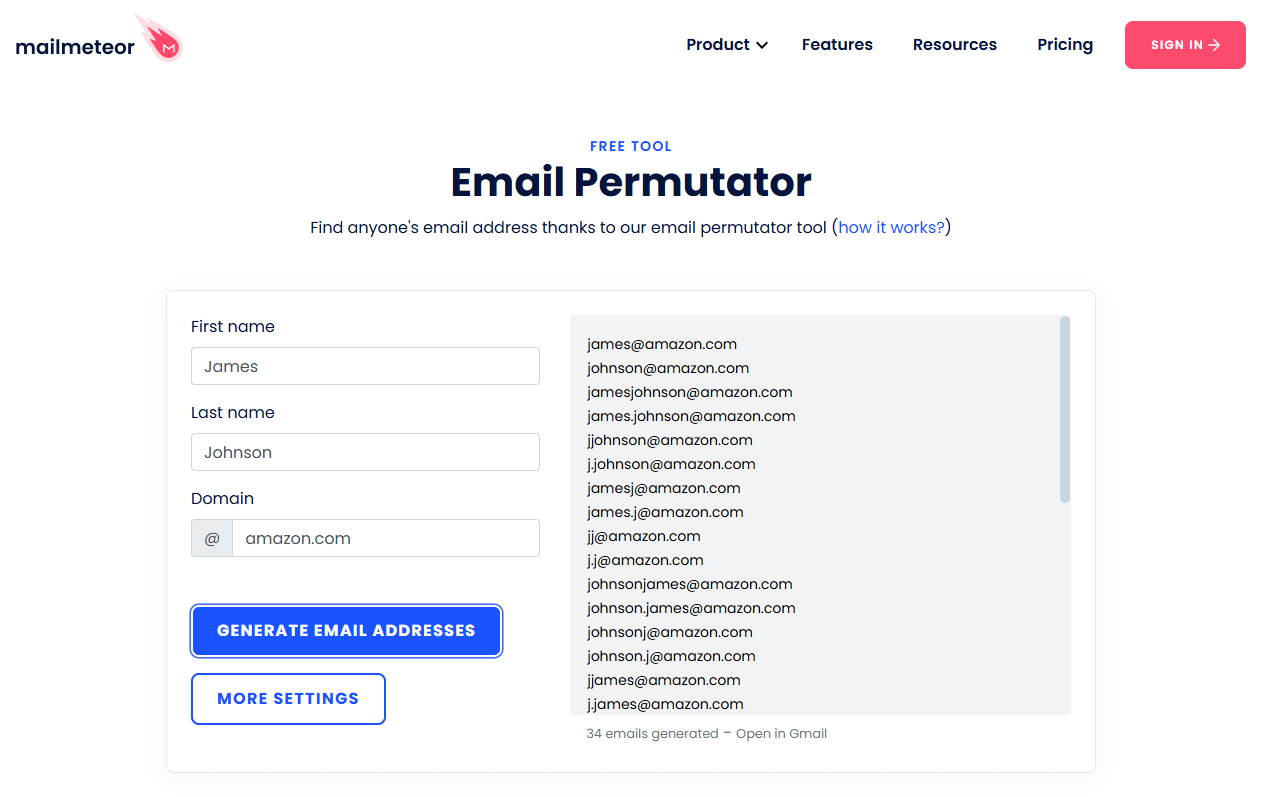
These tools take your lead’s first name, last name, and company domain, and automatically generate a list of the most likely email combinations based on common corporate patterns.
You can then copy that list into an email verifier and check which address is valid, without wasting time manually typing out every variation.
The Email Permutator by Mailmetor is one such tool that’s absolutely free to use. What’s more, it’s especially helpful if you’re dealing with multiple prospects at once or want to batch-verify several possible emails quickly.
Method 7: Ask them directly
Sometimes, all it takes is… well, asking.
Depending on whether you’re connected with the person or not, there are 2 ways to go about it.
If you’re already connected
Since you’ve already broken the ice, you can be more casual, but still purposeful. Aim for a message that feels personal and makes it worth their while to share their email.
Here’s a template you can adapt:
“Hey {{firstName}}, I wanted to run something by you that’s easier over email than LinkedIn DMs. What’s the best address to reach you at?”
Or, if you want something that’s less vague:
“Hi {{firstName}}, I’ve been meaning to share a quick idea around {{topicOfInterest}} that I thought might be relevant to what you're doing at {{companyName}}. Would it be okay to send it to your email?”
This works better when there’s some context, though. Say, you’ve engaged with their content before, met at an event, or recently connected. But even if you haven’t, a well-written, value-first, and thoughtful message can still land you the address.
If you’re not connected
You’ve got two options here:
- Send a connection request with a short note, then follow up once they accept.
- Use InMail (if you're on LinkedIn Premium) to send a message that includes why you're reaching out and why you're asking for their email.
Either way, keep the message focused, specific, and human. Skip the vague “let’s connect” pitch, and instead offer a reason to reply.
Method 8: Combine Sales Navigator search with data enrichment platforms
If you’re already using LinkedIn Sales Navigator, you’re sitting on one of the most powerful prospecting features LinkedIn has to offer.
While it won’t show you email addresses directly, it lets you:
- Use Sales Navigator search filters to find leads by company size, title, seniority, industry, geography, and more.
- Build ultra-targeted Lead lists.
- Spot buying signals like job changes, company growth, or new funding.
But the question remains: how to find someone’s email on LinkedIn or, rather, Sales Navigator?
Well, we recommend you filter your searches using your ICP and Buying Persona criteria, and save prospective leads into a Lead list.
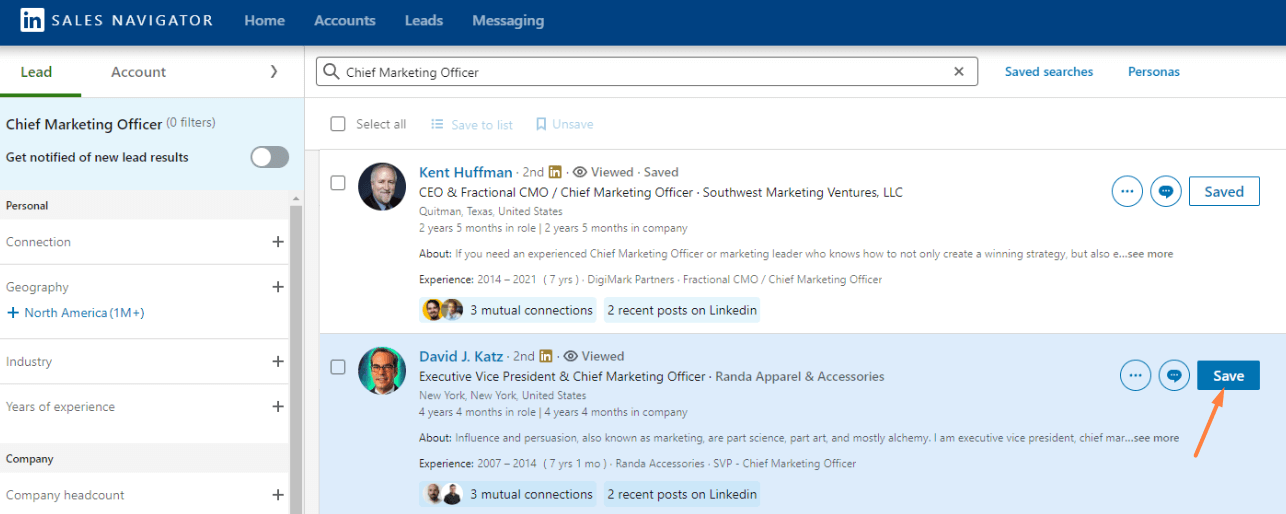
From there, copy and paste their information (e.g., first name, last name, job title, company name, LinkedIn profile URL, and company domain) into a new CSV file. And then, upload that same CSV into one of the data enrichment platform to find your leads’ emails.
Method 9: Use B2B contact databases
So, you’ve built your prospect list using LinkedIn. You’ve got the names, titles, companies, maybe even narrowed them down to a specific industry or location. Everything’s ready for email outreach, except you’re still missing the crucial part: the email address.
If none of the above methods have worked, or if you need to find emails at scale, B2B contact databases (sometimes also called data enrichment platforms) may be able to help.
These platforms help you find verified business emails (and more) based on the information you already have.
A few popular tools that come with built-in contact databases include:
- Apollo.io - Free plan with 100 credits (additional paid plans with more credits are available).
- Lusha - Free plan with 50 credits (additional paid plans with more credits are available).
- ZoomInfo - No free plan available; pricing is quoted individually.
- Cognism - No free plan available; pricing is quoted individually.
As you can see, 2 of these tools come with free plans, albeit limited. Therefore, if you’re conducting high-volume outreach, you’ll likely require a paid plan. Nevertheless, whatever tool you choose to use, always double-check the validity of the email address before you hit send (we’ll talk about how to do that later on).
Now, believe it or not, there’s a tool that finds your leads’ emails, double-verifies their existence, AND can help you with your cold outreach - Skylead!
Stick around, as we’ll show you exactly how it works!
Method 10: Use Skylead
The methods we talked about so far can help you find someone’s email address. But the problem is, they are either too manual or require multiple tools to do it.
If you want to skip using multiple tools, and keep everything in one flow, we’ve got a better solution: Skylead — the ultimate sales engagement tool.
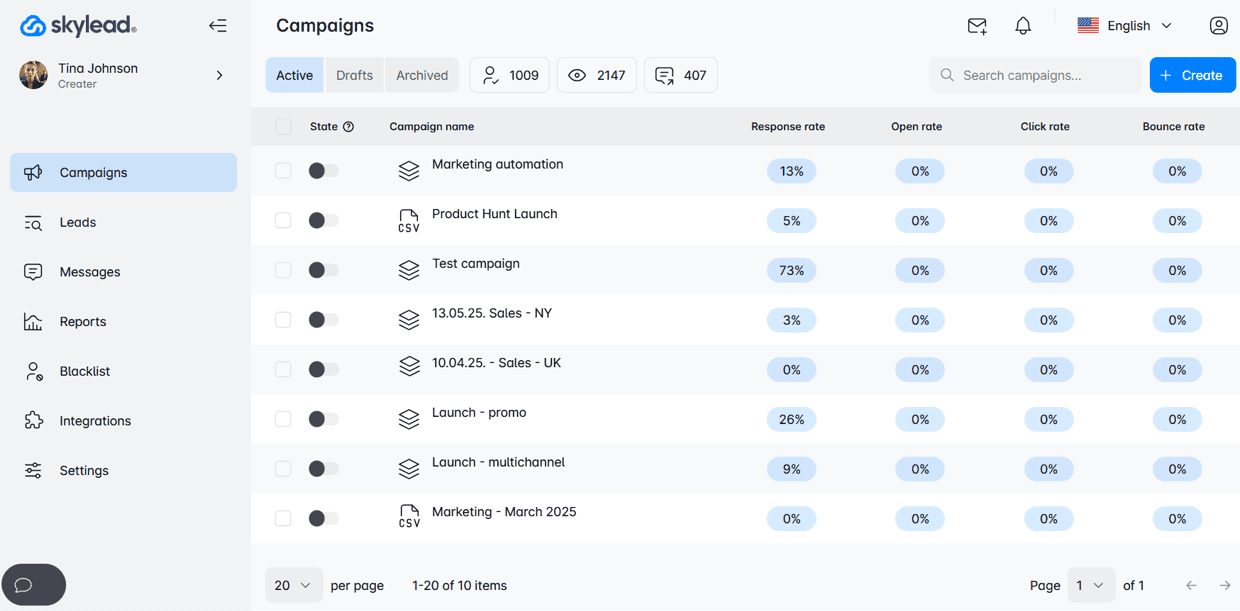
Skylead was the first tool on the market to introduce Smart sequences - algorithms that help you combine outreach actions with if/else conditions. As a result, you get coherent outreach flows that helps you unfold outreach according to the way your prospects behave.
Now, you might be wondering, why set up an outreach sequence if you don’t have their email yet?
Because, inside your sequence, you can add a “Find and verify email” step.
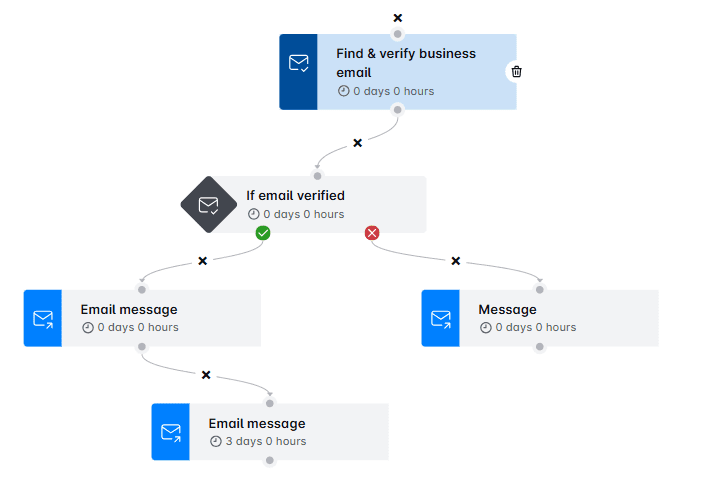
This means that as your campaign runs, Skylead will discover and double-verify your leads’ email addresses without breaking your outreach flow and before sending any emails, helping you:
- Avoid high bounce rates
- Protect your domain reputation
And unlike most tools we mentioned earlier, we don’t charge you per email found or cap you with credits. For a flat $100/month, you get:
- Unlimited email discovery and verification
- Unlimited mailboxes to send tens of thousands of emails per month
- Market-leading email finding accuracy
All this in one platform. Pretty handy, wouldn’t you say?
Is finding someone’s email on LinkedIn enough for outreach?
Short answer: not really.
Finding the right email address is just step one. But if you want to actually land in someone’s inbox and get a reply, you’ll need to go through a few more steps.
Verify the emails
Never send an email to an unverified address to minimize the chances of it bouncing. Sure, one bounce won’t kill your sender reputation, but too many will.
So, before hitting send, run every email through a verifier like Hunter, NeverBounce, or ZeroBounce. And if you’re using Skylead, good news: the tool double-verifies all emails as part of your outreach flow, so you don’t have to do it manually.
Warm up your email domain
If you're sending cold emails from a fresh domain or inbox, warming it up is non-negotiable. Without it, your emails might land in spam, or worse, not get delivered at all.
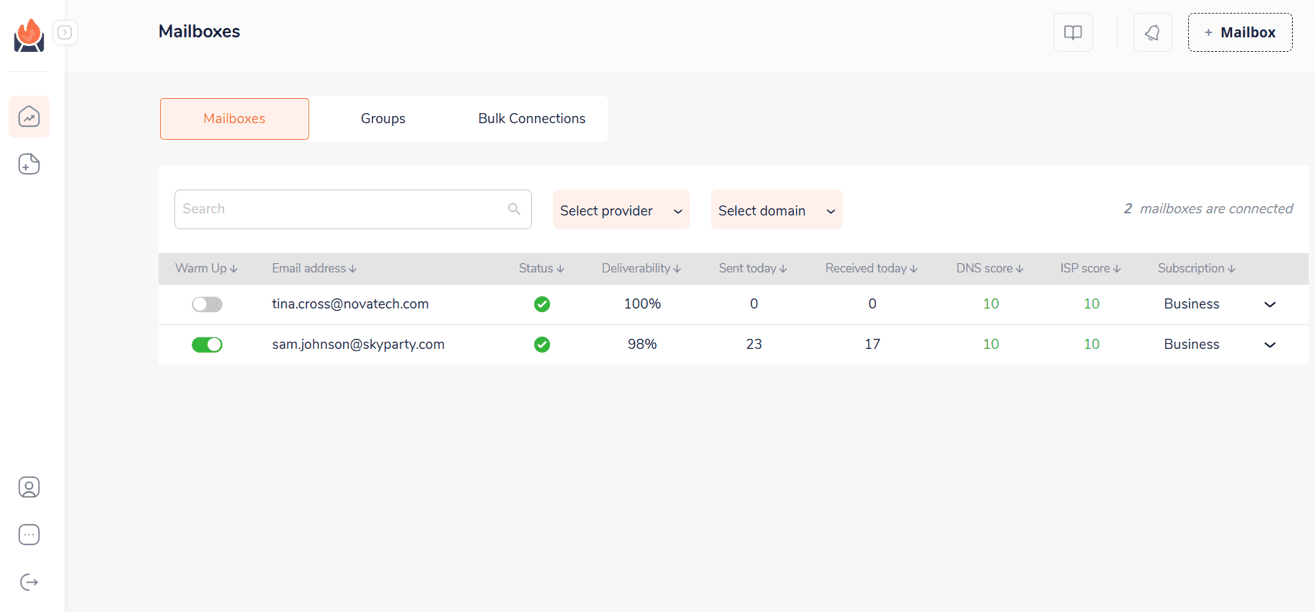
This is one more situation that Skylead can help you with. Namely, we have partnered up with an email warm up tool, InboxFlare, to bring you infinite email warm up functionality. As part of it, you can warm up unlimited mailboxes free of charge as an existing Skylead user and, thus, maximize your deliverability rate.
Personalize your message
An email is just a door. But personalization, whether based on job title, pain points, mutual connections, or recent activity, is what actually gets replies. So, as you go about writing emails, mention something specific and make it relevant.
Or, to bring it up a notch, rely on Skylead’s native Image & GIF personalization feature, which lets you create personalized visuals at scale, complete with:
- Your and/or your leads’ first and last name, profile photo, and/or company logo
- Custom text
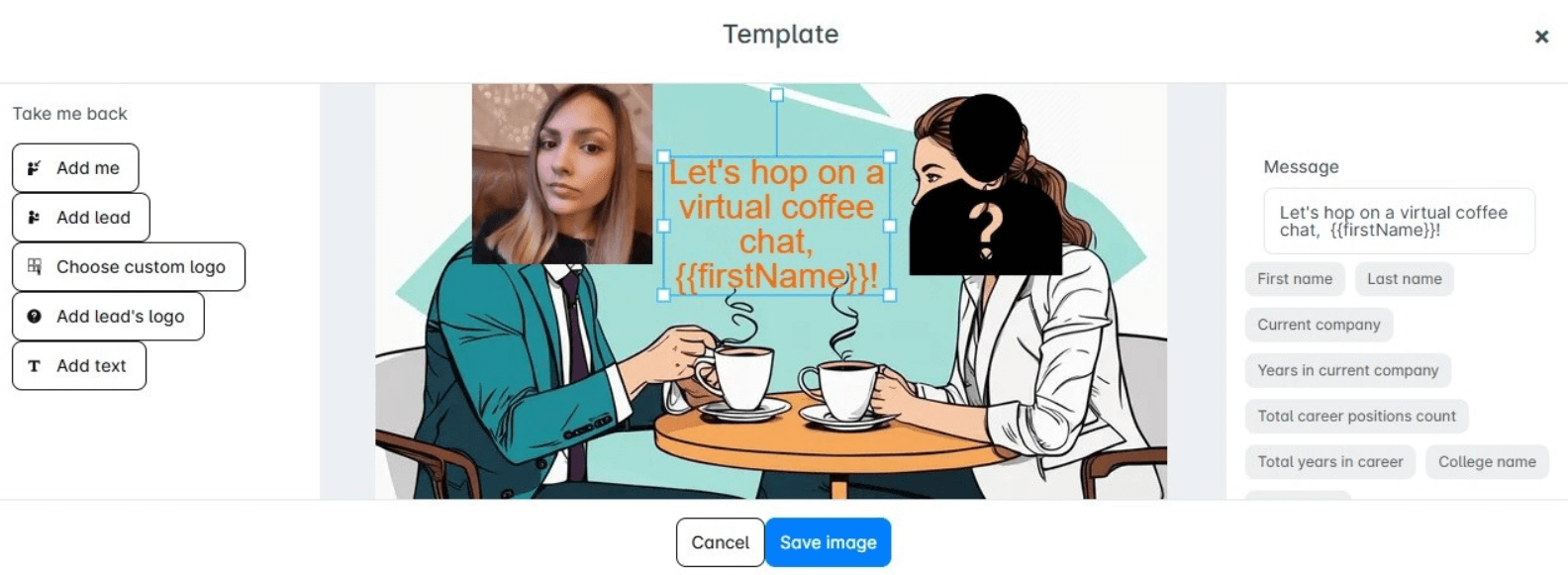
Choose to use it and you might just see your response rate rise up to 76%, as ours did!
Follow up
Most replies don’t come from your first email. In fact, it often takes 2-3 touches before someone responds. Following up isn’t the same as spamming, though. Thus, if you don’t want to come across as unprofessional, space out your follow up emails after no response by 3-5 days each, and add value in each touchpoint.
Stay compliant
Last but not least, it’s important that you respect privacy laws like GDPR, CAN-SPAM, or CASL. To do so, make sure you always include an opt-out option in your email and avoid shady scraping practices. After all, cold outreach works best when it’s thoughtful and respectful.
Frequently asked questions (FAQs)
Does LinkedIn give out email addresses?
Yes and no. LinkedIn only shows a user’s email to their 1st degree connections, and even then, users can choose to hide it. For non-connections, email addresses aren’t visible.
How to get someone's contact info from LinkedIn?
Go to their LinkedIn profile and click “Contact Info.” If you’re connected, you might see their email or other details. If not, send a connection request or a polite message. Alternatively, use a trusted email finder tool to uncover their contact information.
Is it legal to find and use someone’s email from LinkedIn?
Absolutely, as long as you use ethical methods and respect privacy laws and LinkedIn's ToS. Always use reputable tools and avoid scraping or collecting emails in ways that violate LinkedIn’s terms of service. Also, your outreach should be value-driven and respectful. Thus, if someone asks to be removed from your email list, honor that request.
What’s the easiest way to find someone’s email on LinkedIn?
The quickest and easiest method is to check the person’s LinkedIn profile and click on their “Contact Info.” If they’ve chosen to share their email, you’ll find it there. However, not everyone lists their email publicly, so you may need to try alternative methods if it’s not visible.
Can I export all my LinkedIn connections’ emails at once?
Yes, LinkedIn allows you to export the emails of your 1st degree connections. Go to Settings & Privacy > Data Privacy > Get a Copy of Your Data > Request Archive. You’ll receive a file that contains emails of those contacts who have chosen to share them, among other information.
You know how to find someone’s email on LinkedIn - now make it count
You’ve got the tactics, and you’ve got the strategy to make it work.
But here’s the thing: anyone can learn how to find someone’s email on LinkedIn. What sets great outreach apart is what happens next - the message, the follow-up, the experience you create on the other end.
So before you hit send, ask yourself:
Is this relevant? Or timely? Or something I’d reply to if I were on the other side?
And if you want to scale that kind of outreach without losing the personal touch, Skylead’s got your back.
With unlimited email discovery and verification, outreach sequences, native personalization, and email warm-up functionality, we give you everything you need to go from finding emails to starting meaningful conversations. Try it free for 7 days!
Disclaimer: Skylead is not affiliated, endorsed by, or connected with LinkedIn in any way.
If LinkedIn prospecting and lead generation are a part of your job, you’ve probably heard of Dux-Soup. This tool helps you find and engage with your target audience in real-time and on autopilot.
However, there’s a lot of discussion about whether it’s effective enough for SDRs, marketers, and recruiters. Or, more importantly, does it comply with LinkedIn's terms of service. Since we do not recommend violating LinkedIn's TOS, we wondered: is there a better alternative that is better and compliant with LinkedIn's ToS? Our research says it all and in it you’ll find: 👇
- What Dux-Soup has to offer users
- How much does a Dux-Soup subscription cost?
- Is using Dux-Soup really safe?
- How to cancel Dux-Soup
- Most popular tools that offer similar features (shown in short below)
| Tool | G2 score 🏆 | Capterra score 🏅 |
| Skylead | 4.5 ⭐️ | 4.8 ⭐ |
| Zopto | 4.4 ⭐ | 4.3 ⭐ |
| SalesRobot | 4.8 ⭐ | 5.0 ⭐ |
| Dripify | 4.5 ⭐ | 4.7 ⭐ |
| Lemlist | 4.4 ⭐ | 4.6 ⭐ |
| Meet Alfred | 3.3 ⭐ | - |
| Salesflow | 4.3 ⭐ | 4.1 ⭐ |
Let’s get into each one.
Dux-Soup or alternatives?
As a lead engagement software, Dux-Soup helps sales teams, recruiter specialists, and outbound marketers find LinkedIn prospects, reach them, and close deals faster. Think of it as your professional networking assistant. This tool streamlines workflows and save time on manual tasks.
These tasks include:
- Scanning your target audience’s LinkedIn accounts
- Sending connection requests, InMails, and regular LinkedIn messages
- Auto-endorse leads’ profiles.
Since Dux-Soup automates LinkedIn actions, it violates LinkedIn's terms of service so we suggest digging into some other tools that are compliant with them.
G2 score: 4.3 ⭐ Capterra score: 4.0 ⭐
Dux-Soup also offers a simple drip outreach campaign option where you can send messages and follow-ups in one simple sequence. You can add up to 12 messages in the campaign and set delays between them.
As for multichannel outreach, Dux‑Soup doesn't directly send emails, but effectively finds and extracts business emails of your 2nd and 3rd degree connections with required Dux-Soup points. However, you can enable email outreach via third-party tools, using Zapier/Integromat to handle the sending process. It might be extra work, but it’s doable.
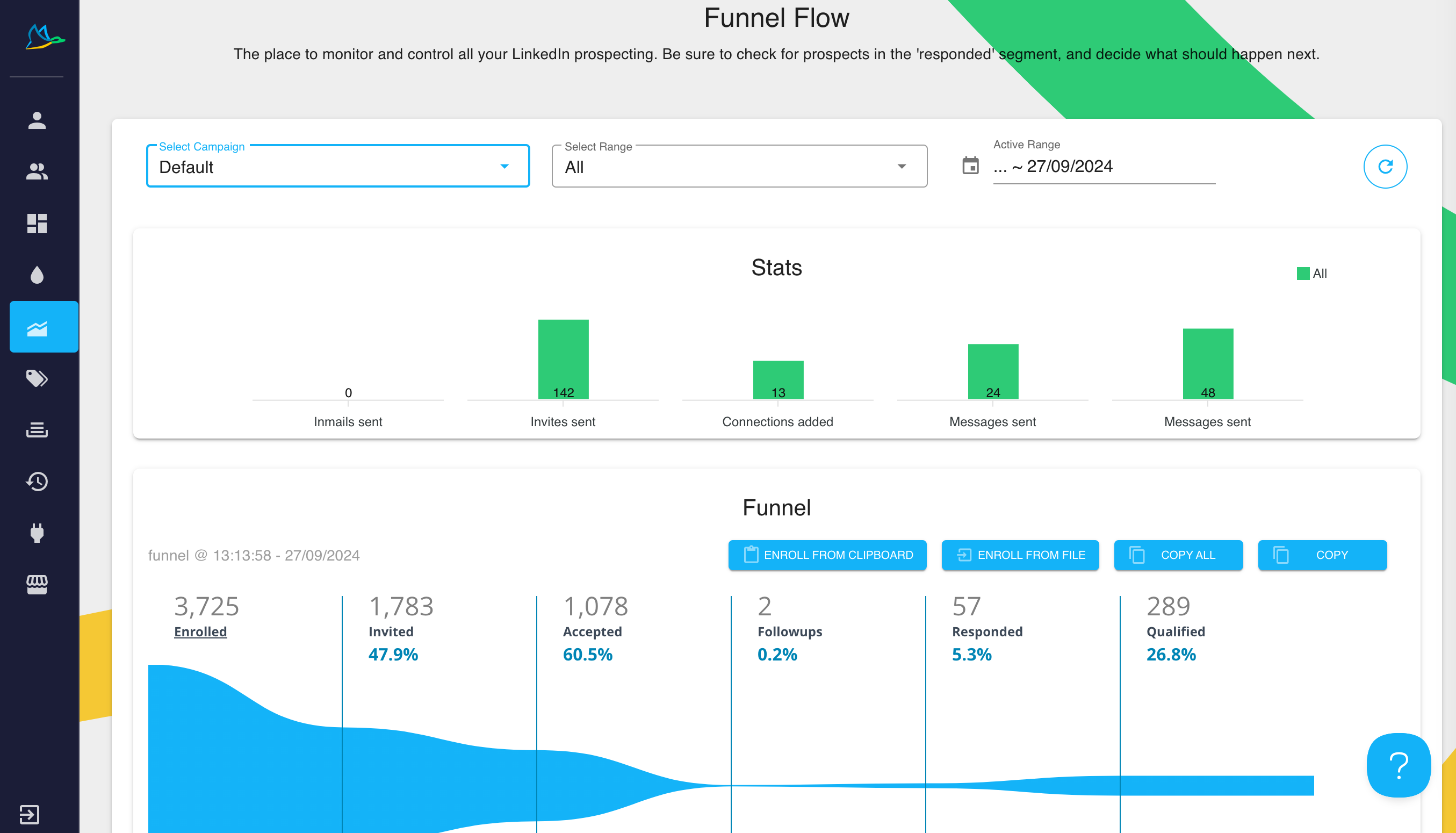
It also offers auto-pausing on replies and performance tracking through its Funnel Flow dashboard. With CRM integrations, cloud-based automation (with the right pricing plan), Dux-Soup can help streamline prospecting.
Dux-Soup pricing
Dux-Soup offers three pricing plans and sub-plans, depending on your team size and the features you need.
| Individual | Main features | Price per seat / month (ex. VAT) |
| Free | Includes profile visits, tagging, and searchable tags (ideal for basic, manual outreach) | $0 |
| Pro Dux | - auto-visits- personalized connection requests- 1:1 messages- InMails- Endorsements- Tagging- CSV/CRM data export | $14.99/month or $11.25/month billed annually |
| Turbo Dux | - Includes all Pro features + multi-touch drip campaigns (up to 12 steps)- Campaign analytics- CRM integrations (HubSpot, Pipedrive, etc.)- Automated response detection | $55/month or $41.25/month billed annually |
| Cloud Dux | All Turbo features in a cloud-hosted environment for 24/7 automation, running even when your device is off. | $99/month or $74.17/month billed annually |
| Team | Main features | Price per seat / annually (ex. VAT) |
| Pro Dux | - Automate profile visits, connection requests, follow-ups- Send 1:1 messages and InMails- Tag and organize leads- Export data to CSV or CRM- Centralized license management (add/remove seats)- Shared tagging system across team- Consolidated billing- Dux-Points shared across seats- Team-wide signature setup | $14.99/month per seat |
| Turbo Dux | - Drip campaign builder (multi-step sequences)- Automated follow-ups with delays- Response detection (auto-pause campaigns)- CRM integrations (HubSpot, Pipedrive, Zapier, Make)- Funnel Flow dashboard for campaign performance- Shared campaign library (prevent duplicate outreach)- Team Funnel Flow: see performance by team member- Import/export leads across team- Unified messaging for consistency- Shared team campaign templates | $55/month per seat |
| Cloud Dux | - Cloud-based automation (runs 24/7)- No need to keep browser or computer open- Safer execution via managed Dux-Soup servers- Everything in Turbo Team Plan- Consistent campaign delivery across time zones- Multiple LinkedIn accounts running concurrently | $99/month per seat |
Keep in mind that Team plans are only charged annually and use a tiered pricing model.
| Agency | Main features | Price per month total (ex. VAT) |
| Pro Dux | - Automate LinkedIn profile visits, connection requests, and 1:1 messages- Tag, filter, and export profile data- Manual outreach support (no drip sequences)- Centralized seat/license management across clients- Shared branding (signature setup)- Unified billing- High-usage metered pricing available- Basic client tracking via tags | ~$337.50/month (for 30+ seats) |
| Turbo Dux | - Multi-step drip campaign creation- Response detection with auto-pausing- Funnel Flow analytics per client or userCRM and API integrations (HubSpot, Pipedrive, Zapier, Make)- Campaign templates reusable across client accounts- No lead overlap: prevent duplicate outreach across clients- Reporting tools for client updates and transparency- Team Funnel Flow to monitor performance by account or rep- Shared campaign library | ~$412.50/month (for 10+ seats) |
| Cloud Dux | - Cloud-based automation (no browser required)- Always-on execution: 24/7 activity, even when logged out- Higher safety via IP rotation and server-side behavior mimicry- Manage multiple client accounts from one cloud dashboard- Easily switch, monitor, or run multiple LinkedIn accounts concurrently- Centralized reporting across all clients- Metered billing: flexible, pay only for seats in use- VIP-level support with onboarding assistance | ~$371/month (for 5+ seats) |
Team plans are seat-based and ideal for in-house teams, offering shared campaign tools and centralized license management, with volume discounts starting at 11+ seats. For agencies, the Cloud-based plans have flexible, metered billing and multi-account management from a single dashboard, with minimum seat requirements starting at 5 for Cloud, 10 for Turbo, and 30 for Pro.
Besides the listed plans, you can always opt for their 14-day free trial, which includes full Turbo features, with no credit card info needed, so you can check it out.
But what if you need multichannel outreach and all other key features in one tool, with no setup hassle, no extra cost for features, and with maximum safety? Let’s show you what other tools are out there.
7 best Dux-Soup alternatives
1. Skylead
G2 score: 4.5 ⭐ Capterra score: 4.8 ⭐
Hi, that’s us!
Skylead is a sales engagement tool that helps sales teams, recruiters, marketers, and founders with their outreach tasks. It is the only tool from the list that is a 100% compliant with LinkedIn's terms of service.
When it comes to integrations, Skylead integrates with any other app via API, Zapier, or Integromat. You can integrate with your favorite CRM, like Pipedrive or Hubspot, to streamline workflows even further. Sounds amazing, right? Well, we’re just getting started. Let’s cover other amazing Skylead features.
Smart sequences
Unlike Dux-Soup's simple outreach campaigns, Skylead has its first-to-market, all-star feature: Smart Sequences - algorithms that help you combine outreach actions with if/else conditions. As a result, you get coherent outreach flows that helps you unfold outreach according to the way your prospects behave.
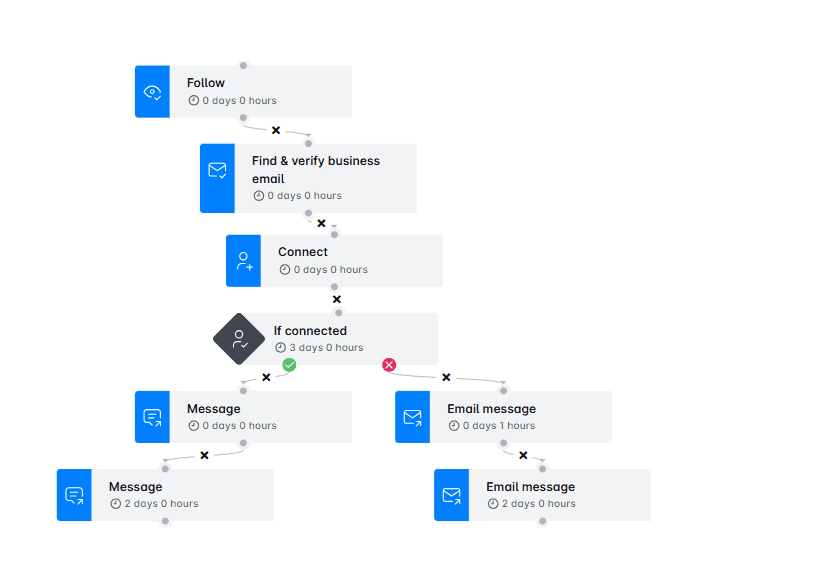
Here’s another advantage. Dux-Soup limits your drip campaign to a maximum of 12 messages. With Skylead, you can send an unlimited number of messages and perform other actions in your sequence.
You can monitor and optimize your campaigns with advanced analytics and reporting for each step and action in a sequence. Here’s what you get:
- Graph metrics for a visual representation of the ratio between actions
- Table view for spotting trends that happen during specific days
- Sequence steps view to examine steps in detail
Oh, and you can also A/B test each part of the message and see which one works best for your audience. ✨
Unlimited email automation
Skylead gives you unlimited email automation. How do we do this? Well, you can connect an unlimited number of email accounts. Skylead then auto-rotates them, which helps with the sending limitations and boosts deliverability.
Infinite email warm-up
Another unlimited feature in question - infinite email warm-up. You get to warm up email accounts at no extra cost and with no limits. Your inbox stays healthy no matter how many accounts you connect, so you can focus on outreach without worrying about your deliverability.
Email discovery & verification
While Dux-Soup has an email discovery feature, there’s no word of verification, which might result in a high bounce rate and a damaged domain.
Email discovery & verification in Skylead helps you reach leads even when their email isn’t listed. That way, you avoid bounces, protect your sender reputation, and keep your outreach running smoothly, no manual work needed. And most importantly, without breaking your outreach flow.
One more thing - unlike Dux-Soup, Skylead doesn’t charge extra for this feature, so you can find and verify as many emails as you’d like at no additional cost.
Hyper-personalized images & GIFs
Did you know that you can increase the response rate by adding a personalized image or GIF? With Skylead, you can add hyper-personalized images and GIFs to your messages. Think prospect names, company logos, or pics baked right into the visuals. It’s a simple way to stand out in a crowded inbox and boost replies without extra design work.
And the best part? This is a native feature, which means there’s no hidden, extra cost for the advanced personalization options in Skylead, so this is great if you’re looking at the cost vs features ratio. 🤩
Pricing
| Plan | Monthly cost | Seats | Notable features |
| All-in-One | $100 | 1 account | Multichannel outreach, find & verify emails, smart sequences, personalization, integrations |
| White Label | Custom | Custom | Full white-label benefits, dedicated support, agency-level dashboard & branding |
| Free Trial | Free | 7 days | Full access to All-in-One features |
There’s also an annual payment option, so you can check out our pricing page for more info. Also, keep in mind that, unlike other tools from this list, Skylead doesn’t limit the number of features you can use.
You can learn everything about the tool and its functionalities from different article tutorials, along with sequence and message templates, to get inspired.
Last but not least, Skylead has an all-star customer support team that’s ready to help anyone with any setup or question you might have, with their amazing 7-second reply time. 🏆
2. Zopto
G2 score: 4.4 ⭐ Capterra score: 4.3 ⭐
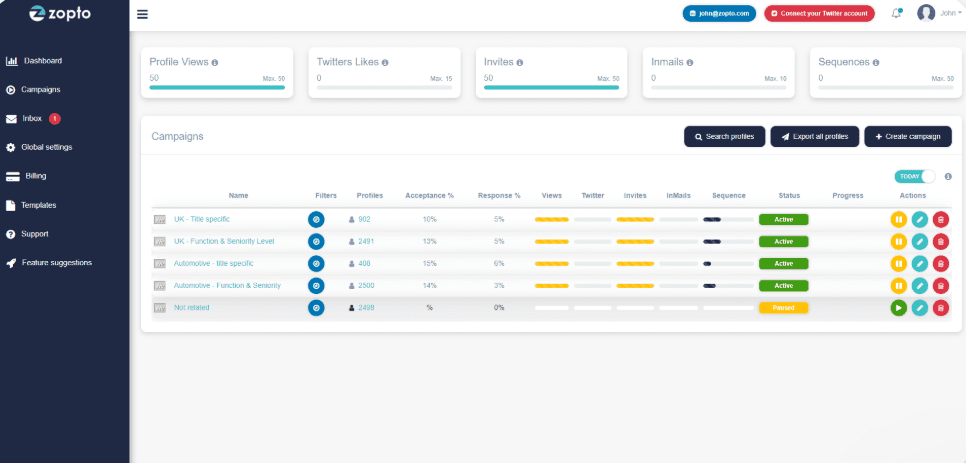
Zopto is a cloud-based LinkedIn automation platform designed for sales teams, recruiters, and agencies that need to scale outreach, just like you. It works 24/7 and supports LinkedIn Premium or Sales Navigator accounts. That said, sadly, Zopto is not compliant with LinkedIn's terms of service.
Zopto’s feature relies on multi-channel campaigns. They automate LinkedIn actions like connection requests and messages, and combine them with email and even Twitter outreach, which is unique. This way, you keep your prospects engaged across platforms.
The tool includes a GPT-4-powered AI assistant (Zhoo) that helps you write outreach copy and manages replies, which is great for high-volume campaigns. You also get advanced targeting filters, CRM integrations, and reporting dashboards.
Cons
However, Zopto is more expensive and offers fewer features at entry level. Multichannel outreach is for higher tiers only. It lacks an inbox where you can manage all conversations in one place with limited personalization. Also, there are usability issues with a complex UI, so setting up campaigns means more manual output and slower outreach.
Pricing
Zopto doesn’t offer a free version, so you won’t have a chance to test the fit. Here are the plans which vary in feature density depending on the chosen plan:
Basic: $197
Pro: $297
Agency & Enterprise Basic: $156
Agency & Enterprise Pro: $237
Whichever plan you choose, onboarding support is included. However, keep in mind that higher tiers offer more advanced automation, analytics, and team collab features, so you’d have to spend more to get the features you need.
3. SalesRobot
G2 score: 4.4 ⭐ Capterra score: 4.3 ⭐
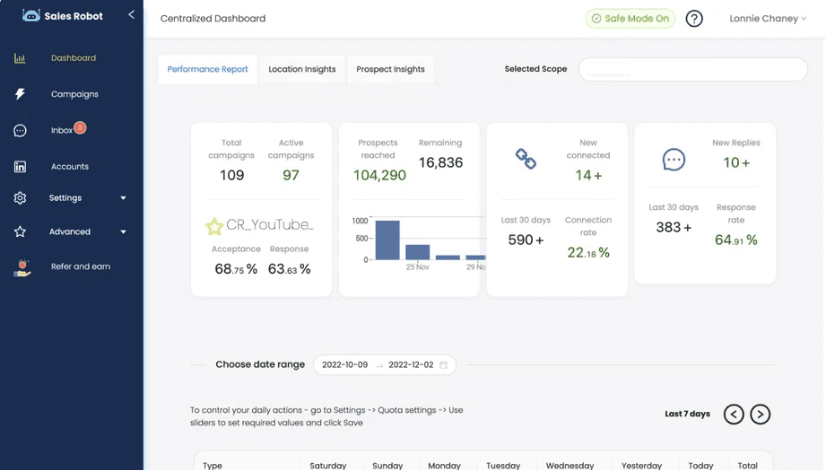
SalesRobot is a cloud-based LinkedIn automation tool for safe and scalable outreach. It runs in the cloud 24/7, so you don’t need to keep your device on, and it works with both LinkedIn Premium and Sales Navigator accounts. That said, this tool is not compliant with LinkedIn's ToS.
Since it's not compliant, this tool allows you to automate LinkedIn actions like profile visits, connection requests, and follow-ups with customizable delays and daily limits that mimic human behavior. It also supports email outreach, which you can manage alongside LinkedIn messages from a single inbox, but you’d have to pay extra for each email account you connect.
There’s also built-in AI to help you write better outreach messages and A/B test what works. You can also integrate with CRMs via Zapier or webhooks, and track performance across all your campaigns through a clean and simple dashboard.
However, it’s not as feature-rich: no built-in email finder & verifier, unlimited email account hosting, or image & GIF personalization, so you’d need to pay for add-ons. Reporting is relatively basic, and if you need in-depth analytics or agency-level dashboards, you won’t find what you need because of these workflow management limitations. Some users also report occasional bugs and slower customer support on lower-tier plans.
Pricing
SalesRobot offers a 14-day free trial and keeps pricing simple with monthly billing:
- Basic plan: $59/month - Limited daily quotas, 1 active campaign
- Advanced plan: $79/month - Unlimited campaigns, A/B testing, smart inbox, integrations
- Professional plan: $99/month - Adds team management and more outreach controls
- Email automation add-on: $15/email account
All plans are pay-as-you-go, and most users will get the full value starting from the Advanced plan, where the multichannel approach and inbox features are unlocked.
4. Dripify
G2 score: 4.5 ⭐ Capterra score: 4.7 ⭐
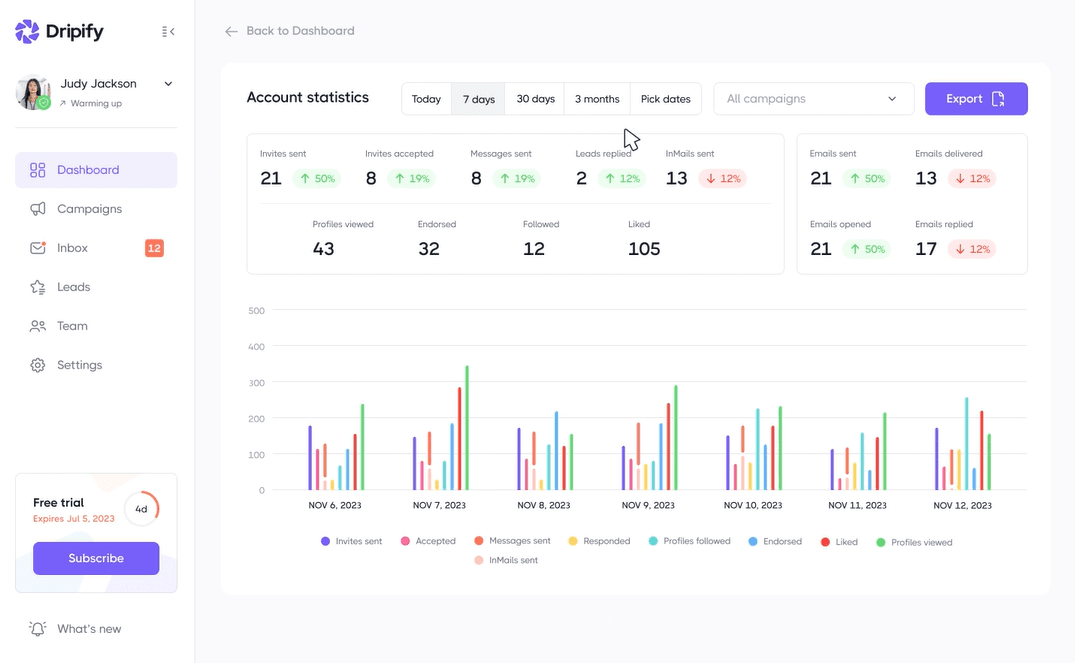
Dripify is a cloud-based LinkedIn automation platform built for sales teams, recruiters, agencies, and solo users. It works with both LinkedIn Premium and Sales Navigator accounts. That said, this tool, too, is not compliant with LinkedIn's ToS.
Dripify’s main appeal is the campaign builder, which lets you create multichannel sequences with delays, conditional steps, and personalization variables. It includes a unified inbox for managing replies, basic analytics, and team collaboration tools like lead routing and performance tracking.
However, deeper personalization features like image/GIF variables or AI-generated copy are missing. The interface is easy to navigate, but reporting is very limited unless you’re on a higher plan.
Pricing
Pricing per user:
| Plan | Monthly billing | Annual billing |
| Basic | $59/month | $39/month |
| Pro | $79/month | $59/month |
| Advanced | $99/month | $79/month |
| Enterprise | Custom pricing | Custom pricing |
- Basic: 1 drip multichannel campaign, limited daily quotas
- Pro: Unlimited campaigns, smart inbox, A/B testing, CRM export, Zapier/webhooks
- Advanced: Adds team management, activity controls, and account manager
- Enterprise: Tailored for larger teams with API access and custom onboarding
Each plan includes a 7-day free trial with no credit card details needed. Most users start with the Pro plan to unlock the full feature set, so if you decide to go with Dripify, we recommend spending extra to unlock some key features or choose a tool that has it all.
5. Lemlist
G2 score: 4.4 ⭐ Capterra score: 4.6 ⭐

Lemlist is a cloud-based outreach platform designed for running personalized, multichannel campaigns. It supports email, LinkedIn (via Chrome extension), and even call steps. Since it automates LinkedIn's actions, it doesn't comply with LinkedIn's ToS.
Lemlist stands out for its personalization features. You can add dynamic text, images, and custom variables to your messages, making them feel less like templates and more like real outreach. It also includes built-in email warm-up (Lemwarm), deliverability tools, and a smart inbox for handling replies across all channels.
Note that reporting can feel limited for power users, and email/lead credits may run out quickly.
Pricing
Pricing (per user, monthly vs. annual):
- Free: $0/month - Lead finder access with limited credits (100 emails/month or 25 phone numbers)
- Email Pro: – $69/monthly or $55/month billed annually - Email-only campaigns with warm-up, deliverability tools, email finder, and CRM integrations
- Multichannel Expert: $99/monthly or $79/month billed annually - Adds LinkedIn steps, call tasks, multi-sender email accounts, unified inbox, and team collaboration tools
- Enterprise: Custom pricing - For larger teams that SSO, custom onboarding, user roles, and priority support
All paid plans come with a 14-day free trial and access to Lemlist’s deliverability and personalization features, so you can test it out before making your decision.
6. Meet Alfred
G2 score: 3.3 ⭐ Capterra score: -
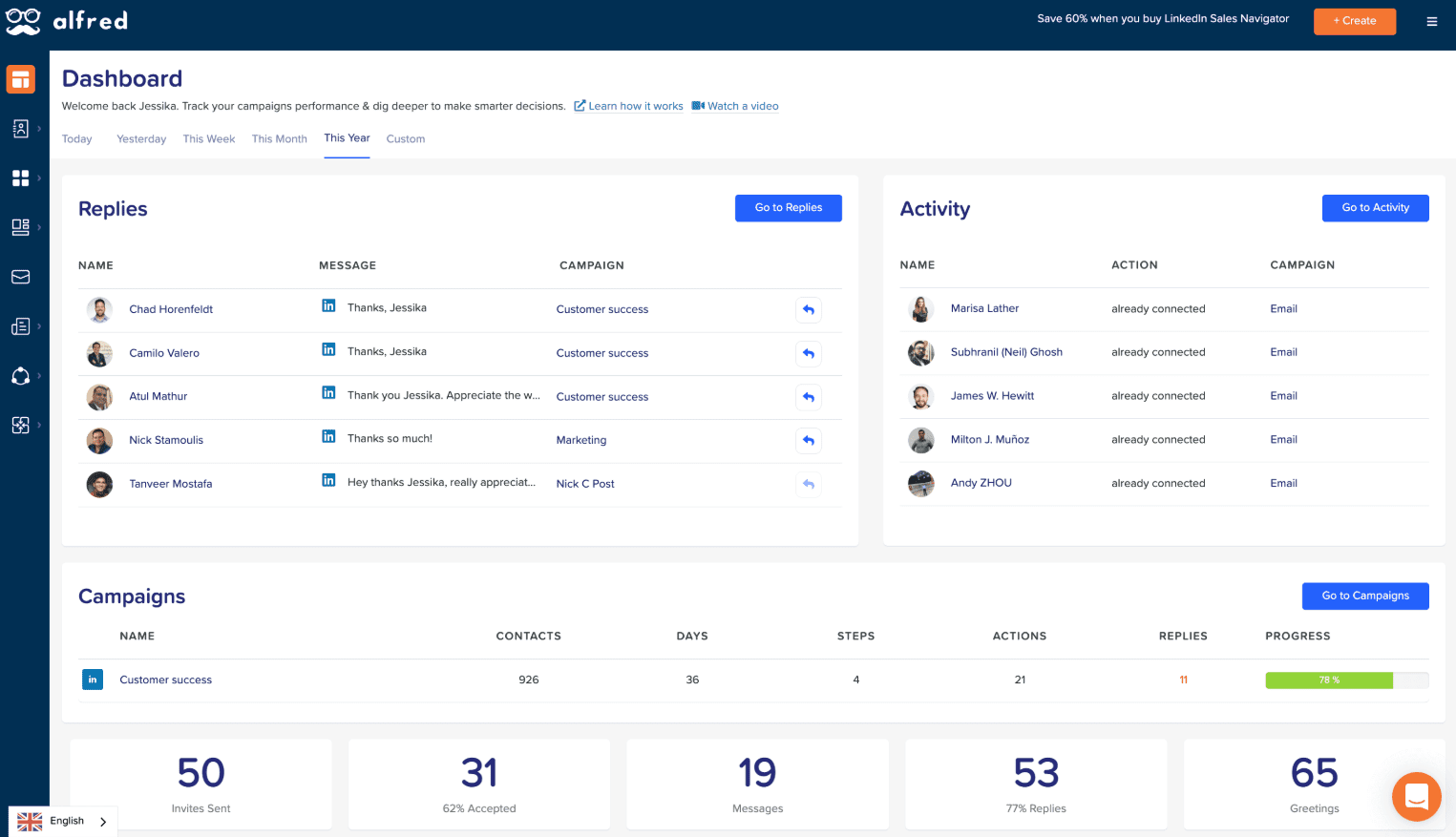
Meet Alfred is a cloud-based sales engagement and LinkedIn automation tool and if you want to run personalized, multichannel outreach, this is the tool you might be looking for. It works 24/7 without needing your browser open (for email and Twitter). However, since it automates LinkedIn actions, it isn't compliant with its terms of service.
Meet Alfred automates LinkedIn profile visits, connection requests, follow-ups, post engagement campaigns, and InMails. You can also layer in email and Twitter messages, and schedule LinkedIn posts from one centralized dashboard.
The platform includes a built-in LinkedIn CRM to manage and tag leads, a smart inbox that shows all channel replies, and AI-personalization to help tailor outreach.
On the downside, key multichannel features and full Sales Navigator support only come in higher-tier plans, so you’d have to pay more to get full access. Plus, not having all feature available right away might put away certain users, as there’s need for extra manual setup.
Pricing
Pricing (per user, monthly-annual billing):
- Free plan - $0/month ($0 annual)
- 1 active campaign, LinkedIn automation, limited lead finder usage
- Basic plan - $59/month or $29/month billed annually (~50% off)
- 3 active campaigns, basic LinkedIn CRM, smart inbox, templates, automated greetings, custom tags
- Pro plan - $99/month or $49/month billed annually (~50% off)
- Unlimited campaigns, Sales Navigator support, email & Twitter automation, group/event outreach, InMails, content scheduling, Zapier/webhook integration, advanced CRM, data export
- Teams plan - $79/user/month or $39/user/month annually (minimum 3 users)
- All Pro features + team inbox, role settings, volume pricing, white-label options, and account manager support for larger teams
All paid plans include a 7-day free trial and no credit card required, so you can test MeetAlfred and see if it’s the right fit for your business.
7. Salesflow
G2 score: 4.3 ⭐ Capterra score: 4.1 ⭐
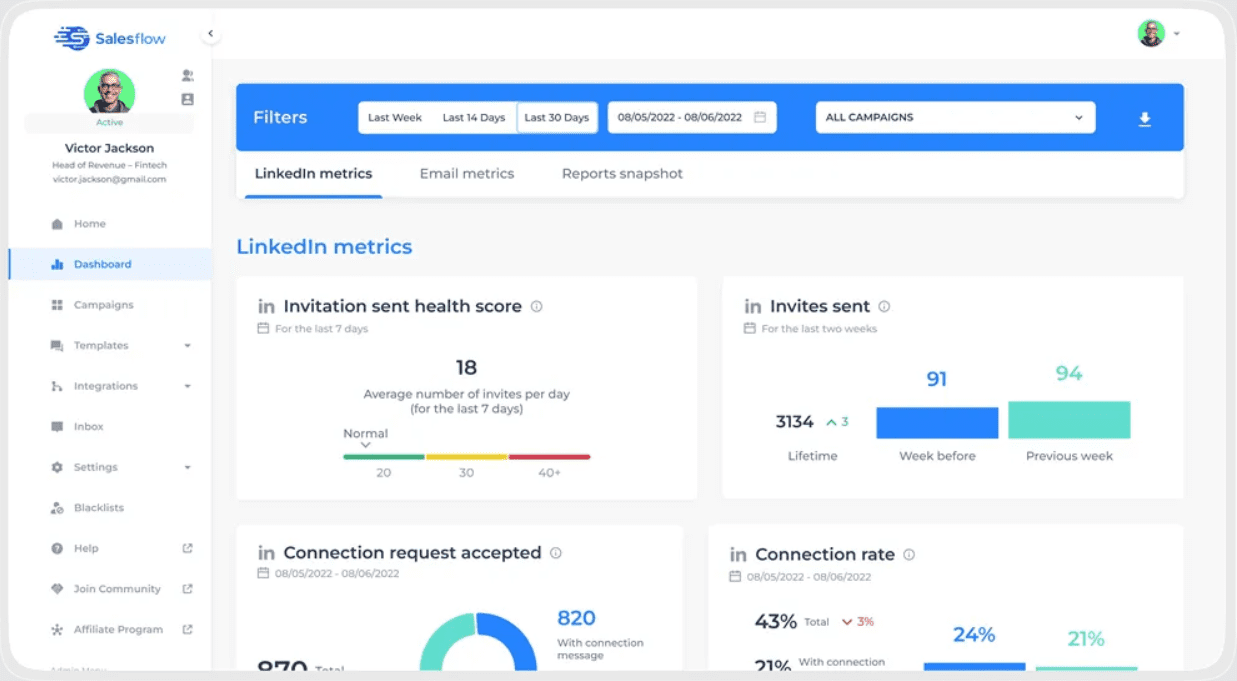
SalesFlow is a cloud-based LinkedIn and email automation tool built for sales teams, agencies, and growing startups. It runs 24/7, supports LinkedIn Premium and Sales Navigator, and helps you handle multichannel outreach.
The platform automates LinkedIn actions like connection requests, follow-ups, InMails, and even lets you run email sequences alongside them. That said, this one as well is not compliant with LinkedIn's terms of service.
You can track performance through campaign analytics, and integrate with your tools via Zapier. If you’re doing group or event outreach, that’s covered, too.
Now for the trade-offs: the UI can feel a bit clunky at times, with an outdated interface, and while the analytics are solid, they’re not as deep as some larger platforms. Also, inbox management is a bit basic if you’re working with a team.
Pricing
Pricing (per user):
- Single user: $99/month or $79/month billed annually
Includes up to 400 invites, 800 InMails, 2,000 follow-ups/month, multichannel outreach, real-time analytics, and integrations.
- Teams plan: Custom pricing
Adds shared inbox, lead blacklisting, team management, and support from a customer success manager.
- Agency plan: Custom pricing
White-label dashboard, admin controls, global client views, dedicated IPs, and API access.
You can test it out with a 7-day free trial, no credit card needed.
How to cancel Dux-Soup?
So, you’ve seen what’s out there, and now you’re thinking you might want to try something new. But first, you need to cancel your Dux-Soup subscription and link your accounts to another software.
Here’s a short step-by-step on how to do it. 👇
- To cancel your subscription, log into your account here: https://app.dux-soup.com/web/profile. Then go to the Manage Account & Subscription.

2. The second step is to click on your subscription.
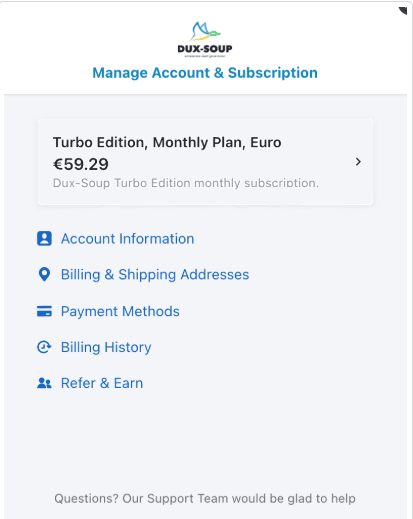
3. Lastly, click on the Cancel subscription plan and you’re done.
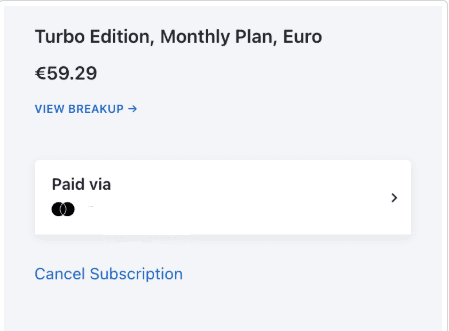
Which tool to choose?
We’ve listed the research, we gave you options, and told you what to look out for. So, let’s recap. Your tool should:
- Find the one that is compliant with LinkedIn's terms of service
- Have an intuitive interface
- Have as many native features as possible (avoid add-ons as they add costs)
- Support hyper-personalization
- Have a solid cost vs features ratio (so you know you’re getting your money’s worth)
- Give you good integration options (if you want to connect with other tools)
If you want to make an informed decision, your ideal tool should at least have all these bullets checked. The rest is up to you.
And if you liked what Skylead has to offer, feel free to contact our support team via chat. They’ll be more than happy to meet you and help. Or if you already made up your mind, dive right in and try Skylead yourself by starting a 7-day Free trial.
Disclaimer: Skylead is not affiliated, endorsed by, or connected with LinkedIn in any way.
Getting accepted on LinkedIn sometimes seems like a mission impossible, but what about starting a sales-oriented conversation with a complete stranger? What kind of a LinkedIn Message Template should be used so you don’t come off as too mild, too aggressive, but, the way Goldilocks likes it - just right.
We’ve been there and know how hard it can be to scale up your business. That’s why we’ve decided to speak about what happens after your LinkedIn Connection Message goes through. That is, how to approach your lead in a way to get more sales.
Of course, no recipe works for everyone and on everyone, but there are some common ground rules that you can follow when sending cold messages on LinkedIn to get more sales.
In this blog, we’ll cover:
- What to do before starting your cold LinkedIn outreach;
- Dos and don’ts for LinkedIn Messages if you wish to get more sales;
- 10 sets of LinkedIn Message Templates for 10 different LinkedIn scenarios;
- A breakdown of each set of LinkedIn Message Templates in case you want/need to adjust them to your business needs.
We’ll also show you just how our very own Skylead can help you scale your outbound strategy beyond LinkedIn!
Updated on: July 1st, 25
Cold LinkedIn messages won’t get you sales unless . . .
You fully optimize your LinkedIn profile.
We cannot stress enough the importance of an optimized LinkedIn profile. Whether going for a LinkedIn outreach, a cold emailing, or a multichannel approach, nowadays, the first thing anyone does is check your and your company’s profile on LinkedIn.
Your LinkedIn profile is your online business card, available to anyone at any moment. Make sure it looks neat and professional.
As the bare minimum, you must:
- Write a catchy LinkedIn headline that describes exactly what your job consists of. Imagine how you would describe what you do for a living, in one sentence, to someone who knows nothing about it. That’s your headline.
- Put a professional profile picture. Long story short, put a photo that you wouldn't be ashamed to show to your boss or your biggest client.
- Upload a cover photo that portrays what you do or what your business is all about.
- A LinkedIn summary is all about your professional highlights and keywords you would want to be associated with.
- List relevant professional experience.
- Tell us what you studied.
You define your ICP.
Not defining your ICP equals gambling with your money, resources, and time.
And just like with casinos, the statistical probability is against you.
The house always wins, so don’t put it all on red. You’ll end up being in the red.
Catastrophic predictions apart, for getting more sales you need to define the companies that match your Ideal Customer Profile.
Now, how do you define your ICP?
- Take into consideration both your target industry and sub-industry.
- Understand the location of your ICPs.
- Take into consideration the revenue that your best customers bring to your business.
- Highlight your top 5 current customers that you’d like to replicate if you could and outline their positives and negatives.
If you need more details on how to define your ICPs, the difference between ICP and Buyer Persona, and downloadable ready-to-use templates for defining both check out 4 Easy Steps To Create ICP For Lead Generation and 6 Key Steps To Create Buyer Persona For Lead Generation.
You target what you’ve defined.
Since you’ve spent your time defining the ICP and the Buyer Persona within, and your money on Sales Navigator, you better use them to their full potential.
With 29 Sales Navigator Lead Filters and 15 Sales Navigator Account Filters, the possibilities for quality targeting are endless.
Whether a LinkedIn lead generation expert or a newbie to this process, having a deep knowledge of the tools at your disposal is the first step toward successful prospecting on LinkedIn. And, if you “have the moves” and know how to:
- Use the Spotlights filter;
- Apply Boolean search;
- Exclude leads from your search;
- Create a Leads List;
- Use Alerts;
- Take advantage of the View Similar option;
- Filter leads through Account Lists/Lead Lists filters
... the sky is your limit!
For detailed instructions (and more) check out:
- Complete guide to Sales Navigator Lead Filters;
- Top hacks to Find Leads.
How long should a LinkedIn message be?
LinkedIn gives you up to 300 characters for your LinkedIn Connection Request Message.
On the other hand, the LinkedIn InMail character limit is:
- Subject line: 200 characters
- InMail body: 2000 characters
- Signature: 150 characters
A regular LinkedIn Message that you can send only to your 1st-degree connections and to members of the same LinkedIn Group, only in case you are a member too, has an 8000-character limit.
However, there is no need to use them all. When writing any of these, keep in mind that you have only few seconds to catch your prospect’s attention. Furthermore, no one wants to read a novel in their Inbox.
In your LinkedIn Message make sure that you:
- Hook them in the Intro to read more;
- Keep them interested throughout the message to continue reading;
- Make them wish to ask questions and want to hear more.
LinkedIn claims that messages up to 600 characters are 50% more likely to get a response. Also, remember to fit the catchy information at the beginning as this is what recipients see in their Inbox preview.
How to cold message on LinkedIn: Dos & don’ts
DOS
- Find something that you have in common with the lead that you are talking to. Your conversation-starter LinkedIn Message should have a solid personalized hook or a good joke (‘cause, why not? Everyone likes to laugh), so you can justify further conversation, in case you didn’t put one in your Connection Request Message.
- Ask questions - but gradually. No one will tell you the main problem of their company straight out the gate, but once they feel that you genuinely care and that you might have a solution to their problem, they will open up.
- Be prospect-oriented. Everything you say must serve the prospect and their business. No one cares what worked for you.
DON’TS
- Don’t sell in your Connection Request Message or the first LinkedIn Message.
- Don’t use the same pitch on everyone. It might seem a bit time-consuming to come up with a different LinkedIn Message copy for each lead (or group of leads), but trust us, it’s worth your time. Plus, you’ll have LinkedIn Message Templates for getting more sales down below that you can use right away or adjust to your needs if necessary.
- Don’t talk about yourself right away. Your lead will for sure check the LinkedIn profile of you and your company, so make sure it sells for you. It is fine to include a brief explanation of who you are and what your company does, but don’t use all the available characters of the LinkedIn Message for it.
10 LinkedIn message templates for 10 LinkedIn scenarios
We’ve listed 10 ideas for you on how to approach sales engagement to get more sales based on different business goals and LinkedIn scenarios.
Scenario #1: Express interest in your lead’s work to form a partnership
Connection request template
Hello {{firstName}},
I saw on your profile that you’re associated with the {{industry}} industry.
I work in {{yourIndustry}} and would love to connect with you!
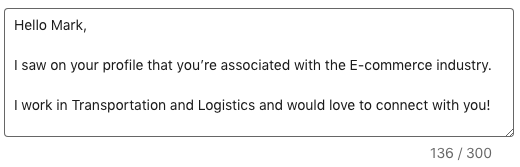
LinkedIn message template #1
Thanks for connecting!
I don’t know if you’ve heard the news, but {{yourCompany}} has {{customizedSellingPoint}}/{{uniqueSellingPoint}}.
You can check it out in more detail on our website {{link}}.
I believe that {{currentCompany}} could benefit from it!
Let me know what you think!
{{personalizedGIF}}
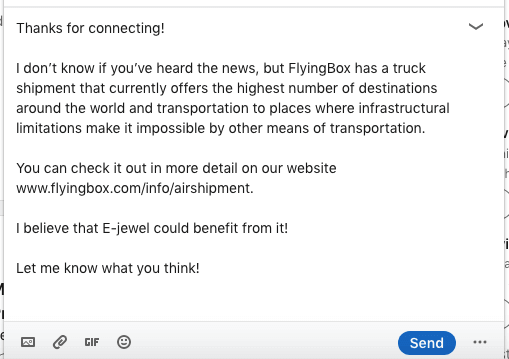
Personalized GIF
These templates work because you’ve:
- Inserted a hyper-personalized GIF referencing the lead you are talking to and their company;
- Shown that you’ve done your research by referencing to the lead’s occupation/company/industry;
- Offered a solution to their problem or some kind of service that their industry can majorly benefit from.
Scenario #2: Investigate your lead’s current solution to pitch your product/service
Connection request template
Hi {{firstName}},
What is the hardest part of being a product manager?
Explaining what you do to your parents and friends.
Jokes apart, I would love to connect!
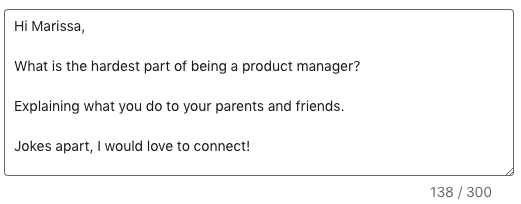
LinkedIn message template #1
Hey {{firstName}},
Thank you for accepting my Connection Request.
I saw that you are {{occupation}} at {{currentCompany}}, so I decided to reach out.
I was curious to know if you and your team are using any customer survey tools? If yes, which one, if you wouldn’t mind sharing that info?
Thanks,
John
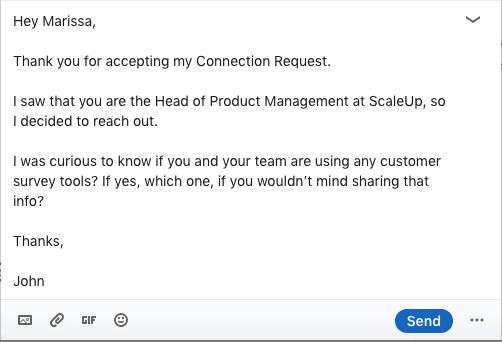
LinkedIn message template #2
The reason for my outreach was to introduce {{descriptionOfSolution}}.
Briefly, {{uniqueSellingPoints}}.
How does that sound?
These templates work because you’ve:
- Used humor in your outreach, which is always a good choice;
- Shown that you’ve done your research by referring to the lead’s occupation and/or company that they work at;
- Asked questions to get to know their current solutions/problems/needs/rooms for improvement;
- Given a brief explanation of what you offer to hook them and make them want to hear more about it.
Scenario #3: Content distribution and promotion
Connection request template
Hey {{FirstName}},
I came across your profile and was really interested in your background as a {{occupation}} at {{currentCompany}}. I share a lot of content about the {{industry}} industry that could be useful to you.
Looking forward to connecting with you!
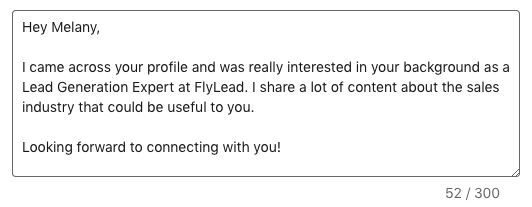
LinkedIn message template #1
Thank you for adding me to your network.
I thought that this blog {{nameOfblog}} might be particularly useful for you {{link}}.
Check it out and let me know if you have some comments and suggestions!
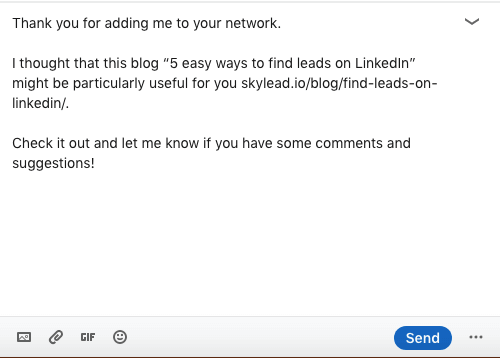
These templates work because you’ve:
- Shown that you’ve done your research by referring to the lead’s occupation/company/industry;
- Offered a resource that the lead’s industry/company can benefit from.
Scenario #4: Reach out to people who attended your event
Connection request template
Hey {{firstName}},
Thank you for attending my webinar {{webinar’sName}}!
I would like to keep in touch.
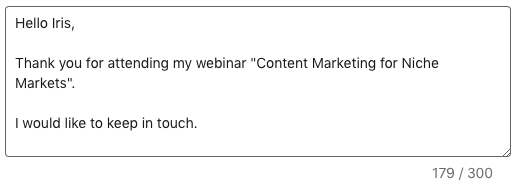
LinkedIn message template #1
Thank you for adding me to your network!
Quick question - {{question}}.
{{personalizedImage}}
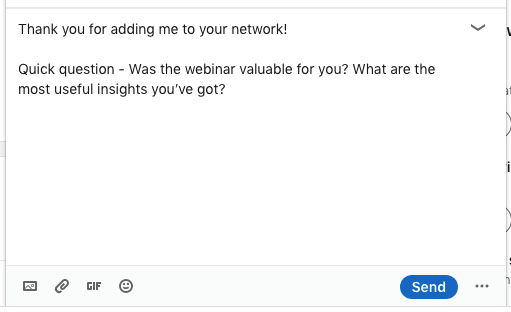
Personalized image

LinkedIn message template #2
Thank you so much for sharing your feedback!
I also took some time to research your company {{currentCompany}} and wanted to share with you some resources that might help you with {{problem}}/{{roomForImprovement}}.
Here’s a link to it - {{link}}
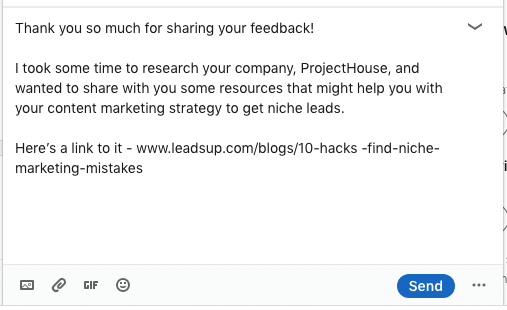
LinkedIn message template #3
Hey {{firstName}},
I hope that you liked the blog I’ve sent.
If you would like to know more about it and you found that resource valuable, there’s plenty where that came from!
Let me know if you would be interested in {{service/product}}, I would be glad to help!
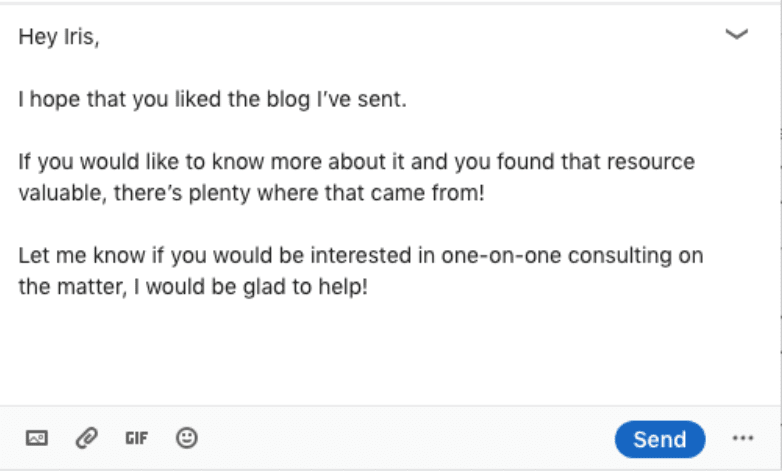
These templates work because you’ve:
- Taken some time to find the lead that attended your event and thank them for it;
- Asked for genuine feedback to connect with your lead and create trust between the two;
- Put in extra effort to make a hyper-personalized Image to ask for feedback;
- Offered to give more resources to help the lead with a particular matter;
- Shared a free gift.
Scenario #5: Invite relevant leads to join your community
Connection request template
Hello {{firstName}},
I saw the post that you shared about {{topic}} and I really like the part where {{thePartYouLiked}} / {{postParagraph}}.
Would love to connect!
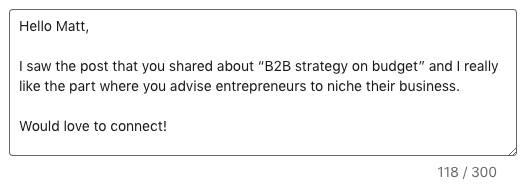
LinkedIn message template #1
Thank you for accepting my Connection Request.
I saw that you are {{occupation}} at {{currentCompany}}. That’s so interesting! I actually have this community dedicated to the {{industry}} industry and I wanted to invite you to join!
We discuss {{mainTopics}}
Here’s the link - {{link}}
Wе would love to have you!
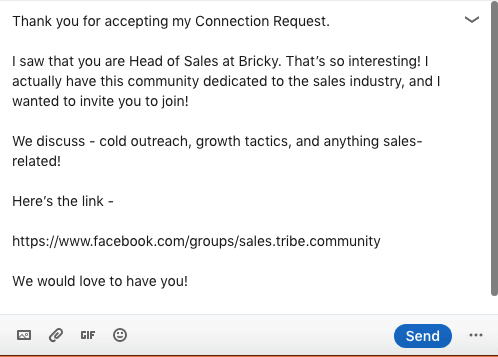
These templates work because you’ve:
- Referred to a post that a lead shared on LinkedIn and highlighted a part that particularly resonated with you;
- Shown that you’ve done your research by referring to the lead’s occupation/company/industry;
- Invited the lead in a non-intrusive way to join by sharing a link (no spamming);
- Told the lead what to expect from the community and showed that they have value from joining.
Scenario #6: Invite a speaker/lecturer to your event
Connection request template
Hello {{firstName}},
I loved your article {{title}} on {{website}}.
Anyways, I am truly an admirer of your work and would love to connect!
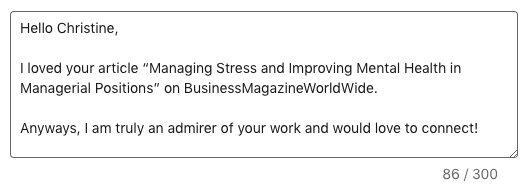
LinkedIn message template #1
Thank you for adding me to your network!
As mentioned before, your article really meant a lot to me {{reason}}.
Actually, I am organizing a seminar on an adjacent topic {{topic}} aimed at {{occupation}}. I would love to have you as a guest speaker.
Let’s hop on a call and discuss it further one day this week. What do you think?
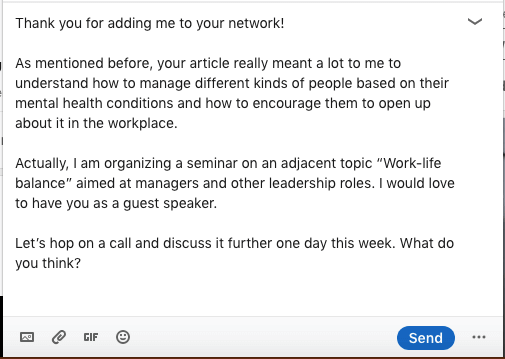
These templates work because you’ve:
- Shown that you’ve done your research and that you know their work by referencing something specific;
- Shown admiration for their work. Everyone likes compliments;
- Shared how their work helped you. Everyone likes to know that what they do is helpful to others.
Scenario #7: Connect over a mutual friend to pitch a product/service
Connection request template
Hello {{firstName}},
I noticed that we’re both connected with {{mutualConnection}}. I worked with {{MutualConnection’sName}} at {{company}}/{{project}}, so I thought it would be nice to get in touch with you!
How do you know {{MutualConnection’sName}}?
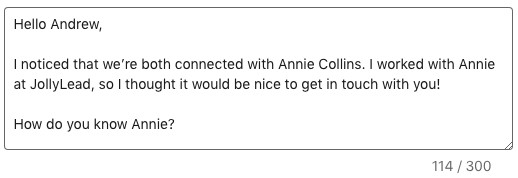
LinkedIn message template #1
Hey {{firstName}},
Glad to connect!
Anyways, I saw that you work as a {{title}} at {{company}}. I have a question if you don’t mind me asking. {{question}}
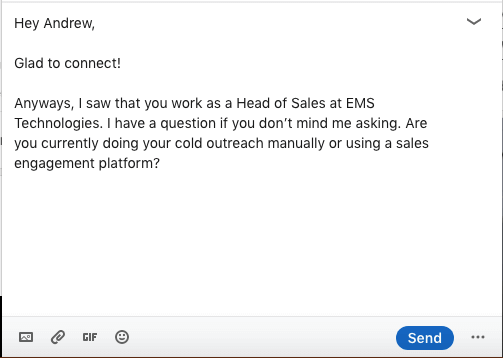
LinkedIn message template #2
The reason I asked is that we have a new tool that {{benefit}}.
If this is something that your business needs, I would be glad to hop on a quick call and give you some details.
No strings attached. Let me know!
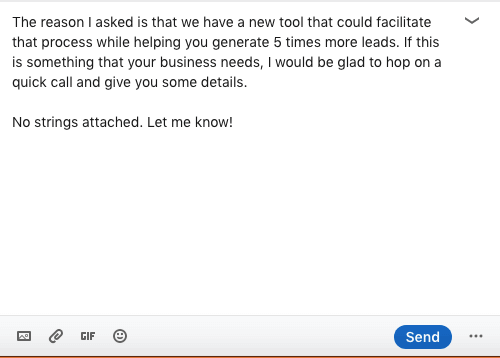
LinkedIn message template #3
Hi {{firstName}},
You are probably very busy, so I just wanted to check in with you one last time and see if you saw my last message.
I would like to tell you how to {{uniqueSellingPoint}}:
{{sellingPoints}}
You can see more details here - {{websiteLink}}
Can you take a call {{time}} to discuss it further?
No pushy sales manipulation, I promise.
I hope to hear back from you!
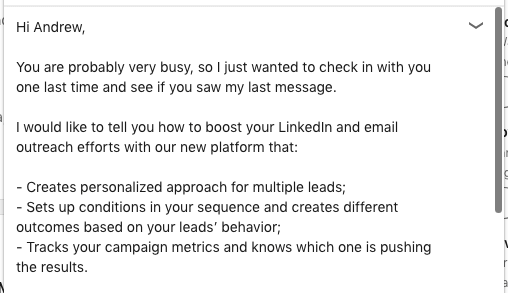
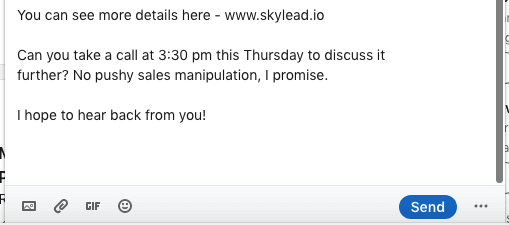
These templates work because you’ve:
- Shown that you have a mutual connection. People like to work with someone who is reliable;
- Researched who they are and what they do in particular;
- Asked questions to create a deeper bond and to understand your lead’s needs/problems/rooms for improvement;
- Tried to create a hook once more by listing the unique selling points of your product/service.
Scenario #8: Recruit the perfect candidate for your business
Connection request template
Hello {{firstName}},
I am a recruiter at {{company}} and I came across your profile.
I would like to talk about a newly-opened position at {{company}} for which I found you to be a perfect fit.
Let’s connect!
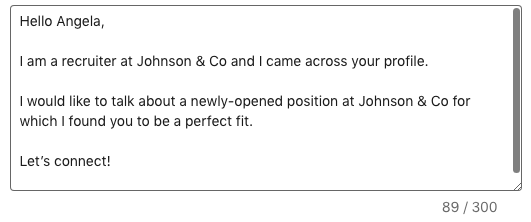
LinkedIn message template #1
Thank you for accepting my Connection Request.
As I was saying, I came across your profile and you seem to be exactly the person that we seek - {{background}}/{{skills}}.
{{yourCompany}} is currently seeking a {{position}} with your skillset to carry out a series of tasks I would like to further discuss with you, in case this sounds interesting.
What do you say?
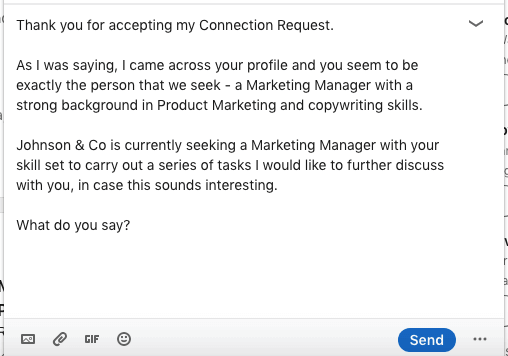
These templates work because you’ve:
- Shown that you’ve done your research and know your lead’s professional experience;
- Highlighted a particular skill set that your lead has and that is relevant to the position that you’re offering.
Scenario #9: Target leads who attended the same LinkedIn event as you did
Connection request template
Hello {{firstName}},
I saw that you too attended the {{eventName}} event!
I found {{topic}} particularly useful! How about you?
Let’s connect!
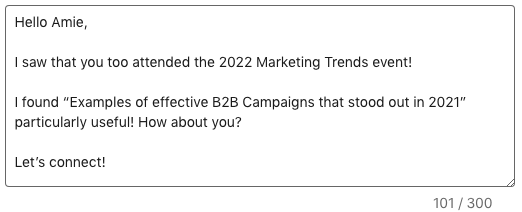
LinkedIn message template #1
Thank you for adding me to your network!
I saw that you are {{title}} at {{company}}. I help {{niche}} companies generate more leads through deep personalization on LinkedIn.
Let’s jump on a Zoom call sometime this week?
{{personalizedImage}}
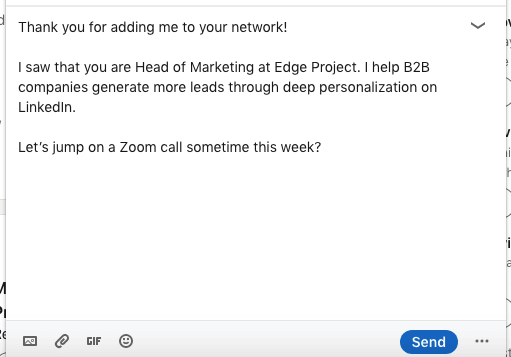
Personalized image
These templates work because you’ve:
- Referred to an event that both you and the lead attended;
- Referenced something specific from the event;
- Done your research and referenced your lead’s title/company/industry;
- Done extra work to hyper-personalize an Image by making a direct reference to your lead, yourself, and a call-to-action (zoom call).
Scenario #10: Reach out to a lead who asked a question in a post comment
Connection request template
Hey {{firstName}},
I found the question that you asked in {{author’sName}} post on LinkedIn very interesting!
I would love to suggest several resources that could help you solve that issue.
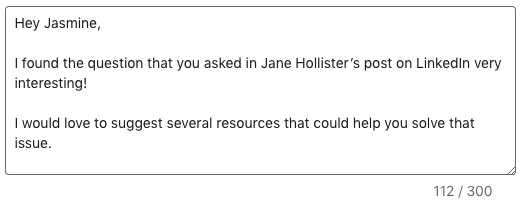
LinkedIn message template #1
Thank you for accepting my Connection Request.
You asked {{question}}. Have you ever heard of {{product}}/{{service}}?
I would love to hop on a call with you and explain why I find it to be a good solution to what you need right now.
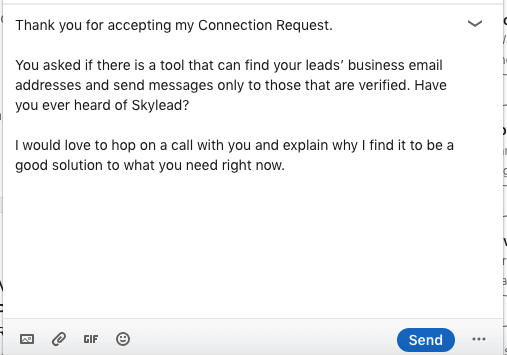
These templates work because you’ve:
- Reference a specific question that a lead asked in a comment to someone’s post;
- Offered a potential solution/resource to solve their problem.
Your outreach doesn’t end on LinkedIn
You’ve just seen how to start great conversations on LinkedIn. But what happens if your leads aren’t responsive? Your best chance is to take your outreach to another channel - email.
And that’s where Skylead comes in to save you 11+ hours a week.
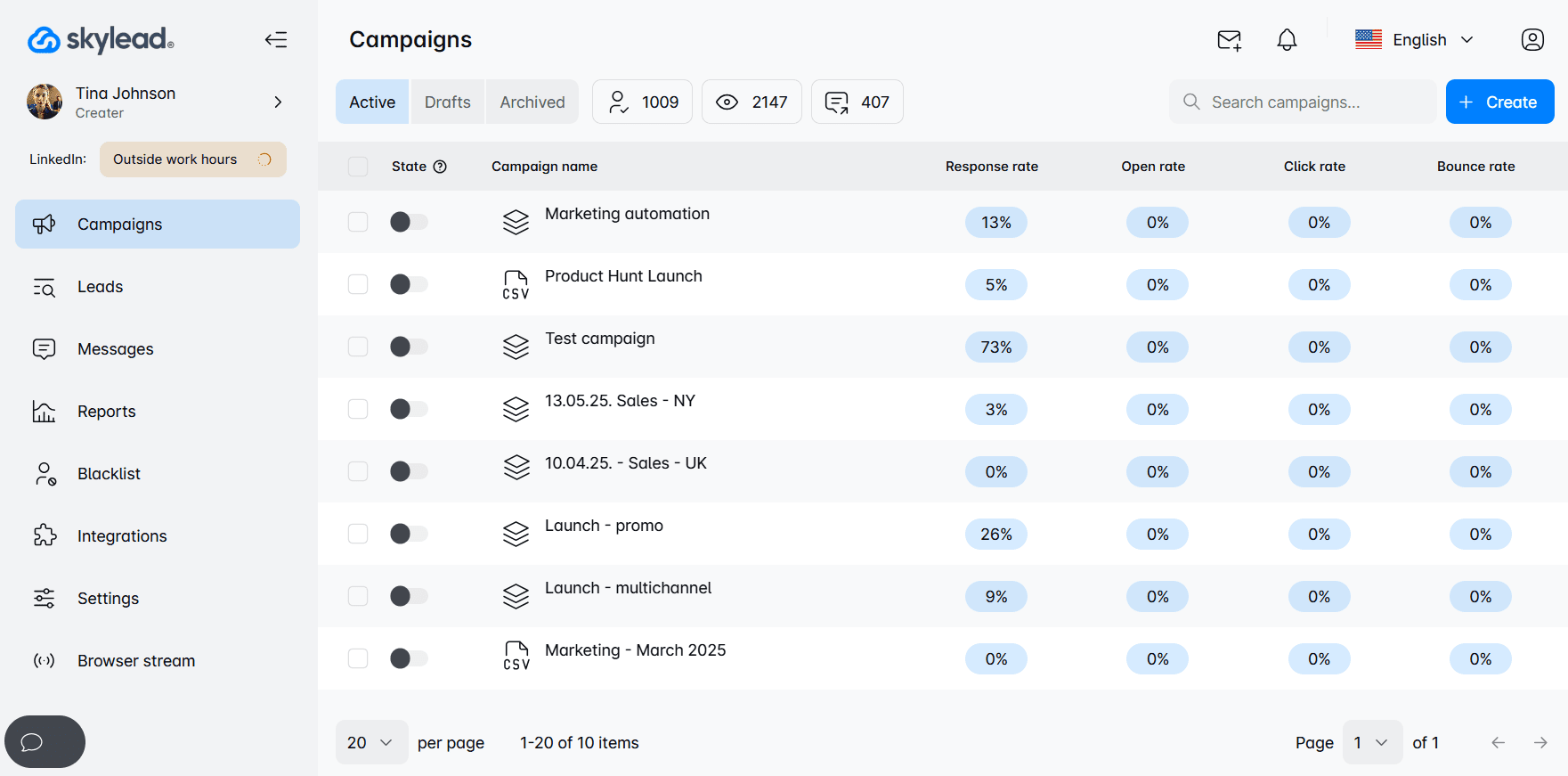
It’s a sales engagement tool that helps you:
- Build Smart sequences using outreach actions and if/else logic, a.k.a. outreach sequences that unfold according to your prospects' behavior
- Run unlimited email outreach using as many mailboxes as you’d like to send thousands of emails per month, at no extra cost
- Discover and verify your leads’ email addresses without breaking the outreach flow
- Personalize images and GIFs to increase response rates by 76%
- Warm up infinite mailboxes to boost deliverability
- A/B test your messaging
- Keep track of all your conversations through Smart inbox
Want to see it in action? Start your 7-day free trial now!
Frequently asked questions
How do response rates for these templates vary by industry or job role, and are there adaptations recommended for specific sectors?
Response rates to LinkedIn sales message templates can vary significantly by industry and job role. It's beneficial to customize these templates and their follow-ups to align with the specific language, challenges, and goals of your target sector to increase their effectiveness and engagement.
What follow-up strategies should be employed if there is no response to the initial LinkedIn sales message, and how soon should one follow up?
If there's no response to an initial LinkedIn sales message, a best practice is to wait for a week or two before sending a LinkedIn follow up message. The follow-up after no response should add value proposition, perhaps by sharing relevant content or insights, and express genuine interest in helping the recipient.
To sum up
The hardest part on LinkedIn is getting your lead’s attention. Despite the fact that having your Connection Request accepted represents a small victory, bigger “battles” are about to happen. LinkedIn members are being bombarded with so many messages and sales offers, that the majority of them don’t even bother reading them, let alone answering.
That’s why we’ve listed 10 LinkedIn Message Templates for different business scenarios that can help you attract that “ideal” lead’s attention.
- Express interest in your lead’s work to form a partnership;
- Investigate your lead’s current solution to pitch your product/service;
- Content distribution and promotion;
- Reach out to people who attended your event;
- Invite relevant leads to join your community;
- Invite a speaker/lecturer to your event;
- Connect over a mutual friend to pitch a product/service;
- Recruit the perfect candidate for your business;
- Target leads who attended the same LinkedIn event as you did;
- Reach out to a lead who asked a question in a post comment.
Whether you’re using them for networking on LinkedIn, getting new clients, partners, or doing any kind of outreach, these strategic templates could grow your chances for success.
Use them, tweak them, get inspired by them.
And when you’re ready to take your outreach beyond LinkedIn, we’ve built something to help: Skylead. Try it now!
Most interactions on LinkedIn go silent after the first touch. The lead accepts your connection request, maybe replies once, and then… nothing. However, a LinkedIn follow up message can change the entire course of your cold outreach. When written the right way, it can reopen the conversation, remind the person why they connected with you in the first place, and even move things toward a reply, a meeting, and ultimately, a closed deal.
Unfortunately, the line between a good and a bad follow-up message is thin. And if you get it wrong, you risk losing the lead for good.
Over the years, we’ve tested hundreds of follow-up messages across sales, marketing, and recruiting. Some flopped. Others got 50%+ more replies. So, we documented what worked (and what didn’t) to help you get it right from the start.
And now, we’re sharing our proven LinkedIn follow up message formula along with templates you can copy, paste, and personalize in seconds!
Let’s get started!
What is a LinkedIn follow up message?
A LinkedIn follow up message is a message sent after an initial interaction on the platform, such as a connection request, conversation, meeting, or job application. Its goal is to re-engage the recipient, provide additional context or value, and encourage a reply or next step.
Why LinkedIn follow up messages matter?
Did you know that only 2% of deals are made after the initial contact? That means that, if you’re not following up on LinkedIn - or failing to send a follow-up email after no response, for that matter - you’re seriously hurting your chances of closing.
And while a better chance of closing deals should be reason enough, there are other benefits that make LinkedIn follow-ups a must-have in any outreach strategy.
They lead to stronger connections
If I had a nickel for every time someone wrote me a ''Thank you for connecting on LinkedIn'' message and then disappeared, I’d have enough to cover the LinkedIn Premium cost for most of my connections.
Jokes aside, a follow-up message is what gives the conversation a reason to continue and reinforces your LinkedIn lead generation efforts. It shows that you actually have something to discuss, rather than simply expanding your network.
They help you stand out professionally
The majority of people don’t follow up. And out of those who do, nearly half, 44% to be precise, give up after the first try, either because they’re afraid of being perceived as 'pushy' or because they simply don’t want to bother. So, when you do follow up and do it well, you immediately stand out. It shows you’re proactive, consistent, and not just sending out messages for the sake of it.
They increase response rates
Most LinkedIn cold messages get ignored, not necessarily because leads aren’t interested - it could just be bad timing. The follow-up gives them a second chance to respond, and you a chance to add more context or value. Especially if the timing wasn’t great the first time around, this can be the nudge that gets you the reply.
They help you build credibility in the leads' eyes
When you follow up in a non-intrusive way, you demonstrate professionalism and signal that you’re actually invested in the conversation. Add a bit of personalization or relevance, and it can position you as someone who’s worth responding to.
They keep conversations alive for future opportunities
Not every lead is ready to act now, which doesn’t mean they won’t be in a week, a month, or a quarter. That said, a LinkedIn follow up message helps you stay on their radar until they are ready to move forward. It keeps the connection warm, shows you’re patient, and makes it easier to pick up right from where you left off.
When to send a LinkedIn follow up message?
The best time to send a LinkedIn follow up message is usually between 2 and 5 business days after your last touchpoint. This gives the other person enough time to see and process your message.
But truth be told, the timing of your message depends on the situation. That said, here are some of the most common scenarios and when to send a LinkedIn follow up for each:
- After a connection request is accepted - Follow up within 1–2 days. This is your chance to start the conversation while your name is still fresh in their inbox.
- After they reply once but go quiet - In this case, wait 3–5 days before sending a follow-up that references their reply.
- After they view your profile or message but don’t respond - Follow up after 2–3 days. However, make sure to keep it low-pressure and relevant.
- After a meeting, call, or interview - Send your follow-up within 24 hours, all while focusing on the next steps or main takeaways.
- After no response at all - If your first message was ignored, follow up after 3–5 business days. Try a different angle or include something useful to increase your chances of getting a reply.
- When something relevant happens - If you have a good reason to reach out again, for example, you have a resource you’d like to share, an update, or you’re reacting to something they posted, use that to reengage naturally. In these cases, follow up within a day or 2 of noticing or posting the update to keep the message timely.
| LinkedIn follow-up timeline | |
| Situation | When to follow up |
| After a connection request is accepted | 1–2 days |
| After lead replies but goes quiet | 3–5 days |
| After the lead views your message/profile | 2–3 days |
| After a meeting, call, or interview | Within 24 hours |
| After no response | 3–5 days |
| When something relevant happens | Depending on the scenario; 1-2 days in general |
How to write an effective LinkedIn follow up message? [Step-by-step formula]
No message is truly perfect. However, after testing hundreds of follow-ups, we’ve found a golden formula that consistently gets replies:
Hook → Context → Value → CTA
This structure helps your message stay relevant no matter the scenario, keeps things conversational, and, most importantly, guides the lead toward a clear next step.
Now, let’s dissect it and see how you can apply it to your LinkedIn follow up messages in real life.
1. Hook
This is your opener, a.k.a the first sentence that gets them to keep reading. It can be a brief callback to your last interaction, a personal touch, or even a subtle observation. Either way, the goal is to make it feel like a continuation of the previous message.
Examples:
- Just circling back here in case my last message got buried.
- Saw your recent post on [topic] - it’s spot on!
2. Context
Now explain who you are and why you’re reaching out. This part is especially important if some time has passed or if your first message didn’t get a reply. The idea is to reestablish the reason for the message without repeating yourself.
Examples:
- We connected last week after I came across your profile while researching [industry/topic].
- I previously mentioned how [your product/service] helps [job title] streamline [process].
3. Value
This is where you give them a reason to care. Share something useful, relevant, or interesting, for example, a case study, a whitepaper, an article, etc. Just make sure it ties into their role, goals, or pain points.
Examples:
- Just published a short guide on [topic] that might be helpful for what you’re working on.
- We helped a similar company reduce [X] by [Y]% - happy to explain how.
- Thought this update might be relevant based on what you shared last time.
4. CTA (Call to Action)
Close with a soft ask. Nothing aggressive, though. A clear, logical next step that makes it easy to say yes.
Examples:
- Open to a quick chat sometime this week?
- Would it make sense to connect for 15 minutes?
- Let me know if this is worth exploring. I’m happy to share more.
LinkedIn follow up message templates for every scenario
So, you’ve got a framework for writing effective LinkedIn follow up messages to follow along.
Still, we get it. Writing messages from scratch just about every time can be a pain.
If time is of the essence and you’d rather have something ready-made, the following templates, which we've put together for different scenarios, are for you. Simply copy, paste, and tweak them to match specific prospects.
1. LinkedIn follow up message after connecting
Response rate: 24%
Hi {{firstName}},
Thanks for accepting the connection!
I came across your profile while looking into {{industry/topic}}, and your work at {{company}} stood out.
If you're ever open to chatting about {{sharedInterest}}, I'd be happy to stay in touch - no pressure at all.
Real-life example:
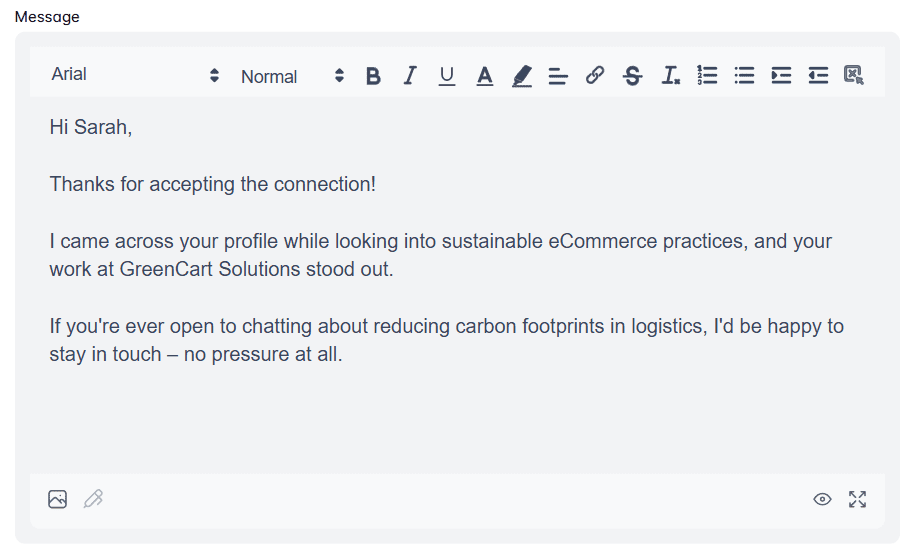
2. LinkedIn follow up message after a networking event or meeting
Response rate: 41%
Hi {{firstName}},
It was great meeting you at {{eventName}}! I really enjoyed our chat about {{topic}}.
You mentioned {{specificDetail}}, and I’ve actually come across something that might be helpful.
Would you be open to reconnecting sometime next week? I’d love to keep the conversation going.
Real-life example:
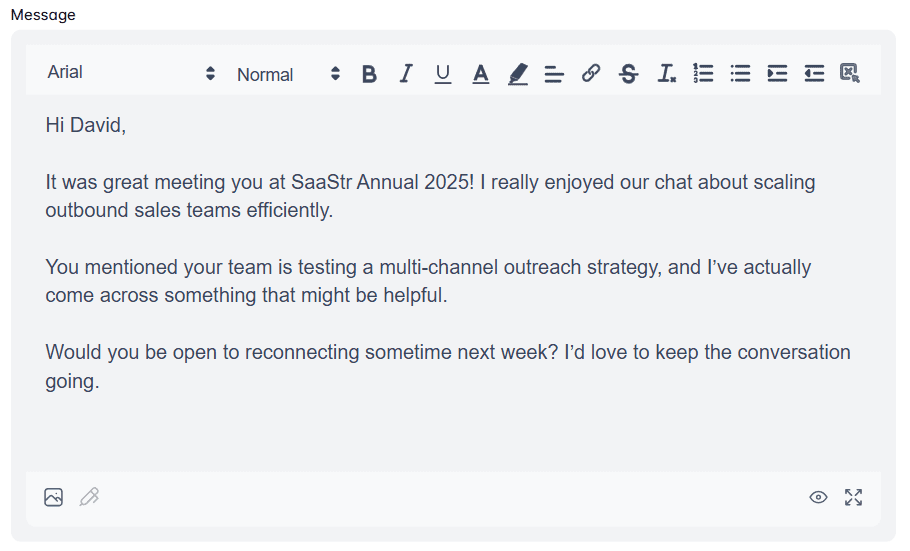
3. LinkedIn follow up message after a sales call or demo
Response rate: 38%
Hey {{firstName}},
Thanks again for the call yesterday. It was great learning more about what you’re working on at {{company}}.
As promised, here’s the {{resource/demoFollowUp}} we discussed. I’ve also included a brief overview of how we can support {{specificGoal}}.
Let me know if you’d like to book a follow-up or need anything else from my side.
Real-life example:
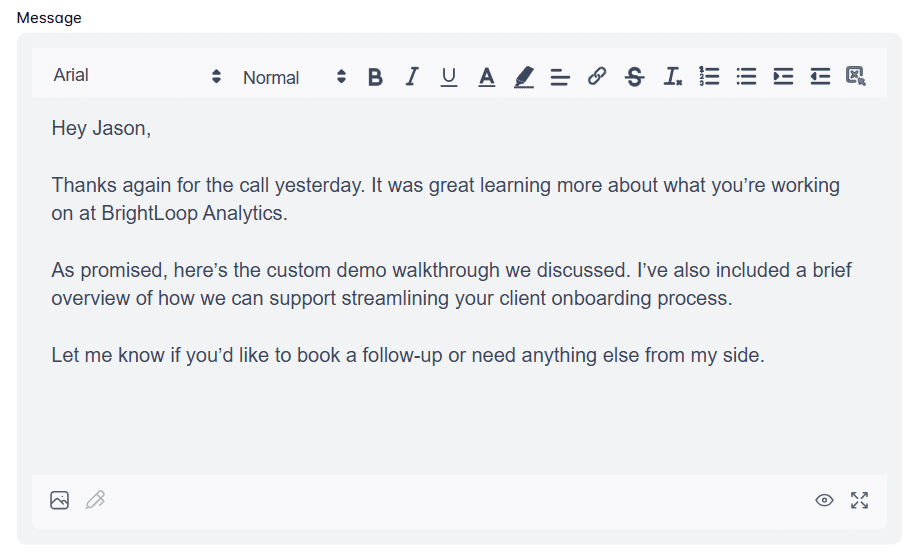
4. LinkedIn follow up message to a client
Response rate: 29%
Hey {{firstName}},
Just touching base to see how everything’s going.
Last time we spoke, you mentioned {{painPoint/projectUpdate}}, so I wanted to check in and see if you need anything from me.
If it makes sense, we can hop on a quick call to review where things stand.
Real-life example:
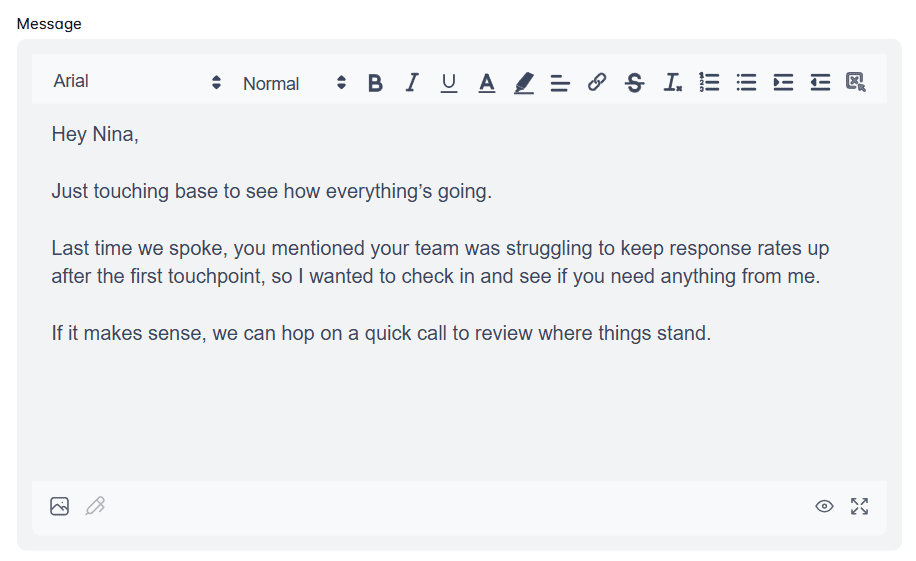
5. LinkedIn follow up message to a candidate
Response rate: 45%
Hi {{firstName}},
Hope you're doing well!
I enjoyed our conversation about the {{jobTitle}} position and wanted to follow up to see if you had any questions since we last spoke.
If you’re still interested, we’d be happy to talk about the next steps or anything else you need.
Real-life example:
6. LinkedIn follow up message after sending an application or resume
Response rate: 12%
Hi {{firstName}},
Just following up on the application I submitted for the {{jobTitle}} role at {{company}}.
I’m excited about the opportunity and think my background in {{skill/industry}} could be a great fit.
Let me know if there’s anything else I can send your way - happy to chat if helpful.
Real-life example:
7. LinkedIn follow up message after an interview
Response rate: 35%
Hey {{firstName}},
Thanks again for the thoughtful conversation earlier! It was great learning more about the team and the direction you're headed.
I’ve been thinking more about what we discussed, especially around {{topic}}, and I’m even more excited about the opportunity.
Let me know if you need anything else from me in the meantime!
Real-life example:
8. LinkedIn follow up message after no response
Response rate: 11%
Hi {{firstName}},
Just circling back in case my last message got buried.
If now’s not the right time, that’s totally fine - I just didn’t want to disappear if {{topic/value}} is still relevant on your end.
Happy to revisit later if that works better for you.
Real-life example:
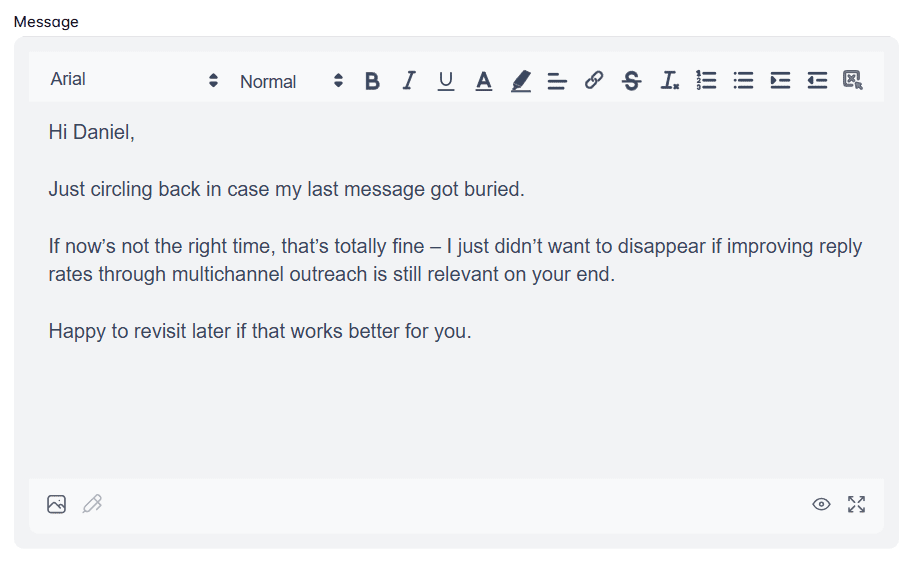
Do’s and Don’ts of LinkedIn follow up messages
Before you send that follow up message on LinkedIn, let’s make sure it’s actually worth replying to. These do’s and don’ts will help you strike the right tone, all while staying professional.
Do personalize every message
If your follow-up could be sent to 50 other people without changing a word, it’s time for a rewrite.
This is where a quick LinkedIn profile scroll can save the day, as it should help you find something you can actually reference in the message for a more personalized outreach. While at it, pay special attention to your lead’s:
- LinkedIn headline,
- LinkedIn summary,
- Work experience,
- Recent posts,
- Activity.
Use that info to show you’ve done your homework and make it clear that they are not just another name on your prospecting list.
Do use a positive & professional tone
Your tone sets the stage for how your message will be perceived. Too friendly, and it might feel unprofessional. Too formal, and it might feel cold or automated.
What you want to do is aim for that middle ground: approachable, clear, and respectful. For example, rather than saying ''Following up as per my previous message'' say, ‘’Just wanted to follow up in case you missed my last message.’’
The takeaway? Sound like someone you’d respond to. It’s really THAT simple.
Do be clear and brief
The average human attention span is just 8.25 seconds. So if your message takes a paragraph to get to the point, I hate to break it to you, but it’s probably not getting read.
To counter that, keep it brief. Say what you need to say, minus the fluff. One idea, one ask, one next step. That’s all you need.
Do stay patient and considerate
You’re not the only message in your lead’s inbox. People get busy, distracted, or just need a minute before replying, and that’s okay. Following up is a great sales tactic. Following up too soon or too often? Not so much. Give it a few days before nudging, and always assume good intent. You’re building a relationship, after all, not closing a support ticket. A little patience goes a long way in how you’re perceived.
Don’t be pushy or impersonal
“Hey, just circling back again - can we schedule something for tomorrow at 2 PM?”
If this is your second message and you’ve never actually spoken to the person, that’s not a follow-up. It’s a calendar ambush.
Pushy messages or recycled templates won’t do you any favors, especially when you’re still building the relationship. You’re not trying to close the deal in one go. You’re trying to keep the conversation going. Big difference.
Instead, be human. Add context, show interest, and write something that doesn’t make the other person feel like lead #47 in your queue.
Don’t make assumptions about a lack of response
''Guess you’re not interested...''
''Not sure if you’re ignoring me or just busy.''
Please don’t.
Just because someone hasn’t replied yet doesn’t mean they’ve ghosted you. People get busy. They forget. They read your message on mobile and mean to respond later. It happens.
Assuming the worst makes you look impatient. Or worse, passive-aggressive.
Don’t use all caps or excessive punctuation
YOU DON’T NEED TO SHOUT!!! Seriously.
All caps and extra punctuation might grab attention, but not in a good way. It can come off as aggressive, spammy, and a little too much.
Advanced LinkedIn follow up message tips to stand out even further
Sending LinkedIn follow-ups that ''check the boxes'' isn’t enough, especially when inboxes are packed and attention spans are short. These tips are here to help you go the extra step, stay top-of-mind, and get more replies without sounding like a bot.
A/B test your follow-up messages
Does a short, direct follow-up get more replies than one with a bit more context? Only one way to find out - A/B testing.
Truth be told, not every message will work for each lead, meaning you’ll need to experiment with different ones. Your best bet is to A/B test element by element: hooks, CTAs, even the message length. Keep an eye on the results, and over time, you’ll spot patterns that can help you write better LinkedIn follow up messages.
Use LinkedIn features other than messaging
If your follow-ups are getting ignored, stop relying only on messages. LinkedIn gives you other ways to reengage.
For example, you could:
- Comment on their post
- View their profile
- Tag them in a relevant post (only if it’s connected to something you talked about or they shared)
- Share their content with a quick note
These touchpoints can warm up a cold lead or set the stage for your next message, without making you look desperate.
Track & optimize your follow-up performance
You could have the best targeted outreach strategy there is, but if you’re not keeping tabs on how your follow up messages are performing, all of that is in vain.
To start with, create a simple system to track your messages and note:
- Who you messaged
- When you sent the follow-up
- What version of the message you used
- Whether they replied
After 20–30 messages, review the outcomes. Which got replies? Were they shorter? More personalized? Did they include a resource or a specific CTA? From there, double down on what’s working and adjust what isn’t.
Is it okay to follow up on another channel if LinkedIn isn’t working?
Absolutely!
If your message gets buried or ignored, it doesn’t mean the opportunity is lost; it just means it’s time to take the multichannel outreach route and reach out to your leads via email.
But, when you think about the workload, you might ask yourself "is there a faster way to do it?" And we have the answer.
That’s why we built Skylead—your one-stop-shop sales engagement tool that is 100% compliant with LinkedIn's TOS. It offers sales teams, marketers, agency founders, and recruiters a chance to streamline their multichannel outreach efforts.
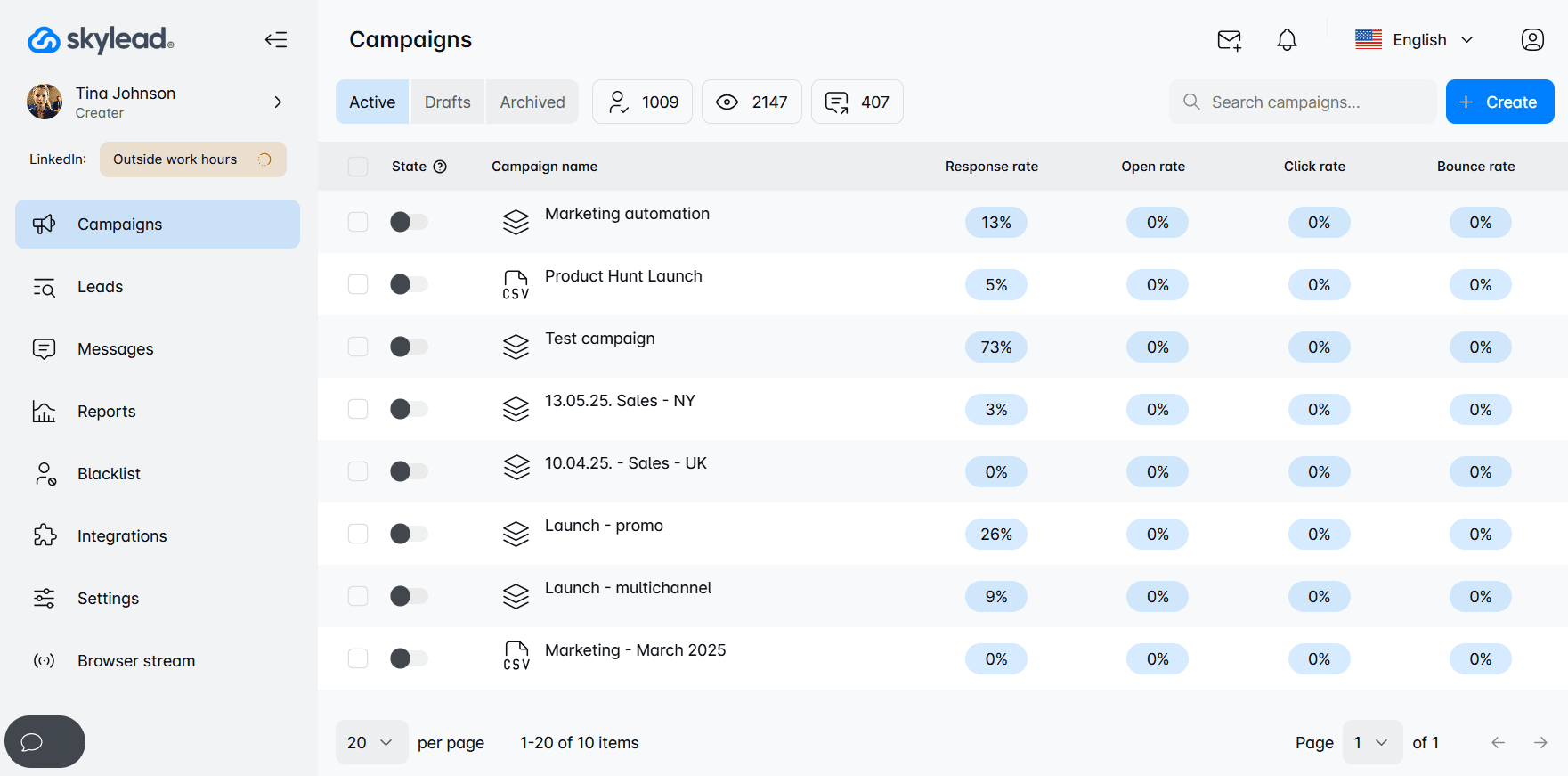
With Skylead, you can go beyond LinkedIn and take full advantage of unlimited email outreach. Just connect as many mailboxes as you want, and the tool will auto-rotate through them, letting you send tens of thousands of emails a month at no extra cost.
And don’t worry about deliverability. Thanks to our partnership with an email warm up tool, InboxFlare, you also get infinite email warm-up functionality, so your messages land exactly where they’re supposed to: in the primary inbox.
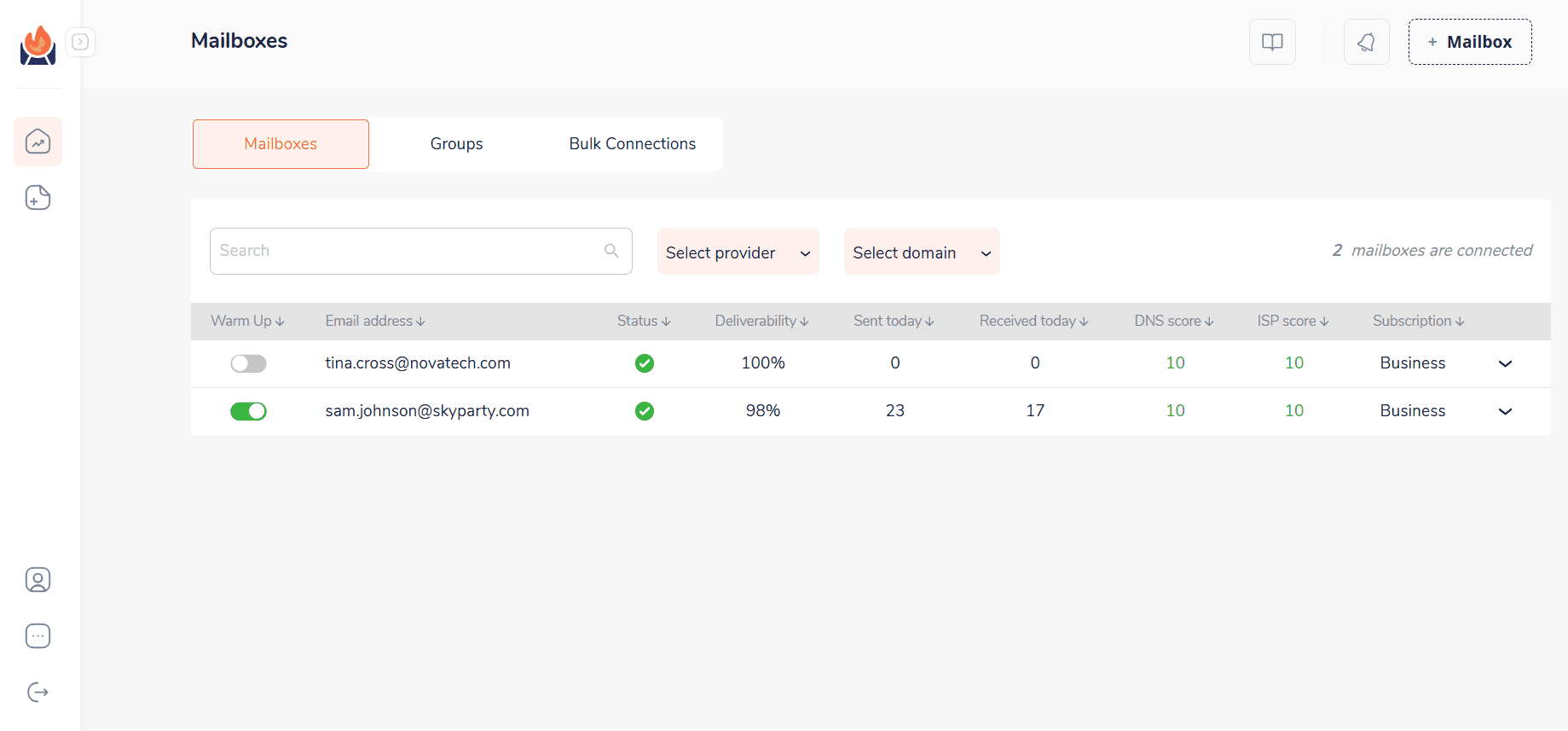
No emails for your leads? No problem! Skylead can discover and verify emails on the go, without disrupting your outreach flow.
Of course, none of this would be possible without Smart sequences—our signature feature that uses algorithms that combine outreach actions with if/else conditions. As a result, you get coherent outreach flows that help you unfold outreach according to the way your prospects behave.
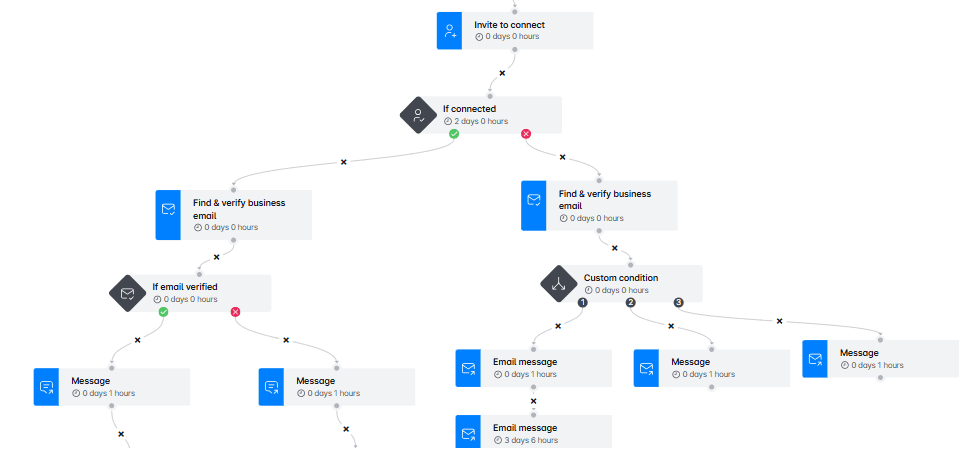
Need personalization? We’ve got that too. Skylead lets you:
- Personalize images and GIFs with your lead’s logo, photo, name, and/or custom text
- Use native or custom variables for a message that feels truly 1-on-1
- A/B test your messaging to see what actually resonates
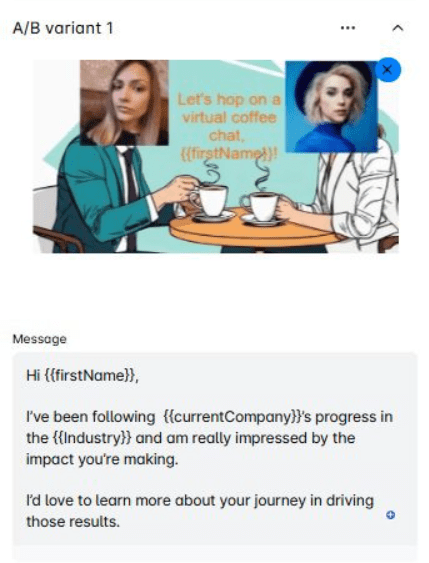
In short, you get a complete, behavior-driven follow-up system that helps you reach more leads in less time.
Frequently asked questions
Should you send a follow-up message on LinkedIn?
Yes. Following up is an important part of any outreach strategy. It helps re-engage the recipient, increases the likelihood of a response, and demonstrates persistence and professionalism.
How do you politely follow up on LinkedIn?
Maintain a respectful and friendly tone. Acknowledge the previous message, provide a brief reminder of the context, and suggest a simple next step. Avoid sounding impatient or overly persistent.
How to send a follow up message after no response on LinkedIn?
Wait approximately 3–5 business days before following up. Consider offering new context, a resource, or a question that adds value to the conversation and encourages a response.
How many follow-ups should you send before moving on?
Generally, it is advisable to send up to 2 or 3 LinkedIn follow up messages. If there is no engagement after that, it may be best to pause or explore alternative channels for communication.
What to do if you don’t get a response after multiple attempts?
Change your approach. Engage with the person’s content, explore a different channel such as email, or revisit the lead at a later time when the timing may be more appropriate.
How do you know if your follow-up strategy is working?
Track metrics such as reply rates, profile views after sending a message, and the number of conversations that progress to the next step (e.g., meeting booked, reply received). Over time, these indicators will help you identify what types of messages and timing yield the best results.
Can I use LinkedIn voice or video messages for follow-ups?
Yes, using LinkedIn voice or video messages can help your follow-ups stand out and feel more personal. These formats are especially useful in relationship-based outreach, such as sales or recruiting. However, they should be used thoughtfully: keep them brief, relevant, and professional to maintain the recipient’s attention and respect their time.
Replies go to those who follow up
The first message might get you noticed. But it’s often the LinkedIn follow up message that will get you a reply. Because conversations rarely move forward unless someone nudges them. And when done right, that someone can be you.
So, go ahead: follow up. Most people won’t. You’ll stand out just by showing up again.
And if you want to spend less time chasing leads and more time closing them, Skylead can help. We’ll give you the tools to engage leads across multiple channels and personalize every touchpoint.
Start your 7-day free trial and see the difference for yourself!
Disclaimer: Skylead is not affiliated, endorsed by, or connected with LinkedIn in any way.
Everybody knows that one of the best ways to get new customers is by contacting them using LinkedIn cold messages. Why? Well, sales teams prefer cold outreach via LinkedIn because this social media is the most effective B2B lead generation channel. Compared to cold calling and cold emails, that is.
However, when crafting a LinkedIn cold message, salespeople often get confused about how to approach their leads. Or, for example, their cold outreach message ends up showing no effect at all. We’ve been there too: testing countless variations, rewriting openers, and learning the hard way what gets replies (and what doesn’t).
That said, let’s make your LinkedIn outreach a winning game. In this article, we’ll focus on the best LinkedIn cold messages — the ones that delivered real results for us and our users — along with practical tips to help you write your own.
What is a LinkedIn cold message?
A LinkedIn cold message is a way to reach out to someone on LinkedIn who hasn’t interacted with you before. These messages typically come in 3 forms:
- Connection request,
- Message (after the leads accept an invite),
- or InMail.
Each type has its own approach and best practices for getting a response.
For example, a well-crafted InMail can see an average reply rate of 18 to 25 percent, while cold emails usually sit around 3%.
Nevertheless, it’s important to note that one should not limit oneself to using LinkedIn only. In fact, the best way to acquire and close an outbound lead is by using both LinkedIn and email in your outreach strategy.
The benefits of LinkedIn cold messages
LinkedIn is the biggest social media platform for startups, company founders, CEOs, sales professionals, marketers, recruiters, B2B influencers, and more. With roughly 1 billion users, it’s been recognized as an ideal space to grow your professional network, generate leads, and build business-to-business partnerships.
That’s why marketers often use it for their outbound marketing efforts, such as publishing LinkedIn ads, promoting webinars, and gathering leads for their sales teams. Sales teams and recruiters, on the other hand, typically use LinkedIn for outbound activities such as prospecting and sending LinkedIn cold messages.
But why does cold messaging work so well here?
Firstly, LinkedIn offers more transparency than email. Your recipient can instantly see who you are, what your role is, and decide whether or not to participate in your sales engagement nudges.
Secondly, the larger your network grows, the more leads you can reach, and mutual connections also help increase your acceptance rate.
Lastly, with both connection requests and InMails at your disposal, you always have more than one shot at starting a conversation.
LinkedIn cold message templates & examples that work in 2026
When we first started optimizing our LinkedIn outreach, our reply rates hovered around 10%.
After A/B testing 1000s of messages, we discovered what actually works.
Now, we’re sharing our best-performing templates — the ones that helped us and our users:
- Increase our response rate
- Book more meetings with hard-to-reach prospects
- Shorten our sales cycle and boost conversion
And yes, everything we did was through Skylead. If you want to skip a part of your manual work and launch a high-performing outreach campaign in minutes, feel free to try it now for free.
We’ll go deeper into how it works in a moment. But now, let’s get into LinkedIn cold messages that helped us and our clients increase conversions by 3x!
General cold messaging tactics and templates
Leverage something you have in common
The first tip about cold LinkedIn messages is to find common ground with your leads. To clarify, this can be anything from liking the same post, influencer, or sport. Here is an example.
Cold LinkedIn connection message template:
Hi {{firstName}},
I noticed you liked {{authorName}}’s post on {{subjectOfThePost}}. I loved it as well. Especially the part about {{statementAndConclusion}}. I’d like to connect since I can see you know a lot about {{Topic}}.
Real-life example:
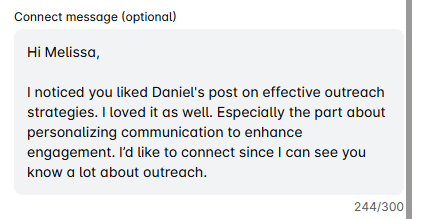
Or you can drop them an InMail such as this one:
Subject line: Post about {{Topic}}
InMail template:
Hi {{firstName}},
I noticed you reacted to {{authorName}}’s post on {{subjectOfThePost}}. I loved it as well — especially the part about {{statementAndConclusion}}.
Anyways, I noticed by looking at your profile that you’re familiar with {{Topic}}, so I wanted to see whether you are approaching {{KeyProblemYou’reSolving}} in {{currentCompany}}?
I would love to know more about this.
Best, {{Your Name}}
Response rate: 35%
Real-life example:
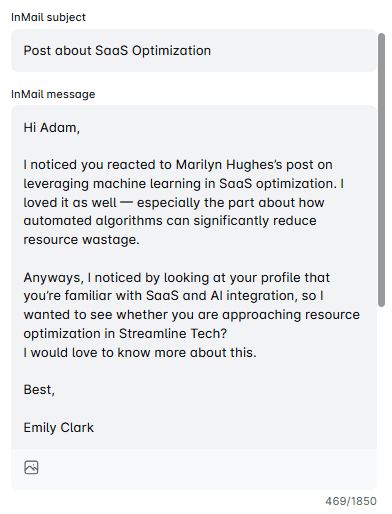
Mention a shared connection
People are more likely to accept a LinkedIn invite if it references a mutual connection. If you’d like to increase your chances, you can send an invite such as this one, which boosted our acceptance rate by 2x in just one campaign:
LinkedIn connection request template:
Hey {{firstName}},
I noticed that {{mutualConnectionName}} is part of your network too. We {{yourHistory}}. Anyways, I see you work as {{Position}} and like to chat. Maybe we can exchange some tips.
Real-life example:
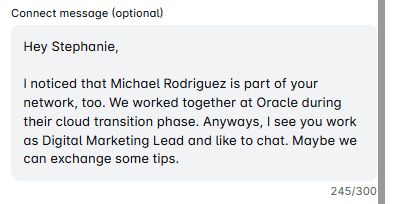
See if a mutual connection can introduce you
If, however, you prefer to get introduced to your lead by a mutual connection, you can send a direct message such as this one:
LinkedIn message template:
Hey {{firstName}},
I noticed that {{leadName}} is a part of your network. I’ve been following them for a while now, and I just wanted to chat about their experience as {{Position}}.
Would you mind if you introduced me to them? It’s always better to be introduced, rather than reaching out of the blue. It would mean the world to me.
Best, {{Your Name}}
Real-life example:
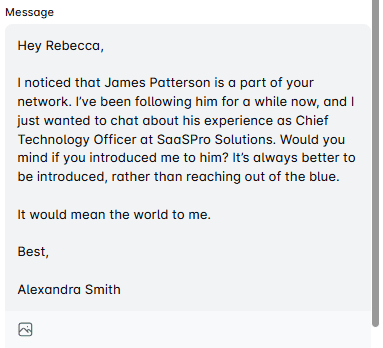
Stroke their ego
Everybody likes to receive a compliment about their work or an accomplishment. So, one way you can compliment your leads is to find the post you genuinely like and reference it in your cold LinkedIn message, as we have:
LinkedIn connection request template:
Hey {{firstName}},
I loved your post about {{Topic}}. What I loved the most was {{Statement}}.
Anyways, I wanted to connect and chat about how you as a {{Position}} handle {{painPoint}} in your daily work life.
Real-life example:
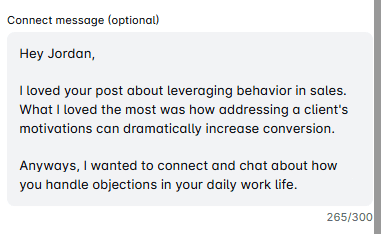
If they do not respond, you can always send an InMail such as this one:
Subject line: Loved your post about {{Topic}}
InMail template: Hey {{firstName}},
I tried sending an invite, but I guess it got lost somewhere along the way. I wanted to reach out and first say I loved the content you are posting, especially the one about {{Topic}}. What I loved the most was {{Statement}}.
Anyways, I just wanted to connect and chat about how you, as a {{Position}} handle {{painPoint}} in your daily work life, and I'd like a chance to present a solution that {{solutionToPainPoint}} to the table.
If what I offer sounds compelling to you, please let me know. However, if the timing is off, or this is not in the area of your interest at the moment, I'll be happy to enjoy your future posts on LinkedIn. 🙂
Warm regards, {{Your Name}}
Response rate: 30%
Real-life example:
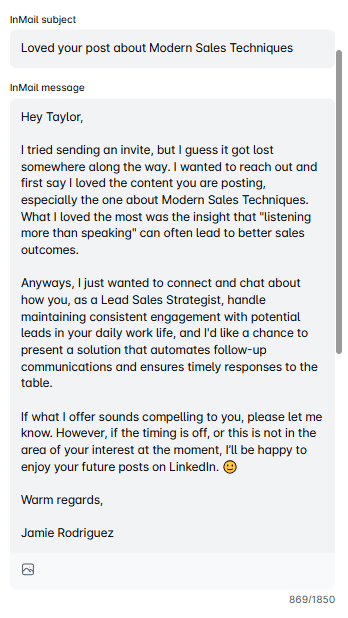
Give reason to reply
By posing a question in your cold LinkedIn outreach, you give your leads a chance to talk a bit about themselves, and you can learn a bit more about their work. So, drop a connection request such as this one:
Cold LinkedIn connection request template:
Hi {{firstName}},
I noticed you work as {{Position}}, so I wanted to reach out and chat about your position. I’m curious what {{Strategy}} has the best {{Result}} from your experience. 😀
Real-life example:
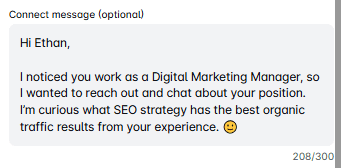
If they do not respond, you can send a cold InMail, such as this one:
Subject line: A quick question
InMail message template:
Hi {{firstName}},
I tried reaching out over a connection request, but it seems it got lost in the sea of requests you might be getting. Anyways, as a {{Position}}, I always like to expand my network and chat with people about their positions. So I came across your amazing profile, and I was curious, what {{Strategy}} has the best {{Result}} from your experience? 😀
Looking forward to hearing from you.
Warm regards, {{Your Name}}
Real-life example:
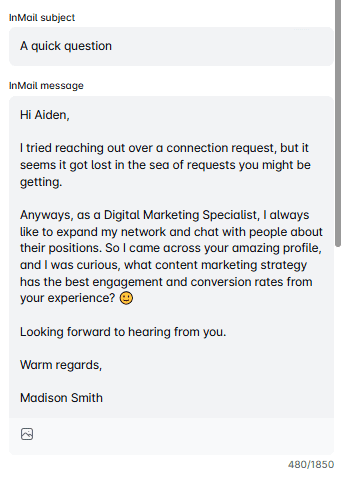
Leverage a group connection
Leveraging mutual LinkedIn groups is one of the best conversation-starters in cold outreach. Moreover, you can top it up with humor and create a charming first impression.
Here is a connection message template that does just that:
Cold LinkedIn connection request template:
Always trust a glue salesperson. They tend to stick to their word…
Just kidding, {{firstName}}. I saw that you are also part of the {{groupName}} group. Hope we can learn from each other!
Acceptance rate: 63%
Real-life example:
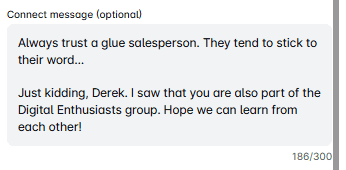
And if they accept a request and do not respond, your next LinkedIn message could sound like this:
LinkedIn message template:
Hi {{firstName}},
Thank you for connecting. I love chatting with other members of the group. Was curious, how are you solving {{painPoint}} at {{currentCompany}}?
Response rate: 37%
Real-life example:
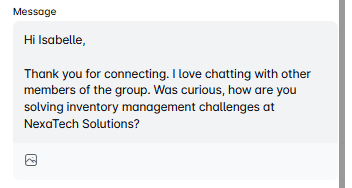
However, if they don't reply to a connection request, you can send the following InMail:
Subject line: Saw you are also a member of {{groupName}}
InMail template: Hello {{firstName}},
I recently tried connecting on CompanyTinder with you... I mean on LinkedIn. Just joking {{firstName}}, I visited your LinkedIn and saw that we are both a part of the same LinkedIn group.
Anyways, I couldn't help but notice you are {{occupation}} at {{currentCompany}}. I was curious, how are you solving {{painPoint}}?
If you still haven't found the solution, I would love to chat with you this week over a call about how {{nameOfYourCompany}} could help you. Either way, hope Q2 is going great for you!
Best! {{Your name}}
Response rate: 27%
Real-life example:
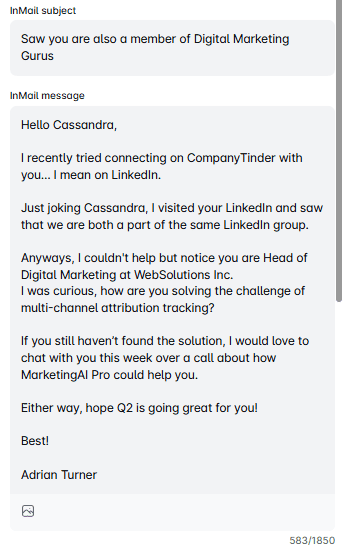
Then you can proceed by asking them what their biggest challenges are, offering tailored solutions, and presenting your product or service.
LinkedIn cold message for B2B lead generation
If they viewed your profile
Sometimes, your Buyer Persona will view your profile. In that case, you can send them a high-performing connection request such as this one:
LinkedIn connection request template:
Hi {{firstName}},
I saw you viewed my profile on LinkedIn. Let's connect and chat. 😊
Perhaps we discover we can collaborate.
Acceptance rate: 63%
Real-life example:
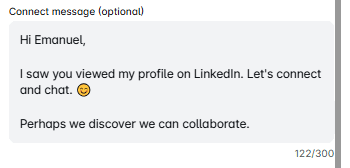
If they accept your connection request but do not respond, try taking this follow-up message for a spin:
LinkedIn message template:
Hey {{firstName}},
Thanks for connecting. Perhaps, I was just in the pool of the {{typeOfProduct}} you are researching. 😊 However, I do have extensive knowledge of {{painPointTopic}}. Let me know if you are looking for something specific.
Response rate: 29%
Real-life example:
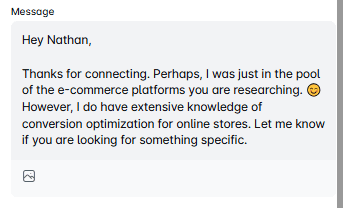
Mention relevant company news
You can also reference recent company news, achievements, or celebrations to catch your lead's attention. In addition, since the company experienced a change, you can present your product/service as a new and refreshing solution on the market. In that case, help yourself with this piece:
LinkedIn connection message:
Hey {{firstName}},
Congrats on {{companyNewsTopic}}. I've been following you for a while now, and this is truly great to hear! I wanted to reach out and chat about an idea that I think your team can benefit from. Let's connect on this.
Real-life example:
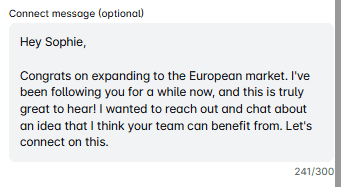
However, if they don’t accept a connection request, send them this InMail:
Subject line: {{ProductOrServiceType}} that actually {{benefit}}! 🙂
InMail message template: Hi {{firstName}},
Congrats on {{companyNewsTopic}}. I’ve been following your company for a while now and I think this is a huge deal! Anyways, It would be silly of me to think you’re not using an {{productOrServiceType}} already, but it’s a no-brainer to present something new on the market that actually helps {{Position}} reach {{Result}} specifically. {{shortDescirptionAboutYourProduct/ServiceWithBenefits}}
Let me know if this sounds interesting to you.
Best, {{Your Name}}
Response rate: 20%
Real-life example:
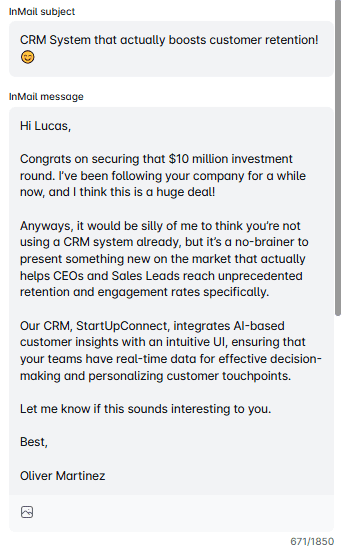
Pitch your product
Some sales professionals prefer to lead with a product or service pitch right from the first touchpoint.
If that’s your style, these outreach templates can help you do it effectively, with sequences that have driven up to a 67% acceptance rate and 39% response rate.
LinkedIn connection request template:
Hi {{firstName}},
Your profile really caught my attention while I was looking for {{TheTypeofCompanyYouTargeted}} companies. Let’s connect!
Real-life example:
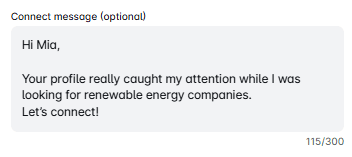
If they accept a connection request, then your following message can sound something like this:
LinkedIn message template:
Hey {{firstName}},
Thanks for connecting! I am looking for companies that are seeking to improve their {{keyProblemYouAreSolving}}
Did you know that you can achieve {{resultsYourProductProvides}}? I believe {{yourProductOrService}} will be an excellent fit for {{currentCompany}} because {{howYourProductOrServiceHelpsYourClients}}. If this sounds interesting, let’s have a chat! How’s next week?
Real-life example:
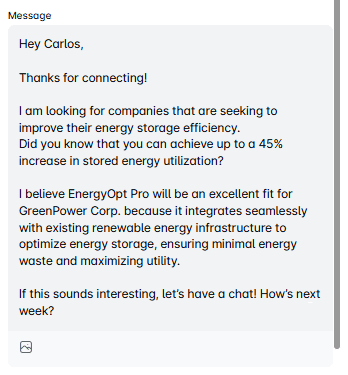
However, if they do not accept a connection request, send an InMail with the following call to action:
Subject line: Quick question about {{currentCompany}}
InMail message template:
Hi {{firstName}},
I am looking for companies seeking to improve their {{keyProblemYouAreSolving}}, and your profile caught my attention.
Did you know that you can achieve {{resultsYourProductProvides}}? I believe {{YourProductOrService}} will be an excellent fit for {{currentCompany}} because {{HowYourProductOrServiceHelpsYourClients}}.
If you agree, let’s connect and have a chat! What do you think about next week?
Best, {{Your Name}}
Real-life example:
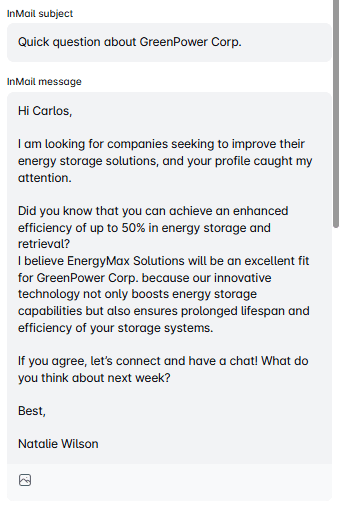
Use past client wins
If you want to pitch first, you can also use some case studies of similar companies. This way, you can demonstrate bullet-proof case studies of your best clients, similar to your leads in question.
The following template works especially well when someone hasn’t accepted your LinkedIn invite, and has helped our users generate replies even from cold leads.
Subject line: Swift question - not to shake it off 🙂
InMail message template:
Hi {{firstName}},
I tried reaching you through LinkedIn, but I guess your account is also overwhelmed with connection requests, ha?
Anyway, the reason I decided to contact you is that I noticed that you work as a {{Position}} at {{currentCompany}}.
We actually were able to help {{RelevantCompany/CaseStudy}} with {{KeyProblemYou’reSolving}}, so I was wondering how you are approaching it at your company.
Worth a convo?
Kind regards, {{Your name}}
Response rate: 35%
Real-life example:
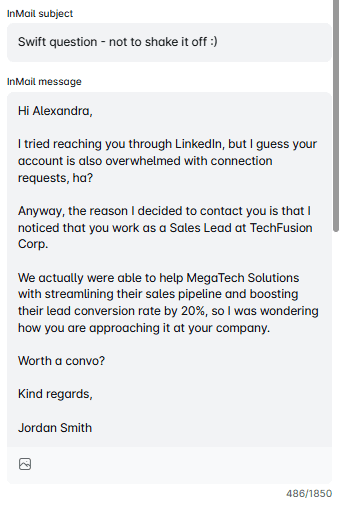
Refer to an event or webinar where you both participated
One of the best LinkedIn cold messages that point out common ground is the one that references a webinar or an event you both attended. Here is how your connection message can sound like:
LinkedIn connection request template:
Hi {{firstName}},
I see you are interested in attending the same webinar as I am. I am talking about {{[nameOfTheWebinar}}. I’d like to connect with you and discuss the event topic.
Acceptance: 75%
Real-life example:
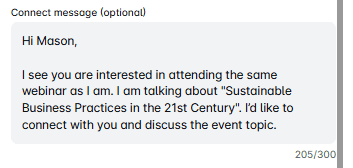
After your leads accept a connection request, you can continue the conversation by using the following LinkedIn cold message template and pitch accordingly later on:
LinkedIn message template:
Thanks for connecting with me, {{firstName}}! So, what are you looking to get from this event?
However, if the lead doesn’t respond to your connection request, you can send an InMail that goes like this:
Subject line: Let’s chat about the upcoming {{[NameOfTheEvent}}
InMail message template:
Hi {{firstName}},
I hope you don’t mind reaching out directly to your inbox.
I see you are interested in attending the same event as I am - {{[NameOfTheEvent}}.
Maybe you just overlooked the invitation without realizing it, but if that’s not the case, I’d like to connect with you and pick your brain about this interesting upcoming event.
Best regards, {{[Your name}}
Response rate: 47%
Real-life example:
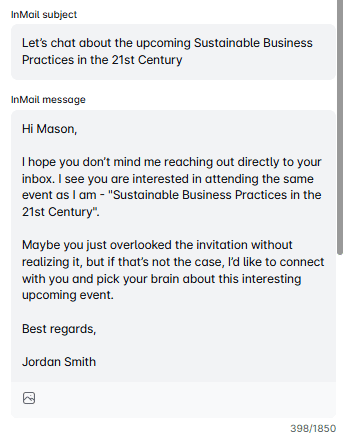
Investor outreach
If you are a startup looking for an investor, your cold LinkedIn message should have a strong CTA. In addition, investors are decision-makers who don’t like to spend time getting the relevant data from you. Instead, you should present it yourself and show the prognosis of ROI right away.
That said, you can try out this InMail message example that we pre-tested:
Subject line: Invest in our company and get {{Percentage}} ROI in the first year
InMail message template:
Hi {{firstName}},
I am the founder of {{companyName}}, a company determined to help {{targetAudience}} achieve {{Results}}.
I’ve been following you for a while and noticed you’ve invested in a type of company such as ours. I’ve created a detailed report and estimated that you could earn {{amountOfMoney}} within the first year, with an investment of {{amountOfMoney}} that will cover our 6-month period.
If this interests you, I would love to show you a detailed report and all the calculations over a call.
Best regards, {{Your name}}
Real-life example:
LinkedIn cold message templates for recruiters
If you work as a recruiter in a startup, this would be a perfect cold InMail message example for you.
Subject line: Are you our next {{companyName}} star?
InMail message template:
Hi {{firstName}},
We are {{companyName}}, a team of young people who {{whatYourCompanyDoes}}.
Currently, we are looking for an ambitious person, preferably with the {{Position}} experience and aspirations to grow and develop their career path.
Our team is very successful and fast-developing, and we have multiple sectors where you can further learn and develop your career path. We strive to encourage people who come to our company to contribute their suggestions and propositions to improve their sector and, thus, the company as a whole.
Would you be interested in working in such a young and dynamic team? 🙂
Best, {{Your name}}
Response rate: 65%
Real-life example:
And here is a LinkedIn cold message template for a connection request:
LinkedIn connection request template:
Hey {{firstName}},
I’m HR at {{companyName}}, a team of young people who {{whatYourCompanyDoes}}. We are searching for an ambitious person to fill in our {{Position}} vacancy and aspirations to grow and develop their career.
Real-life example:

LinkedIn message examples for job seekers
Messaging a recruiter directly
Our Head of Operations, Nikola, says that if you see a hiring manager publishing a job post on LinkedIn, in most cases, it is good to send a connection request to HR. To clarify, this will show that you are serious and proactive and demonstrate initiative.
That said, here is a template he approved:
Cold LinkedIn connection request template:
Hi {{firstName}},
I’ve noticed you published {{Position}} job post. I’ve been following {{companyName}}, and it’s my dream workplace. So I thought it would be better to send you a message, connect directly, and show you my passion for this role.
Real-life example:
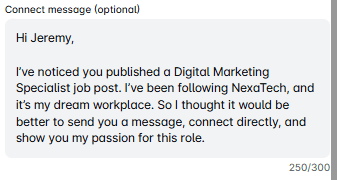
Cold messaging an employee
This is one of the ways to figure out what the company culture is like and establish a connection with an employee within your desired company.
LinkedIn connection request:
Hey {{firstName}},
I noticed you work at {{currentCompany}}. How has your experience been in the {{Department}} since you started? I'm searching for job opportunities, and {{currentCompany}} is my #1. I’d like to connect to chat about it.
Real-life example:
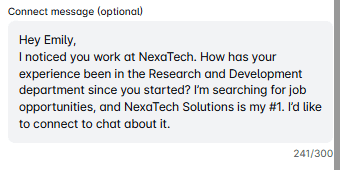
And if they respond, you can send a message such as this one to get their referral:
LinkedIn message template:
Thanks for your message, {{firstName}}.
Really appreciate it. On a side note, are you aware that the {{Position}} job listed on {{websiteName}} falls under your department? If not, can you point me to the person usually responsible for recruiting for such roles? I'm considering applying and would like to ensure my application doesn't disappear in the digital chaos.
Real-life example:
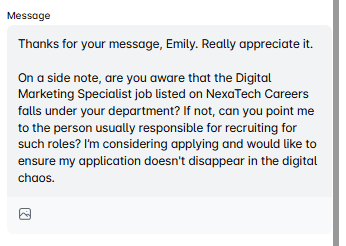
Request an informal interview
Sometimes, in your target company, there are no job vacancies that match your expertise. However, that doesn't stop you from messaging their hiring manager and kindly asking for an informal interview. You can test out this template.
LinkedIn connection request template:
Hi {{firstName}},
I've been following {{currentCompany}} for a while now, and I adore your company culture and achievements. Even though you don't have roles matching my skills, I'd still like to connect and schedule an informal call and present myself in person.
Real-life example:
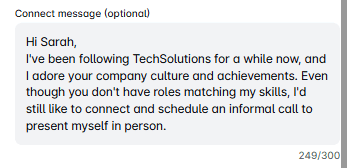
How to cold message on LinkedIn and get replies
Before sending your first message or LinkedIn connection request to your potential customers, you need to get your outreach strategy straight. This way, you can prepare the ground to generate higher-qualified leads faster. Here are our top tips for doing so.
Optimize your profile
The first rule to get the best out of your LinkedIn cold message is to optimize your LinkedIn profile. People are more prone to accept a connection request from someone whose entire profile is set up. In other words, you have your:
- Profile and LinkedIn cover image,
- LinkedIn headline,
- Company name,
- LinkedIn summary,
- Education section,
- And LinkedIn URL.
For example, if you are a salesperson, potential customers can check out your LinkedIn profile and see your product/service and what you are all about before accepting a connection request.
On the other hand, if you are a hiring manager, candidates can take a look at your company name and website. Otherwise, if your profile is not entirely set up, they would mistake you for a fraud. Think of it as the first barrier of defense to prove the validity of your outreach strategy.
Target the right people - ICP & buyer persona
Both cold emails and LinkedIn connection requests can go down the drain if they are aimed at the wrong target audience. In other words, you need to research and create your Ideal Customer Profile and Buyer Persona. Find out what your ideal company headcount, revenue, or location is. Buyer Persona-wise, figure out what position uses your product/service, whether they are business decision makers or not, and their pain points, so you can tailor your sales pitch.
If you are a hiring manager, a Persona for each position will be enough. Just make sure to target the correct position, industry, years of experience, and other factors relevant to your job vacancy.
Lastly, the best way to create these two documents is to analyze your current ideal customers. In other words, find the ones with:
- Highest retention rate and LTV;
- Shortest buying cycle;
- And who would be a referral for your product someplace else.
N.B. Remember that every piece of information in your ICP or Buyer Persona documents needs to be actionable. In other words, create a document with the information you can use for your LinkedIn prospecting or messaging purposes.
Find your leads using LinkedIn filters
Our next piece of advice is to learn how to find your ideal leads. If you are a sales executive, get to the bottom of the ins and outs of the LinkedIn Sales Navigator filters and prospecting hacks. Or find leads outside LinkedIn and trace them back to this social media. And if you are a recruiter, research Recruiter search filters.
Remember, the goal is to be as narrow as possible so you can find your ideal leads with a high-quality status and shorter close cycles.
Personalize your cold message
Personalization wins the conversation. Simple as that. The more personalized outreach is, the more people will respond to your LinkedIn connection request, InMail, or even a phone call.
That said, fill your cold outreach messages with personalized points to get their attention, such as:
- First and last name,
- Current company,
- Position,
- Mutual connection,
- Case studies or posts they shared,
- Webinar they attended,
- Influencers they follow,
- Or the LinkedIn group they joined.
These are just a few examples of how you can personalize your connection messages or cold emails in general. However, when crafting your first message and even your second, you should always have in mind that you need to offer value and make it all about your prospects. In other words, help yourself with the deeper personalization points such as:
- What are the new customers' main goals,
- What are their pain points,
- Post they publish,
- Content they created,
- What type of content do they consume?
These points will help you get a higher response rate. If you don’t want to present your sales pitch or mention pain points right away, you can always send them an interesting article to spark their imagination about your service.
Don’t forget to end your direct messages with a clear call to action. It can be anything from reading a blog, accepting a LinkedIn connection request, or scheduling an online meeting or a phone call. Nonetheless, try to keep only one call to action per message.
Now, if you really want your message to stand out, remember that a picture is worth a thousand words. That’s why many of our users take personalization a step further by adding personalized images or GIFs to their outreach.
With Skylead, you can insert visuals personalized with your and your lead’s profile photo, company logo, and text with variables.
Want to see our image and GIF personalization in action? Here’s a video that shows you exactly how it works!
And believe it or not, we managed to amp up our response rate to 76% using it!
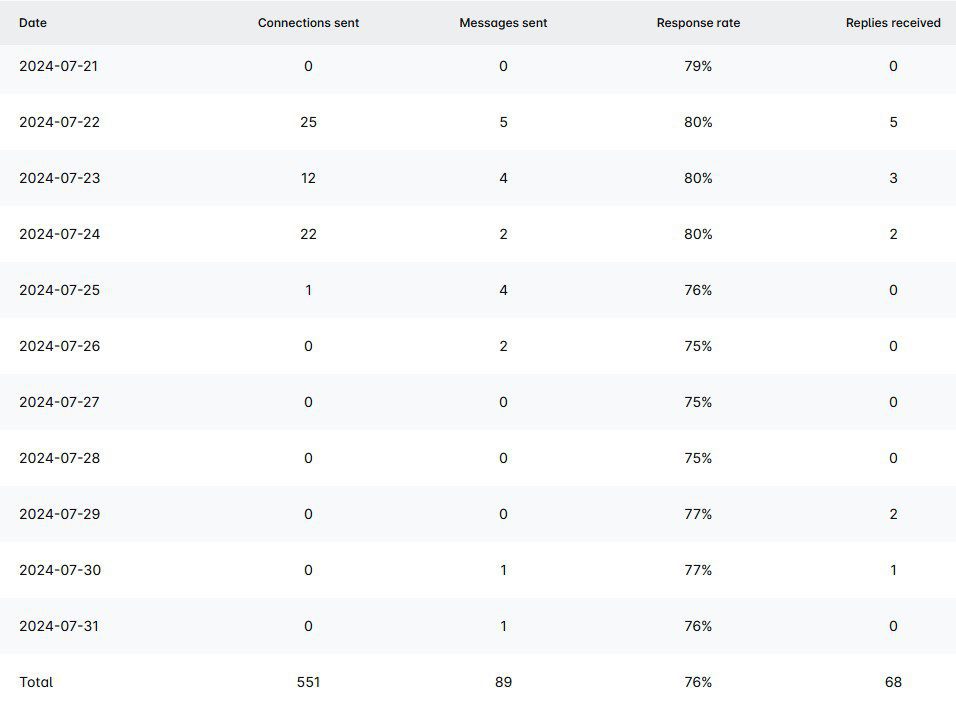
Choose to use it yourself, and sooner than later, you may be in a similar situation to our client, Michael Gonzalez, who said:
“We are currently generating 320 bookings, but that's not a limit.’’
Send your cold message, including InMail
LinkedIn users have not one, but three formats they can use to connect with someone on LinkedIn - connection requests, direct message after invite acceptance, and InMails. These two formats are the main ones for the initial contact with potential customers and candidates.
To clarify, InMails are like cold emails but on LinkedIn. You can write your own subject line and have 8K characters available as opposed to a connection request (300 characters). Moreover, you can send InMails to people outside your professional network only if you have a paid LinkedIn subscription.
Types of InMails & benefits
You can send paid and free InMails. The number of paid InMails you can send depends on your LinkedIn subscription. For example, if you paid for LinkedIn Sales Navigator, you have 50 monthly credits. On the other hand, if you paid for Recruiter Lite, you get 30 InMail credits and 100-150 credits for a Recruiter subscription. Lastly, LinkedIn Premium offers only 15 InMail credits per month.
Contrary to paid InMails, you can send up to 800 free ones, but only to those LinkedIn users who have set their profile to the Open profile status.
That said, make sure to leverage InMail format as a part of your outreach strategy because of the 3 reasons:
- You can contact people who are your 2nd and 3rd-degree connections without sending a connection request;
- You have more characters available than in connection requests, so you can focus on pain points and a better CTA;
- It's a great alternative if your connection request is pending and you'd like to send a direct message straight to the decision-maker's inbox.
Follow up
Salespeople often perceive follow-up messages as pushy and a thing that can drive their leads away. Therefore, 70% of them do not send any follow-ups. However, a lesser-known fact is that if you send a follow-up, you automatically increase the chance of hearing back from your lead by 25%.
However, if you know how to write a follow-up email after no response or a LinkedIn message, you can increase these chances even more.
That said, our advice is to research how to write the best follow-ups out there and never miss sending them.
Here is, according to our experience, the best advice for crafting follow-ups. Depending on the format, a follow-up should be short and focus on at least 2 of the following:
- Catchy subject line;
- Context;
- Value (case studies, solution to pain points);
- CTA.
Thus, here is one follow-up message that is led by the above-mentioned points.
Subject line: Any thoughts?
Follow-up InMail template:
Hey {{firstName}},
Just checking in to see if you got any thoughts on exploring what {{nameOfYourCompany}} could do for {{theirCompany}}?
We worked with Companies similar to yours, such as:
- {{Company1}}
- {{Company2}}
- {{Company3}}
If you give me a chance for a call to show you, just this once, how other {{ProspectsPosition}} have used this solution to {{smallBenefit}}, I promise we can part ways if you are not impressed. Just let me know when is the best time for you. Anyway, love what you are doing with {{theirCompany}}.
Best, {{Your name}}
Response rate: 27%
Real-life example:
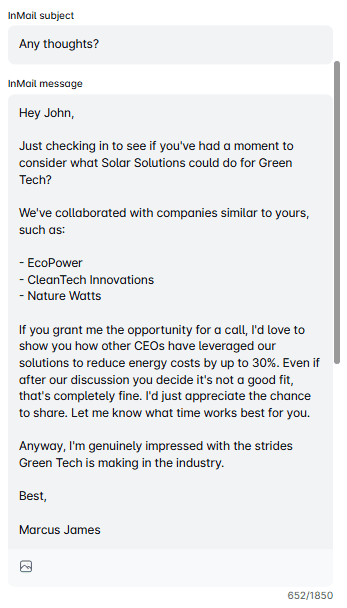
Frequently asked questions
1. How do these cold message strategies vary in effectiveness across different regions or cultures?
Cold message strategies' effectiveness can vary significantly across different regions or cultures due to varying communication norms and expectations. Tailoring your approach to reflect an understanding of cultural nuances and preferences in communication can greatly enhance receptivity and engagement.
2. What are the long-term follow-up strategies if the initial cold messages receive positive responses?
Long-term follow-up strategies should focus on building a genuine relationship with the recipient. This involves regularly sharing relevant content, updates, and opportunities that add value, maintaining a balance between staying in touch and respecting the recipient's space and interest level.
3. Are there any case studies or success stories of businesses that have significantly benefited from using these specific LinkedIn cold message templates?
Yes. We have a vast library of outreach templates inside the tool that use these messages, and by examining each type of outreach sequence, you can see other results in addition to the response rate we've stated here.
4. Is it better to cold email or cold message on LinkedIn?
Cold emails have an average of 3% reply rate, while InMail’s is 18-25%. So, cold messages on LinkedIn are better. But it also depends on your target audience and their preferred channel. So, to maximize getting in touch with every lead possible, you should reach out using both channels.
5. What is a good first message on LinkedIn?
“Hey {{firstName}}, I loved your post about {{Topic}}, so I wanted to connect and chat.” Or you can use a humorous approach with personalization: “What’s a marketer’s favorite drink? Brand-y. Just kidding, {{firstName}}, saw that you are also part of the {{GroupName}} group. Hope we can learn from each other!”
Ready for your best cold outreach yet?
We’ve tested thousands of LinkedIn cold messages manually — and these were the exact ones that brought us (and our users) real replies, booked meetings, and signed deals.
Now it’s your turn.
Skip the guesswork. Try these templates and start getting results faster.
Start your 7-day free trial today and see how much easier cold outreach can be!
Disclaimer: Skylead is not affiliated, endorsed by, or connected with LinkedIn in any way.
A perfectly crafted LinkedIn inMail subject line could be your ticket to outreach success, and let’s explain why!
Reaching out to prospects or candidates can be a frustrating game of chance. Traditional emails often go answered, with response rates averaging around 3-5% for cold outreach. This leaves LinkedIn inMail as a better alternative for professionals in sales, marketing, and recruiting, and the numbers back it up. In fact, inMails have a response rate between 10-25%. This is 300% higher than email when using the exact same content, according to LinkedIn!
But why the big difference? It all comes down to delivery and perception. InMails land directly in a recipient's LinkedIn inbox, where engagement is naturally higher among active professionals.
However, even with this advantage, not every InMail gets a reply, and LinkedIn inMail subject lines are mostly to blame.
After all, they are the first thing the recipient sees. Thus, they need to make an impact. But between countless ‘’Quick chat?’’ or ‘’Just following up,’’ your prospects are getting tired of generic subject lines. They need something different. Something personalized, clear, and value-driven.
We at Skylead use inMails daily and have had plenty of chances to test what’s working and what's not.
So, if you’re looking for LinkedIn inMail subject line ideas, you’re in the right place!
Today, we’re drawing from our own experience to bring you:
- 20 best LinkedIn inMail subject lines to get responses
- 5 tips on how to write highly effective subject lines
Let’s get started!
What is LinkedIn inMail?
LinkedIn InMail is a premium messaging feature available to all LinkedIn Premium, Sales Navigator, and Recruiter subscribers. InMails allow you to send messages to anyone on the platform—no prior connection needed. This makes them ideal for everyone looking to bypass LinkedIn connection limit while reaching out to their target audience.
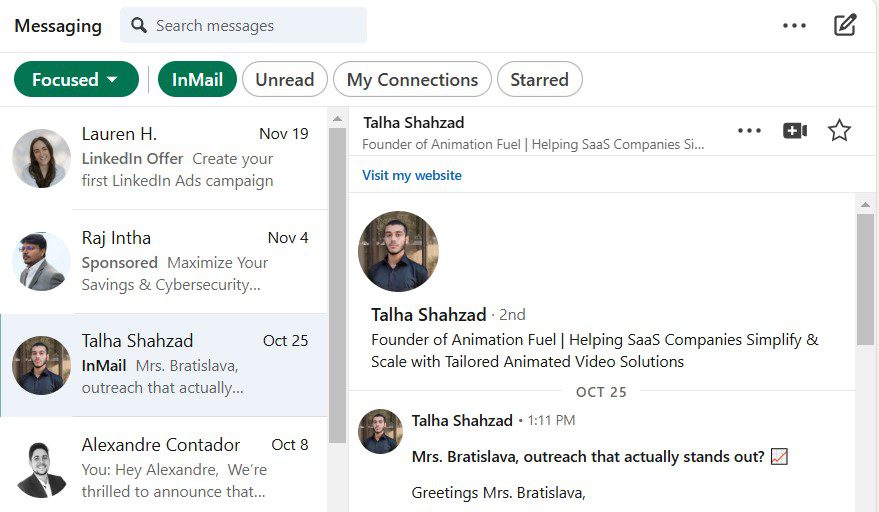
Each Premium plan comes with a specific number of inMail credits every month, which can be accumulated for up to 3 months:
- Premium Career: 5 credits/month
- Premium Business: 15 credits/month
- Sales Navigator Core: 50 credits/month
- Recruiter Lite: 30 credits/month
- Recruiter Professional Services (RPS): 100 credits/month
- Recruiter Corporate: 150 credits/month
Moreover, each time someone replies to your inMail, LinkedIn gives you that credit back. All the more reasons to craft perfect LinkedIn inMail subject lines!
However, if a recipient has their profile set to "Open," you can send them an inMail without using any of your credits. Therefore, you get to save your credits for high-priority individuals.
What is a LinkedIn inMail subject line?
A LinkedIn InMail subject line is the first thing your recipient notices when they get your message—essentially LinkedIn’s version of an email subject line. With an 80-character limit, it’s your chance to grab attention, stand out in their LinkedIn inbox, and compel them to open your message.
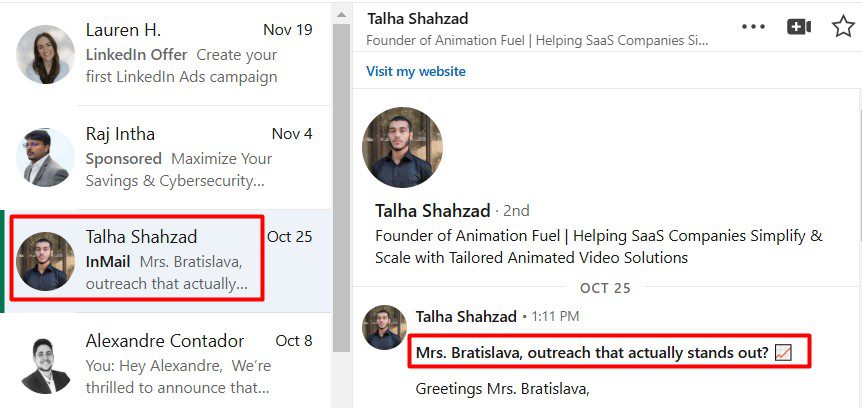
What is a good LinkedIn inMail subject line?
A good LinkedIn inMail subject line is a difference between an inMail credit returned and one gone to waste.
And with just 80 characters to work with, you need to make every word count.
That said, the best inMail subject lines are:
1. Personalized - They reference the recipient's name, mutual connection, role, company, or interests to show you've done your homework.
Example: “Hey {{FirstName}}, {{MutualConnection}} pointed me your way”
2. Concise - Short and sweet to make an impact without overwhelming the other side.
Example: “Quick tip for {{Position}}”
3. Value-driven - They immediately make it clear what's in it for the recipient. Why should they care about opening your message?
Example: “Helping {{TheirRole}} achieve {{Outcome}}”
4. Action-oriented - They use actionable language and calls to action to inspire curiosity or urgency.
Example: “Explore this new strategy for {{Topic}}”
5. Non-salesy: They're authentic, without using promotional or generic phrases.
Example: “{{FirstName}}, thoughts on {{SpecificTopic}}?”
So, in short, a good LinkedIn inMail subject line is personal, to the point, and provides a clear reason for the recipient to engage.
20 Best LinkedIn inMail subject line examples to improve your response rate
Now that you realize what it is that makes for a good LinkedIn message subject line let’s move on to the actual examples.
These examples have been used by our own team at Skylead and have shown promising results in terms of reply rate. We’ll also leave those for you to compare.
That said, to make examples easy to skim through, we’ve also broken them down into 3 different categories:
Feel free to use them in your outreach as you see fit. Just replace the variables with information relevant to your prospect. Or, if you use Skylead, don’t, since our tool will auto-populate variables for you. But we’ll get to that in a moment.
Also, keep in mind that here, you’ll find examples of LinkedIn inMail subject lines only.
We’ve got a separate article that walks you through the best LinkedIn inMail examples with a formula to increase reply rate, where you can take a look at inMail body examples. So, be sure to check that out, as well.
LinkedIn inMail subject line examples for sales professionals
1. It seems we have a mutual connection, {{firstName}}
Reply rate: 50%
Why it works:
Mentioning a mutual connection builds trust and familiarity. This makes the message feel less cold and invites replies.
2. Hi {{firstName}}, I noticed you reacted to {{AuthorName}}’s post on {{SubjectOfThePost}}.
Reply rate: 35%
Why it works:
This subject line feels hyper-personalized because it references a specific LinkedIn activity. It also shows you’re paying attention to your leads’ interests.
3. Saw you are also a member of {{GroupName}}
Reply rate: 27%
Why it works:
We commonly use this LinkedIn inMail subject line when outreaching members of LinkedIn groups. It’s an excellent conversation starter that makes your message feel less intrusive.
4. Any thoughts on {{SpecificTopic}}?
Reply rate: 27%
Why it works:
Open-ended questions work great for sparking curiosity and engagement. This subject line invites the recipient to share their perspective, which also makes them feel valued.
5. {{CompetitorName}} is doing this—are you?
Reply rate: 25%
Why it works:
Playing on FOMO (fear of missing out) and competition makes this subject line compelling. It challenges the recipient to think about their own strategy, thus prompting them to reply.
6. Curious how {{NameOfYourCompany}} can help you?
Reply rate: 23%
Why it works:
This subject line directly addresses the recipient’s potential needs while sparking curiosity. Furthermore, it positions your company as a helpful resource, which makes it sound less salesly.
7. Generate 30+ leads every month, {{firstName}}!
Reply rate: 17%
Why it works:
This is a bold, benefit-driven subject line that immediately captures attention. It appeals to results-focused professionals looking to improve their LinkedIn lead generation and lead gen in general.
8. {{Lead’sCurrentCompanyName}}’s pain points are your biggest advantage, {{firstName}}!
Reply rate: 15%
Why it works:
This example cleverly shifts the focus to how the recipient can leverage their current company’s challenges to their own benefit. Therefore, it appeals to problem-solvers and encourages them to think strategically.
LinkedIn inMail subject line examples for marketing teams
1. {{firstName}}, that was a great post on LinkedIn!
Reply rate: 33%
Why it works:
The subject line starts with a compliment, which instantly catches the recipient’s attention. Not to mention, a reference to their name and post adds a personal and relevant note to it, which increases the likelihood of engagement.
2. Loved your article on {{SpecificTopic}}—a quick idea for you
Reply rate: 25%
Why it works:
Referencing specific content they’ve created shows you’ve done your research. Moreover, offering a “quick idea” adds curiosity, and the subject line positions you as someone who can add value to their work.
3. Struggling with {{Challenge}}? Here’s a quick fix.
Reply rate: 24%
Why it works:
This one empathizes with a potential pain point while promising an actionable solution. It’s direct, benefit-driven, and shows you understand the recipient’s challenges.
4. How to increase your {{SpecificMetric}} by {{Percentage}}
Reply rate: 21%
Why it works:
Metrics and percentages catch attention quickly, especially that of data-driven marketers. In this subject line, the value being offered is clearly outlined, making it hard to ignore.
5. What’s trending in {{Industry}} marketing?
Reply rate: 20%
Why it works:
Marketers LOVE staying ahead of trends. This LinkedIn inMail subject line is simple yet intriguing and positions your message as a source of insider knowledge.
6. We can both benefit from this partnership, {{firstName}}
Reply rate: 15%
Why it works:
It emphasizes mutual benefit, making it feel collaborative rather than one-sided. Therefore, it’s ideal for proposing partnerships or joint ventures.
7. Let’s make the most of our time, {{firstName}}
Reply rate: 15%
Why it works:
This conversational subject line is straightforward and respectful of the recipient’s time. It’s casual and professional at the same time and creates an approachable tone for the message.
LinkedIn inMail subject line examples for recruiters
1. Your experience in {{Field}} caught our eye
Reply rate: 30%
Why it works:
This subject line is personal and specific, thus making the recipient feel valued and recognized for their expertise. What’s more, a field reference immediately creates relevance and sparks curiosity.
2. We’re hiring {{Role}} like you at {{Company}}
Reply rate: 27%
Why it works:
This LinkedIn message subject line is clear and direct and immediately highlights both the opportunity and the company. Such a line is, therefore, ideal for piquing interest in active or passive candidates.
3. Is this your next career move, {{firstName}}?
Reply rate: 25%
Why it works:
This question invites engagement by prompting the recipient to think about their next step. Moreover, including their name adds a personal touch.
4. A role that matches your skills and goals
Reply rate: 24%
Why it works:
This subject line aligns with the recipient’s aspirations. Thus, it shows that the opportunity has been thoughtfully matched to their profile.
5. Let’s talk about your career growth in {{Field}}
Reply rate: 22%
Why it works:
Career growth is a top motivator for candidates. That said, this LinkedIn inMail subject line works because it feels collaborative and highlights a mutual interest in their success.
5 Tips for writing high-converting LinkedIn inMail subject lines
So, we've provided you with LinkedIn inMail subject line examples that you can immediately use in your LinkedIn outreach.
But they will only get you so far. The goal is to be able to write high-converting ones on your own.
That said, here are 5 tried-and-tested tips to help you create inMail subject lines that will stand out in your prospects' LinkedIn inboxes.
Use data or metrics to grab attention
Data-driven subject lines instantly stand out because they promise measurable value, which B2B leads are drawn to.
Thus, our advice is to incorporate:
- Percentages,
- Numbers,
- Metrics,
Or any other data that can give your subject line credibility and a results-oriented edge.
Incorporate questions to spark curiosity
Questions are a natural attention-grabber because they encourage the recipient to pause and think. Moreover, by posing a question, you create curiosity about what the rest of the inMail contains, which prompts the other party to open it. Just make sure the question is relevant to their challenges or goals, though.
Avoid generic or overused phrases
If I had a nickel for every time I saw ''Let's hop on a quick chat'' and similar in my inbox... well, I wouldn't be rich because it's nickels we're talking about. But you get the gist. This type of LinkedIn inMail subject line is overused, meaning it hasn't been working for a while now.
That said, if you want the subject line to perform, you need to be original, creative, and specific. Such a line will show that you've put thought into your outreach instead of just automating away with no specific strategy.
A/B test subject lines to find the most effective ones
Even the best LinkedIn inMail subject lines need a bit of tweaking from time to time.
That said, to figure out what works best for your audience, perform regular A/B testing where you send one subject line to one group of leads and another to the other. Or A/B test up to 5 inMail subject lines on autopilot using Skylead.
To compare the variations against each other, make sure to track the number of inMails sent as well as open and reply rates. Then, optimize accordingly.
Write subject lines from your lead’s perspective
Your subject line should speak directly to the recipient’s needs and priorities. Therefore, it’s important you frame your copy around what’s in it for them—not you. That can be solving a problem, achieving a goal, gaining a benefit, or anything else for that matter.
Frequently asked questions (FAQs)
What is the difference between an InMail and a LinkedIn message?
The main difference between a LinkedIn InMail and a standard LinkedIn message is who you can send it to. LinkedIn messages can only be sent to your 1st-degree connections, while InMails let you message anyone on the platform. Moreover, inMail is a LinkedIn Premium feature.
How to write LinkedIn inMails?
To write an effective LinkedIn InMail, firstly, use a specific subject line to grab attention. Then, open the inMail with a relevant hook, address the recipient’s pain points with a clear value proposition, and keep it concise. End with a strong CTA to which the recipient can easily respond.
What are LinkedIn inMail credits?
LinkedIn InMail credits are part of LinkedIn Premium plans and determine the number of paid InMails you can send monthly. Each plan provides a specific number of credits per month, ranging from 5 (Premium Career) to 50 (Sales Navigator). Unused credits roll over for up to 3 months. Meanwhile, if your recipient replies to your InMail, LinkedIn returns the credit to your balance.
Make the most of your inMail subject lines
Crafting a strong InMail subject line is a mix of creativity and data-driven tweaking.
It’s rare to get the perfect one on your first try, so you need to refine and experiment as you go.
The examples and tips we’ve shared above can help set you on the right path, but real progress comes from putting them into action consistently.
If you want to streamline your outreach process so you can dedicate more time to perfecting your messaging, Skylead can help.
So, come test Skylead for free for 7 days and see how much more you can achieve when your time is focused where it counts most.
Disclaimer: Skylead is not affiliated, endorsed by, or connected with LinkedIn in any way.
If you're in sales, chances are you've given social selling on LinkedIn a try. You may also be all too familiar with the following scenario: you spend hours sending invites to connect, crafting messages, and follow-ups only to realize the results are…nowhere to be found. Conversations die out before they've truly begun, engagement is flat, and you're left wondering if all this effort is even worth it. But LinkedIn isn’t the problem. It's how you're using it. LinkedIn is a powerful sales engine, but only with the proper LinkedIn sales strategy.
So, how do you create one? And, more importantly, how do you put it to work?
Since our sales guru, Andrea, are experts on sales (and LinkedIn), we thought we'd pick their brains to answer these. And now, we'll be using their knowledge and firsthand experience to break down:
- How to create and execute a LinkedIn sales strategy that gets results;
- How to track and analyze its performance;
- And what mistakes you need to avoid to minimize wasted efforts.
So, if you are ready to turn things around on LinkedIn sales-wise, it's time to dig in!
How effective is LinkedIn for sales?
Why bother using LinkedIn for sales engagement to begin with?
Because it’s home to over 1 billion professionals spread across 200 territories. Out of these, a whopping 63 million are decision-makers and another 10 million C-level executives. This means your audience is definitely there. You just need to get to them.
Basic users are slightly limited when it comes to LinkedIn prospecting and LinkedIn lead generation. And while you can use any LinkedIn Premium subscription to get to sales leads, Sales Navigator remains your solid bet.
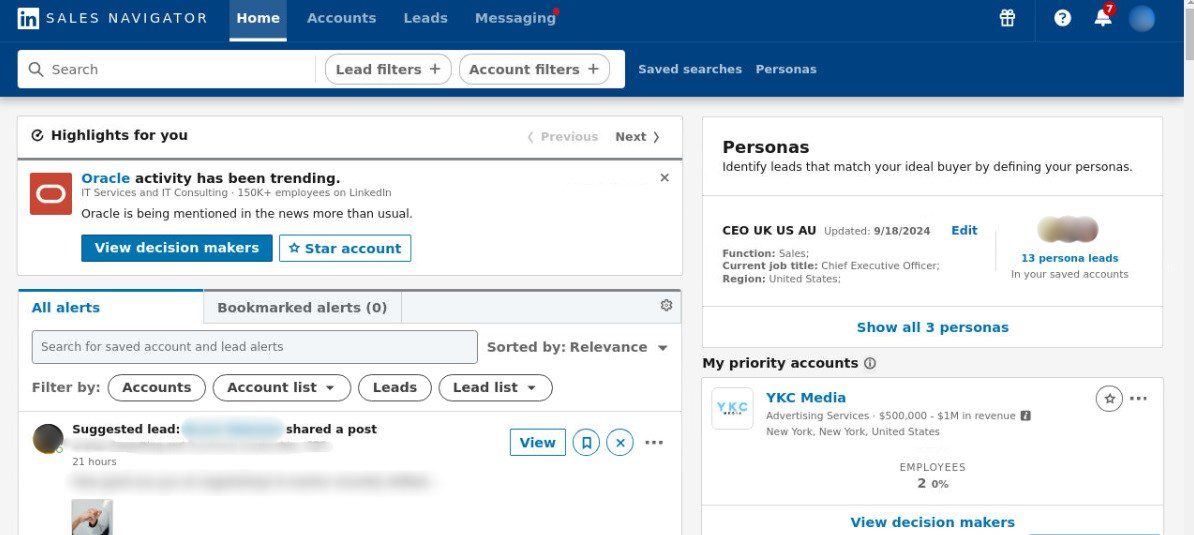
That’s because it’s aimed precisely at sales professionals and equipped with over 50 lead and account LinkedIn Sales Navigator filters that simplify prospecting. Not to mention, it comes with advanced features that aren’t available to other Premium subscribers (e.g., Buyer Intent and Persona features).
We could spend hours talking about the LinkedIn Sales Navigator vs Premium differences. But instead, let’s focus on the stats that prove just how effective LinkedIn, or Sales Navigator, is for sales professionals.
Namely, its users manage to:
- Close 31% more deals
- Connect to 4x more decision-makers
- Save 65+ hours annually due to reduced tool switching
Moreover, Forrester Consulting conducted a study on Sales Navigator in 2023, where they revealed that this subscription yields an impressive 312% ROI over the course of 3 years. It also pays itself off in less than 6 months.
So, if you’re in sales and LinkedIn, especially its Sales Navigator, isn’t part of your strategy, it’s likely you’re losing out on some serious opportunities.
What is a LinkedIn sales strategy & why do you need one?
A LinkedIn sales strategy is a structured plan for using LinkedIn to find prospects, generate leads, and drive sales. It focuses on tapping into LinkedIn’s networking opportunities, sharing valuable content, and using sales tools to connect with potential customers, build relationships, and nurture them into clients.
In fact, with a LinkedIn strategy in place, you can:
- Target the right individuals who fit your Ideal Customer Profile and Buyer Persona.
- Build credibility and trust through thought leadership posts, insightful comments, and meaningful conversations.
- Increase efficiency by focusing on high-value activities like nurturing warm leads and minimizing time spent on low-potential prospects.
- Drive measurable results by converting these leads into paying customers.
On the other hand, without a clear and actionable LinkedIn sales strategy, the results are often wasted effort, time, and, ultimately, money.
What should you do before creating a LinkedIn sales strategy?
So, having a social selling strategy for LinkedIn is a must. That much we established.
But now, let’s show you what you should do before you create one, according to our sales team at Skylead.
Identify your sales objectives & goals
Every successful LinkedIn sales strategy starts with clear objectives. That’s because defining them upfront helps you measure success later on.
To establish them, think about what you are trying to achieve.
Are you looking to:
- Generate leads,
- Increase product demos,
- Or drive sales directly?
Objectives are meant to guide your strategy and point you in the right direction.
But a strong LinkedIn sales strategy also needs goals to keep you focused and on track.
Unlike objectives, goals are specific, measurable, and highly influenced by key performance indicators (KPIs).
For example, your goals could be to:
- Bring 250 warm leads from LinkedIn in Q1.
- Increase product demos by 30%.
- Bring $20K of sales directly from LinkedIn.
To track these goals effectively, you’ll need to define relevant KPIs.
Based on the examples above, your sub-KPIs could be to:
- Increase connection requests by 50%
- Reach a 30% response rate
When clearly defined, KPIs become measurable, allowing you to plan activities, allocate resources, and monitor progress efficiently. As you move closer to your goals—and, ultimately, your objectives—you can refine and optimize these metrics to improve your results over time.
Define your ICP and Buyer Persona
After you identify your objections and goals, it's time to figure out who to target. In other words, you should define your Ideal Customer Profile and Buyer Persona.
Your ICP represents the type of companies that benefit the most from your product or service.
In the meantime, your Buyer Persona is a more detailed representation of decision-makers within those companies.
To paint a better picture, say you’re selling a CRM for small businesses. In that case, your ICP may include SaaS companies with 10-50 employees. As for your Buyer Persona, it could be a VP of Sales who struggles with pipeline visibility and wants to simplify the sales process.
With these two defined, you can focus on the right people and improve your odds of driving sales.
Optimize your LinkedIn profile
What’s the first thing your prospects will see after you’ve invited them to connect?
Your LinkedIn profile!
Thus, it needs to make a strong first impression. Otherwise, your entire efforts could be for nothing.
So, before creating and implementing a LinkedIn sales strategy, you need to optimize it for impact.
Firstly, begin with your profile photo. Use a high-quality, professional image where you look approachable and confident. Avoid selfies or overly casual pictures, as they don’t inspire trust.
You should also make your LinkedIn cover photo count. Use it to highlight your expertise, showcase your company’s branding, or feature an eye-catching tagline that tells prospects how you can help them.
Then, focus on your LinkedIn headline. Emphasize the value you bring or the problem you solve instead of simply typing out your title. For example, try ''Helping SaaS companies streamline their sales process and close more deals.’’
Your headline should be complemented by a strong LinkedIn summary. Focus on who you help and how and the results you’ve achieved. Keep it conversational but professional, and don’t forget to include keywords your audience might search for through Boolean search.
Finally, opt for a custom URL (e.g., linkedin.com/in/yourname). It makes your profile easier to share and looks way more professional in emails and on business cards.
Prepare supporting resources
Outbound outreach is one of the LinkedIn sales strategies. But truth be told, the chances of your closing a deal after the 1st message are slim, to say the least. Your prospects will likely have questions before they're ready to convert. Some of them may also object to what you're offering.
But, as our wonderful Head of Sales, Andrea, says:
''Hearing things like “I’m not interested” or “I don’t have time” doesn’t mean you’ve lost your prospect. It just means you need to handle their objection.''
Some objections you can handle on the spot. But it's better to be safe than sorry. In other words, you should prepare supporting resources.
For instance, Andrea commonly uses case studies that our marketing team has prepared to handle objections involving uncertainty about profitability. They demonstrate measurable results in terms of the ROI that Skylead has delivered to other businesses.
Some other resources you could create yourself or have your content team do to aid objection handling include:
- Blog posts that explore your prospects' pain points in detail and provide solutions to them
- Videos, such as product demos and how-to-guides
- Case studies that explain how you solved others’ problems
- eBooks or whitepapers that establish your expertise
A good practice is to also anticipate the most common questions or concerns your prospects may have and prepare materials/scripts to support your answer.
For example, if they say:
- ‘’This seems too expensive,” have a value breakdown or an ROI report ready to provide.
- ‘’I’m not sure this will work for my industry,” share industry-specific case studies or testimonials.
- ‘’I don’t have time to implement this,” explain how your solution saves time in the long run.
Having these resources ready in advance allows you to respond quickly and confidently. Thus, they minimize the chances of potential deals going to waste.
How to create a LinkedIn sales strategy
By now, you should know exactly who your target audience is. But you still need to think about the best way to reach them.
That said, you can use one or combine several prospecting strategies into a broader LinkedIn sales strategy.
To get you started, here are 4 prospecting strategies. Need more? Check out our LinkedIn prospecting blog, where we’ve covered a total of 18!
Different prospecting strategies to include in your LinkedIn sales strategy
1. Using Sales Navigator filters to zero in on ICP and Buyer Persona
Sales Navigator filters help you translate your ICP and Buyer Persona into actionable search criteria.
That said, one of Andrea’s LinkedIn sales strategies is to rely on account and lead filters to filter out ICPs and promising individuals inside them.
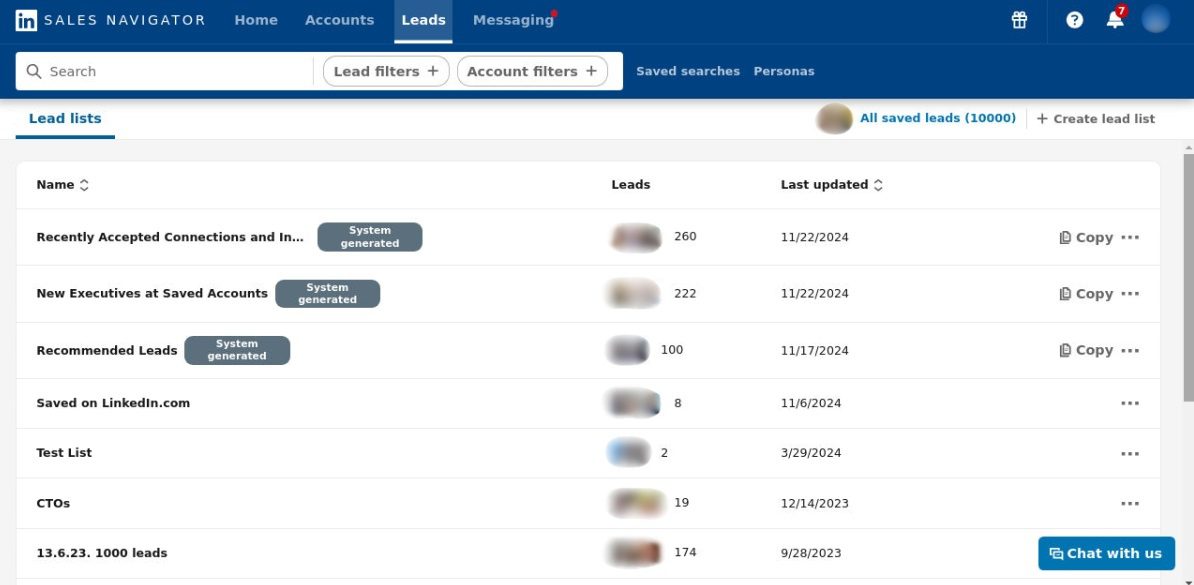
2. Fishing for leads through LinkedIn groups
Speaking of search filters, did you know that Sales Navigator, unlike standard LinkedIn, has a dedicated "Groups" filter? This one is especially useful since it allows you to isolate members of specific LinkedIn groups, which you can later reach out to.
Before jumping into outreach, though, you’ll need to take a few preparatory steps:
- Identify groups your audience is likely a part of.
- Compile information about these groups into a single place for easy reference (e.g., CSV file).
- Consider joining these groups yourself to engage with members (if they are active).
That said, most LinkedIn groups are inactive these days. Nonetheless, the right groups can still be valuable sources of leads. You just need to be strategic about how you use them.
3. Setting up lead alerts to determine the right moment to reach out
Sales Navigator has a handy feature that helps you stay updated on your leads’ activity— Sales Navigator alerts.
You can use these alerts, as our sales team does, to track when:
- Leads post or engage with content.
- They’re mentioned in the news.
- They switch roles or companies.
This can help you identify whom exactly to reach out to and when with relevant, personalized messages.
So, if you want to increase the likelihood of starting meaningful conversations, incorporate these alerts into your LinkedIn sales strategy.
4. Attracting prospects through thought leadership content
Thought leadership isn’t a direct prospecting strategy. Nonetheless, it plays a big role in warming up leads, increasing brand visibility, and making your direct outreach more effective.
At its very core is content. That’s because quality content grabs attention, starts conversations, and builds trust.
That said, your content should speak directly to your target audience's pain points, challenges, and goals. So, before you go about creating it, think about what your ICP and Buyer Persona would find valuable. Then, make a list of topics you could cover that aim to educate rather than only sell.
You'll also need to plan for different content formats, such as:
- Text-only posts
- Images
- Videos
- Carousels
- LinkedIn Pulse articles
- LinkedIn polls
From our experience and that of our sales team, videos and carousels drive the most engagement and have the highest reach on LinkedIn. Still, you want to balance them with other post types to keep your content appealing to those with different consumption preferences.
Moreover, LinkedIn's algorithm loves consistency. This means that to remain on people's radars, you need to post at least 2-3 times a week. Thus, it's important to create a posting calendar. And stick to it!
Of course, posting is only part of the equation. You’ll need to reply to comments you receive, keep conversations going by asking follow-up questions (this will increase your reach, too!), and comment on others' posts. That's how you’ll establish credibility and authority on LinkedIn and build thought leadership that sells for you.
How to prepare a LinkedIn sales strategy message according to the prospecting strategy
Your messaging is just as important as the strategy and sales tactics you’re using.
Since each strategy calls for a slightly different tone and structure to really connect with your audience, we’ve got you covered with some practical tips to simplify message creation.
And to make it even easier, we’ve included message examples for each strategy—personally approved (and used) by Andrea!
1. Sales Navigator filters
Focus on personalization and contextual relevance when reaching out to prospects found through filters.
- Reference a detail from their profile or company to make your outreach feel extra personal.
- Keep your message concise, focusing on how you can address a specific challenge they face or offer value.
Template example:
‘’Hi {{FirstName}}, I came across your post about {{PainPoint}} and couldn’t help but think about the challenges that come with it.
When I worked with {{SimilarCompanies/Professionals}}, we tackled this by {{Solution}}, leading to {{TangibleBenefit}}.
I’d love to share a few insights or ideas that might help you achieve something similar if you're open to it.''
2. LinkedIn Groups
When targeting leads from LinkedIn Groups, establish a connection by referencing your shared interest in the group or ongoing conversations.
- Mention the group explicitly to build rapport.
- Position yourself as helpful and not overly promotional.
Template example:
“Hi {{FirstName}}, I saw we’re members of the same group, {{GroupName}} and wanted to reach out.
I specialize in {{Expertise}} and thought it’d be great to connect and exchange ideas!”
3. Sales Navigator alerts
Timing is everything when using Sales Navigator alerts. Thus, craft your message around the alert to show you’re paying attention and reaching out with purpose.
- Acknowledge their recent activity, like a promotion or a post they shared.
- Use the alert as a conversation starter to build engagement.
Template example:
“Hi {{Name}}, congratulations on your new role at {{Company Name}}!
Transitioning into {{Role}} must be exciting. But having worked with others like you, I know how tough it can be trying to handle {{SpecificChallenge}} while navigating new responsibilities.
One approach that’s proven effective for others in your field is {{Solution}}, which helped them achieve {{Result}}.
I’d be happy to share more details. Let me know if you’re open to a quick chat!”
4. Thought Leadership content
When reaching out after sharing thought leadership content, reference your post or their comment to bond immediately.
- Highlight shared values or goals to build credibility.
- Use the message to guide them toward exploring your expertise further.
Template example:
“Hi {{Name}}, I noticed you liked my recent post about {{Topic}}. It’s great to see others in {{Industry}} contributing to the discussion!
I’d love to hear your thoughts—what’s been your biggest challenge with {{Issue}}?”
How to execute a LinkedIn sales strategy
After choosing one or more prospecting strategies we talked about, it’s time to roll up your sleeves and execute. This is where strategy meets action.
No matter which approach you take—leveraging Sales Navigator filters, finding prospects through LinkedIn groups, setting up lead alerts, or sharing thought leadership content—the next step boils down to one activity: outreach.
Here are some tips to help you effectively execute your LinkedIn sales strategy in your outreach messages.
Focus on value, not the pitch
By now, you've probably done the research about the lead from Sales Navigator, so instead of leading with what you sell, highlight what they’ll gain. Share a resource, insight, or quick win that showcases you as a trusted partner rather than just another salesperson. Think about your approach as: “Here’s something useful” before “Here’s what I offer.”
Leverage social proof
Share success stories, results, or testimonials from clients in the same industry or role as your leads. Instead of saying “Our tool can help you,” say “[similar company] cut response time by 30%. You can read all about it here.” This kind of credibility reduces resistance and builds trust faster.
Nurture with consistency
Most deals don’t happen on the first touch, so they need a bit of nudge 🙂 . That said, comment on their posts, engage with their content, and send a thoughtful follow-up that adds new value. Building familiarity makes it easier for them to say yes when the timing is right.
How to analyze the success of your LinkedIn sales strategy
Crafting and executing a LinkedIn sales strategy is only half the battle. To make sure it’s working as intended—and to make improvements where needed—you need to track and analyze its performance.
That said, the first thing to do is analyze the KPIs that you defined in the strategy. Doing so will help you determine which parts of your strategy are driving results and which need to be refined.
Depending on the type of KPIs that you want to analyze, you can use LinkedIn’s native analytics to track:
- The demographics of your profile viewers (e.g., job titles, industries, locations).
- The performance of your posts and articles, including impressions and engagement rate.
- Trends in follower growth and audience interactions over time.
In terms of specific LinkedIn sales strategies, LinkedIn’s social selling index is a good indicator of whether your thought leadership strategy is working or not.
Furthermore, if you aren’t sure of the impact of the messages you prepared in a strategy, a good practice is to experiment with A/B testing.
Of course, if results aren’t there immediately, that doesn’t mean all hope is lost. Often, they take time to show. That said, Andrea suggests you give your LinkedIn sales strategy 2 to 4 weeks to reflect progress. Only then should you evaluate its performance and optimize it accordingly.
Common mistakes to avoid when creating and executing a LinkedIn sales strategy
Even the best-intentioned LinkedIn sales strategies can fall flat if certain pitfalls aren’t avoided.
That said, here are some of the most common mistakes to watch out for—and how to steer clear of them.
1. Not adjusting your strategy to your audience
Your audience isn’t a monolith, so your approach shouldn’t be universal. After all, a generic strategy often leads to low engagement and missed opportunities.
Avoid this mistake by:
- Tailoring your messaging and content to the specific needs and pain points of your ICP and Buyer Persona.
- Regularly revisiting your target audience criteria to make sure they’re still relevant.
2. Sending generic connection requests
Nothing screams “spam” more than a connection request that says “Let’s connect!” without context. These requests often get ignored or outright declined.
Instead, personalize every connection request with a reference to something specific about the prospect, such as their recent post or a common interest.
For example:
"Hi {{FirstName}}, I loved your recent article on {{topic}}—it gave me some great insights, such as {{insight 1}}! I’d love to connect and exchange ideas on {{shared interest}}."
3. Sending sales pitches right after connecting
The fastest way to lose a connection is by pitching your product or service immediately after connecting. Social selling is about building relationships above all.
Therefore, engage with their content before sending a direct message. When you finally message them, focus on providing value first and your offerings second.
4. Neglecting to follow up with connections
Not everyone will respond to your initial outreach message. That doesn’t mean they’re not interested, though. In such a situation, a lack of follow-up can cost you some valuable opportunities.
Avoid this by sending a polite and value-driven follow-ups spaced a few days apart.
To follow up after no response, feel free to share a relevant blog post or case study with a message like:
"Hi {{FirstName}}, I thought this article might be helpful based on our earlier conversation about {{topic}}. Let me know if it resonates!"
5. Giving up too soon
LinkedIn sales strategies often take time to show results, as we pointed out earlier. Many give up after a few weeks of minimal engagement. By all means, don’t do the same!
Instead:
- Be consistent with your efforts.
- Evaluate your performance occasionally and make data-driven adjustments.
Frequently asked questions (FAQs)
How do you use LinkedIn effectively for sales?
Focus on building relationships. Optimize your profile, create engaging content that speaks to your audience’s pain points, and use Sales Navigator for targeted prospecting. Combine this with personalized outreach and consistent engagement to nurture leads and drive conversions.
What’s the recommended balance between inbound (content-driven) and outbound (cold outreach) efforts in a LinkedIn sales strategy?
A 60/40 split is often ideal, from our experience. This means you should devote 60% of your efforts to inbound (content-driven) strategies to build trust and visibility and 40% to outbound (cold outreach) to directly engage with prospects. Then, adjust as you go based on audience response and resource availability.
Seal the deal with the proper LinkedIn sales strategy
Creating and executing a successful LinkedIn sales strategy is the difference between chasing leads aimlessly and actually closing deals.
So, take the time to plan it out and put it into motion when you're confident you’ve got it right. And whatever you do, don’t cut corners—success on LinkedIn is all about doing things the right way.
Just keep in mind that results may not come overnight. But that’s just part of the process. Be patient, stay consistent, and tweak things as needed. Over time, it’ll all start to click, and your hard work will pay off.
Disclaimer: Skylead is not affiliated, endorsed by, or connected with LinkedIn in any way.
If you've ever wondered if there is a way to speed up lead-generation activities and overcome the time-consuming, repetitive nature of manual processes, we have a proposition. Why not automate lead generation?
Yes, that's right. Automation has been around for a while, especially for lead generation and management. And no wonder it's so effective since this way, you can find the most qualified leads and scale up your business. But, more importantly, you can generate your leads daily.
Having automated our own lead generation process, we’ve witnessed its power firsthand. And now, it’s time you did the same.
Not sure how to do so? Fear not! We’ll guide you on how to automate every sales and marketing lead generation task by showing you how we did it—step by step!
You’ll also learn the difference between automating inbound and outbound lead generation and get a rundown of the best tools to help you do it.
| 🤖 Best tools to automate lead generation | ⭐ Average rating (Capterra, G2, Software Advice) |
| Skylead | 4,8 / 5 |
| OptinMonster | 4,3 / 5 |
| Moosend.com | 4,6 / 5 |
| Mailchimp | 4,4 / 5 |
| Tidio | 4,7 / 5 |
What is automated lead generation?
Automated lead generation is a process of using technology to perform time-consuming sales and marketing lead generation tasks on your behalf. To do this, you have different kinds of automation tools at your disposal. For example, you can use software to automate sending emails.
Automated lead generation offers benefits such as:
- Reducing human error and thus improving your workflow;
- Saving time by performing manual tasks and decreasing workload;
- Providing insights into the performance of lead generation activities so you can optimize the process and improve it;
- Consistency in the workflow so you can generate leads daily;
- Leaving room to focus on building relationships and lead nurturing.
That said, there are plenty of automation tools on the market to choose from.
However, let’s first distinguish the types of automated sales and marketing lead generation activities to discover what tool you should use accordingly.
Types of lead generation automation
There are 2 types of automated lead generation, but they best work when used in synergy.
1. Inbound lead generation automation
Inbound lead generation is a marketing strategy for attracting leads to your company. For example, a marketing team can create content that is valuable to the best leads for your business. The purpose of the content is to compel a lead to take specific actions first that will eventually lead to sales.
Since today’s leads often prefer to research independently, inbound lead gen aims to assist rather than sell. It guides potential leads to valuable resources, just like this blog, ebooks, and guides, allowing them to explore your brand and offerings at their own pace.
That said, the purpose of inbound lead generation automation is to streamline the said process using automation tools.
For example, you can use the following types of tools to automate your inbound tasks:
- Chatbot - to provide answers to questions and nurture leads;
- Pop-ups & forms - to offer personalized content, lead magnets, or surveys on the website.
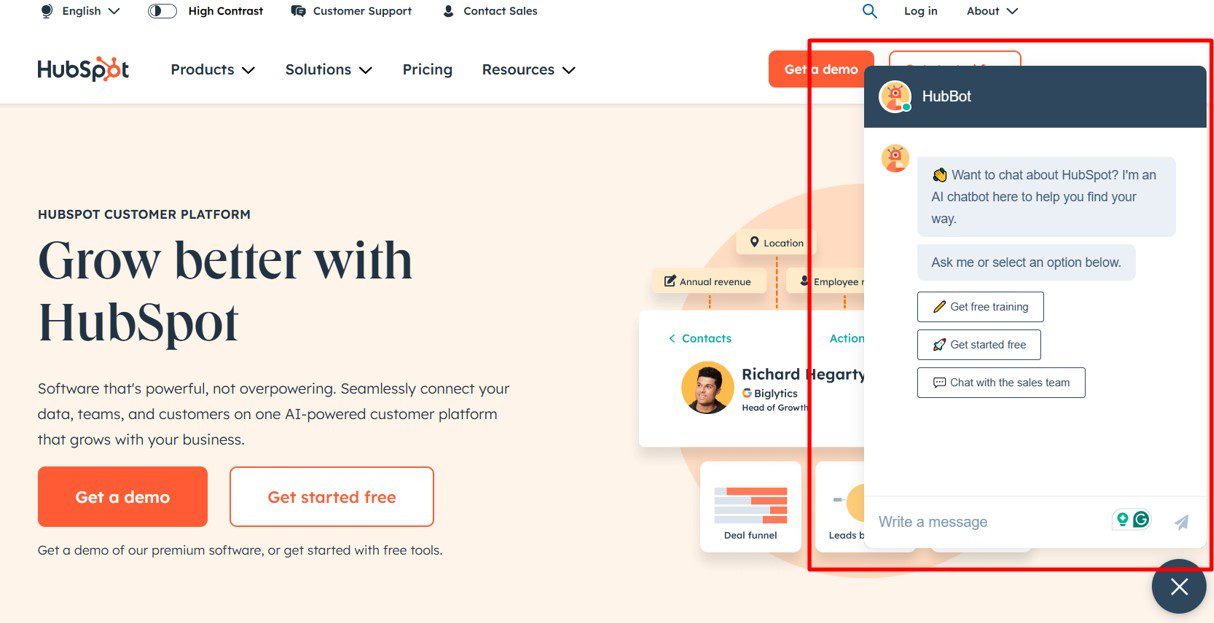
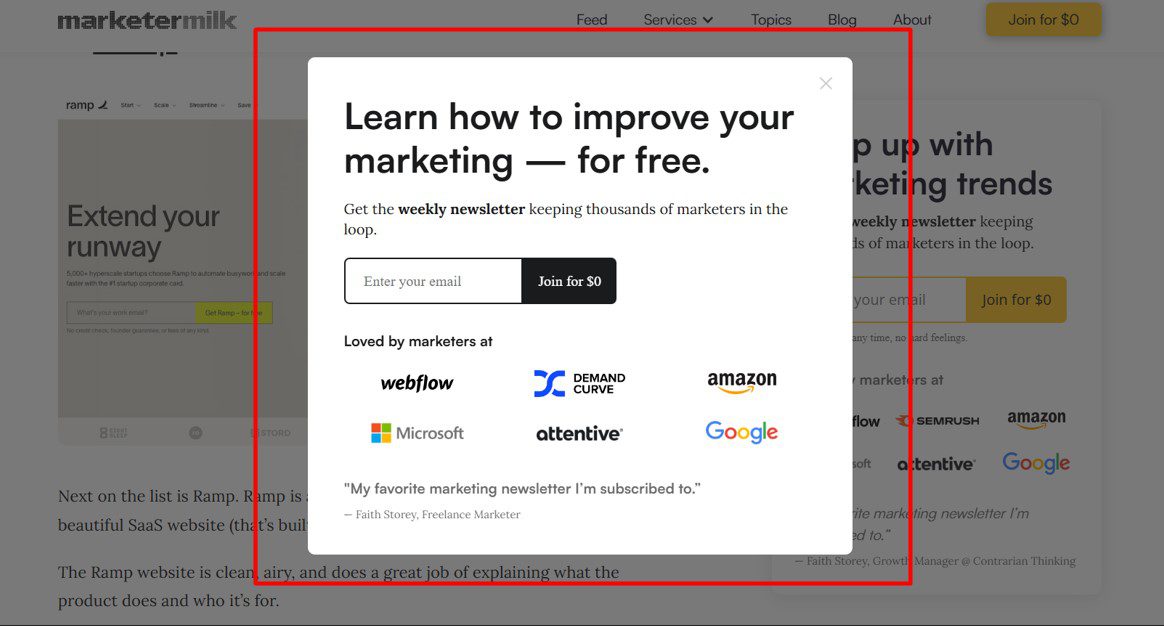
2. Outbound lead generation automation
Outbound lead generation is about finding and reaching out to your ideal leads directly. Rather than waiting for leads to find your website and reach out like in inbound lead gen, you are the one who makes the first move.
That said, to automate your outbound lead generation tasks, you can use the following types of tools:
- Email marketing and outreach tools - for outbound marketing and sales to automate sending emails, newsletters, or themed email sequences;
- Prospecting tools - for marketing and sales to find outbound leads and contact information;
- Advertising tools - for marketers to automate buying digital advertising space.
B2B lead generation automation vs B2C lead generation automation
Business-to-Business (B2B) lead generation automation is a process of using software to generate potential leads who work in a company to offer them your services.
On the other hand, Business-to-Consumer (B2C) lead generation automation uses software to streamline and generate leads who are individual customers.
Even though they have different potential customers, both B2B and B2C companies use the same lead generation automation for a similar purpose.
With that in mind, here is how different companies use automation tools for their purpose.
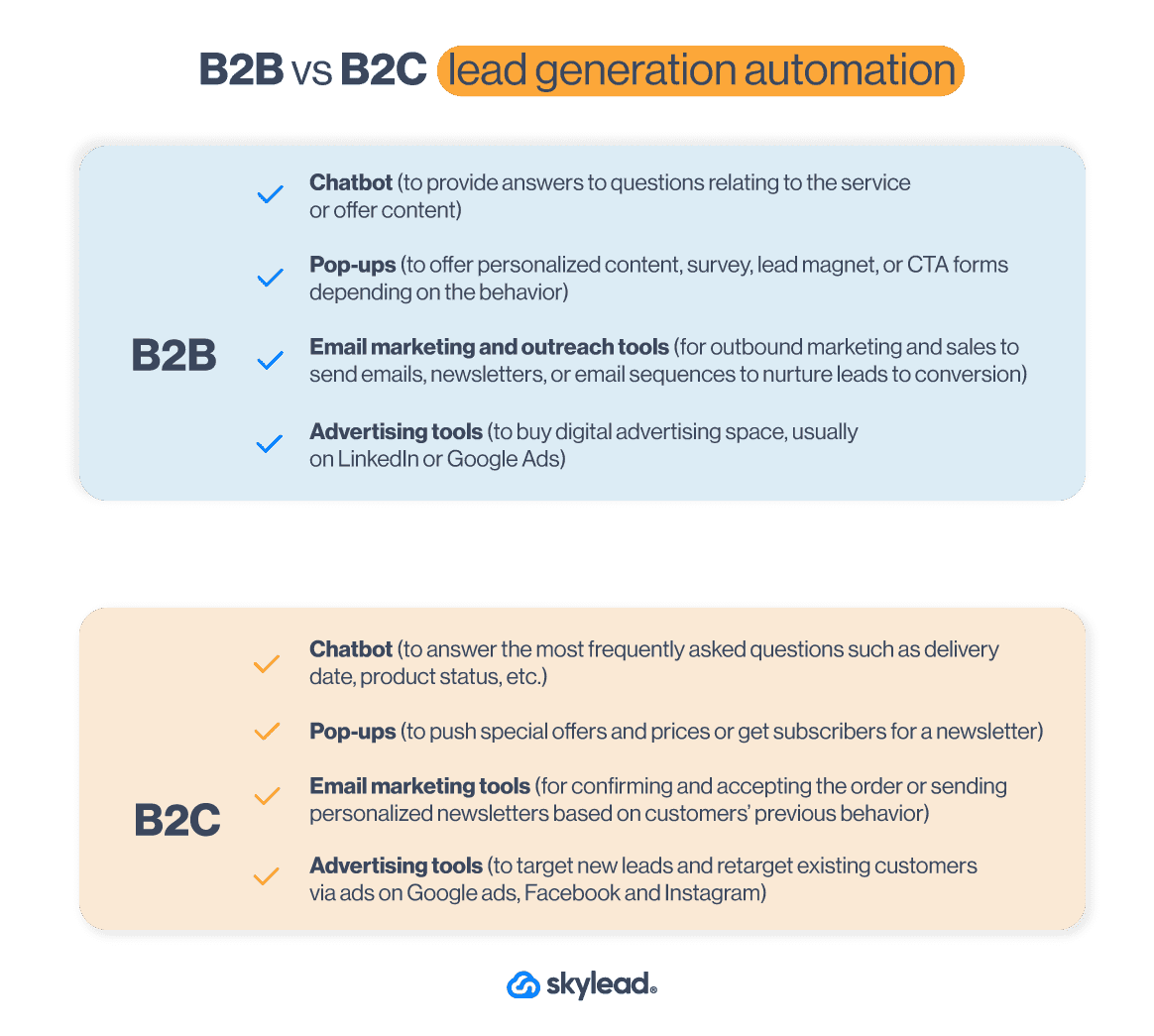
How to automate lead generation
It’s not enough to know the difference between inbound and outbound lead generation automation. You need to know HOW to execute the process successfully.
To help you do just that, we’ve prepared a step-by-step lead generation automation guide. It’s informed by experiences and tactics that proved effective to us and is designed to get you immediate results.
How to automate outbound lead generation
1. Define your ICP and buyer persona
Your outbound lead generation needs a good basis to get quality leads that convert. That’s why sales teams start their lead generation process by creating their Ideal Customer Profile and Buyer Persona, as we have. This way, you can generate the best leads and guide them through the sales funnel. Not to mention, these documents can help with the lead scoring.
What worked best for us when it comes to the creation of both of these documents was to analyze current customer data and gather users who:
- Have the shortest buying cycle;
- Have a high retention rate;
- Would advocate for our product.
2. Find contact data
Once you establish your ICP and Buyer Persona, it’s time for prospecting.
Almost all sales teams use LinkedIn prospecting to find the best leads for their sales funnel. Moreover, there are a lot of proven LinkedIn lead generation strategies out there to find quality leads. However, you can also find leads using different databases like Zoominfo or Crunchbase.
When it comes to gathering the leads’ contact information, we’ve learned it’s best to automate the process using:
- Databases to find leads' info;
- Tools to identify your website visitors, such as Lead Forensics;
This way, you can build your lead lists, send them to your CRM, and prepare for email outreach.
3. Craft a compelling message
Whatever channel you use to outreach on, consider your messaging carefully. Cold outreach is hard when you know nothing about the person. That said, it’s important to include research into the lead generation process and figure out what your leads are all about.
In other words, comb through their company page, LinkedIn profile and find the About section, posts they published, or what they shared. This way, you can personalize your communication and appear genuine when explaining how you can solve their problems.
For successful messaging, we found mentioning your unique selling point tailored to your leads’ exact pain point, particularly useful. That said, if you need help crafting such a message, you can always use Chat GPT for sales messages.
4. Send cold emails
It’s easy to let the cold email mistakes slither into your outreach. However, you reduce the chances of some of these mistakes by using automated lead generation tools to send cold emails.
Just keep in mind that 70% of salespeople stop at one cold email. Meanwhile, incorporating follow-up messages into your sequence increases your chances of hearing back by 25%. That’s why we make sure to send follow up emails as well, as you should.
5. Gather lead information
Once you start conversing with your leads, you need to keep track of them.
This is where CRM, like Hubspot or Pipedrive, comes into play. To clarify, Customer Relationship Management is a software that helps you automate gathering all the information about your sales leads in one place, such as:
- Notes about the sales leads,
- Lead scoring,
- Information about the company,
- Deal value,
- Position in the sales funnel,
- The next task to perform,
- Conversation link, and so on.
This way, you can check where your leads are in the funnel and what level of nurturing they need.
7. Nurture leads
Speaking of nurturing leads, you can do so by integrating your CRM with your outreach tool and exchanging the information between the two. Then, you can label leads or send them to outreach campaigns.
We commonly use Skylead for our customer-nurturing program. Why? Because you can use it to send automated outreach campaigns for:
- Churn customers, if you have any special upgrade or to offer a discount;
- Current customers, to send them personalized content, upsell, or offer help as their dedicated account manager.
Moreover, our Smart Inbox also helps with nurturing by consolidating all conversations across email and LinkedIn in one place. You can use it to respond to leads directly and label them to monitor conversions and ROI.
How to automate inbound lead generation
1. Set up your lead generation website
The first step towards automated lead generation is creating a website to connect all your lead generation automation tools. We can write an entire blog on creating a website, but we’ll mention 3 most important things.
Firstly, good practice here is to create a website that will provide the best user experience with UX/UI design that converts.
Secondly, your content marketing team must prepare visuals and copy for the website. The copy needs to provide information about your product or service. However, it should be presented in a way that describes how it solves the problem and removes pain points your high-quality leads have.
Lastly, it would be best to create an SEO plan to rank your website better.
2. Create a lead magnet
The next step is for your content marketing team to create a lead magnet.
A lead magnet could be a guide, eBook, or mini-course that you publish on your website, available for leads to download in exchange for their contact information, like their name and email.
This lead generation strategy helps you gather emails, allowing you to send newsletters to leads or pass the contacts to your sales team to reach them out. Just remember, though—you shouldn’t ask for an email unless you’re offering something genuinely valuable.
Once your lead magnet is ready, you can automate the process by connecting your forms to a CRM like HubSpot or Monday. This way, new leads are automatically added to your pipeline. And if your CRM is integrated with sales engagement tools, you can even send leads straight into campaigns.
Lastly, to promote your lead magnet, you can publish ads to generate a large pool of leads. Alternatively, use pop-ups to promote the content throughout the website depending on users’ behavior.
3. Set up your landing page
To attract high-quality leads, whether organically or through ads, you’ll need a landing page that offers a seamless user experience. In other words, it must contain concise information tailored to your high-quality leads.
A good approach is to have dedicated feature pages that highlight the main features and explain the problems they solve.
Say you’re offering a project management tool. In that case, one feature page could focus on “Efficient task management.” This page could detail how your tool enables teams to assign tasks, track progress, and meet deadlines. Include a step-by-step walkthrough of the feature, screenshots of the interface, and testimonials from teams that have successfully used it to build credibility.
Moreover, your landing page should have a converting design and messaging that motivates visitors to take action. Make sure it’s properly optimized for SEO to increase visibility as well.
Finally, don’t forget a clear call to action and a contact form or lead magnet to capture those valuable leads.
4. Capture leads with a chatbot
Another way to generate leads via your website is to use a chatbot. It allows you to turn your website visitors into leads and qualify them for future sales or marketing activities.
You can set up a chatbot to offer lead magnets or some free service depending on users’ website behavior. Or, if a person wants to contact your customer support, develop a list of questions a chatbot will pose before connecting. This is a perfect automation system for lead scoring and qualifying.
Many chatbots can also automatically gather information like email addresses, company size, and other relevant details. Once collected, you can set it up to create a new deal in your CRM and seamlessly add those leads to your outreach campaign, just like with lead magnets.
5. Get traffic to your page
Once you’ve set everything up, the next step is getting leads to visit your website.
There are 2 main ways to bring in traffic:
- Paid - you can launch paid campaigns via Google ads, Bing ads, or social media such as Facebook or LinkedIn. You can either target new leads or retarget your previous visitors.
- Organic - Create blogs or videos that follow SEO standards so they can rank better organically and get you as many visitors as possible.
6. Nurture the leads automatically
When you start getting leads to your website, you need to nurture them to some sort of conversion. Therefore, look no further than using pop-up forms or chatbot conversations personalized to their web-behavior.
You can personalize messages and offer relevant content based on things like:
- The pages they are visiting,
- If they are returning customers, or
- Their exit intent.
7. Use marketing automation for lead generation
Once you gather your leads’ emails, it’s time to use marketing automation to reach out to them. You can create email campaigns to offer personalized content on a mass scale according to your leads’ behavior.
For example, you can send certain messages depending on whether they opened an email. In other words, you can create outreach sequences with different scenarios to offer tailored content that will lead to conversion.
The good practice here is to start with valuable educational content. Then, offer a solution to the particular problem, and then present your product or service. But by all means, never start the first message with a pitch!
Best tools to automate lead generation
You know how to automate your lead generation, and now’s the time for action.
But to actually do it, you need the right tool for the job.
Lucky for you, we’ve tested several lead generation software on the market. Based on our findings, we’ll name a few of the best and their average ratings, as per Capterra, G2, and Software Advice.
Nonetheless, you are free to research other tools and check review websites should you feel the need to do so.
1. Skylead
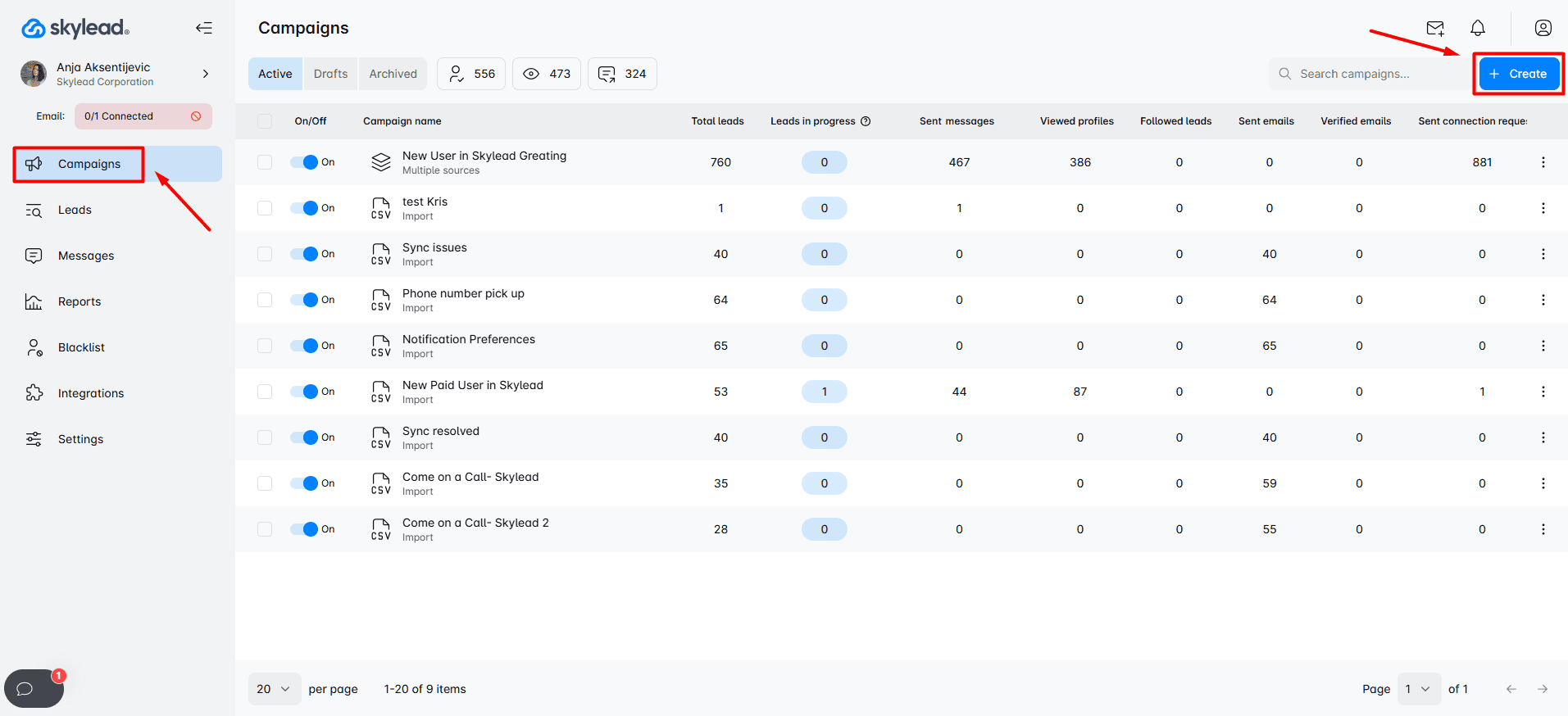
Yup. As we previously mentioned, that's us. 🙂
Skylead is a sales engagement tool and cold email software that streamlines the most time-consuming marketing, recruiting, and sales outreach tasks.
In fact, Skylead is a one-stop-shop cold outreach solution that allows you to:
- Add and warm up an infinite number of emails,
- Find and verify email addresses of your leads,
- Take advantage of unlimited email outreach to send tens of thousands of emails a month.
- Use image and GIF personalization in your communication.
Moreover, you can connect Skylead to any tool, such as your CRM, using webhooks or API and push or send data.
Now, let’s take a closer look at groundbreaking Skylead features.
Features
Email automation
Skylead was the 1st tool on the market to introduce this feature, which has changed how everyone performs outreach.
But what are Smart sequences?
Simply put, they are coherent outreach flows you create using different outreach actions and if/else conditions so it can help you reach out leads based on their behavior and find the fastest path to them.
That said, here is an example of one Smart sequence.
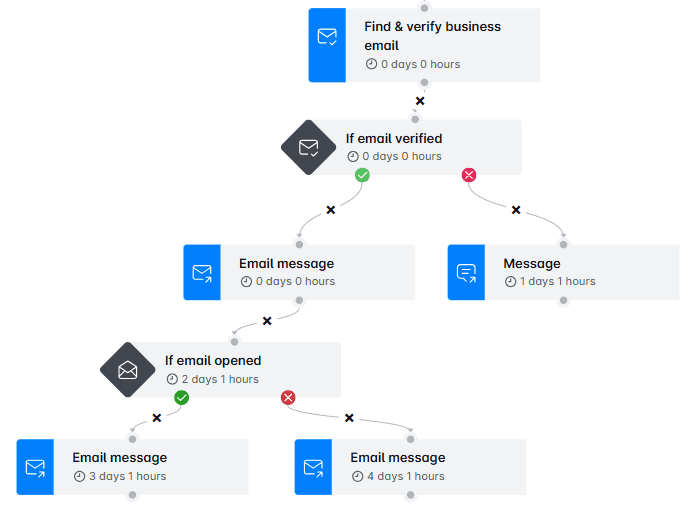
What’s really great is that the number of outreach scenarios you can create with Smart sequences is truly limitless.
You can play around with different actions and conditions as you see fit. Or you can use our pre-tested Smart sequences inside our tool, which have been proven to work. The choice is yours.
Email discovery & verification
Setting up a Smart sequence with email steps is easy when you have your leads' addresses. But what if you don’t?
You rely on our email discovery and verification!
With this feature, you can find and double-verify your leads’ business emails to:
- Reduce bounce rates
- Protect your domain reputation
This functionality is built into the platform, meaning we don’t rely on third-party services to perform it. Thus, you can add an email discovery and verification step into your Smart sequence to find and verify emails without breaking the outreach flow.
Moreover, Skylead offers unlimited email discovery and verification credits at no extra cost. This allows you to expand your outreach without worrying about added expenses.
Infinite email warm-up
Speaking of features that come at no additional cost, Skylead has partnered with InboxFlare, one of the best email warm-up tools, to bring you another one: Infinite email warm-up.
Compatible with all major email providers and custom SMTP, InboxFlare lets you warm up an unlimited number of email accounts to make sure your emails always reach your leads.
That said, here’s what Skylead users can take advantage of thanks to our partnership with InboxFlare:
- AI-powered warm-up strategy: InboxFlare’s AI crafts a warm-up plan specific to your domain to guarantee your emails stay out of spam.
- Custom warm-up topic: The tool lets you select email topics, then generates and sends personalized warm-up emails to mimic real engagement and improve deliverability.
- Warm-up in 30+ languages: With warm-up emails available in over 30 languages, reaching a global audience has never been easier.
- Continuous domain and health checks: InboxFlare continuously monitors your domain settings, blacklists, and inbox configurations to keep your email health optimal. You can also run deliverability tests to see exactly where your emails land and then fine-tune your approach.
As you can, with this powerful tool and Skylead, your outreach remains secure, effective, and truly limitless.
Native image & GIF personalization
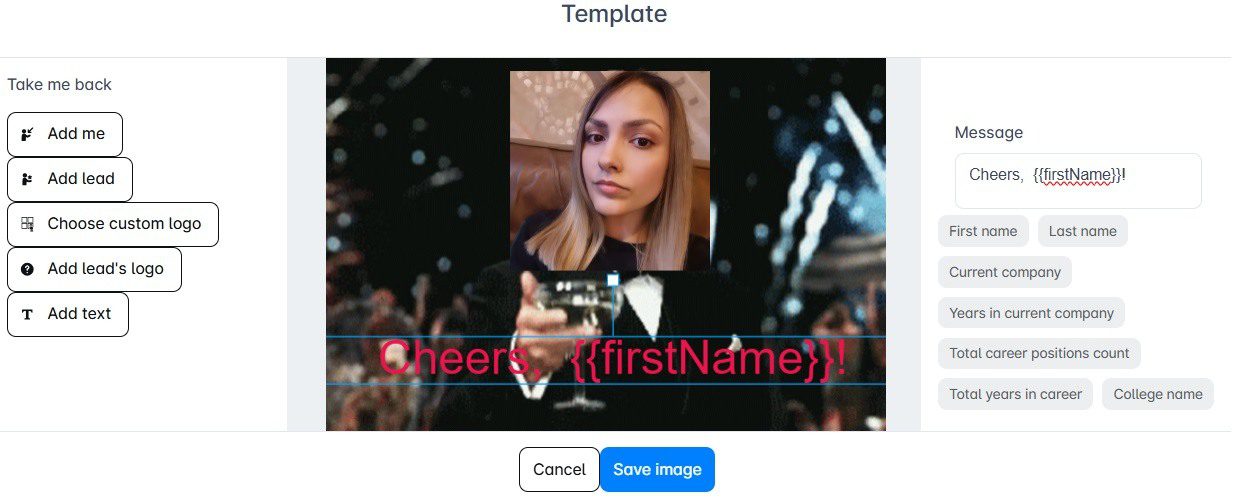
If you want your messages to stand out and be memorable, visuals are a powerful tool.
Luckily, our native image & GIF personalization makes it easy to create eye-catching visuals that are bound to get noticed.
You can use our built-in editor to customize images and GIFs with your and your prospect’s name, picture, company logo, or any other detail that speaks directly to them. However, you don’t have to customize one by one.
This hyper-personalized approach doesn’t only look good; it actually gets results! In fact, our users have seen response rates soar by as much as 76% simply by adding personalized images and GIFs to their outreach.
So, if you want to make a lasting impression and boost engagement, this feature is your go-to.
Skylead use cases
Skylead users include:
Pricing
Skylead has an all-in-one pricing plan of $100 per seat/month.
Average rating: ⭐ 4,8 / 5
2. OptinMonster
br]
This is another tool you can use to automate lead generation. Marketing teams typically use it for e-commerce lead capture. However, B2B marketers frequently use it for their lead-generation efforts as well.
OptinMonster is a software that offers automated lead generation forms presented as pop-ups, slide-in windows, and gamified spin-to-win wheels. Moreover, you can place these pop-ups or forms on any landing page.
That said, these automated forms help you gather contact information to:
- Build an email list for your email campaigns,
- Display personalized content,
- Nurture your visitors through their customer journey.
Features
OptinMonster’s main advantage is that it turns your website visitors into paying customers, webinar attendees, or newsletter subscribers.
That said, many B2B marketing teams use these forms to increase any conversion rate, thanks to:
- Page-level targeting - You can display pop-ups, forms, and notifications based on the user’s interaction with different landing pages.
- Exit-intent technology - OptinMonster monitors visitors’ movements and detects when they plan to exit the page without leaving their contact information or making a purchase. This feature can boost conversion rates and, as part of your content strategy, increase newsletter subscribers and webinar sign-ups for future campaigns.
- Lightbox pop-up - This type of pop-up appears based on triggers, prompting visitors to make a choice with minimal distractions as the background content fades. Thus, it keeps their attention focused on the decision.
- Onsite retargeting - You can show returning visitors something new every time they return to your website. Simply create pop-ups to show new promotions or offers based on their previous interactions on your website.
- List segmentation - Reduce website abandonment and churn by personalizing content for leads on your email list and website. What’s more, you can integrate OptinMonster with any CRM app, such as Hubspot or email automation software, to further adjust your messaging.
💡 Pro tip: Create a synergy between your marketing and sales teams. Once you generate leads through OptinMonster, you can push them automatically to your Skylead sales or marketing campaign through API.
Pricing
OptinMonster has 4 pricing plans:
| Basic | $18/mo *Use on 1 site |
| Plus | $48/mo *Use on 2 sites |
| Pro | $73/mo *Use on 3 sites |
| Growth | $123/mo *Use on 5 sites |
In addition, they offer around 40% off per month if you opt-in for an annual subscription.
Average rating: ⭐ 4,3 / 5
3. Moosend.com
In general, Moosend is an email automation tool that helps you create and send personalized newsletters to your leads. It’s most suitable for small businesses specializing in e-commerce. However, this automation tool can be used for B2B email campaigns as well.
Features
One of the best things about Moosend is that you can create newsletters or pop-up banners with a simple drag-and-drop.
In addition, they leverage AI to analyze the data from your website, such as your subscriber behavior. This way, you can send more personalized messages or email notifications and maximize customer experience and retention.
That said, similar to Skylead, you can use this marketing automation tool to create a sequence with if/else conditions such as “if the purchase was made” and so on. This way, you can check for your subscriber’s actions and send suitable follow-up messages.
Moosend offers a vast library of templates for creating newsletters or landing pages for email marketing campaigns. Whichever you choose, you’d be glad to hear that every template comes with device optimization functionalities.
Next, you can group leads from your email list and send separate messages. You can divide the leads based on keywords, if they clicked on the link in the previous email, etc.
Like OptinMonster, Moosend can help you gather new leads and increase your lead generation efforts. In other words, it offers customizable forms like pop-ups to promote your lead magnets, like webinars, and create email lists.
Lastly, you can integrate Moosend with your CRM, such as Hubspot, or other apps to streamline your related tasks.
Pricing
Moosend has 3 pricing systems:
- Pro - This plan is suitable for small businesses because it goes from as low as $9 per month for up to 500 subscribers. On the other hand, this plan goes as high as $5840 a month for up to 1M subscribers.
- Moosend+ - Contains everything in Pro, plus add-ons of your choice. However, you need to reach out to Moosend directly to get a custom quote for this one.
- Enterprise - This plan is for agencies. Pricing is also custom-made, so contact their team for details.
Average rating: ⭐ 4,6 / 5
4. Mailchimp
Another email automation software on our list is Mailchimp.
This marketing automation tool started as software that helps marketers create newsletters in the e-commerce environment. However, it has developed into a more well-rounded automated lead generation tool.
Features
Email marketing
Firstly, Mailchimp offers an email automation tool for sending newsletters or other messaging material to your subscribers. You can create your own message design or use the template.
Regarding targeting, you can segment your leads based on their behavior, such as:
- Campaign activity,
- Location,
- If the last email opened,
- App activity, etc.
Lead generation
Mailchimp offers a couple of features that are perfect for B2B lead generation.
Firstly, they have their own website builder to create beautifully designed landing pages for your new leads. In addition, you can make it from scratch or from the numerous templates they offer.
Secondly, they offer sign-up and pop-up forms for your website to generate potential customers. Moreover, you can also integrate their free appointment scheduling tool so potential leads can book calls with your sales team.
Lastly, Mailchimp offers a campaign manager that combines social media platforms, Facebook, Instagram, and Google Ads, into one dashboard. This way, you can target potential leads with interests similar to those of your current contacts. You can also retarget visitors as they browse the web or social media.
Automated customer journeys
Last but not least, Mailchimp has a function to enhance user experience with Customer Journey Builder. In other words, you can automate activities, such as emails and follow-ups, according to your leads’ behavior and nurture them to conversion.
Moreover, you can integrate Mailchimp with any app, including your CRM of choice or LinkedIn outreach solution for omnichannel presence.
Pricing
Mailchimp offers 4 plans with the following highlighted features:
- A free plan is for up to 1K emails sent. It includes forms, landing pages, and pre-built email templates.
- The Essentials plan starts at $13 a month. This plan includes up to 5K emails sent, 3 audiences, and simple automated customer journeys.
- The Standard plan starts at $20 a month. It includes up to 6K emails sent, 5 audiences, enhanced customer journeys, newsletter templates, a predictive analytics tool, and a campaign manager.
- The Premium plan costs $350 per month. It includes everything from other plans plus 150K emails sent, as well as advanced segmentation and targeting.
Average rating: ⭐ 4,4 / 5
5. Tidio
As mentioned before, one of the best ways to capture leads is via live chat or chatbot. And Tidio is one of many on the market.
This tool can automatically collect and qualify leads based on their website behavior. For example, let’s say a visitor lands on your pricing page. A chatbot can then ask if they are interested in a custom quote, and if they are, invite them to leave their contact information.
Moreover, you can set Tidio to answer FAQs, offer news, or upsell your users. This way, you’re leaving time for your support team to focus on burning problems while improving your customer experience.
Pricing
Tidio offers a couple of plans, respectively:
| Free | *Up to 50 handled conversations |
| Starter | Starts at $29/mo *Up to 100 handled conversations |
| Growth | Starts at $59/mo *Up to 2,000 handled conversations |
| Plus | Starts at $749 *Custom quota of handled conversations |
| Premium | Starts at $2999/mo *Unlimited handled conversations |
Average rating: ⭐ 4,7 / 5
Automated lead generation examples
So, you know how to automate your lead generation and the tools to use when doing so.
Now, let’s walk you through real-life examples of automated inbound and outbound lead generation. And what better way to do so than to use our very own?
a. Outbound lead generation automation example
In October 2023, we launched Skylead 3.0 on Product Hunt and received an incredible 2nd place.
But that wouldn't have been possible if we didn't automate our outbound lead generation.
Namely, what we did several months before the launch was find leads using Product Hunt groups on various platforms.
Why these groups, though? Because they’re filled with individuals already interested in Product Hunt. And since the purpose was to generate leads who’d vote for us once we launched, these individuals were highly valuable.
The next step was to create a targeted outreach campaign using Skylead.
To do so, we we uploaded a list of people with all necessary info and created a smart sequence.
Moreover, since Skylead supports A/B testing of up to 5 different subject lines and messages, we decided to add a few variants to see what drives the best results.
b. Inbound lead generation automation example
To naturally attract leads, we decided to create a lead magnet our audience would find genuinely useful. That’s how our sales eBook came to life—built on the same principles and strategies we used to scale Skylead.
The eBook was a collaboration between our marketing and sales teams. Alongside creating the content, we also designed a brand-new landing page with a form to collect lead information. Once someone would fill out the form, they'd be instantly redirected to a page where they could download the eBook for free.
However, the eBook didn’t benefit only those who downloaded it. Thanks to the lead generation form, we were able to capture the email addresses of inbound leads that we later used in outreach.
We compiled them all into a CSV file and used it to create a CSV-based campaign in Skylead. As a result, we managed to convert a high percentage of warm leads into paying customers.
Frequently asked questions (FAQs)
Can you automate lead generation?
Yes, you can automate lead generation using a variety of tools designed to perform repetitive tasks like prospecting and outreach. By setting up automated workflows, you can streamline these processes and generate leads consistently, thus saving time and boosting efficiency.
What is the fastest way to generate leads?
The fastest way to generate leads often involves combining inbound and outbound automation. Using targeted ads, and automated outreach emails to quickly identify, engage, and convert leads with minimal manual effort.
How can businesses ensure the quality of leads when using automation tools?
To ensure the quality of leads when using automation tools, you should define clear target parameters and continuously refine your ideal customer profile. Utilizing advanced filtering options and personalized outreach messages can significantly increase the relevance and quality of automated lead generation efforts.
Can automation tools integrate with other CRM platforms, and how does this affect lead management?
Many tools like Skylead are designed to integrate seamlessly with CRM platforms, enhancing lead management processes. This integration allows for the automatic update of lead information and activities, providing a unified view of the sales funnel and enabling more efficient tracking, nurturing, and conversion of leads.
Automate lead generation to skyrocket your leads
80% of marketing automation users experience an increase in the number of leads, and even 77% an increase in conversion. That is no small number to ignore.
That said, we hope this article helped you understand how you can automate your lead generation activities.
However, before you do, create a good-quality basis for the automation, starting from your website, content strategy, and LinkedIn profile. Only then will you be able to pave the way for successful lead generation automation.
Once you go automation, you will also start looking at your other tasks and ask yourself:
‘’Can I automate that?’’
So, don’t wait a second longer! Sign up for Skylead’s 7-day free trial and automate your lead generation away!
Disclaimer: Skylead is not affiliated, endorsed by, or connected with LinkedIn in any way.
For those who have just started researching LinkedIn automation tools, SaaS startup Expandi appeared on the market in 2019. They initially created software that focused solely on LinkedIn automation.
After years of development, many small business sales teams and recruiters started using it for email outreach and LinkedIn lead generation.
However, we do not recommend violating LinkedIn's TOS. Moreover, since the market has changed and other tools have progressed, one question posed itself. Is Expandi the best outreach tool? Or is there a better alternative on the market that is 100% compliant with LinkedIn's ToS?
Let’s check that together. We will go over what Expandi offers, its disadvantages, the comparison with other solutions, and the pricing itself.
Expandi or alternatives?
Expandi is a LinkedIn automation and email outreach tool. This means that it performs the outreach activities on both platforms on autopilot, so you don’t have to.
It is a cloud-based solution with a dedicated IP address that shields your activity. In addition, your data is stored on the internet, not servers, like in some LinkedIn automation tools.
Unlike Chrome extensions (e.g., Dux-Soup) or desktop apps (e.g., LinkedHelper), a cloud-based solution like Expandi doesn’t require you to keep your PC turned on.
Many small businesses and startup teams use Expandi for LinkedIn prospecting and lead generation. These professionals include salespeople, recruiters, and even outbound marketing managers.
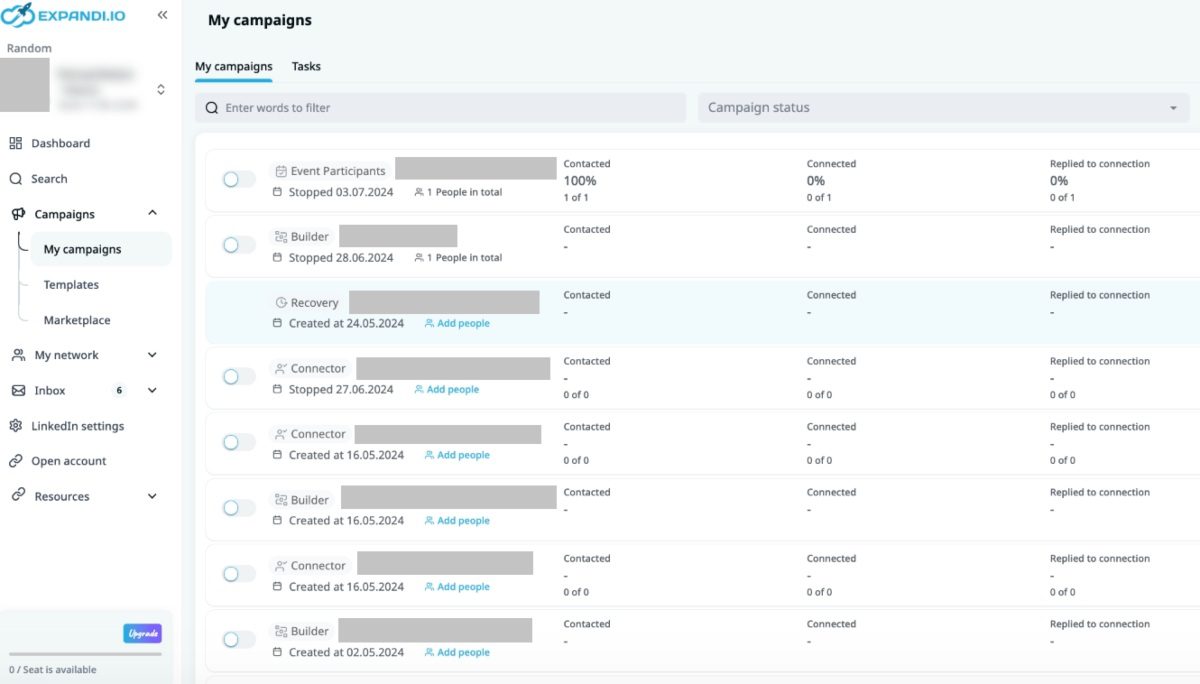
Lastly, Expandi can integrate with any other tool via Zapier webhooks or API.
Now that we’ve covered the basics, let’s get into the specific features.
Expandi features
Smart Sequences
Smart Sequence is an algorithm that streamlines LinkedIn activities you create in a workflow. That said, it performs each action you set for each lead from the target audience source on autopilot.
With Expandi, you can automate various activities:
- Viewing another LinkedIn profile,
- Sending LinkedIn connection requests,
- Follow-up messages once connected,
- Or LinkedIn InMails.
Expandi also provides non-essential steps for lead generation, such as LinkedIn post liking, skill endorsement, and following companies.
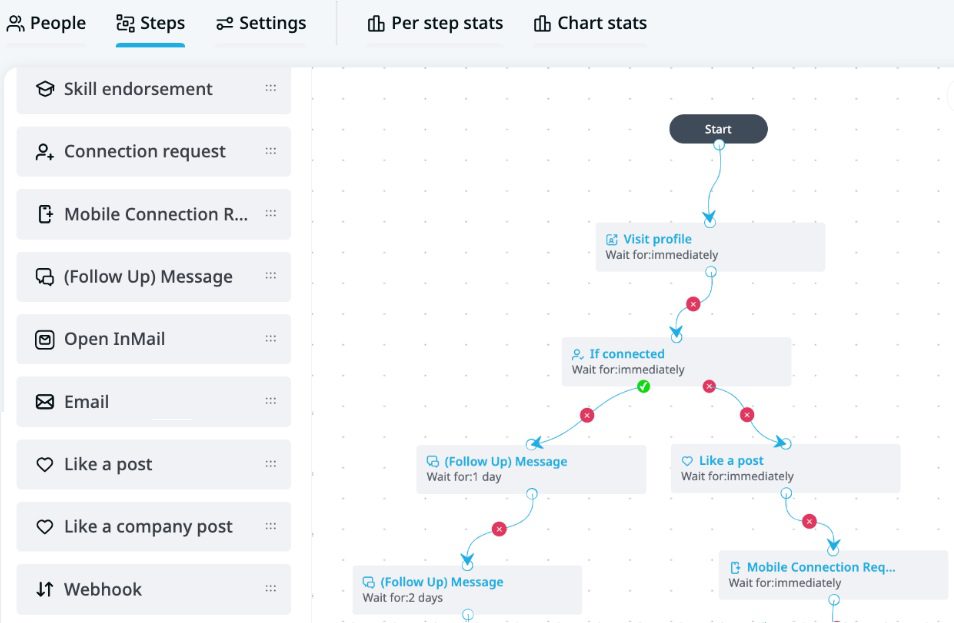
Email outreach
Expandi added email outreach to their features list so you can add multichannel steps as part of the Smart Sequence workflow. In other words, this feature allows you to expand your LinkedIn lead generation to another channel. By using email as your secondary channel, you can connect with less active leads on LinkedIn.
What’s more, Expandi offers attractive metrics analysis and A/B testing, so you can test what messaging works best for you and optimize your campaign. You can also choose to use one of their message templates.
Expandi disadvantages
Expandi lacks some outreach features.
For example, while it does offer Image & GIF personalization, it actually relies on a third-party tool—Hyperise—to make it happen.
But what does this mean for you?
Firstly, you need to pay extra each month if you want to use it. Plus, Hyperise has its own limitations based on usage. Namely, the basic $69 plan limits you to 5 templates and 5,000 impressions (counted each time someone sees the image). So, if you plan to personalize at scale, these limits could add up fast.
Secondly, Expandi doesn’t have an email discovery and verification feature. In other words, it can’t find or verify your leads’ business emails.
Sure, Expandi can scrape personal emails from LinkedIn profiles, but only if the person accepts your connection request first. So, if someone doesn’t respond on LinkedIn or ignores your request, you’re out of luck—no way to reach them by email either.
This setup can make it hard to run a true multichannel outreach strategy. Additionally, if you can’t verify emails, you risk high bounce rates that could hurt your domain reputation. To get around this, you’d need to invest in a separate email discovery tool, which would increase your subscription cost.
Another thing that Expandi can’t help you with is email warm-up. Surely, warm-up settings for LinkedIn outreach exist. But when it comes to improving email deliverability and SPAM prevention, Expandi isn’t your ideal solution.
Lastly, if you use Expandi yourself or read reviews, you will notice that most users reported that this tool has become buggy lately. In fact, too buggy to use. Not to mention, their customer support team is not the most responsive, nor are the issues solved promptly.
Pricing
Expandi offers one pricing plan of $99 for one seat a month and a white label LinkedIn lead generation solution.
However, if you decide to use the Hyperise Image & GIF personalization feature at $69, you end up with a monthly receipt of $168 per 1 seat.
And if you wish to include email discovery & verification, count at least an additional $50+ per month.
Therefore, the total monthly pricing for 1 Expandi account with all the features is $218 minimum.
That said, some Expandi alternatives possess the same, better, or similar features at different prices.
So, let’s check them out.
6 best Explandi alternatives
Whether you’ve found out about Expandi recently or are unsatisfied with this tool and are looking for a change, here is the list of Expandi alternatives.
Expandi alternative #1: Skylead
The first Expandi alternative is Skylead.
Yes, that is us! 🙂 Hello!
Skylead is your one-stop-shop tool that helps agencies, sales teams, recruiters, marketers, and others streamline their outreach efforts.
It is the best sales engagement tool & cold email software with all the outreach features you could ever need. Hence, it is a perfectly rounded tool that helps you save 11+ hours a week on outreach tasks. What's more, it is 100% compliant with LinkedIn's ToS, and the only tool on the list that is.
However, being a cloud-based software comes with additional perks.
For example, Skylead offers a Smart inbox that gathers all messages in one place and an option to operate with multiple accounts.
Like Expandi, you can use it to outreach on multiple platforms and target audience from many sources.
Moreover, Skylead supports integration with your CRM or any other tool via Zapier webhooks or API.
Now that we've covered the basics let's jump to more features that Skylead offers.
Skylead features
Smart Sequences
Skylead was the first tool on the market to launch Smart Sequences. And thus, it changed how the entire market performs its outreach.
As previously mentioned, this groundbreaking algorithm executes steps in the order you set and according to your leads’ behavior.
The if/else conditions make the Smart Sequences special. Thanks to them, you can execute steps, check conditions, and monitors lead behavior according to them. Based on what a lead does (or doesn’t do), you can move them through the workflow to the next relevant action.
You can create a sequence from any outreach action you imagine. You can create custom conditions as well.
Fear not, though. If you do not wish to create the sequence from scratch, you can always use one of our pre-tested Smart Sequence templates inside the tool and its message templates.
So, as you can see, Smart sequences help you make the most out of every touchpoint, resulting in outreach that feels timely and relevant.
Email outreach
Multichannel outreach gives your prospects a well-rounded lead-generation experience. But, more importantly, it shows that you wish to help them resolve their problems.
That’s why, Skylead has also an integrated email outreach feature that you can combine with the other channel in one outreach sequence.
In addition, Skylead offers various personalization variables to help you write your most converting messages and follow-up emails after no response.
Now, as opposed to Expandi or any other tool from this list, Skylead allows you to connect unlimited email accounts at no additional cost. The tool auto-rotates between them while sending emails. As a result, it enables you to send tens of thousands of emails a month without damaging your domain.
Lastly, unlike Expandi, with Skylead, you can use email outreach to its full potential.
And here’s how!
Email discovery & verification
Skylead recognized how mandatory email discovery & verification steps are in multichannel outreach. Thus, we decided to add both to our tool.
Using our email discovery & verification feature, you can find and double-verify your leads’ business emails. As a result, you can:
- Maximize touchpoints with leads,
- Lower your bounce rate,
- Save your domain authority.
And guess what? Unlike Expandi, which can only scrape leads' public emails after you’ve connected, Skylead doesn’t require you to connect with leads to find and verify their emails.
What’s more, email discovery & verification functionality is native to our tool, meaning it’s integrated into the platform. You can add it as a step in a Smart Sequence, and Skylead will find and verify emails without breaking your outreach flow.
Lastly, Skylead is the only solution on the market that lets you use this feature with no limitations. You get unlimited email discovery & verification credits at no extra cost, making your outreach truly unstoppable.
Infinite email warm-up
Speaking of unlimited email outreach, we’ve got another surprise in store: Infinite email warm-up powered by InboxFlare.
InboxFlare is one of the best email warm-up tools exclusively available to their partners. And thanks to Skylead’s partnership with them, you gain infinite email warm-up capability at no extra cost.
This means you can warm up unlimited email accounts to keep your emails out of the SPAM folder—forever!
Don’t believe us?
Just look at the value InboxFlare adds to Skylead!
- Custom warm-up strategy: InboxFlare’s AI creates a warm-up strategy specific to your domain’s needs, improving your sender reputation with minimal oversight. It’s compatible with all major email providers (Gmail, Outlook, Zoho, etc.) and custom SMTP, enabling you to warm up any account with ease.
- Hyper-authentic messaging: The tool lets you choose your own email topics. It then creates relevant and personalized warm-up emails to mimic real engagement and improve deliverability.
- Warm-up in 30+ languages: Reach global audiences easily with warm-up emails available in over 30 languages.
- Ongoing domain and health monitoring: InboxFlare checks blacklists, domain settings, and inbox configurations to keep your email health optimal. You can also run deliverability tests to see where your emails land and adjust as needed for peak performance.
So, with Skylead and InboxFlare working together, you’re set for safe, effective, and totally limitless outreach.
⚠️ Disclaimer: The infinite email warm-up feature operates under a Fair Use Policy, with a 100-email slot limit per team. For additional slots, please contact InboxFlare support.
Native image & GIF hyper-personalization
To maximize your response rate, Skylead introduced a native image & GIF hyper-personalization feature. Thanks to it, you can send messages or follow-ups in a more personalized and unique way to catch your prospects’ attention.
Skylead personalizes your chosen images and GIFs on autopilot by pulling the information from your and your leads’ profiles. These include:
- Lead's picture
- Company logo
Moreover, you can insert any text you like, complete with variables, to enrich the visuals further.
As you can see, you don’t have to worry about personalizing countless versions of the same image. Instead, Skylead will do it for you at scale!
To top it off, we’ve had incredible success using image & GIF personalization in our own outreach. We even managed to get a whopping 76% response rate! And so can you!
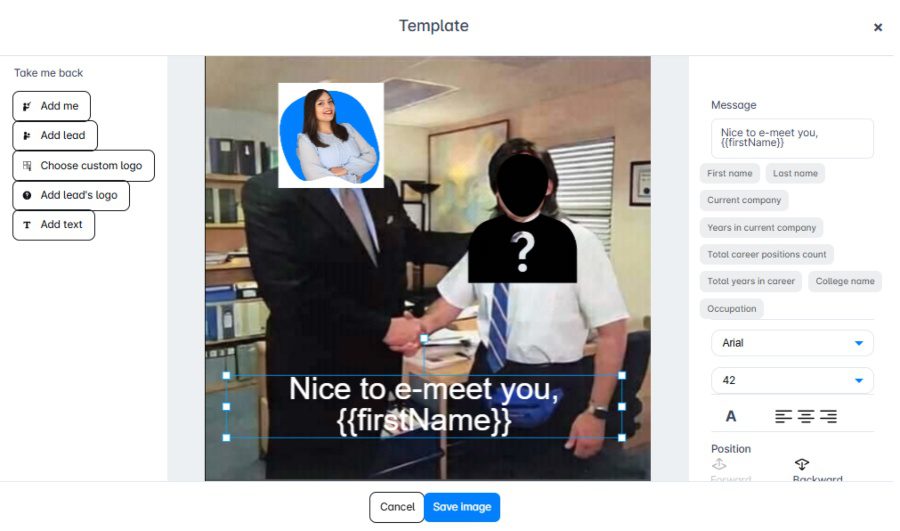
Report and analytics
Skylead offers 3 levels of detailed insights on the dedicated Report page:
- Graph metrics - perfect for visual representations of the ratio between the actions;
- Table view - best for spotting trends that happen during specific days;
- Sequence steps - if you wish to examine steps in detail, this interactive report is for you.
Therefore, you can analyze the metrics of every aspect of your campaigns.
Additionally, with Skylead, you can A/B test your messaging, subject lines, or connection requests to see what works best and optimize your efforts.
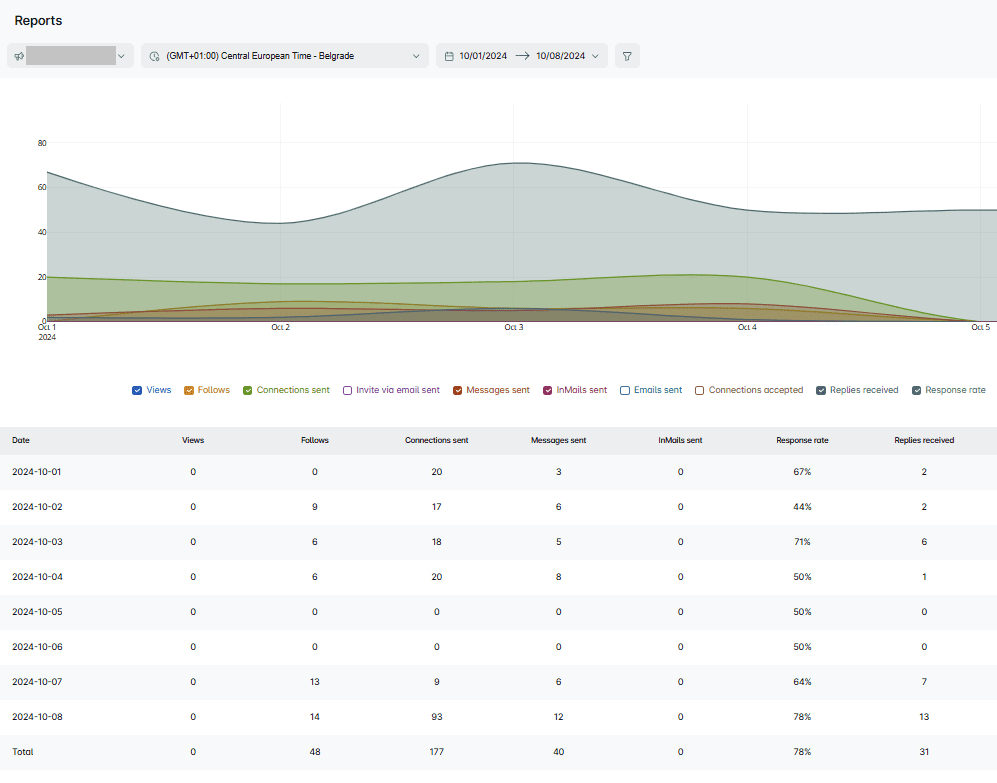
Pricing
Skylead is a complete one-stop-shop tool for your outreach, and it costs only $100 per 1 seat per month.
Unlike other sales engagement and lead generation tools, such as Expandi or Zopto, Skylead doesn’t limit the features by the number of uses. All of our features are truly unlimited!
Not to mention, Skylead has a very dedicated customer support team that is ready to help you any time. They even offer a 1-on-1 onboarding call to introduce you to the software and all it can do for you!
And if you’d like to make Skylead your own, you can, in a way. We offer a white-labeling solution, like Expandi, so you can offer additional services with the amazing tool and brand name, logo, and colors.
Expandi vs. Skylead
To recap, we’ve created a comparison table between Expandi and Skylead. Features are listed in order of importance to make it easier to decide between the two.
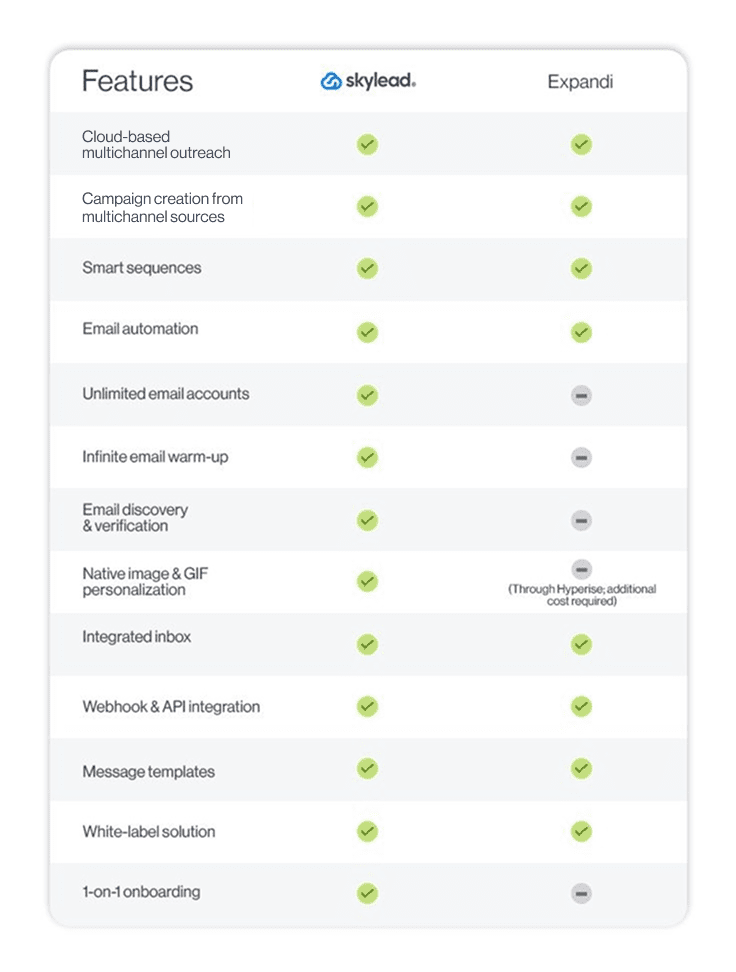
Expandi alternative #2: Zopto
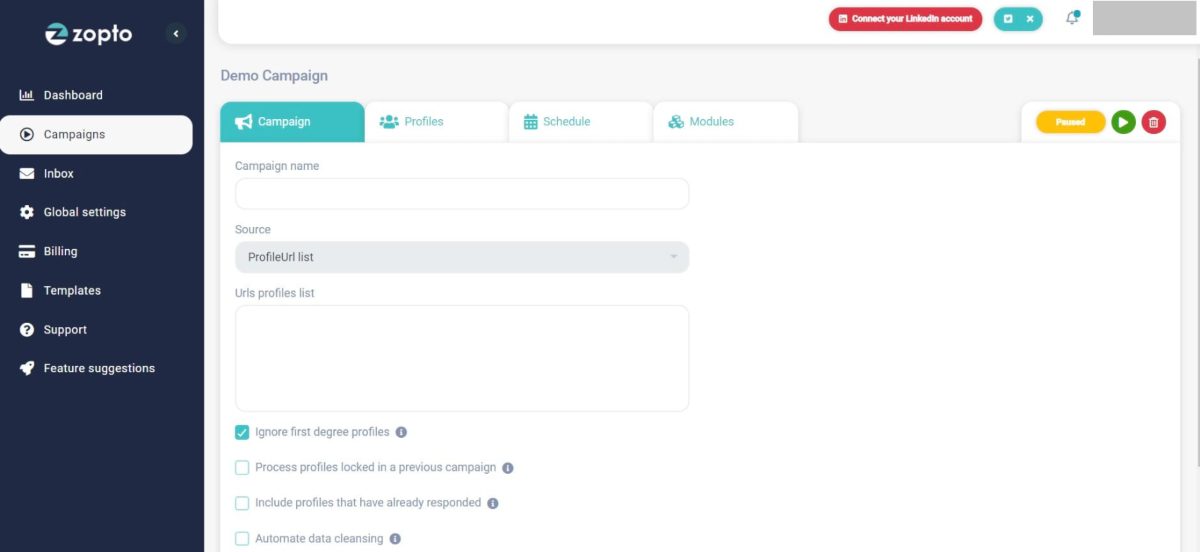
LinkedIn automation tool, Zopto, is another cloud-based multichannel solution and Expandi.io alternative.
It is compatible with Sales Navigator, LinkedIn Premium, and Recruiter accounts.
What distinguishes Zopto from Expandi is that, in addition to email automation, Zopto offers an email enrichment feature. This means it can find and verify business emails like Skylead. However, the downside is that Zopto limits how many leads you can enrich with the email, depending on the pricing plan.
As opposed to other mutual features, like A/B testing, Zopto offers a LinkedIn post-scheduling feature. So, yes, you can create and schedule posts on LinkedIn using this software.
Moreover, Zopto has recently added Smart Sequences to its list of features. This feature lets you set up dynamic outreach flows with a mix of LinkedIn and email actions, all triggered by different conditions. Besides the usual LinkedIn actions like:
- Profile views,
- Follows,
- And invites to connect
…you can also add steps like likes, endorsements, and even birthday or anniversary greetings to your sequences.
Zopto has also expanded its automation capabilities to another platform: X (formerly Twitter). Currently, though, it only automates post likes there.
Then there’s Zhoo, Zopto’s AI assistant. Zhoo sounds impressive, but it's really a ChatGPT-4 integration designed to help generate email and LinkedIn messages. So, if you’re already using ChatGPT for sales outreach, it may be a bit redundant.
Lastly, being a cloud-based solution, Zopto has a combined Inbox, as well as CRM and Hubspot integration through Zapier webhooks and API.
Pricing
Zopto’s pricing includes 4 plans. Each plan comes with an assigned customer success manager.
| Basic | $197/mo for 1 account |
| Pro | $297/mo for 1 account |
| Agency & Enterprise Basic | Starting at $156/mo per user *2 users minimum |
| Agency & Enterprise Pro | Starting at $237/mo per user *2 users minimum |
Expandi vs. Zopto
Having in mind all the other features mentioned above, here is a total comparison between Skylead, Expandi, and Zopto.
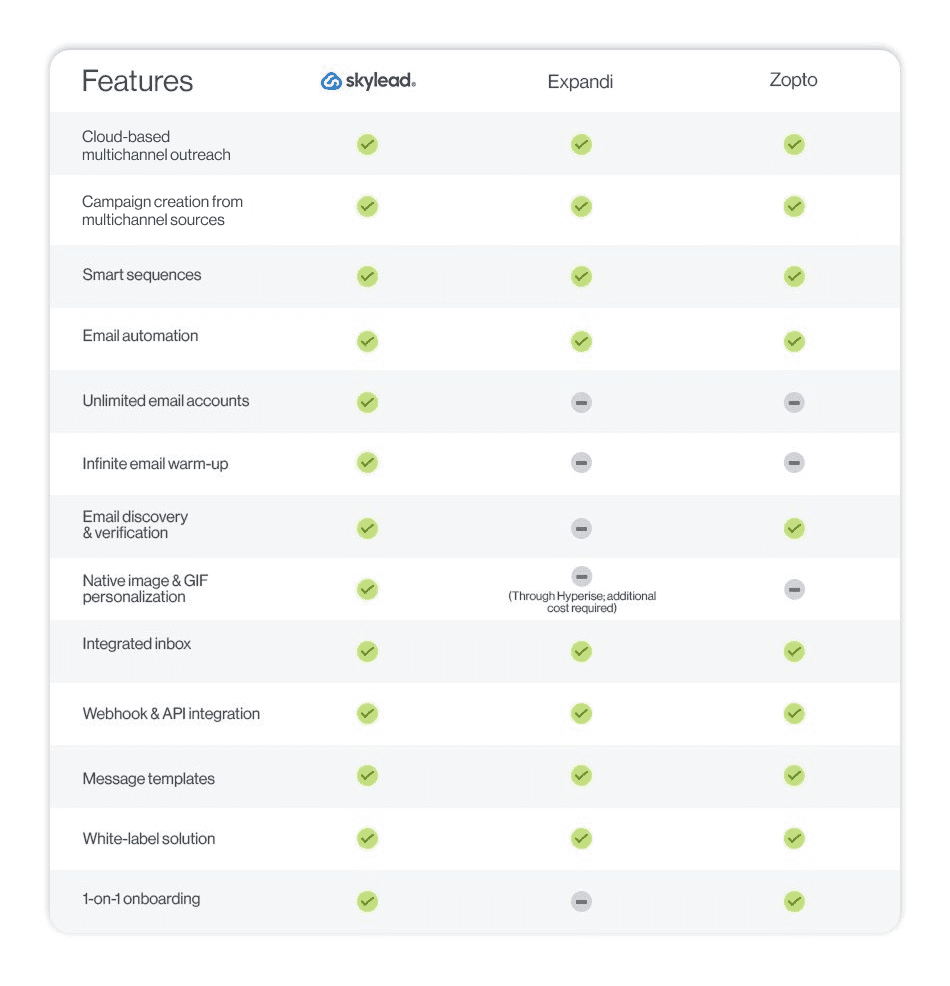
Expandi alternative #3: MeetAlfred
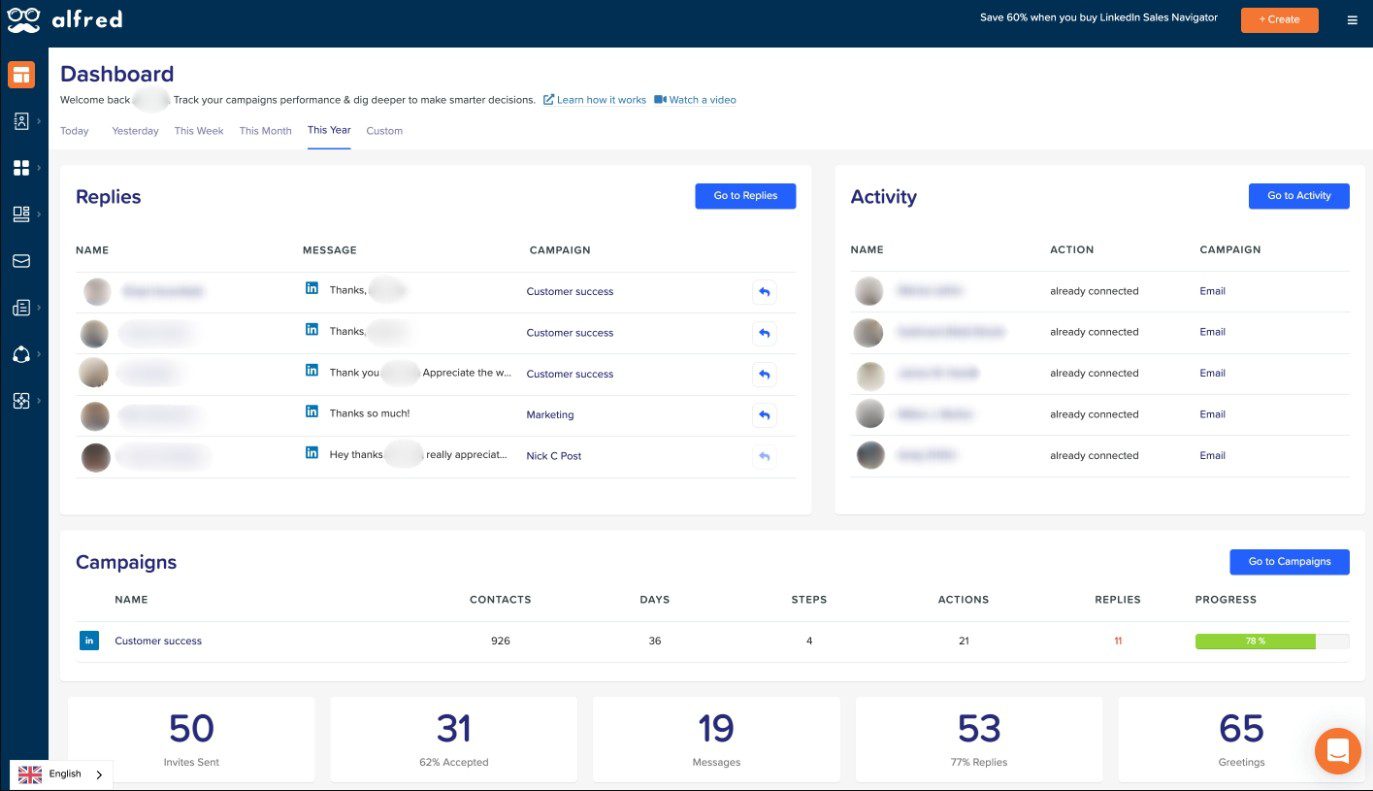
This is another SaaS startup that developed an outreach solution for small businesses, salespeople, and agencies.
MeetAlfred primarily automates social media activities, including scheduling Instagram, Facebook, Twitter, and LinkedIn posts.
But the catch is that multichannel support is only available to their Pro & Team subscribers. That said, Basic users can only automate emails and LinkedIn actions, like:
- Profile views
- Connection requests
- Messages
- Free inMails
MeetAlfred comes with an internal CRM, which allows you to access and manage your leads easily. Moreover, like Expandi and Skylead, it has an integrated inbox, albeit limited, since it only shows LinkedIn messages.
Much like other tools on the list, MeetAlfred supports integrations via Zapier.
One major downside, though, is the lack of Smart Sequences, so you’re stuck with a simple drip campaign setup. Still, you can add more steps than you can in Zopto.
Furthermore, MeetAlfred doesn’t have an email discovery & verification nor an image & GIF personalization feature. However, they have a Hyperise integration, like Expand.io, that increases your monthly cost.
Pricing
MeetAlfred has 3 pricing plans:
| Basic | $59/mo per user |
| Pro | $99/mo per user |
| Team | $79/mo per user *3 users minimum |
And if you want to add Hyperise’s image & GIF personalization feature, count on paying an extra $69 a month.
Expandi vs. MeetAlfred
MeetAlfred tries hard to follow the number of features Expandi, Skylead, and Zopto introduced. However, they balance this lack in pricing.
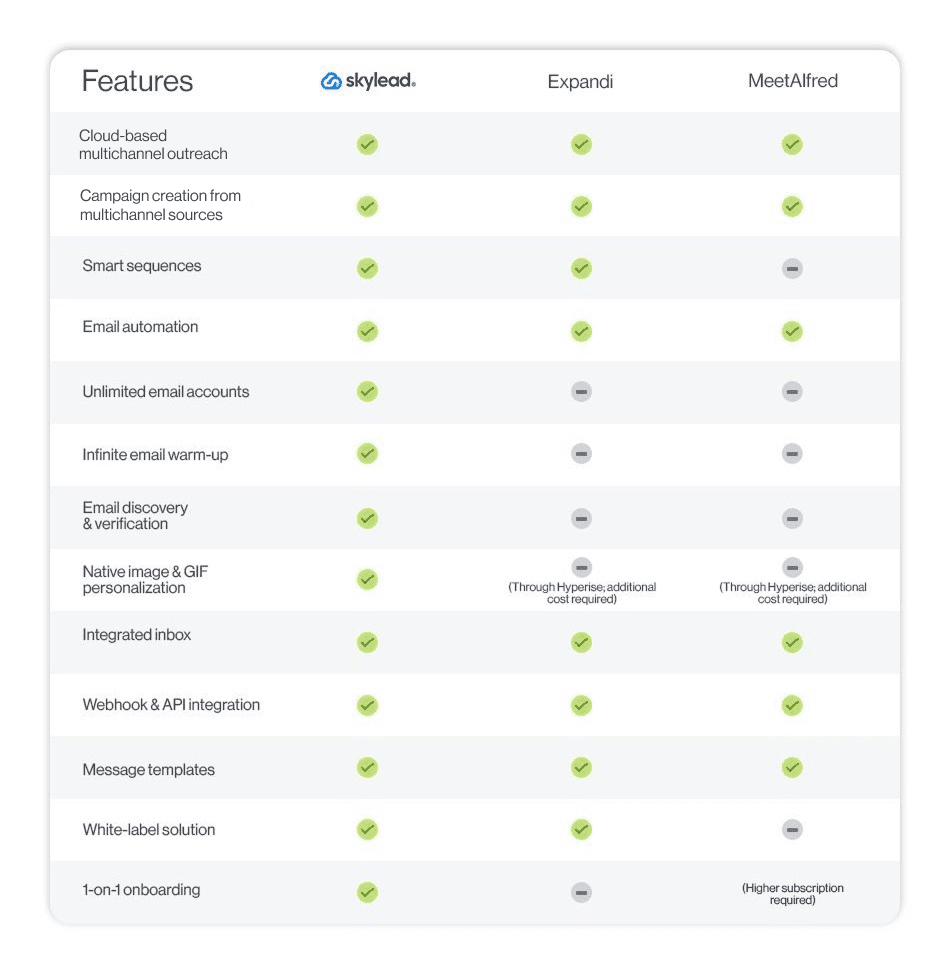
Expandi alternative #4: LinkedFusion
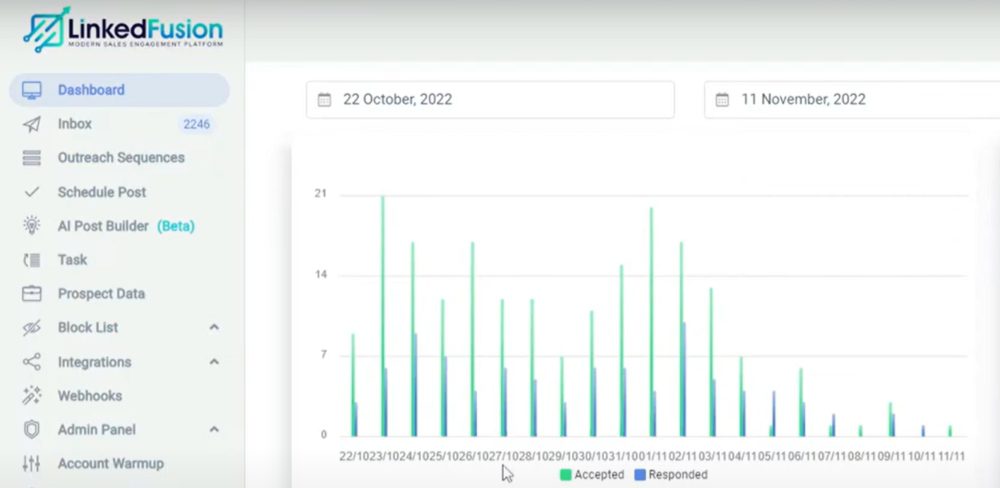
Another LinkedIn automation and email outreach software like Expandi is LinkedFusion. It is a cloud-based solution that offers an integrated inbox.
With LinkedFusion, you can reach out to your target audience using any LinkedIn account or CSV file. While at it, you can use their pre-made message templates, which they claim to be tested and conversion-driven.
LinkedFusion connects with other apps via Zapier webhooks. Moreover, it natively integrates with HubSpot and Google Sheets, which is a nice bonus that Expandi doesn’t offer.
Should you need any help, LinkedFusion also has a technical customer support team at your disposal 24/7.
Its major disadvantage is that it doesn’t have Smart Sequences functionality, so you cannot fully control your outreach.
Lastly, this tool offers image personalization. However, you can only use it through Hyperise integration.
Pricing
LinkedInFusion has 3 subscription plans. They all depend on the number of connection requests and messages you can send per day.
| Professional | $65,95/mo per user *Up to 40 invites & 120 messages a day |
| Grow | $95.95/mo per user *Up to 70 invites & 210 messages a day |
| Ultimate | $135.95/mo per user *Up to 100 invites & 300 messages a day |
Expandi vs. LinkedFusion
One of the best things about Expandi and Skylead is the Smart Sequence function.
However, if this is not something you’re interested in, look at other features found in LinkedFusion.
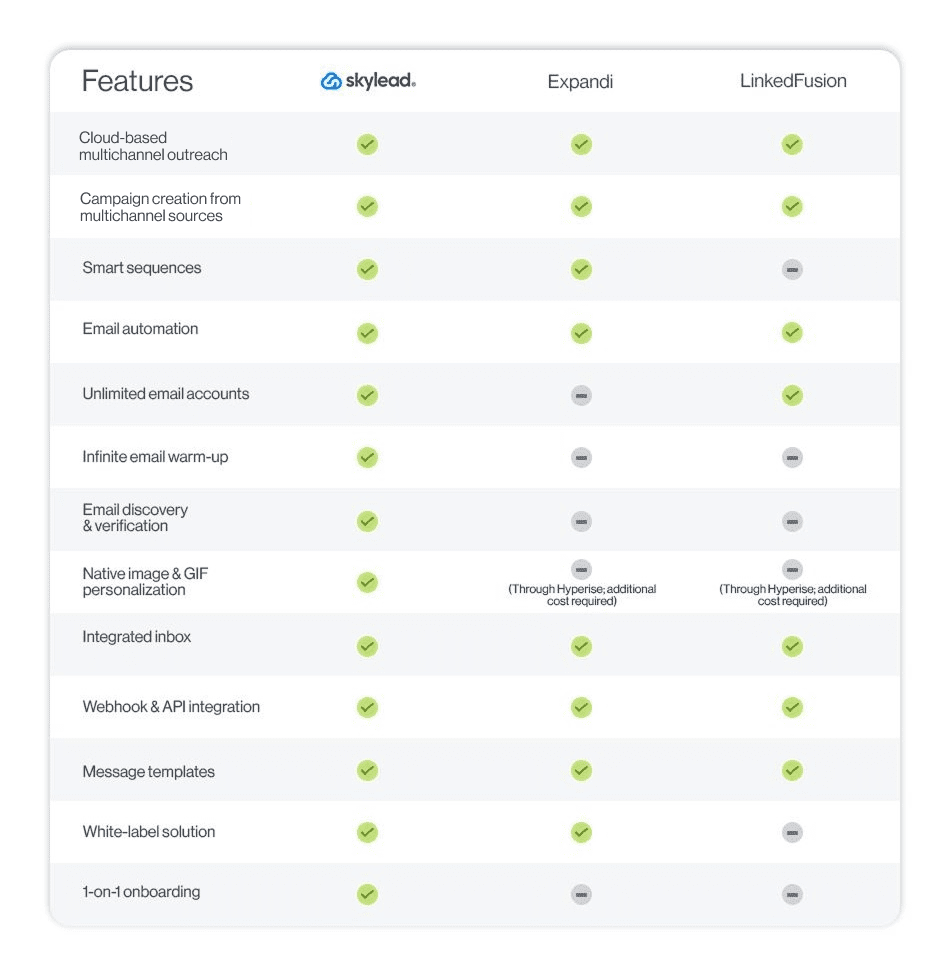
Expandi alternative #5: LinkedHelper 2
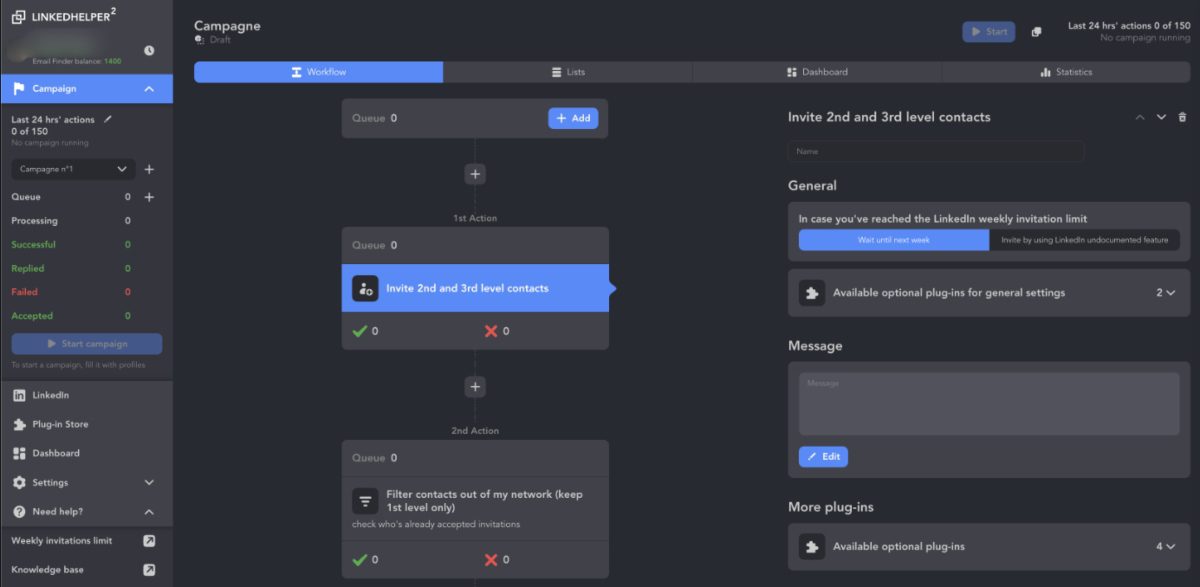
LinkedHelper 2 is another LinkedIn automation tool.
However, unlike Expandi, it is a desktop app, meaning it doesn't have a dedicated IP address and the functionality to run multiple accounts. What’s more, your PC needs to be kept on for LinkedHelper to run.
On the brighter side, LinkedHelper offers Recruiter-based campaigns, unlike LinkedFusion and MeetAlfred. Furthermore, you have your internal CRM to monitor the contacts' history and integrated inbox to keep track of messages.
Sadly, LinkedHelper doesn't have Image & GIF personalization in any form, so you cannot hyper-personalize your messaging. Neither does it have a multichannel outreach infrastructure.
Finally, the tool doesn't support post-engagement campaign type, Smart Sequences, or A/B testing.
Pricing
What it lacks in functionality, LinkedHelper 2 makes up for in pricing.
However, they limit pricing plans based on the number of messages and connection requests you can send per day.
| Standard | $15/mo per account *limited to 20 messages and 20 connection requests |
| Pro | $45/mo per account |
Expandi vs. LinkedHelper 2
Apart from the difference in basic functionality type (cloud-based and desktop app), here is the list of other differences between Skylead, Expandi, and LinkedHelper.
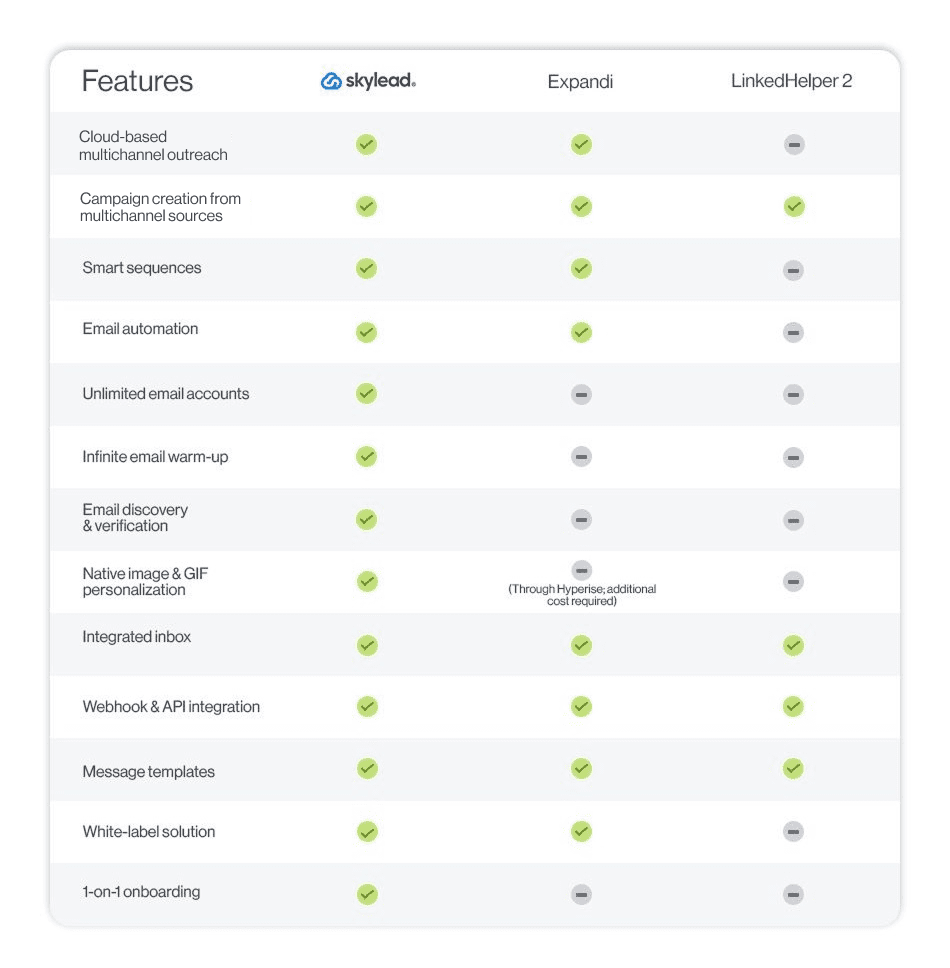
Expandi alternative #6: Phantombuster
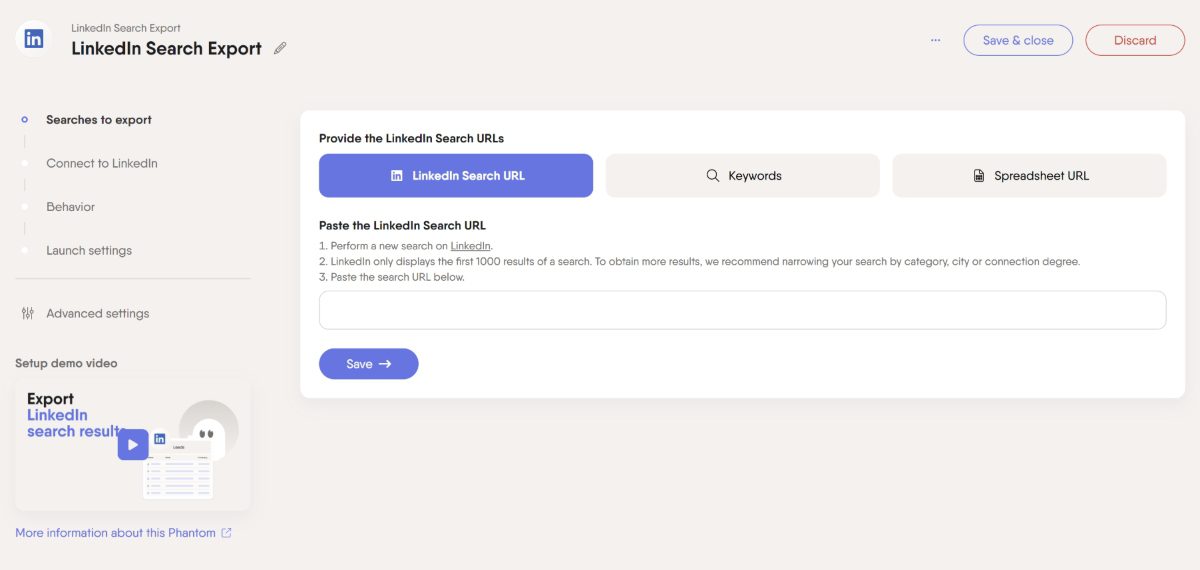
Last but not least, we have Phantombuster - an extension-based tool like Dux-Soup.
Although it isn’t an automation tool like Expandi, it contributes to lead generation since its algorithm focuses on data extraction. In other words, Phantombuster automates data scraping from any social media platform, including LinkedIn.
This tool is an excellent addition to your outreach, saving time scraping the data for your CSV-based campaigns. Moreover, Phantombuster has an email discovery feature but cannot verify them.
Phantombuster offers some automated actions on LinkedIn. For example, it can send connection requests and messages on autopilot, as well as like your leads’ posts.
However, it doesn’t have Smart Sequence functionality, nor is it safe to use as it injects the code into LinkedIn. Therefore, it works best as a social media scraper that you can combine with other LinkedIn automation tools.
Lastly, Phantombuster offers Hubspot & Pipedrive CRM enrichment via integration through API key.
Pricing
PhantomBuster has 3 pricing plans depending on the number of automated actions and the time it runs during 1 month:
| Starter | 69€/mo *20 hours of execution time |
| Pro | 159€/mo *80 hours of execution time |
| Team | 439€/mo *300 hours of execution time |
Expandi vs. Phantombuster
Feature-wise, Phantombuster may be different from other LinkedIn automation tools.
However, you can consider it if you plan to create a CSV-based campaign using another tool.
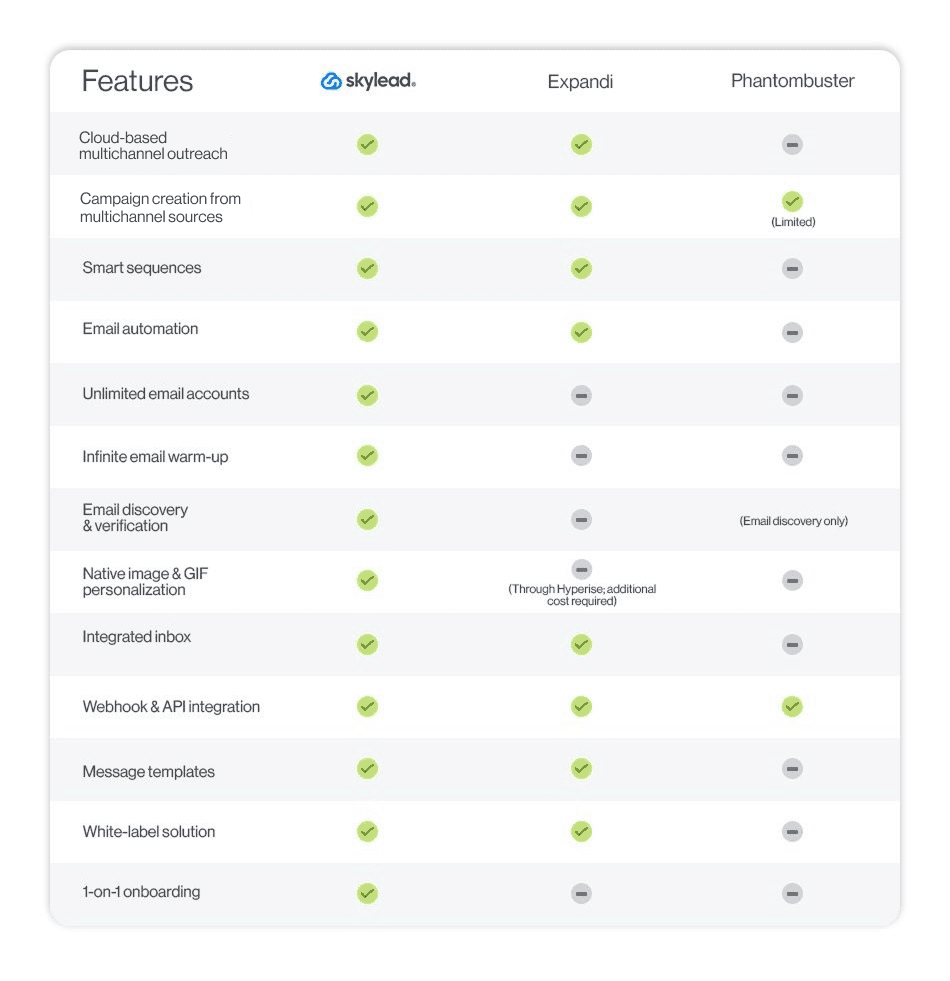
How to cancel Expandi?
If you are unsatisfied with Expandi and want to try out other tools from our list, here is how to cancel your Expandi subscription.
First, log into your account and click the LinkedIn Settings button in the sidebar menu. Then, navigate to the Subscription plan section.
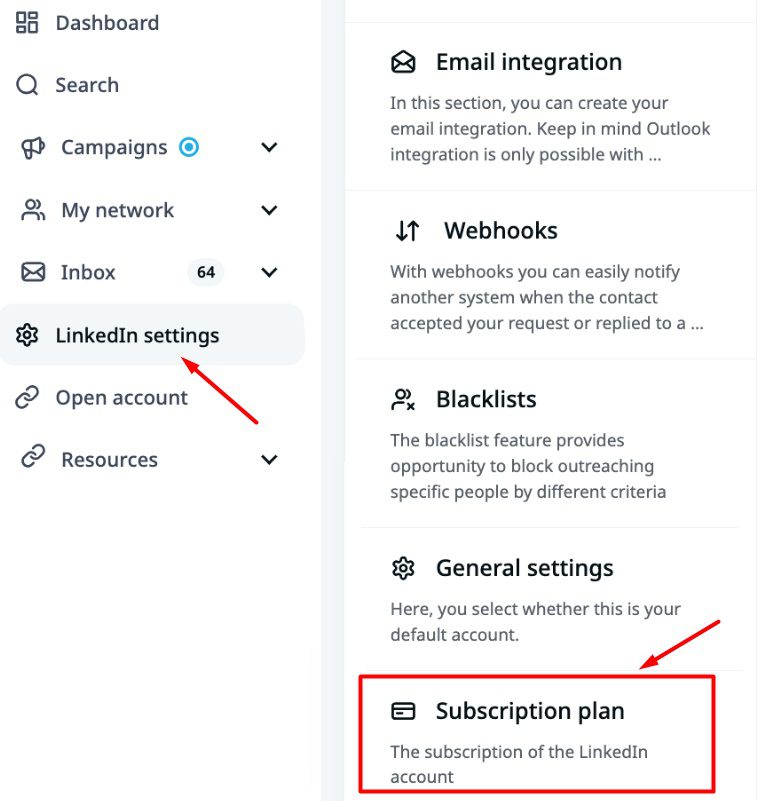
Next, click the Remove button.
Expandi will ask you to state the reason why you wish to cancel. You cannot proceed unless you do.
Once you cancel your subscription, you’ll immediately lose access to Expandi features. So, we advise you to do it at or near the end of your billing cycle.
Frequently asked questions (FAQs)
What does expandi.io do?
Expandi.io is a LinkedIn automation and email outreach tool designed to be used by individuals connect with leads on autopilot. It lets users automate LinkedIn actions, like sending connection requests and follow-ups, as well as email outreach, all through a cloud-based platform. However, it is not 100% compliant with LinkedIn's ToS.
Is expandi.io safe?
Expandi.io is considered safer than some LinkedIn automation tools. Because it’s cloud-based, you don’t have to keep your computer on, and it doesn’t inject code into LinkedIn. However it is not compliant with LinkedIn's terms of service, so we recommend finding a solution that is.
Is Expandi io free?
No, Expandi.io isn’t free. However, it does offer a 7-day free trial that lets you test out its functionalities.
How much does Expandi cost?
Expandi’s base cost is $99 per month for one user (or “seat”). If you want to add image and GIF personalization with Hyperise, it costs an extra $69 per month. Email discovery and verification can add at least $50 per month, possibly more. So, if you want all the features, you’re looking at a monthly minimum of around $218 per seat.
How do these alternative tools compare in terms of overall cost-efficiency, particularly for small businesses or individual entrepreneurs?
The overall cost-efficiency of alternative tools varies, with some offering more advanced features at a higher price point. For small businesses or solo entrepreneurs, choosing a tool that balances functionality with affordability is key to maximizing ROI.
What specific advantages do these alternatives offer over Expandi in terms of features like A/B testing, integration capabilities, and customer support responsiveness?
Compared to Expandi, alternative, Skylead, is 100% compliant with LinkedIn and offers unique features such as more robust A/B testing capabilities, seamless integrations with other tools, and superior customer support, providing a tailored approach to multichannel and cold emailing strategies.
Ready to try Expandi alternatives?
Now that you are aware of Expandi alternatives and their main features, it’s time to choose the best outreach tool for you.
But before you do, analyze what you personally need for your outreach and the budget you have and keep LinkedIn's ToS in mind.
To recap, let's review all features of Expandi alternatives side-by-side.
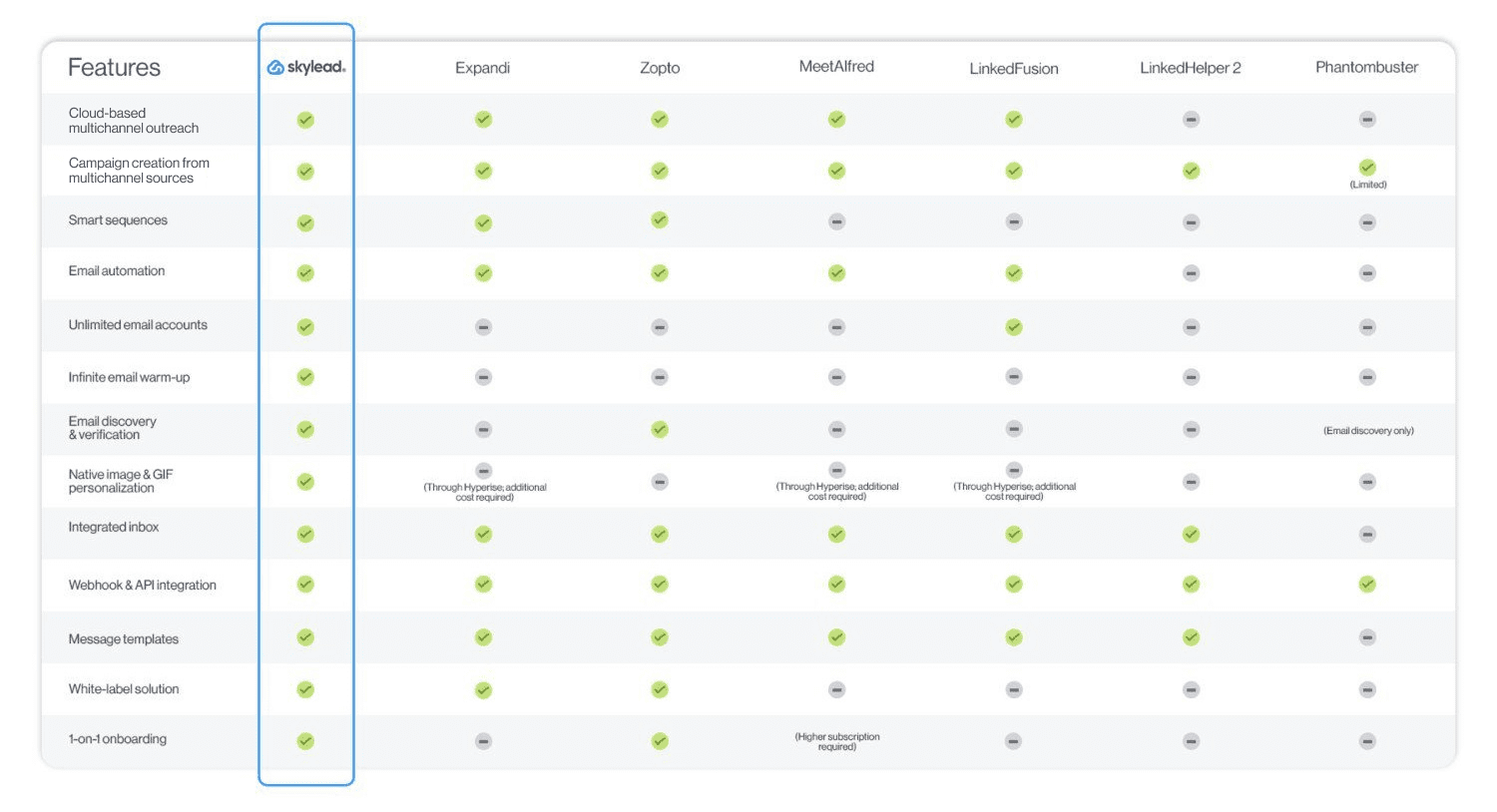
As you can see, one in particular stands out from the crowd—Skylead!
Would you like to give it a try? 🙂
Then sign up for our 7-day free trial. Or, if you have any questions, drop by and say ‘’hi’’ via chat on our website. We will be happy to meet you!
Disclaimer: Skylead is not affiliated, endorsed by, or connected with LinkedIn in any way.
Is Dripify falling short of your expectations for LinkedIn outreach? Or maybe you're starting to question if another tool can deliver better results? During the time, the market expanded, and today we have many different outreach tools. That said, since Dripify is LinkedIn automation tool, we do not recommend violating LinkedIn's TOS, thus in this article we're covering Dripify alternatives and giving you the one tool that is compliant with LinkedIn's terms of service.
| Dripify alternative 🔄 | Best for 🥇 | Link 🔗 |
| Skylead | Hyper-personalized, smart, multichannel outreach | Read more… |
| Expandi | Automated LinkedIn profile engagement | Read more… |
| Dux-Soup | Automating free and paid InMails | Read more… |
| Meet Alfred | Multichannel outreach across LinkedIn, email, and X | Read more… |
| Waalaxy | Beginners to LinkedIn and email automation | Read more… |
| Apollo | Its extensive lead database | Read more… |
| HubSpot Sales Hub | Scalable outreach with advanced email automation | Read more… |
| Salesrobot | Keeping leads and responses organized | Read more… |
| Lemlist | Email warm-up | Read more… |
But first, let’s:
- Learn more about Dripify and its features.
- Discover the pros and cons of using Dripify.
- Go through user reviews and pricing details.
What is Dripify?
As per their official website, Dripify is a:
"LinkedIn autopilot that works while you sleep."
In other words, it's a LinkedIn automation tool that allows users to manage their lead generation and outreach with automation. LinkedIn automation serves for LinkedIn lead generation purposes. However, as we said, it may violate LinkedIn's terms of service so, we recommend using the tools that are 100% compliant with LinkedIn TOS.
Dripify connects to free and Premium LinkedIn accounts and enables you to create search or CSV-based drip campaigns to automatically:
- Send invites to connect
- Message your leads
- Send free inMails
- View leads’ profiles
- Follow them
- Endorse their skills
- Like their content
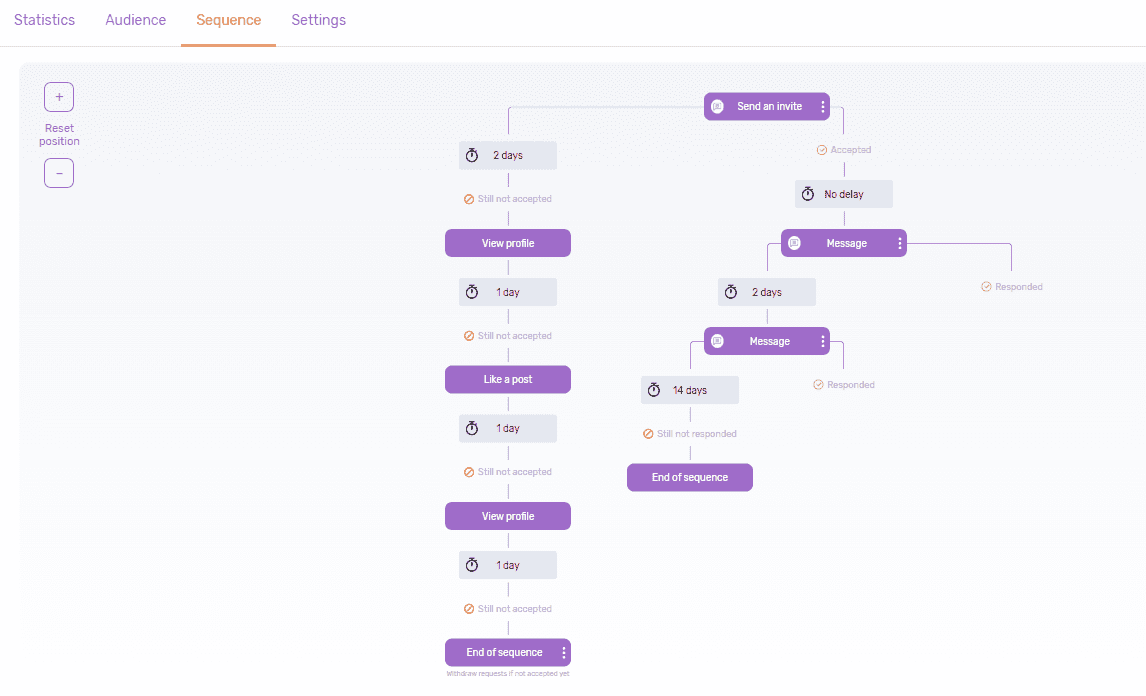
Moreover, the tool allows you to personalize messages with over 15 variables to give your outreach a more human feel.
Beyond outreach, Dripify also serves as a lead extraction tool. It scrapes your leads’ data from LinkedIn, including their:
- Full name
- Company
- Position
- Number of connections
- Phone number
- Website URL
All this information can be compiled into a CSV file that you can download at your convenience.
Dripify also has you covered if you want to collaborate with your team. Namely, you can invite team members directly from the tool, assign them roles, set permissions, and track their performance. Important metrics like conversion rates are displayed on the Analytics page, giving you a bird's-eye view of how everyone performs.
There’s also the integrated inbox that lets you reply to all your LinkedIn messages straight from the platform. Plus, it lets you mark important conversations for easy access later and even add notes to your leads’ profiles to keep everything organized.
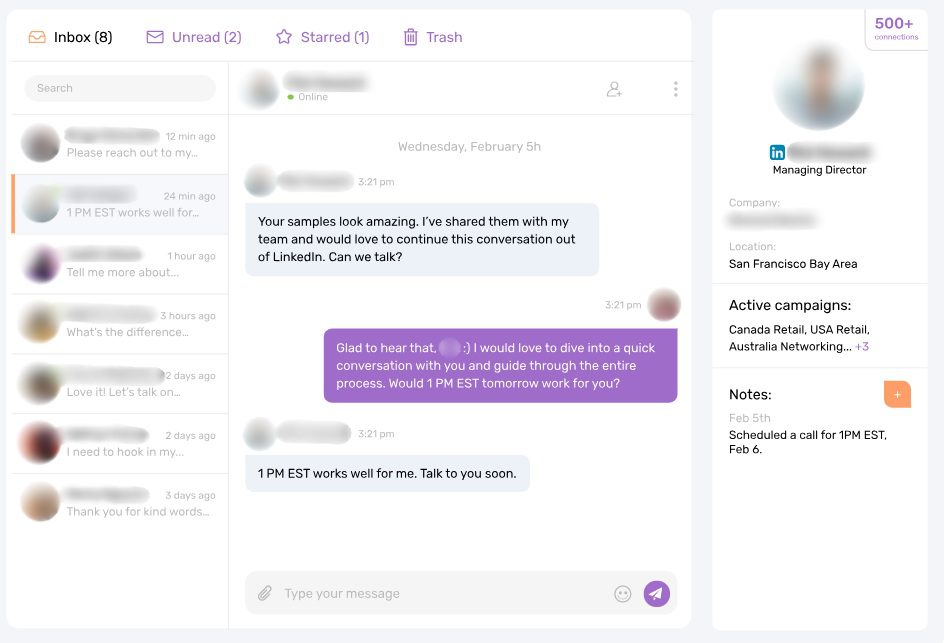
Not to mention, Dripify supports over 1000 integrations via Zapier webhooks, making it incredibly flexible for any workflow.
Who is Dripify for?
Although anyone can use Dripify, the tool is primarily aimed at:
- Business owners
- Sales teams
- Marketing agencies
- Recruiters
For business owners, it’s primarily a tool that takes over the grunt work associated with prospecting, lead generation, and outreach.
In the meantime, sales teams typically use Dripify to automate lead-generation campaigns and track team performance.
Since Dripify supports multiple LinkedIn accounts, it’s a good option for marketing agencies that are managing multiple clients.
As for recruiters, they can use the software to scale their talent acquisition. Want to fill the open roles faster? Dripify automates the entire process.
Is Dripify allowed on LinkedIn?
Generally speaking, LinkedIn is against automation and it may violate LinkedIn's terms of service so, we recommend using the tools that are 100% compliant with LinkedIn TOS.
Dripify cons
While good in some aspects, Dripify is far from perfect. The biggest limitation? It supports just 1 channel: LinkedIn.
Many sales outreach tools nowadays (and outreach tools in general) offer the ability to reach leads across multiple platforms. Why is this valuable, though? Because with support for multichannel outreach, you can reach prospects where they’re most active.
Say someone you’re targeting isn’t active on LinkedIn. Dripify can still send them a connection request, but what good is it if they never see it? If you could send them an email, however—which they’re likely to check—the chances of getting a response would be much higher.
That said, here are some other areas where Dripify falls short that may warrant looking for an alternative solution:
- No email finding or verification – While it scrapes LinkedIn data, the software can’t find or verify your leads' emails.
- Lacks A/B testing – Although you can create multiple campaigns and compare their results, Dripify doesn’t have real in-campaign A/B testing.
- Limited personalization options – There’s no support for advanced personalization, like using images or GIFs in your messages, which can make them feel more engaging.
- No one-on-one onboarding– Their customer support team is available 24/7. Nonetheless, Dripify doesn’t offer personalized onboarding. This can be a drawback for users who prefer more hands-on help when getting started.
So, if you find any of these functionalities essential, Dripify may not be the most ideal option.
But a Dripify alternative just might!
What do Dripify reviews say?
During our research, we came across both positive and negative Dripify reviews.
As for the positives, a lot of users appreciate the software’s ease of use and the effectiveness of its automation features.
For instance, Jong Chan C., a Venture Manager, said:
‘’I tried Dripify, which revolutionized my LinkedIn outreach strategy with its rich features and automation.’’
Conversely, some users have pointed out areas where Dripify could improve.
Although he mentioned how intuitive the tool is, Zach E. mentioned that it:
‘’Would be great if they had the ability to use the paid InMail credits through campaigns.’’
Meanwhile, Laurens V. noted that:
‘’Inbox is a bit slow in updating. Not super easy to see where your converted leads come from.’’
Dripify pricing
Dripify offers 3 distinct pricing plans:
| Basic | $59/mo per seat |
| Pro | $79/mo per seat |
| Advanced | $99/mo per seat |
If you opt to pay for the annual subscription, you’ll get a 35% discount.
As for the differences, with the Basic plan, you can run 1 drip campaign at a time. Meanwhile, Pro & Advance plans let you run as many as you want.
That said, if you're managing multiple campaigns or clients, the Pro or Advanced plan may be better suited.
Or another Dripify alternative, that is.
9 Dripify competitors to help you find a perfect alternative
Dripify is not the only outreach player in the game. With that in mind, we’ve rounded up 9 Dripify competitors that exist on the market.
Let’s break them down one by one to help you find your ideal Dripify alternative!
Dripify alternative #1: Skylead
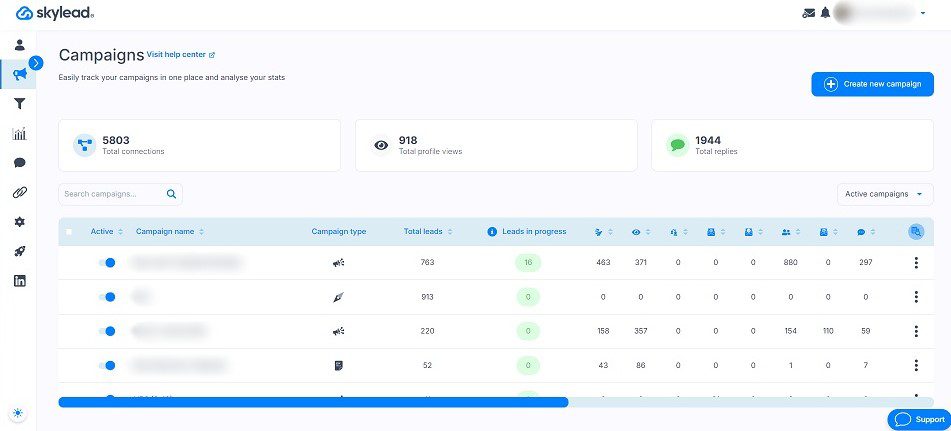
Why, yes. That’s us! 😊
Skylead is your ultimate multichannel sales engagement tool that is 100% compliant with LinkedIn's TOS.
It’s designed to help sales teams, marketers, founders, agency owners, and recruiters scale their outreach while saving +11 hours a week.
It’s an All-In-One platform that offers every tool you need in one package—and at a single price.
That said, our Skylead is a combination of a:
- Multichannel outreach
- Cold email software
- Email finder & verifier
Unlike Dripify, Skyleads supports email outreach as well. This means you can use it to connect with leads thanks to our first-to-market Smart sequences.
Speaking of email outreach, Skylead lets you send tens of thousands of emails a month at no extra cost. How? It allows you to connect unlimited email accounts and auto-rotates between them when sending emails, all while protecting your domain.
Thanks to our partnership with an email warm-up tool, InboxFlare, you also get to warm up infinite mailboxes to keep your emails away from spam.
Skylead also supports A/B testing, helping you fine-tune your campaigns by testing the impact of different message variations and subject lines.
Personalization-wise, there are different message variables for you to try alongside our native image & GIF personalization.
And, with the Smart Inbox, you can keep all your conversations in one place, making it easy to track, label, and manage responses.
Finally, if you need to integrate Skylead with another tool, you can do so. The tool can connect to any CRM or software via Zapier webhooks or API.
Exciting, right?
Now, let’s cover the features that make Skylead truly shine in greater detail!
Smart sequences
Smart sequences are algorithms that combine different outreach actions with if/else conditions. Actions in the sequence unfold according to your prospects’ behavior with the goal of finding the fastest path to them.
As mentioned, Smart sequences react to the way your prospects’ behave. And they do it in real-time.
Here’s one Smart sequence.
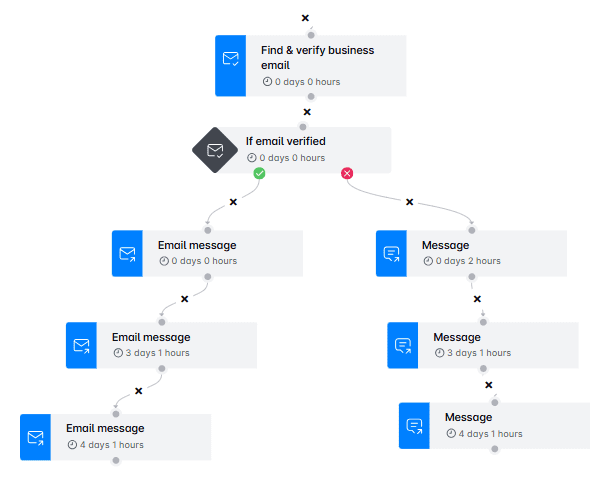
Of course, this is just one scenario. You can create a Smart sequence any way you like to cover an infinite number of them.
Email finder & verifier
So, you’ve set up your perfect Smart sequence, but what if you also want to reach your prospects via email and you’re missing their contact details?
That’s where our email discovery and verification feature comes in to save the day. Add it as a step while creating your outreach campaign, and the tool will provide you with double-verified emails.
But why is our email finder and verifier so powerful? Because it reduces bounce rates and increases the chances of your messages being actually seen. Moreover, unlike other tools that rely on risky Chrome extensions to find emails, we use a safer, more reliable method. Combine that with our market-leading email verification accuracy, and you’ve got a winning solution.
Not to mention, this functionality is built right into the platform. So, yes, it doesn’t rely on third-party tools, as is the case with some other tools that offer it.
Image & GIF personalization
Your leads are more likely to pay attention to—and remember—messages that stand out visually.
And what better way to ensure that than with our very own image and GIF personalization feature?
Instead of sending a plain message, add an image to it. Then, use our built-in editor to enrich it with your prospect's name, company logo, or another detail that feels like it was created just for them. The same goes for GIFs.

Choose to use it, and you’ll see an increase in response rate of 63% or more.
Who knows? You may even beat this result!
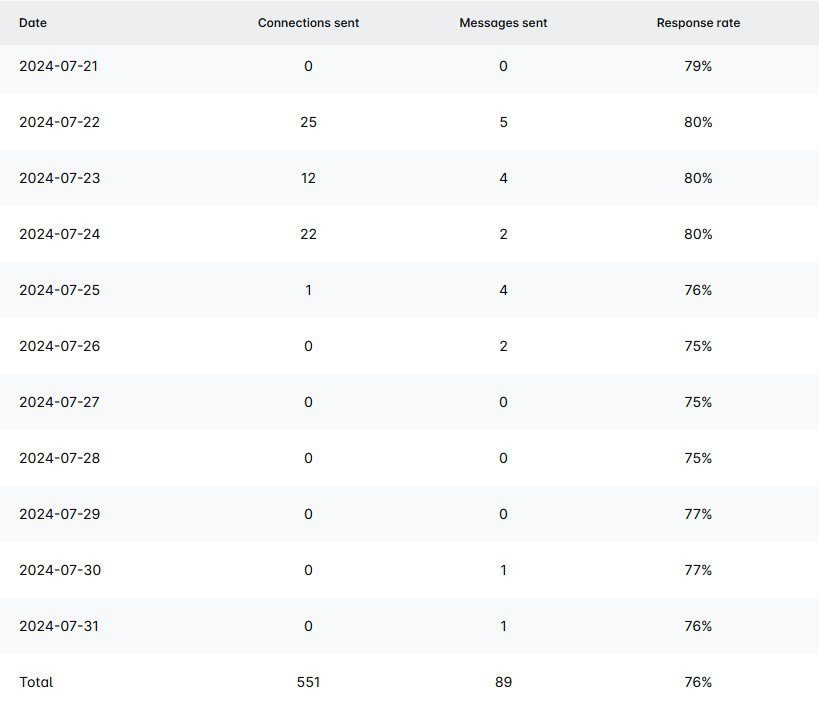
Smart inbox
No more bouncing between platforms to keep track of messages,. Everything is right here, in Skylead’s Smart inbox.
What sets our Smart Inbox apart, however, is its labeling feature. You can label chats to monitor your leads’ journey, track conversions, and even measure ROI.
That said, feel free to create custom ones that fit seamlessly into your workflow. Whether you want to categorize based on lead status, priority, or custom tags, the flexibility is all yours.
Advanced reporting
Do you feel like digging deeper into your outreach campaigns to see what’s working and what needs tweaking? The Reports page has got you covered!
Here, you can analyze your campaigns in:
- Graph view – This view helps you quickly spot oscillations to assess your campaigns at a glance.
- Table view – The table format makes it easy to observe how your metrics fluctuate day by day, giving you insights into which days perform best.
- Step-by-step view – This is especially useful for A/B testing, as it shows precisely how recipients engage at each stage of your sequence.
Skylead also lets you export these reports in 2 different formats: CSV and PDF. You can download them to share results with your team or keep track of your progress over time.
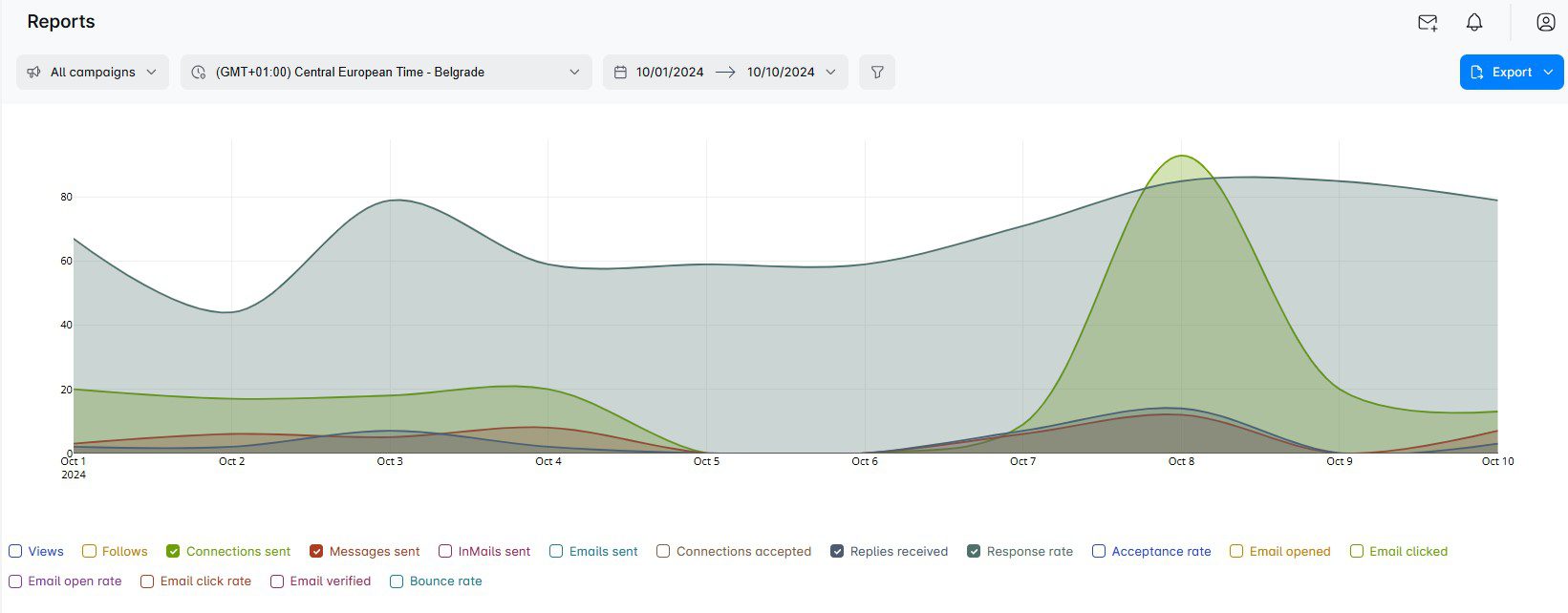
What do Skylead reviews say?
If you think we’re biased—with Skylead being ours and all—look at all the glowing reviews that we’ve got!
For example, Ian B. said we have:
‘’Full, rich features combined with a logical interface and 24-hour customer care. Easy to set up and manage. This platform has important features others are missing.’’
Tony B. has also praised us, our customer success team in particular. He said:
‘’Customer service is fantastic, response time is excellent, I have sent thorough screenshots when I have hit a snag, and they are all over it. This has saved me a huge amount of time, and there is no way that I could ever connect with 60 new people a day without this automation.’’
Skylead pricing
Skylead comes with a single pricing plan.
For just $100 a month per seat, you’re getting a one-stop-shop tool for your outreach.
No confusing tiers, no hidden fees—just one price for all the tools you need to supercharge your outreach.
And what more could you ask for?
Dripify vs. Skylead
| Features | Skylead | Dripify |
| Cloud-based multichannel outreach | ✅ | ✅ |
| Email automation | ✅ | ❌ |
| Email verification | ✅ | ❌ |
| Email warm-up | ✅ | ❌ |
| Smart sequences | ✅ | ✅ |
| A/B testing | ✅ | Limited |
| Integrated inbox | ✅ | ✅ |
| Image & GIF personalization | ✅ | ❌ |
| API or Webhook integration | ✅ | ✅ |
| 1-on-1 Onboarding | ✅ | ❌ |
Dripify alternative #2: Expandi
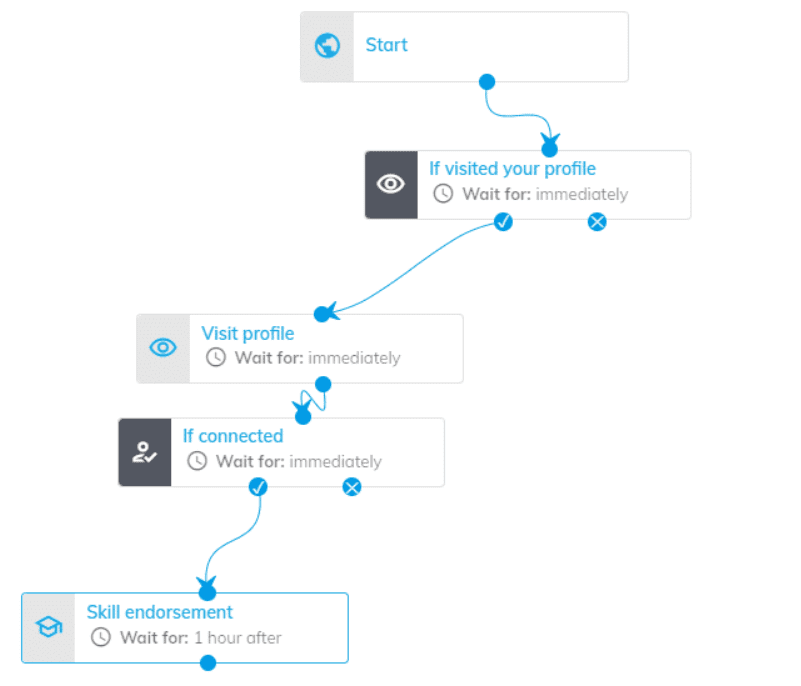
Expandi is a cloud-based Dripify alternative.
Much like Skylead, it comes with Smart sequences for your multichannel campaigns. However, this tool is not compliant with LinkedIn's ToS as Skylead is.
Hoever, you can send automated LinkedIn connection requests, messages, and free inMails. The tool can also perform additional automatic actions, which include auto-liking posts and endorsing skills.
But it’s not all rainbows and sunshine.
Although Expandi technically allows users to enrich outreach messages with personalized images and GIFs, this feature isn’t natively built into the platform. Instead, it’s integrated through a third-party tool called Hyperise and costs an additional $69 a month.
Furthermore, if you need to verify emails or find contact information outside of LinkedIn, don’t count on Expandi to help. It doesn’t offer this functionality.
Expandi pricing
| Business | $99/mo per seat |
| Agency | Custom |
Dripify vs. Expandi
| Features | Skylead | Dripify | Expandi |
| Cloud-based multichannel outreach | ✅ | ✅ | ✅ |
| Email automation | ✅ | ❌ | ✅ |
| Email verification | ✅ | ❌ | ❌ |
| Email warm-up | ✅ | ❌ | ❌ |
| Smart sequences | ✅ | ✅ | ✅ |
| A/B testing | ✅ | Limited | ✅ |
| Image & GIF personalization | ✅ | ❌ | Not-native; through Hyperise |
| API or Webhook integration | ✅ | ✅ | ✅ |
| 1-on-1 Onboarding | ✅ | ❌ | ❌ |
Dripify alternative #3: Dux-Soup
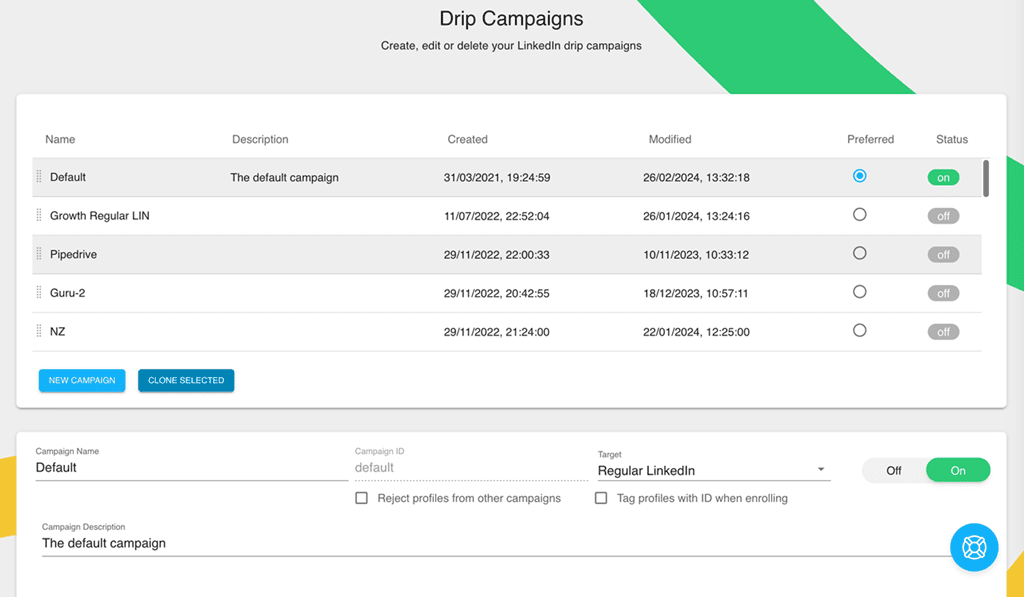
Dux-Soup is another LinkedIn automation tool on our list that is not compliant with LinkedIn's ToS.
Originally a Chrome extension, it’s now available as a cloud-based solution, but only if you opt for their highest-tier plan.
With Dux-Soup, you can automate actions like:
- Follows
- Profile views
- Connection requests
- Messages to 1st-degree connections
- Free & paid inMails
- Endorsements
You can combine these into simple drip campaigns that stop when your prospects respond. Plus, you can customize time delays between actions to make your outreach appear more natural.
Dux-Soup offers real-time performance tracking so you can keep an eye on your campaign results. It integrates directly with Pipedrive and HubSpot, and you can connect it to other CRMs through Zapier webhooks.
However, the tool has some limitations. It doesn’t support email outreach, so your outreach efforts are restricted to LinkedIn.
And, if you’re not on their highest-tier plan, you’ll have to rely on the Chrome extension, which comes with its own risks. Not only does it run the risk of getting your LinkedIn account flagged, but it also only works while your browser is open, limiting how hands-free your campaigns can be.
Dux-Soup pricing
| Individual & Team plans | |
| Pro Dux | $14.99/mo per seat |
| Turbo Dux | $55/mo per seat |
| Cloud Dux | $99/mo per seat |
| Agency plans | |
| Pro Dux | from $337.50/mo, 30+ seats |
| Turbo Dux | from $412.50/mo, 10+ seats |
| Cloud Dux | from $371/mo, 5+ seats |
Dripify vs. Dux-Soup
| Features | Skylead | Dripify | Dux-Soup |
| Cloud-based multichannel outreach | ✅ | ✅ | Higher subscription required |
| Email automation | ✅ | ❌ | ❌ |
| Email verification | ✅ | ❌ | ❌ |
| Email warm-up | ✅ | ❌ | ❌ |
| Smart sequences | ✅ | ✅ | ❌ |
| A/B testing | ✅ | Limited | ✅ |
| Image & GIF personalization | ✅ | ❌ | ❌ |
| API or Webhook integration | ✅ | ✅ | ✅ |
| 1-on-1 Onboarding | ✅ | ❌ | ❌ |
Dripify alternative #4: Meet Alfred
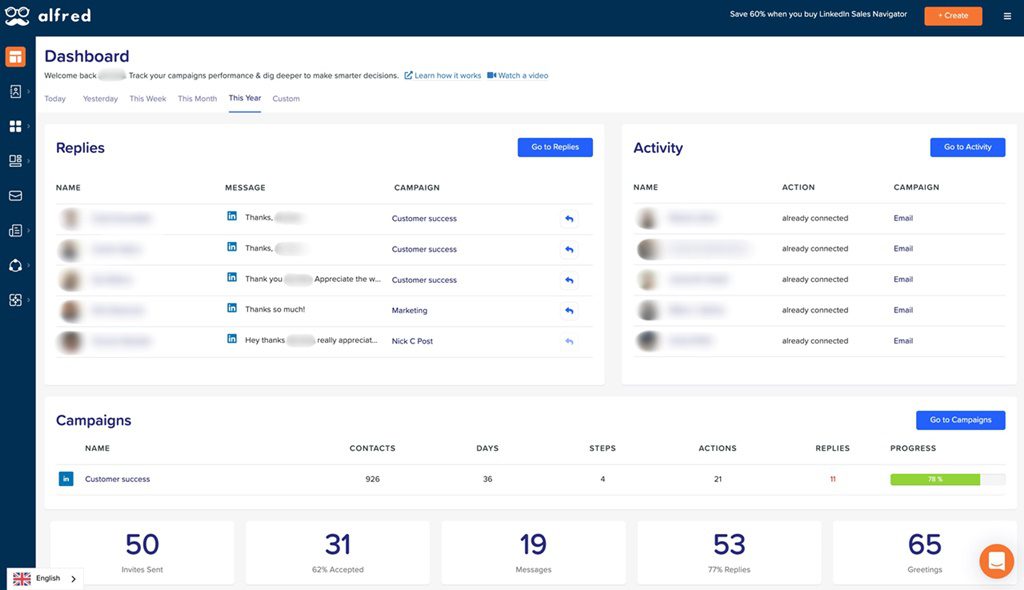
Meet Alfred is a cloud-based Dripify alternative that takes multichannel outreach up a notch. However, regarding LinkedIn, they may violate LinkedIn's ToS.
It supports outreach across LinkedIn, email, and X (formerly Twitter). But here’s the catch: you’ll need to be on the Pro or Teams plan to access all those channels. The Basic plan leaves you to work with LinkedIn alone.
With Meet Alfred, you can build campaigns with unlimited steps, including:
- Profile views
- Connection requests
- Follow-up messages
- inMails
- Emails
- X DMs
To keep things looking natural, you can also set delays between actions.
When it comes to personalization, the tool offers message variables and templates to save you time crafting messages.
While you can connect your Instagram and Facebook accounts, you won’t be able to run outreach campaigns on those platforms. Instead, you can use them to schedule posts and manage content.
Another limitation is that Smart sequences aren’t available.
Lastly, Meet Alfred has an integrated inbox, but it only shows LinkedIn messages. If you need to check your DMs or emails, you'll have to do that manually.
Meet Alfred pricing
| Basic | $59/mo per user |
| Pro | $99/mo per user |
| Teams | $79/mo per user *3 users minimum |
Dripify vs. Meet Alfred
| Features | Skylead | Dripify | Meet Alfred |
| Cloud-based multichannel outreach | ✅ | ✅ | ✅ |
| Email automation | ✅ | ❌ | ✅ |
| Email verification | ✅ | ❌ | ❌ |
| Email warm-up | ✅ | ❌ | ❌ |
| Smart sequences | ✅ | ✅ | ❌ |
| A/B testing | ✅ | Limited | ❌ |
| Image & GIF personalization | ✅ | ❌ | ❌ |
| API or Webhook integration | ✅ | ✅ | ✅ |
| 1-on-1 Onboarding | ✅ | ❌ | Higher subscription required |
Dripify alternative #5: Waalaxy
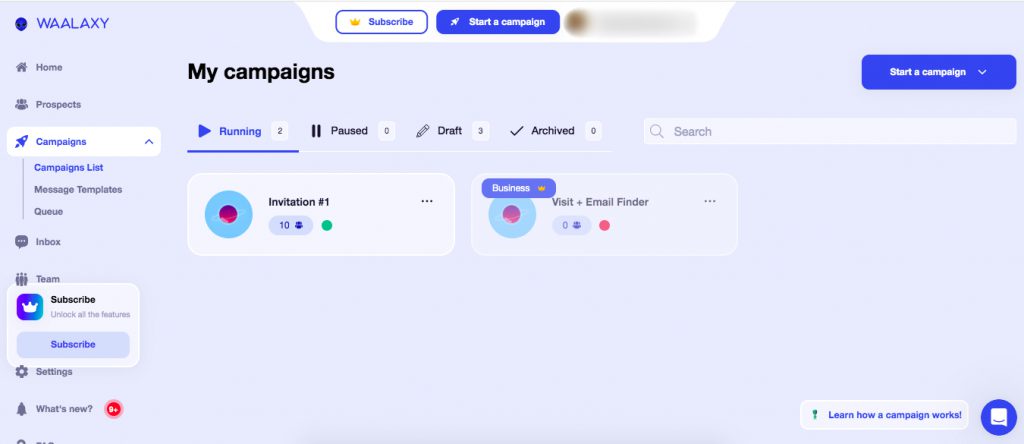
Waalaxy is a cloud-based solution is also not fully compliant with LinkedIn's ToS.
It supports multichannel outreach, combining both LinkedIn and email, so you can connect with your prospects on the platforms they prefer.
With message variables and A/B testing, Waalaxy lets you personalize and fine-tune your outreach to see which versions get the best responses.
Plus, if you need help crafting those messages, the platform has an AI writing assistant. It could potentially replace ChatGPT for sales and marketing copywriting.
But, as with any tool, there are a few limitations.
One of the biggest downsides is that you can’t create outreach sequences from scratch. Instead, you’ll have to work within pre-made templates, which can feel restrictive if you want more control over your campaigns.
Also, the email discovery and verification feature isn’t natively built into Waalaxy. It relies on a third-party integration with Dropcontact, which adds extra cost.
Speaking of extra costs, Waalaxy’s inbox feature—which consolidates your messages—requires an additional payment.
Finally, while Waalaxy does offer a free version, it runs as a Chrome extension. As with other extensions, this can potentially put your LinkedIn account at risk. So, be cautious if using the free plan.
Waalaxy pricing
| Free | |
| Advanced | $88/mo per seat |
| Business | $131/mo per seat |
| Team | From $88/mo *The final price depends on the payment term, number of seats, and selected features. |
Waalaxy charges an extra $44 a month for LinkedIn inbox.
Also, if you need additional email finder credits, you can purchase them. However, expect to pay another $0.01 for each email address found.
Dripify vs. Waalaxy
| Features | Skylead | Dripify | Waalaxy |
| Cloud-based multichannel outreach | ✅ | ✅ | ✅Free version / Chrome extension |
| Email automation | ✅ | ❌ | ✅ |
| Email verification | ✅ | ❌ | Not native; through Dropcontact |
| Email warm-up | ✅ | ❌ | ❌ |
| Smart sequences | ✅ | ✅ | ❌ |
| A/B testing | ✅ | Limited | ✅ |
| Image & GIF personalization | ✅ | ❌ | ❌ |
| API or Webhook integration | ✅ | ✅ | ✅ |
| 1-on-1 Onboarding | ✅ | ❌ | ❌ |
Dripify alternative #6: Apollo
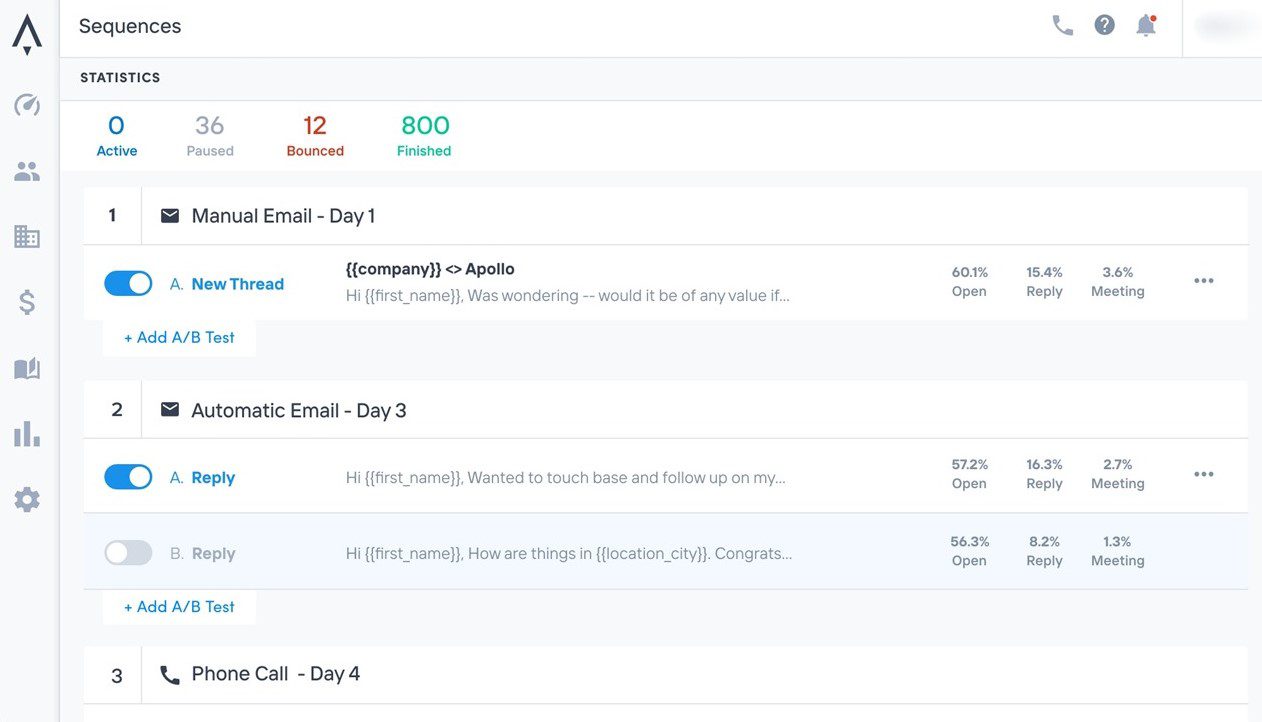
Apollo is a multichannel sales engagement platform that’s primarily cloud-based.
Its multichannel sequences—Playbooks—let you mix emails, LinkedIn, and calls into a single workflow. However, the Playbooks aren’t "smart," meaning they won’t adjust automatically based on your prospect’s responses.
On the bright side, Apollo integrates with tools like PipeDrive, HubSpot, and Slack.
It comes with A/B testing to help you optimize your campaigns. Moreover, if you’re ever stuck on how to write a message, Apollo’s built-in AI assistant is there to help.
Apollo also gives you access to its internal lead database of over 275 million contacts. But, fair warning—some users have found the lead quality to be a bit inconsistent.
Another downside is that Apollo scrapes new leads from LinkedIn using a Chrome extension, which isn’t ideal. Using it can be risky and might put your LinkedIn account in jeopardy and it may violate LinkedIn's ToS.
Apollo pricing
| Free | $0/mo per user with 1 mailbox / 2 sequences |
| Basic | $59/mo per user with 1 mailbox / 2 sequences |
| Professional | $99/mo per user with 5 mailboxes / Unlimited sequences |
| Organization | $149/mo per user with 15 mailboxes / Unlimited sequences *3 users minimum, billed annually |
Dripify vs. Apollo
| Features | Skylead | Dripify | Apollo |
| Cloud-based multichannel outreach | ✅ | ✅ | ✅ |
| Email automation | ✅ | ❌ | ✅ |
| Email verification | ✅ | ❌ | ✅ |
| Email warm-up | ✅ | ❌ | ✅ |
| Smart sequences | ✅ | ✅ | ❌ |
| A/B testing | ✅ | Limited | ✅ |
| Image & GIF personalization | ✅ | ❌ | ❌ |
| API or Webhook integration | ✅ | ✅ | ✅ |
| 1-on-1 Onboarding | ✅ | ❌ | ❌ |
Dripify alternative #7: HubSpot Sales Hub
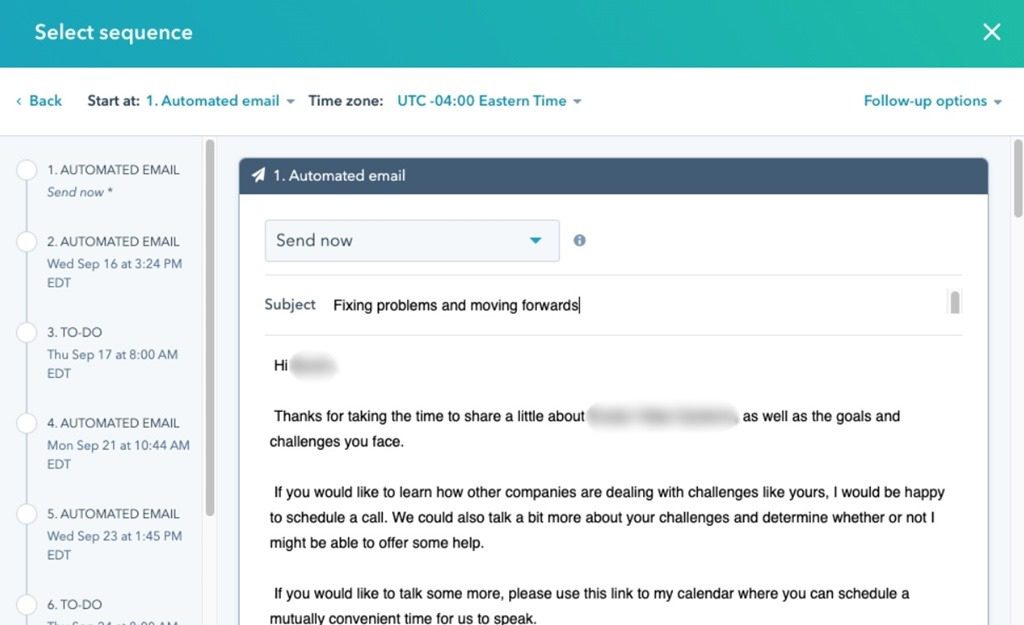
HubSpot Sales Hub is a cloud-based platform built with sales professionals in mind.
With it, you can connect up to 200 mailboxes (100 on a lower-tier plan) and send up to 1,000 emails daily (500 on a lower plan). Plus, the platform lets you create up to 5,000 sequences, albeit not smart, that include automated emails and follow-ups—ideal for scaling your outreach.
While HubSpot offers multichannel capabilities, they’re somewhat limited. You can add cold calling and LinkedIn outreach to your sequences. Both of these are manual steps which means this tool doesn't violate LinkedIn's ToS.
When it comes to LinkedIn, HubSpot only supports connection requests and inMails. Not to mention, you’ll need a Sales Navigator subscription to access those features. While HubSpot does offer a relatively high limit on connected mailboxes, it’s still a bit limiting. Skylead, however, gives you the freedom to connect an unlimited number of email accounts.
HubSpot Sales Hub pricing
| Sales Hub Professional | $100/mo per seat / up to 100 mailboxes |
| Sales Hub Enterprise | From $150/mo per seat / up to 200 mailboxes |
Dripify vs. HubSpot Sales Hub
| Features | Skylead | Dripify | HubSpot Sales Hub |
| Cloud-based multichannel outreach | ✅ | ✅ | ✅ |
| Email automation | ✅ | ❌ | ✅ |
| Email verification | ✅ | ❌ | ✅ |
| Email warm-up | ✅ | ❌ | Costs extra |
| Smart sequences | ✅ | ✅ | ❌ |
| A/B testing | ✅ | Limited | ✅ |
| Image & GIF personalization | ✅ | ❌ | ❌ |
| API or Webhook integration | ✅ | ✅ | ✅ |
| 1-on-1 Onboarding | ✅ | ❌ | Costs extra |
Dripify alternative #8: Salesrobot
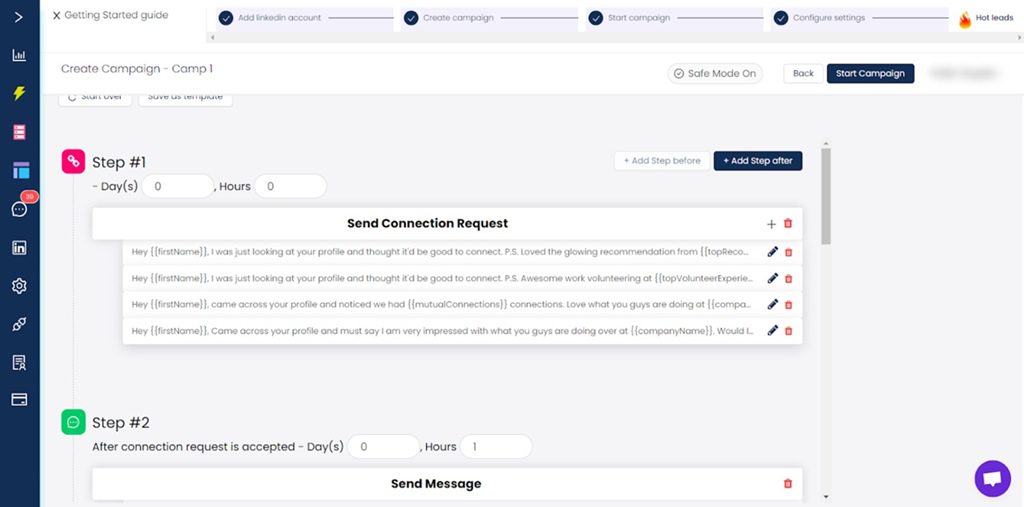
Salesrobot is a cloud-based LinkedIn and email automation tool that uses a Chrome extension to execute tasks. In other words, it's not compliant with LinkedIn's ToS.
It allows you to pull prospects from:
- CSV files
- Sales Navigator search URL
- LinkedIn search URL
- LinkedIn groups
- LinkedIn events
- Post comments
When it comes to LinkedIn actions, with Salesrobot you can automatically:
- Like your prospect’s most recent post
- Leave an automated comment
- Follow them
- Send a connection request
- Endorse their skills
The tool supports 2-way integrations with all CRMs and outreach tools through webhooks. Not to mention, there are direct integrations with popular platforms like Salesforce, Pipedrive, and HubSpot.
Its mini CRM, equipped with smart reply detection, lets you handle everything in one place. Here, you can reply to messages, tag positive leads, and apply advanced filters to keep your outreach organized.
Downsides-wise, Salesrobot only supports free inMails, so if you need paid inMails, you’re out of luck.
It also can’t find prospects’ or verify leads’ emails unless they’re publicly available.
Lastly, since it uses a Chrome extension for executing tasks, it can potentially lead to LinkedIn account restrictions. Therefore, it isn’t a perfect Dripify alternative.
Salesrobot pricing
| Starter | $99/mo per user / 1 LinkedIn & 1 email account |
| Pro | $397/mo per user / 1 LinkedIn & 10 email accounts *billed quarterly |
| Pro+ | $497/mo per user / 1 LinkedIn & 10 email accounts *billed quarterly |
Dripify vs. Salesrobot
| Features | Skylead | Dripify | Salesrobot |
| Cloud-based multichannel outreach | ✅ | ✅ | ❌ |
| Email automation | ✅ | ❌ | ✅ |
| Email verification | ✅ | ❌ | ❌ |
| Email warm-up | ✅ | ❌ | ❌ |
| Smart sequences | ✅ | ✅ | ❌ |
| A/B testing | ✅ | Limited | Limited |
| Image & GIF personalization | ✅ | ❌ | ❌ |
| API or Webhook integration | ✅ | ✅ | ✅ |
| 1-on-1 Onboarding | ✅ | ❌ | Higher subscription required |
Dripify alternative #9: Lemlist
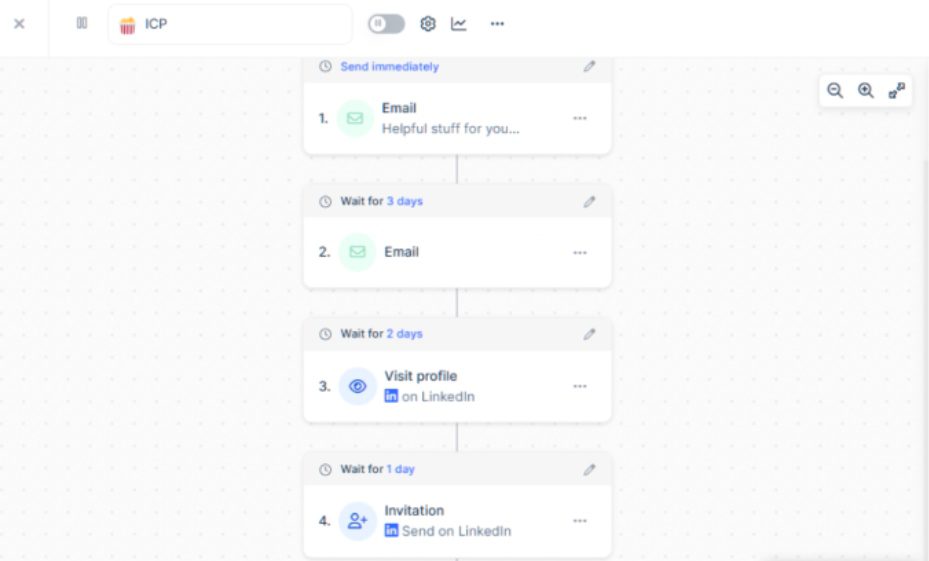
Lemlist is a cloud-based platform primarily designed for email outreach. However, with the higher-tier subscription, it expands to multichannel outreach, specifically supporting LinkedIn outreach and cold calling. However, it is not fully compliant with LinkedIn's ToS.
On LinkedIn, Lemlist can automatically:
- Visit leads' profiles,
- Send them connection invites,
- Send messages.
If you want to perform additional actions on LinkedIn (and make calls) using Lemlist, you can. However, you’ll have to do it manually once the tool reminds you to.
Nonetheless, this is somewhat compensated for with the ability to add conditions to your sequences. These make it possible to cover several different outreach scenarios.
When it comes to the key Lemlist feature, we must mention the so-called Lemwarm, its email warm-up. Using email warm up tools like Lemwarm, you can boost your email deliverability and keep emails from landing in the spam folder.
But where does Lemlist fall short?
For starters, its email finder and verifier, albeit useful, is quite limited. Even on the highest subscription, you're capped at finding and verifying up to 1,000 emails only. You can purchase more of these, but this will cost you extra.
Likewise, connecting up to 15 mailboxes is restricted to the top-tier plan. Not to mention, this is quite far from the unlimited number of mailboxes Skylead lets you add.
Finally, while Lemlist is cloud-based, its reliance on a Chrome extension for LinkedIn prospecting is concerning. So, if you're focused on keeping your LinkedIn account safe, this might be a dealbreaker that pushes you toward a different Dripify alternative.
Lemlist pricing
| Free | |
| Email Starter | $39/mo per user / 1 email account / 100 email verification credits |
| Email Pro | $69/mo per user / 3 email accounts / 150 email verification credits |
| Multichannel Expert | $99/mo per user / 5 email accounts & 1 LinkedIn account / 300 email verification credits |
| Outreach Scale | $159/mo per user / 15 email accounts & 1 LinkedIn account / 1,000 email verification credits |
Need more email verification credits? You can get an additional 20 for $1.
Dripify vs. Lemlist
| Features | Skylead | Dripify |
| Cloud-based multichannel outreach | ✅ | ✅ |
| Email automation | ✅ | ❌ |
| Email verification | ✅ | ❌ |
| Email warm-up | ✅ | ❌ |
| Smart sequences | ✅ | ✅ |
| A/B testing | ✅ | Limited |
| Integrated inbox | ✅ | LinkedIn inbox only |
| Image & GIF personalization | ✅ | ❌ |
| API or Webhook integration | ✅ | ✅ |
| 1-on-1 Onboarding | ✅ | ❌ |
Frequently asked questions (FAQs)
1. What does Dripify do?
Dripify is a LinkedIn automation tool that streamlines outreach, lead generation, and prospecting. It automates tasks like sending connection requests, messages, and free inMails while also helping personalize messages with 15+ variables. However, due to automation, Dripify is not 100% compliant with LinkedIn's terms of service.
2. Does Dripify offer a free trial?
Yes, Dripify offers a free trial, allowing potential users to explore the platform and its features before committing to a paid plan.
3. How long is Dripify free trial?
Dripify’s free trial lasts for 7 days.
Find your ideal Dripify alternative
We’ve gone through all the Dripify alternatives on the list. Now, it’s time to choose the one to level up your outreach.
As you make your decision, keep in mind—the right tool should be a 100% compliant with LinkedIn's terms of service, save you time, optimize your workflow, and deliver real, measurable results.
Skylead checks all these boxes!
With Smart sequences, powerful personalization, and built-in analytics, it gives you everything you need—all in one platform.
Ready to supercharge your outreach, save +11 hours a week, and drive more conversions?
Give our 7-day free trial a chance and discover a smarter, more efficient way to connect with leads.